
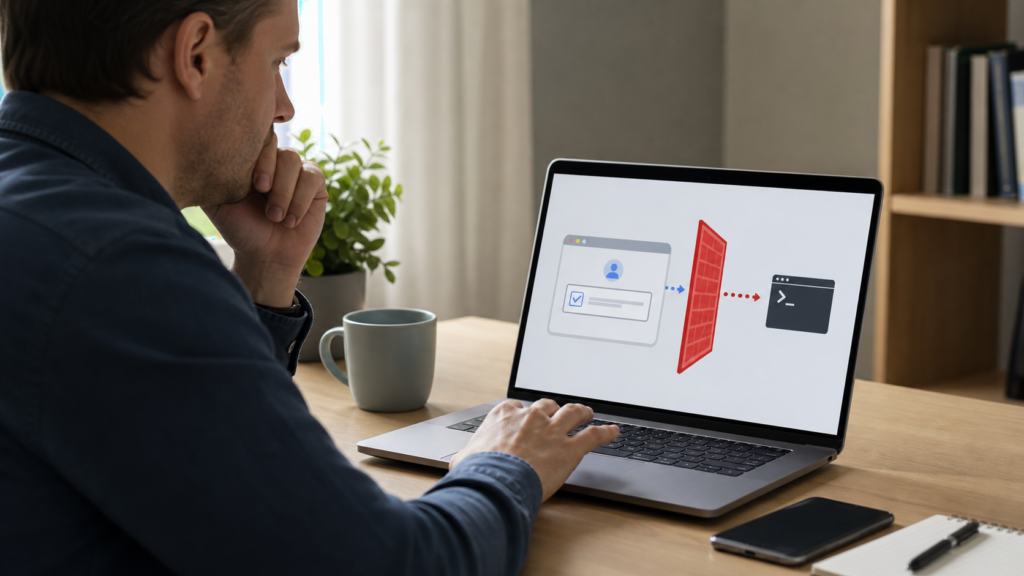
A box that says “Verify you are human” usually feels like a minor delay. You click a checkbox, wait for a spinner, perhaps solve a picture puzzle, and continue. Fake CAPTCHA scams exploit that routine. The page looks familiar, but instead of finishing inside the browser, it tells you to open Windows Run, PowerShell, Windows Terminal, Command Prompt, or Terminal on a Mac. It may then ask you to paste something you never saw and run it.
That is not human verification. The fake CAPTCHA is an attempt to make you execute a command for the attacker.
Microsoft’s analysis of the ClickFix technique says these lures have targeted Windows and macOS users through phishing, malicious advertising, and compromised websites. The commands can lead to information theft, remote access, or more malware. The safest response is simple: a real CAPTCHA stays in the browser. It does not need your operating system’s command tools.
This guide explains how fake CAPTCHA scams work without reproducing a harmful command. It also gives different response steps for seeing the page, clicking the checkbox, pasting into a system tool, and confirmed or possible command execution.
Key Takeaways
- A legitimate CAPTCHA may ask for a click or an in-browser puzzle. A fake CAPTCHA may ask you to open Windows Run, PowerShell, Command Prompt, Windows Terminal, or macOS Terminal.
- Fake CAPTCHA scams often copy a hidden command to the clipboard, then use keyboard instructions to persuade you to paste and run it.
- Clicking the fake CAPTCHA checkbox is not the same as executing the command. Pasting into a system tool needs more caution because hidden return or newline characters may cause a command to run.
- If you ran the command, treat the device as potentially infected even if nothing visible happened.
- Stop using a possibly infected device for email, banking, shopping, work, or password changes until it has been checked.
- From a separate clean device, promptly secure important accounts, revoke unfamiliar sessions, review recovery settings, and turn on strong multi-factor authentication while the affected device is being cleaned.
What to Do Now: Match the Response to the Exposure
Start with the last action that actually happened. Seeing the page, pasting into a system tool, installing something and exposing an account need different responses.
| What happened | Your first action |
|---|---|
| You only saw or clicked the page, without pasting, installing anything or entering credentials | Close it and overwrite the current clipboard item. Review downloads and extensions. An unopened download is not the same as installed software or an executed command; do not open it to inspect it. |
| You pasted into a system tool and are unsure whether anything ran | Close the tool. Some paste paths can execute a trailing return or newline. If you cannot confirm that no process launched, disconnect the device and use the possible-execution response below. Report a managed-device event promptly. |
| A command ran, or you installed an app or extension from the encounter | Stop sensitive use and isolate the affected device. Contact IT for a managed device. Begin urgent account/session and financial containment from a separate clean device while trusted cleanup proceeds. |
| You entered credentials or approved an unfamiliar sign-in, whether or not code ran | Treat the affected account as exposed. From a clean device, change the credential, end unfamiliar sessions and review recovery details. Contact the bank/provider immediately if money or financial access is affected. |
The FTC's malware guidance recommends stopping sensitive sign-ins on a potentially infected device and using trusted security tools and help. Its hacked-account recovery guidance explains password changes, signing out devices, multifactor authentication and recovery-setting checks. In this guide's response sequence, clean-device account containment runs alongside device cleanup; you do not need to wait for a scan to finish before addressing active account or financial misuse.
If you have not pasted, installed anything or shared account access, use these immediate page-closing steps:
- Do not follow the keyboard instructions.
- Close the tab using the browser’s own controls. If it remains unresponsive, use the official closing steps below.
- Do not approve downloads, extensions, notifications, administrator prompts, or security exclusions from that page.
- Overwrite the current clipboard item by copying a harmless word from a trusted local document or app.
- If the page came from a message, report the message as phishing. If it appeared through an advertisement or website, use the browser, advertising platform, or FTC reporting channel when practical.
- On a work, school, or managed device, tell the support or security team what happened, especially if you clicked, downloaded, pasted, or installed anything.
If a tab will not close normally, Microsoft's Edge instructions use Start > Task Manager > Processes > Apps, then right-click Microsoft Edge and choose End task. On a Mac, try Command-Q; if the browser remains unresponsive, Apple's Force Quit instructions use Option-Command-Esc, selecting the browser and choosing Force Quit. Force quitting can lose unsaved browser work.
Copying a harmless word replaces the current paste item. Microsoft's clipboard guidance explains that history, pinned items and synced content are separate; overwriting the current item does not erase those earlier copies.
Do not return to the page to test it. Do not send the link to friends so they can see it. If you want to warn someone, describe the page without asking them to open it.
If the fake CAPTCHA arrived after you clicked a suspicious link, use Quantum Cyber AI’s What To Do If You Clicked a Scam Link checklist to review the rest of the exposure, including credentials, downloads, and account activity.
A Real CAPTCHA Does Not Need Your Run Box
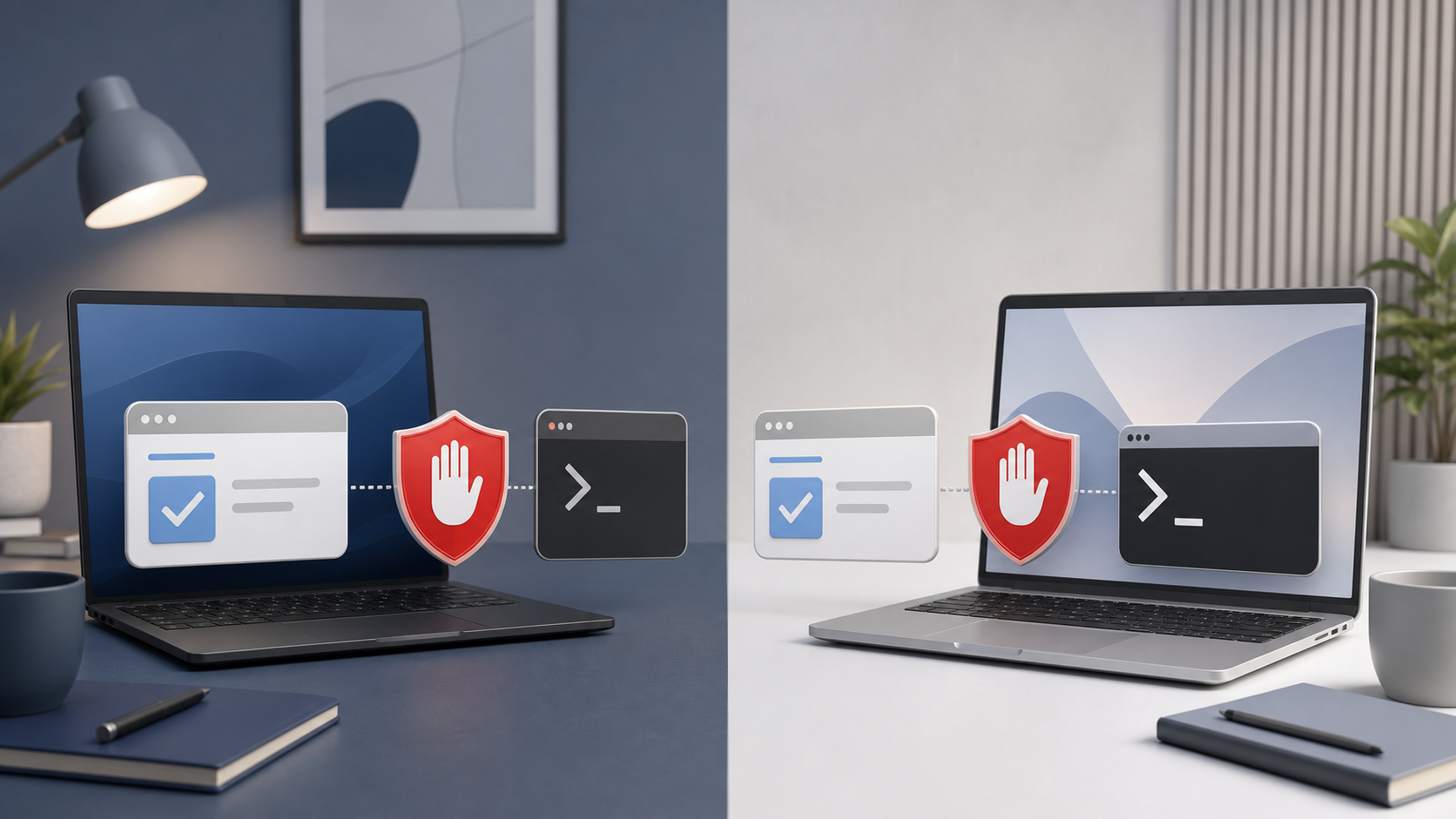
The cleanest way to recognize fake CAPTCHA scams is to draw a boundary around the browser. A normal verification tool evaluates the browser session and returns a result to the site. You might click a box, wait, choose images, use an audio option, or do nothing visible at all. The verification process remains part of the webpage. That browser boundary is the essential fake CAPTCHA test.
Cloudflare’s Turnstile documentation describes managed checks that may display a checkbox and other modes that run without visible interaction. The browser produces a verification result that the website validates. The visitor is not told to launch an operating-system utility, paste a command, or approve a script.
Remember this sentence: CAPTCHA stays in the browser. The fake CAPTCHA warning begins when the page asks you to cross that boundary.
If a page says verification requires Windows Run, PowerShell, Command Prompt, Windows Terminal, a shell, or Terminal on a Mac, stop. The page is asking for code execution, not proof that you are human. The same warning applies if it asks you to disable security software, add an antivirus exclusion, approve an unexpected administrator request, or install a browser extension to continue.
Visual polish does not change the rule. A fake CAPTCHA can copy colors, logos, checkbox styles, progress animations, and wording from services people recognize. A familiar design proves only that the designer knew what to imitate. It does not prove the page belongs to Google, Cloudflare, Microsoft, a file-sharing service, or the site you intended to visit.
The broader habit is useful beyond this one scam. Quantum Cyber AI’s Cybersecurity Basics hub explains how to pause when a routine online action suddenly asks for more access than the task should require.
How Fake CAPTCHA Scams Turn a Checkbox Into Code Execution
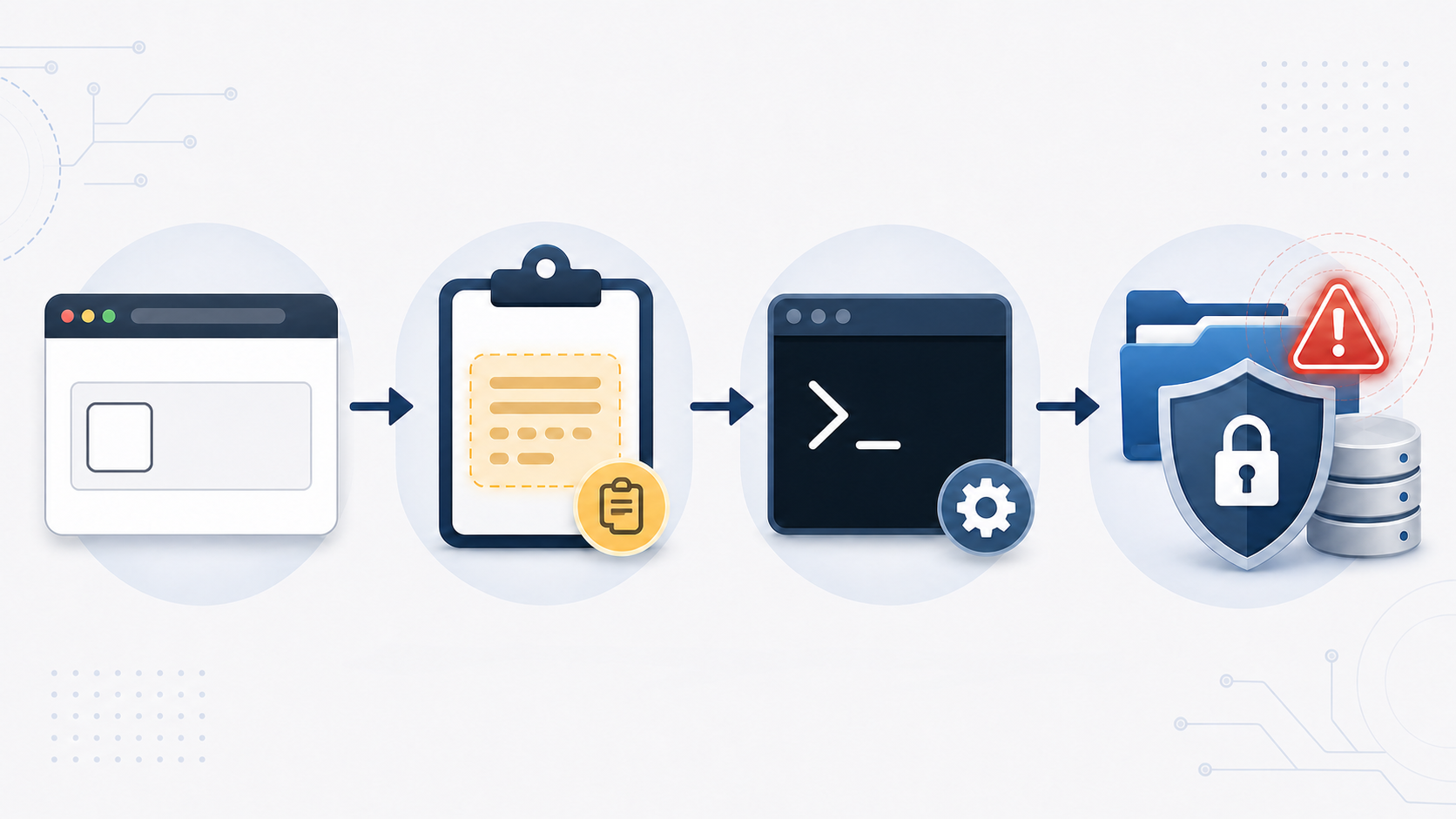
Fake CAPTCHA scams usually divide one dangerous action into several ordinary-looking steps. No single step feels dramatic. Together, they transfer a command from an attacker-controlled webpage into a trusted operating-system tool.
MITRE ATT&CK classifies this behavior as malicious copy and paste. The technique relies on social engineering a person into moving code from a browser, message, email, or document into a command interpreter. It applies across Windows, macOS, and Linux.
The page creates a small problem you want to solve
A fake CAPTCHA may say the site needs to confirm you are not a robot. Another version claims a document cannot load, a browser component is missing, a video player needs an update, a security check failed, or the browser must be repaired. The point is to create just enough friction that following three short steps feels easier than questioning the page.
The fake CAPTCHA page may appear after a search result, an advertisement, a link in a message, a shared document notice, or a visit to a legitimate site that has been compromised. Because the visitor chose to open the page, the prompt can feel connected to an action they already trust.
The click puts hidden content on the clipboard
When the visitor clicks the fake CAPTCHA control, page code may copy a prepared command to the computer’s clipboard. The command does not need to be displayed clearly. A spinner or success message can make the click look like normal verification while the clipboard changes in the background.
This is why the fake CAPTCHA instruction to paste is so important. The attacker does not need the visitor to understand the command. The page needs the visitor to carry it across the browser boundary.
Some fake CAPTCHA lures add harmless-looking words after the meaningful portion of the pasted content. The Run box may show text that resembles a verification message while the command that matters is harder to notice. Long strings, encoded sections, minimized windows, and fast-moving prompts can further discourage inspection.
The keyboard steps move the command into a trusted tool
Next, the fake CAPTCHA page tells the visitor to open an operating-system interface. On Windows, that may be the Run dialog, PowerShell, Command Prompt, or Windows Terminal. On a Mac, it may be Terminal. The visitor pastes the clipboard contents and submits them.
At that moment, the browser is no longer performing a CAPTCHA. The operating system is following a command under the current user’s authority. If the user has broad permissions or approves an administrator prompt, the possible impact can grow.
The fake CAPTCHA wording often presents the steps as mechanical. “Complete verification,” “fix the error,” or “continue to the document” sounds less threatening than “run code from this website.” The requested action is the same regardless of the label.
The first command can retrieve the real payload
The pasted fake CAPTCHA command may be only the first stage. It can contact an outside server, decode hidden instructions, start a built-in Windows utility, write a file into a temporary or user folder, create a scheduled task, or launch another program. That next program may steal information, provide remote access, or download additional malware.
This staging helps explain why a person may see no obvious result. A short window might flash and disappear. The fake CAPTCHA page may display a success message. The browser may return to normal. Quiet behavior does not prove the command was harmless.
Why the Fake Verification Feels Believable
Fake CAPTCHA scams are effective because they borrow trust from several places at once. The page resembles a familiar security check. The instructions use normal keyboard actions. The operating system opens a real tool. Each piece looks ordinary even though the combined request is dangerous.
The “prove you are human” framing also changes the reader’s goal. Instead of evaluating a security decision, the reader is trying to get past an obstacle. A checkbox encourages quick compliance. A countdown, failed-verification message, or locked-looking page can add urgency without making a direct threat.
The instructions are often split so the risk remains hidden. Clicking a checkbox is common. Opening Run is a normal Windows action. Pasting is common. Pressing the final key is common. The scam depends on the reader treating each step separately instead of asking why a webpage needs an operating-system command at all.
Familiar brands make the shortcut easier. A fake CAPTCHA page may resemble Cloudflare, Google, Microsoft, a social platform, a code repository, or a document service. Attackers also use wording such as “security verification,” “connection fix,” or “browser repair” because it implies the instruction comes from a protective system.
Another advantage for the attacker is that the visitor performs the decisive action. A browser or email filter may block a known malicious file, but it is harder to prevent every authorized user from opening a legitimate system tool. Successful fake CAPTCHA campaigns turn a person into the delivery mechanism.
None of this means the victim was foolish. The lesson is that surface familiarity is weak evidence. The reliable evidence is whether the requested action matches the job. A browser verification should not require a command shell.
Where You May Encounter the Trap
There is no single “bad website” category that contains every fake CAPTCHA. The lure can appear wherever an attacker can place a page, buy or redirect traffic, compromise a site, or persuade someone to open a link.
Search ads and software-download pages
A person searching for an ad blocker, utility, browser, AI tool, media player, or troubleshooting answer may see a sponsored result or convincing download page. The fake CAPTCHA page can claim that verification is required before the download begins. Another version starts with a fake installer or extension, then produces an error that demands a command-based fix.
The safer download habit is to navigate to the vendor’s known site or the operating system’s official store instead of trusting an advertisement. A high position in search results is not a security review.
Compromised legitimate websites
Some campaigns use a legitimate site that has been altered or that loads a malicious script from elsewhere. The address may therefore look familiar. The fake CAPTCHA may appear only for certain visitors, devices, locations, or referral paths, which can make the problem difficult for the site owner to reproduce.
This is why “I know this website” cannot override the browser-boundary rule. A trusted site should still not ask a visitor to run an unexplained operating-system command.
Phishing links and document lures
An email, text, direct message, or collaboration notification may say a document, invoice, video, repository, or shared file is waiting. The link leads to a fake CAPTCHA page that claims human verification is required. A compressed HTML attachment can create a similar experience locally.
Proofpoint’s ClickFix research documented fake GitHub notices, ChatGPT-themed advertising, multilingual CAPTCHA pages, document lures, and campaigns that delivered information-stealing and remote-access malware. The wrapper changed, but the requested copy-and-run behavior stayed recognizable.
Fake updates, browser crashes, and community invitations
Not every fake CAPTCHA lure looks like a CAPTCHA. A page may imitate a browser crash, a missing component, a software update, a Discord invitation, or a security warning. These belong to the same decision family when they instruct the visitor to paste code into a system tool.
The useful question is not “Does this look exactly like the example I saw?” It is “Why does this webpage need me to execute a command?” If the page cannot complete its task inside the browser or through a clearly identified, trusted installer from the vendor, stop.
Fake CAPTCHA Red Flags You Can Recognize Before Anything Runs
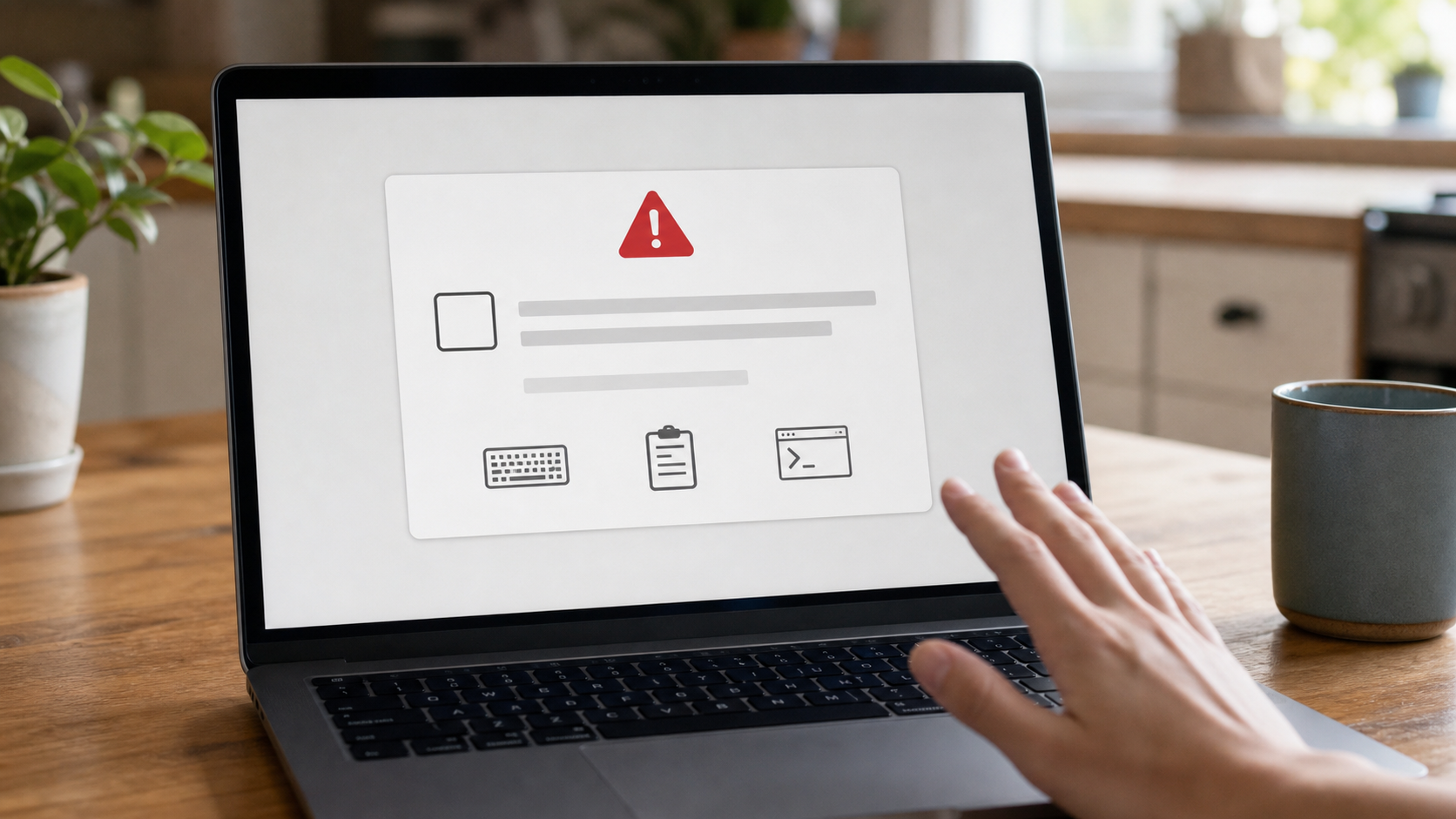
The strongest fake CAPTCHA warning sign is an instruction to leave the browser and use a command interface. Fake CAPTCHA scams may dress that instruction in technical language, but the requested transition is still visible.
Watch for these signs:
- The page asks you to open Windows Run, PowerShell, Command Prompt, Windows Terminal, a shell, or macOS Terminal.
- It provides a multi-key sequence and says the sequence is required to prove you are human.
- It tells you to paste even though you never knowingly copied a command.
- The pasted content is long, encoded, difficult to read, or followed by text that seems designed to look like a verification message.
- It asks you to approve an administrator prompt, bypass a security warning, disable antivirus, or create an exclusion.
- It claims the browser, document, video, or download cannot continue unless you perform a system-level fix immediately.
- A countdown, repeated error, full-screen page, or frozen-looking browser tries to make closing the page feel unsafe.
- The page’s apparent task does not justify the access requested. Reading a document does not require PowerShell. Joining a community does not require Terminal. Watching a video does not require the Run box.
- The instructions warn you not to close the page, not to contact support, or not to tell your organization’s IT team.
Do not paste the clipboard into another command window just to see what it contains. If you need to preserve evidence for a workplace incident, take a photo of the page with another device or note the address without interacting further. Your IT or security team can decide how to collect the evidence safely.
Also be skeptical of a fake CAPTCHA prompt that appears immediately after clicking an advertisement or visiting a software-download page. The FTC malware guidance advises consumers not to use search or social ads as the path to software downloads. Navigate to the known vendor site instead.
What a Fake CAPTCHA Command May Do
The impact of fake CAPTCHA scams varies. Not every page delivers the same malware, and seeing a fake prompt does not mean the worst outcome occurred. The important distinction is whether code ran and what that code retrieved.
One common goal is information theft. An information stealer may look for browser cookies, saved credentials, cryptocurrency wallet data, files, device information, or authentication material. Stolen session cookies can matter even when an account has a strong password because a valid session may already represent a signed-in user.
Another goal is remote access. A remote-access trojan can let an attacker interact with the device, run more commands, inspect files, or prepare additional stages. A loader may exist mainly to download something else. The first visible action therefore may not reveal the final purpose.
The risk can extend beyond one personal computer. The joint FBI and CISA advisory on Interlock ransomware documented fake CAPTCHA instructions that led targets to run encoded PowerShell as part of an intrusion method used by Interlock actors. That does not mean every fake CAPTCHA leads to ransomware. It shows why an executed command on a work device should be reported immediately.
Attackers also adapt the wrapper. Microsoft’s February 5, 2026 CrashFix research described a campaign that began with a malicious extension in the official Chrome Web Store, later disrupted the browser, displayed a fake repair warning, abused a legitimate Windows utility, and could install a Python remote-access trojan. Installing that extension was already exposure before a repair command ran. An official store is a better starting route, not a guarantee. A browser that suddenly behaves badly may be part of the pressure tactic, not proof that the proposed fix is legitimate.
Possible warning signs after execution include new browser extensions, redirects, security alerts, unfamiliar processes, disabled system tools, new startup behavior, account sign-in notices, messages you did not send, unexpected password resets, or financial activity you do not recognize. Malware may also stay quiet, so the absence of these signs is not enough to dismiss an executed command.
If You Clicked the Fake CAPTCHA but Did Not Run a Command
Clicking a fake CAPTCHA box may have copied content to the clipboard or changed what the page displayed. That is not the same as executing the copied command. If you did not open a system tool, paste the content, install an extension, approve a download, enter a password, or accept another prompt, the risk is lower.
Close the page and overwrite the current clipboard item with harmless text. Check the browser’s download list. A downloaded file that you never opened or ran can be deleted without opening it; that alone is not evidence that the command executed. If no extension or app was installed, no credential was entered and no system tool received pasted content, you generally do not need to behave as though code ran.
Run a normal security scan if a downloaded file was opened, the device displayed a security alert, an extension appeared, or the page triggered behavior you cannot explain. An installed extension or app calls for a software-exposure response even if no pasted command ran. Remove site notification permission if you granted it. Review recently installed extensions if the encounter began with a browser add-on; use trusted removal guidance or IT support rather than returning to the lure.
If you entered a password before or after the fake CAPTCHA, treat that password as exposed even if you never ran a command. Change it from a clean device, check the account’s recovery details and active sessions, and change it anywhere else it was reused.
Do not factory reset a device solely because you clicked a fake CAPTCHA checkbox. Match the response to the evidence. A scan and a careful review of downloads, extensions, and account activity are more proportionate when no command executed.
If You Pasted the Fake CAPTCHA Command but Did Not Intentionally Run It
Do not assume the command stayed idle just because you did not press Enter. The Apple Terminal User Guide says that pasted text containing a return character at the end of a line is executed immediately. Microsoft’s PSReadLine documentation explains that different PowerShell paste methods can pass newline-delimited input to the parser and produce different execution behavior. Other Windows command interfaces may behave differently, so the absence of an intentional final keypress is not reliable proof that nothing ran.
Close the dialog or terminal and the malicious page. Overwrite the clipboard with harmless text. If a window flashed, a process appeared, a download began, the device changed behavior, or you cannot reliably confirm that no process launched, disconnect the device and use the executed-command response below.
On a work, school, or managed device, report the event immediately even if you believe you stopped in time. The security team may be able to confirm whether a shell process launched, whether a network connection occurred, or whether a file was written. Do not reconnect, wipe, or investigate the managed device on your own.
If You Ran the Fake CAPTCHA Command
An executed fake CAPTCHA command changes the situation. Treat the device as potentially compromised even if the page displayed “verified,” the window closed, or nothing visible happened.
First ten minutes
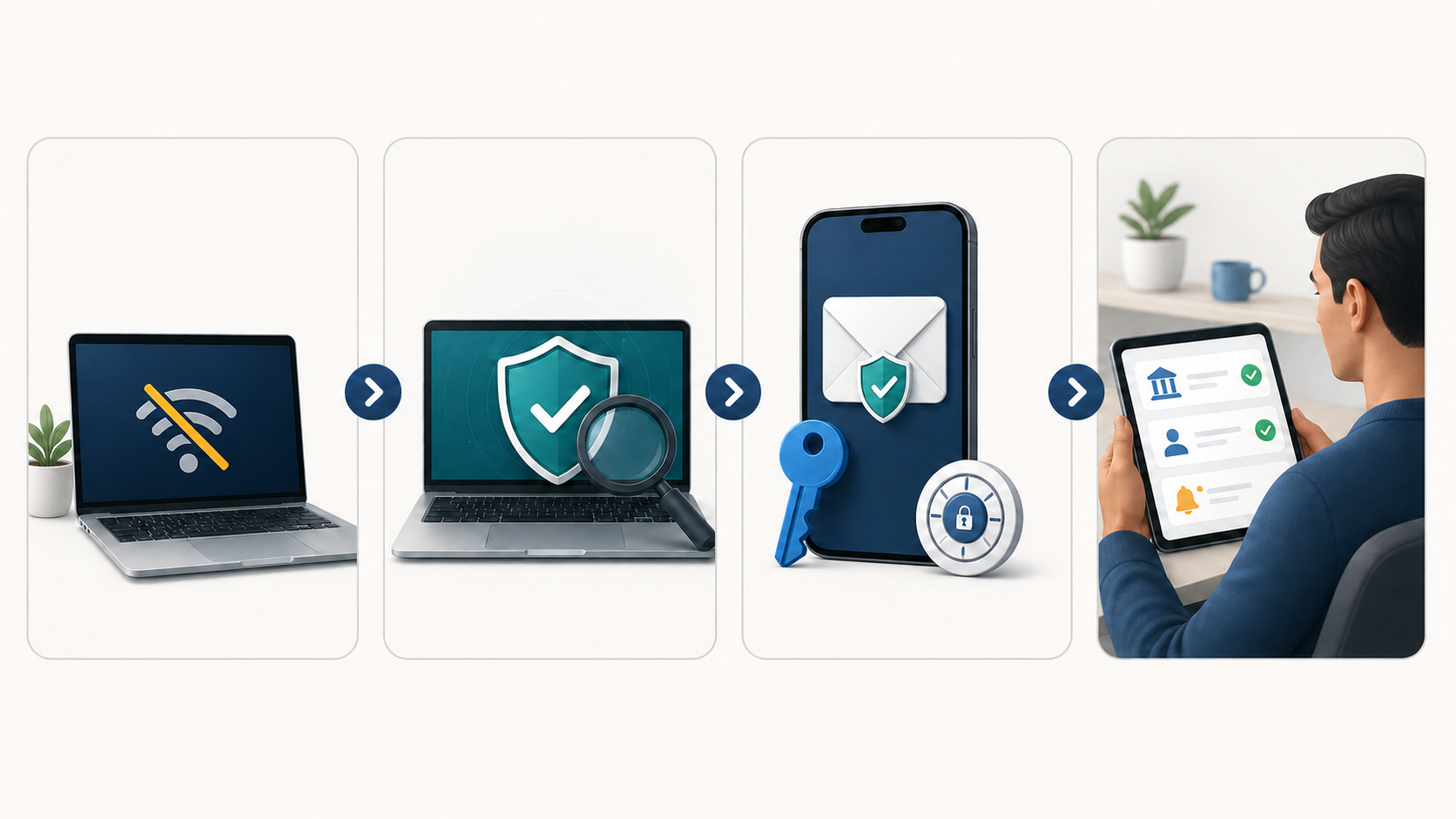
Disconnect the device from the network. Turn off Wi-Fi and unplug Ethernet if you can do so without following instructions from the suspicious page. This can interrupt some downloads, remote control, or data transfer, although it cannot undo activity that already completed.
Stop using the device for email, banking, shopping, work systems, cloud storage, or password management. Do not change passwords on the possibly infected device. If this is a work, school, or managed computer, contact the organization’s IT or security team immediately and follow its incident instructions. Do not wipe or reset a managed computer on your own.
Write down the approximate time, the website or message involved, the operating-system tool you opened, and whether you saw a download, warning, or administrator prompt. Do not rerun the command to reconstruct the event. A photo or brief note is safer than reopening the malicious page.
Scan and clean the device
On a personal device, start with trusted security software already installed. If its protection data is current, keep the device disconnected and run the product’s full scan. Quarantine or remove items it identifies, then scan again as the product directs. These personal-device steps do not override an organization’s instructions for a managed computer.
FTC malware recovery guidance tells consumers to stop sensitive sign-ins, update security software, run a scan, change passwords, enable two-factor authentication, and seek trusted help when needed. Keep normal sensitive sign-ins off the affected device while cleanup proceeds, and use a separate clean device for urgent account containment. The FTC also notes that malware can evade security software: a clean scan can help, but it cannot prove that no theft already occurred.
On Windows, consider an offline scan when a command ran, the threat returns, or the normal scan cannot resolve the problem. Microsoft’s Windows Security instructions explain that Microsoft Defender Offline restarts into the Windows Recovery Environment, where persistent malware has a harder time hiding or defending itself. Save open work before starting because the computer will restart.
Do not reconnect an affected personal device solely to fetch updates. If current definitions, recovery media, or additional instructions are required, use a separate clean device to obtain official guidance from the operating-system or security-software provider, or contact a trusted repair professional. Reconnect the affected device only when a trusted recovery plan explicitly requires it.
If scans continue to find threats, security settings remain disabled, accounts keep getting accessed, or the device still behaves strangely, get help from the device maker, your security-software provider, a reputable repair service, or your organization’s support team. A reset or clean operating-system reinstall may be appropriate when trusted cleanup cannot establish confidence. Restore files from a known-good backup rather than copying unknown programs or scripts back onto the device.
Secure accounts from a clean device
Use a separate device you trust promptly while the affected device is being cleaned. Start with the email account connected to password resets and any financial or workplace account showing active misuse. Then review the password manager, cloud storage, shopping accounts, social accounts and other accounts used or stored on the device. If you cannot access a clean device, contact the provider or IT through a trusted phone or other safe route; do not use the possibly infected device for the recovery sign-in.
Change high-value passwords to unique values. Sign out other sessions where the service offers that control. Check recovery email addresses, phone numbers, forwarding rules, app passwords, authorized applications, and multi-factor authentication methods. Remove anything you do not recognize.
If the browser stored passwords or the password manager was unlocked, assume those secrets may need attention. Prioritize accounts that control money, identity, email, work access, or other passwords. You do not have to change every low-value account in one frantic sitting. Work from the most powerful accounts outward and keep a record.
Turn on phishing-resistant options such as passkeys or security keys where available, and use authenticator-based or other strong multi-factor methods when passkeys are not offered. Quantum Cyber AI’s Passwords, Passkeys, and 2FA Explained guide can help you choose the strongest practical option for each account.
Watch for financial, identity, and workplace impact
Review bank and card activity, email security alerts, cloud-file sharing, social messages, and new device sessions. Contact the bank or card issuer promptly if you see activity you do not recognize. Preserve confirmation numbers and reports.
Check email forwarding and filtering rules because an intruder may try to hide security messages or copies of financial mail. Review account recovery settings and connected apps. If a work account was present on the device, tell the employer even if you already changed the password. The organization may need to revoke tokens, inspect sign-ins, or check other systems.
If personal information, identity documents, financial data or multiple accounts may have been exposed, keep one follow-up record of affected accounts, provider reports, unfamiliar activity and recovery responses. Device cleanup and wider identity monitoring address different parts of the incident.
Windows and Mac Users See Different Wrappers
Fake CAPTCHA scams are strongly associated with Windows Run and PowerShell instructions, but the underlying technique is not Windows-only. The decisive action is copying attacker-provided code into any trusted command interpreter.
On Windows, the page may name Run, PowerShell, Command Prompt, or Windows Terminal. It may claim the command clears a verification error, refreshes a component, updates the browser, or confirms the user. The wording does not make the command safe.
On macOS, a fake CAPTCHA page may direct the user to Terminal and present a shell command. It may frame the action as installing an update, opening a file, fixing an application, or bypassing a browser problem. The same browser-boundary rule applies.
Apple’s June 15, 2026 guidance about suspicious Terminal pastes describes warnings for people who do not regularly use Terminal and copy commands from a website, chat, message or email, as well as known-malware paste or script blocks. If macOS blocked that paste or script and you did not override it, nothing ran through that blocked action. That reassurance does not certify earlier downloads, installs or account exposure. Do not override the warning unless certain about what the command does and where it came from.
Do not click “Paste Anyway” because the webpage insists the action is necessary. A warning that interrupts an unexpected command is a reason to stop, not an obstacle the website gets to overrule. If you already overrode the warning and ran the command, disconnect and follow the incident response steps above.
Linux users should apply the same reasoning to a terminal. A website should not require a shell command to prove the visitor is human.
A Simple Household and Workplace Defense
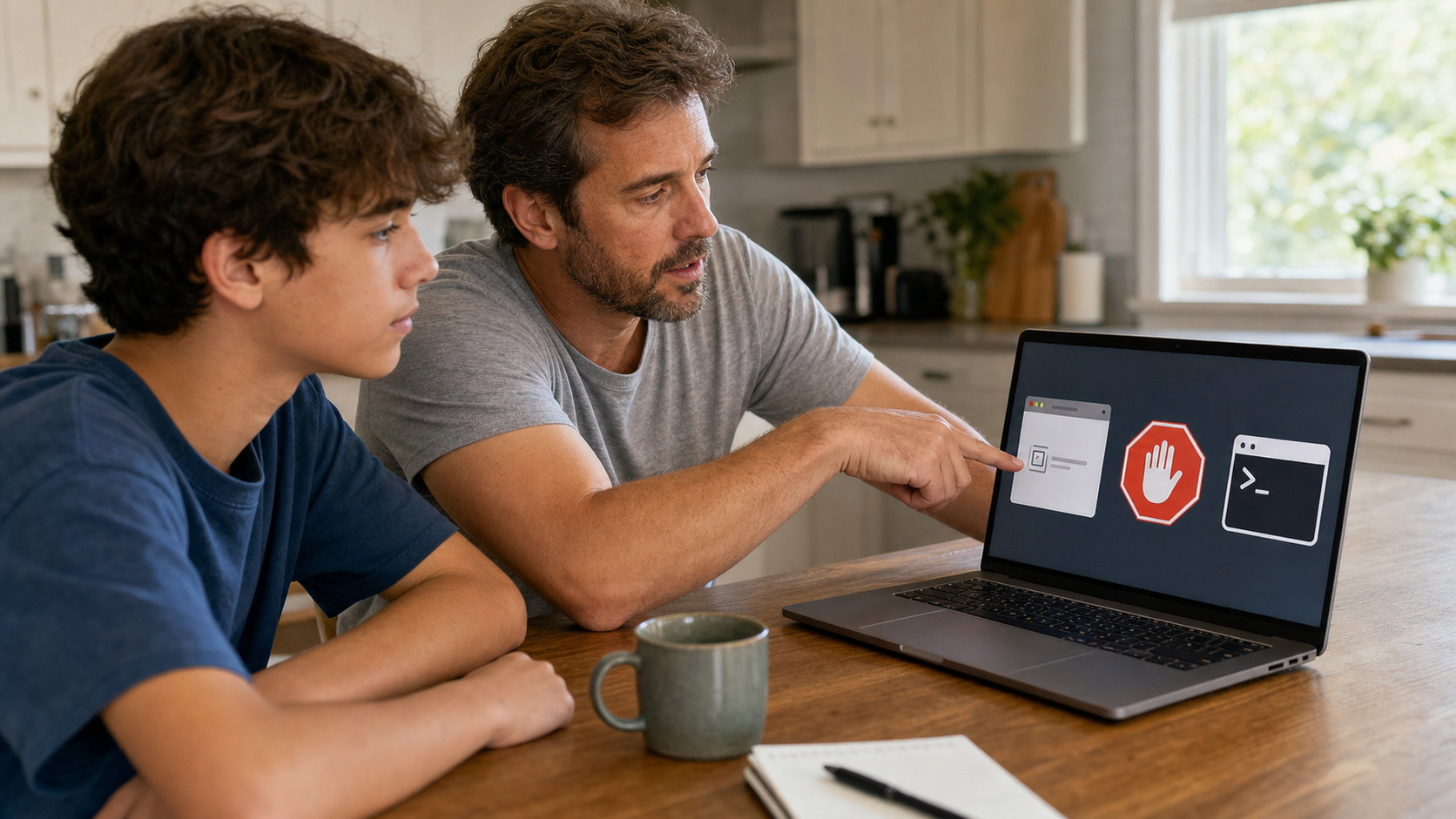
The best teaching message is short enough to remember under pressure: CAPTCHA stays in the browser. If verification asks for Run, PowerShell, Command Prompt, Windows Terminal, Terminal, a pasted command, or a security bypass, close the page and ask for help.
Teach the rule to children, older relatives, roommates, and coworkers without turning it into a technical lecture. Show them the boundary rather than a specific malicious screenshot. The design will change. The inappropriate request for system-level action is more durable.
Keep operating systems, browsers, extensions, and security tools updated. Remove extensions you no longer use. Download software through the vendor’s known site or an official store, not through a search advertisement. Use a standard user account for routine activity when practical so an unexpected command does not automatically receive broad privileges.
Households should make it easy to ask, “Does this look right?” before proceeding. A five-minute delay is cheaper than recovery. Avoid blaming someone who reports a mistake. People hide incidents when they expect ridicule, and the delay gives an attacker more time.
Organizations can add technical controls around the human rule. Web filtering and reputation services can block some landing pages. Endpoint tools can look for a browser session followed by suspicious shell execution, encoded commands, unexpected downloads, or new persistence. Where employees do not need the Run dialog or scripting tools, administrators can restrict them. Security teams should also create a reporting path that employees know how to use.
Training should distinguish exposure stages. An employee who saw the prompt needs different handling from one who executed the command. Clear questions produce faster answers: Did you click? Did the page copy something? Which tool did you open? Did you paste? Did you submit it? Did a download or administrator prompt appear?
Conclusion
Fake CAPTCHA scams turn a familiar security ritual into a command-execution trap. The page may look professional, use a recognized logo, or appear on a site you expected to visit. None of that changes the basic boundary.
A real CAPTCHA stays in the browser. It may ask for a click, a puzzle, or no interaction at all. It does not need Windows Run, PowerShell, Command Prompt, Windows Terminal, macOS Terminal, or a pasted command.
If you only saw the prompt, close it. If you clicked but did not open a system tool, overwrite the current clipboard item and review downloads, extensions and credentials without panicking. If you pasted into a system tool, do not rely on the fact that you did not press Enter; use the cautious response when you cannot confirm that nothing launched. If a command ran or software was installed, disconnect the affected device, stop sensitive use and report a managed-device incident. Secure important accounts from a separate clean device while trusted cleanup proceeds.
The design of the next fake page will change. The decision rule will still work.
For more calm, practical guidance on scams, account security, and device recovery, subscribe to Quantum Cyber AI.
FAQ
Can a website copy something to my clipboard without showing it?
A webpage can use browser clipboard features after an interaction such as a click, subject to browser rules and permissions. In fake CAPTCHA scams, the click may copy a command while the page displays a spinner or verification message. That is why an unexpected instruction to paste is a serious warning. Do not move unseen clipboard content into Run, PowerShell, Command Prompt, Windows Terminal, or Terminal.
Am I infected if I only clicked “Verify you are human”?
Not necessarily. Clicking may have changed the clipboard or advanced the fake instructions, but the central ClickFix chain relies on the person executing a command. Close the page, overwrite the clipboard, and check downloads and extensions. Escalate to a scan if a file was opened, an extension installed, a security warning appeared, or the device behaved unexpectedly.
What if I pasted the command but did not intentionally run it?
Close the dialog or terminal and overwrite the clipboard, but do not assume nothing ran merely because you did not press Enter. A pasted return or newline can trigger execution in some Terminal and PowerShell paths. If you cannot reliably confirm that no process launched, disconnect the device and use the more cautious executed-command response. Report the event immediately if the device is managed.
What should I do if I ran the command and nothing happened?
Assume the device may be compromised. Disconnect it from the network, stop using it for sensitive accounts, and contact workplace IT immediately if it is managed. On a personal Windows device, use trusted security software already installed and consider Microsoft Defender Offline. Use a separate clean device to obtain official recovery instructions or trusted help before reconnecting the affected machine. From a separate clean device, promptly secure important accounts and review sessions, recovery settings and financial activity while cleanup proceeds.
Do real CAPTCHAs ever ask for Windows Run, PowerShell, or Terminal?
No legitimate browser CAPTCHA needs those tools to verify that a visitor is human. A real challenge stays in the browser and returns a result to the website. Instructions to open an operating-system command interface and run pasted content are code-execution instructions, not CAPTCHA steps.
Can fake CAPTCHA scams affect Macs?
Yes. The visual lure can target macOS users and ask them to paste a command into Terminal. Apple now warns about some suspicious Terminal paste activity. Do not override such a warning because a website says the command is required. If you already ran the command, follow the same isolation, scanning, account-security, and reporting principles used for a Windows incident.