
Home devices
Home Network & Device Security
A practical hub for securing the router, Wi-Fi, phones, browsers, smart-home devices, and shared household tech that sit closest to daily life.
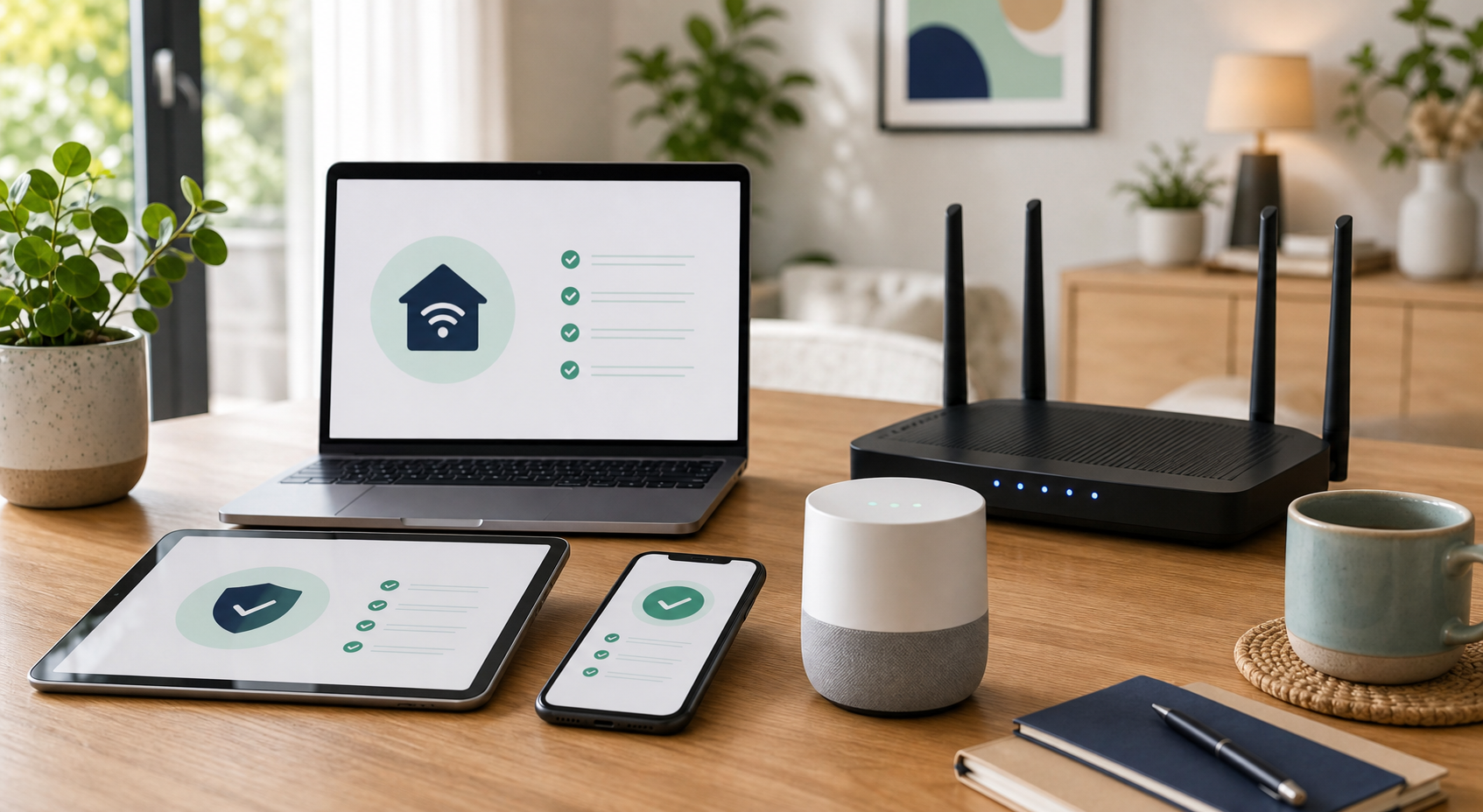
Use this guide when
You want a household security reset for the router, Wi-Fi, phones, laptops, browsers, smart devices, and accounts that keep them connected.
Start with the router
The router is the trust layer for the house. Phones, laptops, TVs, cameras, tablets, speakers, consoles, printers, thermostats, and guest devices all depend on it. If the router is still using a weak admin password, old firmware, or loose remote-access settings, every other device has to work harder.
That does not mean the router has to become a hobby. The goal is to make the default path safer: updated firmware, modern Wi-Fi security, a strong admin password, and a clear list of what is actually connected.
Router checks that matter
- Change the router administrator password if it is still the default or reused somewhere else.
- Turn on automatic firmware updates when the router supports them.
- Use WPA3 if available, or WPA2 if WPA3 is not supported.
- Disable remote administration unless you have a specific reason to use it.
- Review connected devices and rename the ones you recognize.
- Create a guest network for visitors and low-trust devices.
Separate devices by trust
Not every device in the house deserves the same access. A work laptop, a phone with banking apps, and a secondhand smart plug should not be treated like equal citizens. Use the guest network for visitors, temporary devices, and smart-home gear that does not need to reach laptops or shared files.
This is especially useful for cameras, voice assistants, TVs, unknown bargain devices, and older gadgets that no longer receive updates. Separation will not make a bad device good, but it can reduce what that device can reach if it becomes a problem.
Phones, laptops, and browsers
- Install operating system and browser updates before chasing smaller settings.
- Remove browser extensions you no longer trust or use.
- Use screen locks on phones, tablets, and laptops.
- Confirm that device-finding and remote-wipe options are turned on where appropriate.
- Back up important files before a lost device or malware scare forces the issue.
Smart-home device checks
Smart-home security often lives inside companion apps. A camera may be physically in your house, but the real controls may sit in an account shared with a spouse, relative, contractor, previous owner, or old phone. Review the app, not just the device.
- Change default names that reveal location or device type too specifically.
- Check who has shared access to cameras, locks, speakers, and hubs.
- Turn on two-step sign-in for the companion account when available.
- Review camera, microphone, and location settings.
- Remove devices or users from previous homes, roommates, contractors, or owners.
The 30-minute household reset
If you only have half an hour, use it on controls that protect the most devices at once. The point is not perfection. The point is to remove the easy paths: default access, unknown devices, abandoned apps, and accounts that still trust old phones or old users.
What to check when something feels off
Device problems are often ordinary: weak signal, old hardware, overloaded Wi-Fi, or a bad update. Still, some signs are worth checking instead of ignoring.
- An unknown device appears on the network repeatedly.
- A camera or microphone activates when no one is using it.
- A router setting changes, especially DNS, remote admin, or port forwarding.
- You receive login alerts for device accounts or cloud accounts.
- A smart-home account shows a new user, shared home, or linked service.
When to replace gear
Settings can only go so far. Replace devices when the manufacturer no longer provides updates, the admin password cannot be changed, the app requires unsafe permissions, the device was previously owned and cannot be cleanly reset, or the device is tied to a cloud account you cannot control.
What good enough looks like
- The router is updated and not using default admin credentials.
- Important devices are updated and locked.
- Guest and low-trust devices are separated from work and banking devices.
- Old users and old phones are removed from smart-home apps.
- You know where to start if a device, account, or payment method looks exposed.
Latest on this topic
Get the field guide in your inbox
Get practical cyber and AI safety checklists when new resources go live. No popup, no pressure, just the next useful thing.