
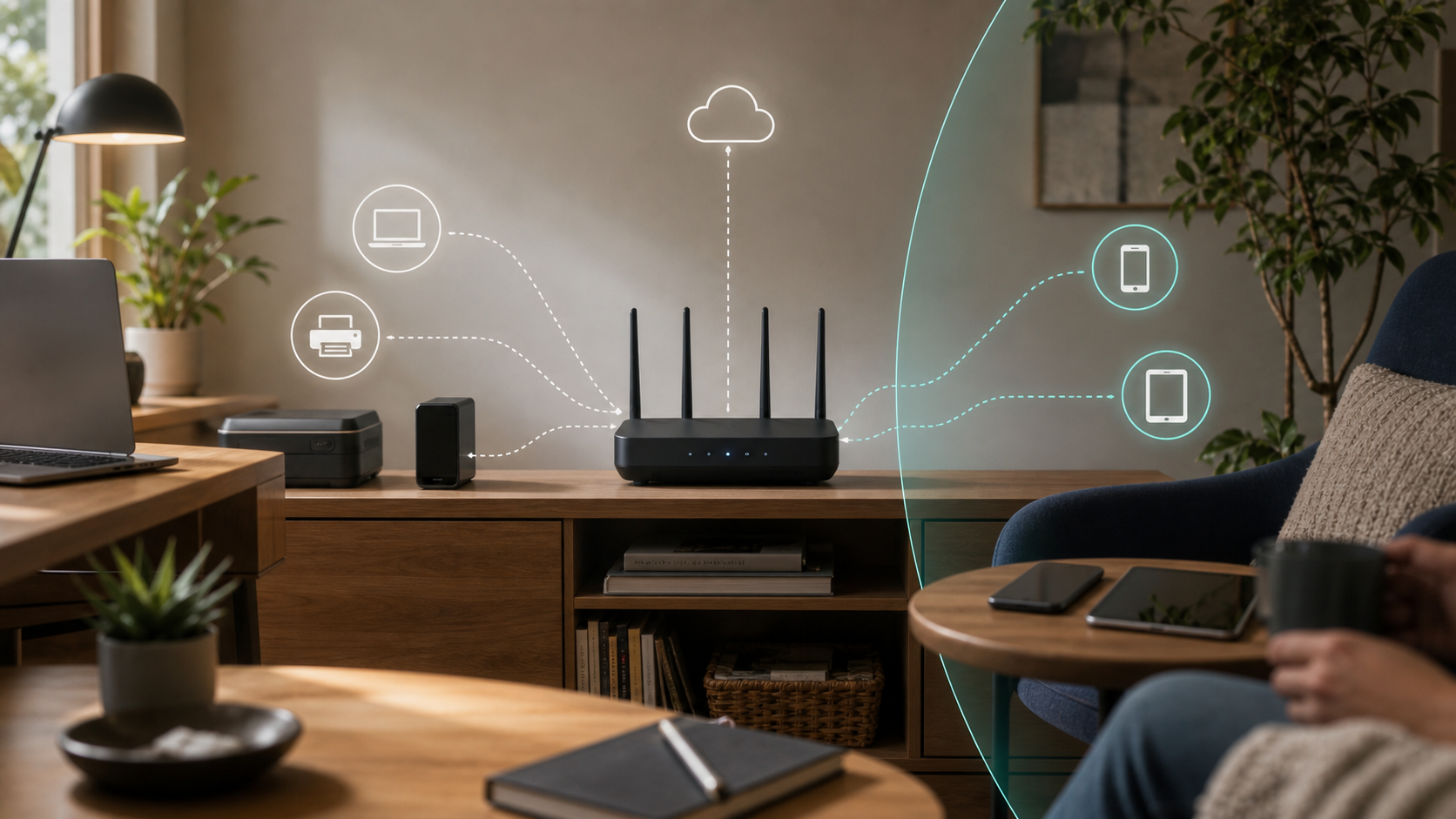
A guest network gives visitors a separate Wi-Fi password and can limit their access to private household equipment. That is useful when someone needs messaging, browsing or a video call but has no reason to reach your storage drive, camera, printer or router settings. You can make this limited connection the normal one to share while keeping your primary password for trusted devices.
The Federal Trade Commission's home Wi-Fi guidance recommends setting up a guest network and securing the router with modern wireless encryption, separate Wi-Fi and administrator passwords, updates and its firewall. The local privacy benefit depends on the router enforcing the intended separation. A second Wi-Fi name alone does not establish that guests are blocked from private devices.
Use the guest network to give each device the access its task requires. This guide starts with the first decisions, then explains setup, device placement and a limited check of the local outcomes that matter in your home.
Key Takeaways
- A guest network is most useful when it lets visitors reach the internet while blocking access to private devices on the primary network.
- Use a guest network password that is different from both the primary Wi-Fi password and the router administrator password.
- Visitors and temporary devices are usually good guest-network candidates. Smart-home and work devices need a more careful placement decision.
- A guest network does not make internet use anonymous, remove malware, repair a weak router, or guarantee that guest devices cannot communicate with one another.
- Router, mesh, and access-point behavior varies. A short local check can confirm specific tested outcomes, but it cannot prove complete isolation.
- If the primary password has been shared too widely, change it, reconnect trusted equipment deliberately, and check guest network access before sharing it again.
What to Do First
Start with a router and test devices you own or are authorized to manage. If the router belongs to a landlord, shared household or internet provider, establish who can change its settings before making changes.
- Find the official guest-network instructions for the exact router or mesh model and its Router or Access Point mode.
- Choose a guest password different from both the primary Wi-Fi password and the administrator password. Keep modern wireless security enabled.
- Turn off unnecessary local or intranet access. Check whether guest-to-guest isolation is a separate choice, and decide which resources, if any, guests should deliberately use.
- Start visitors on the guest network. Move a smart-home device only after identifying its required local functions; follow employer policy for a work laptop.
- Confirm a local function works on the primary network, then try the same address and function from the guest network. Record the primary and guest network results; detailed steps and certificate cautions appear below.
You can take these decisions one at a time. If the feature is unavailable or behaves differently from its documentation, use the maker's support channel rather than assuming a second network name supplies the boundary.
What a Guest Network Actually Changes Inside Your Home
One internet connection can still have separate local trust zones
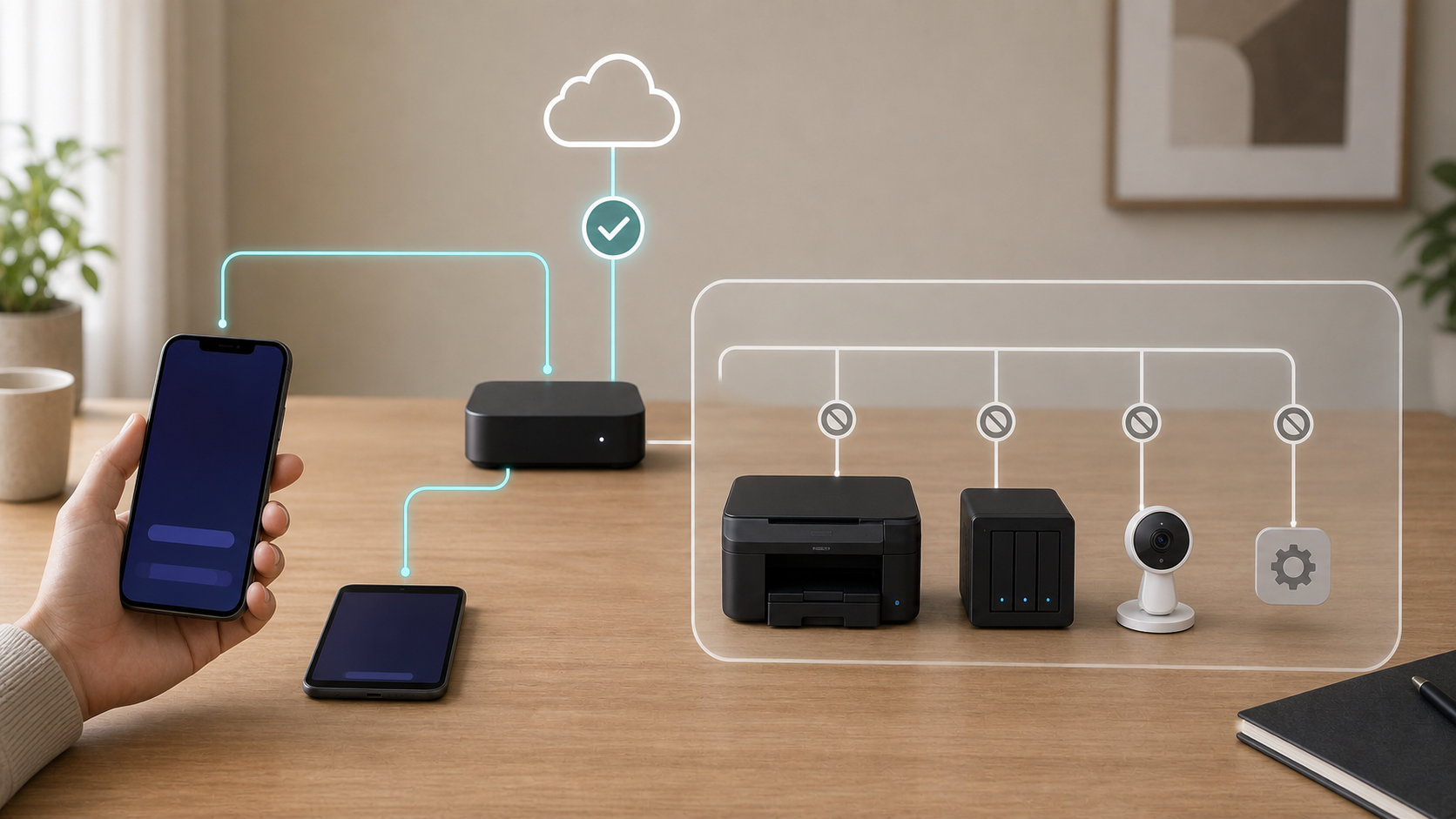
Your internet connection and your local home network are related, but they are not the same thing. A phone can need access to websites, messaging, and video calls without needing access to a printer, a shared storage drive, a camera, or the router’s settings page. A useful guest network separates those permissions.
Think of it as letting a visitor sit in the front room without handing over keys to every room in the house. The analogy is imperfect, but the decision is the same: access should match the reason the person or device is there.
The National Security Agency’s home-network guidance recommends using modern router features to create a separate wireless network for guests. It also recommends, at minimum, separating primary Wi-Fi, a guest network, and an IoT network so less secure devices cannot communicate directly with more secure devices. The NSA guide also says hiding the network name adds no security and may cause compatibility problems.
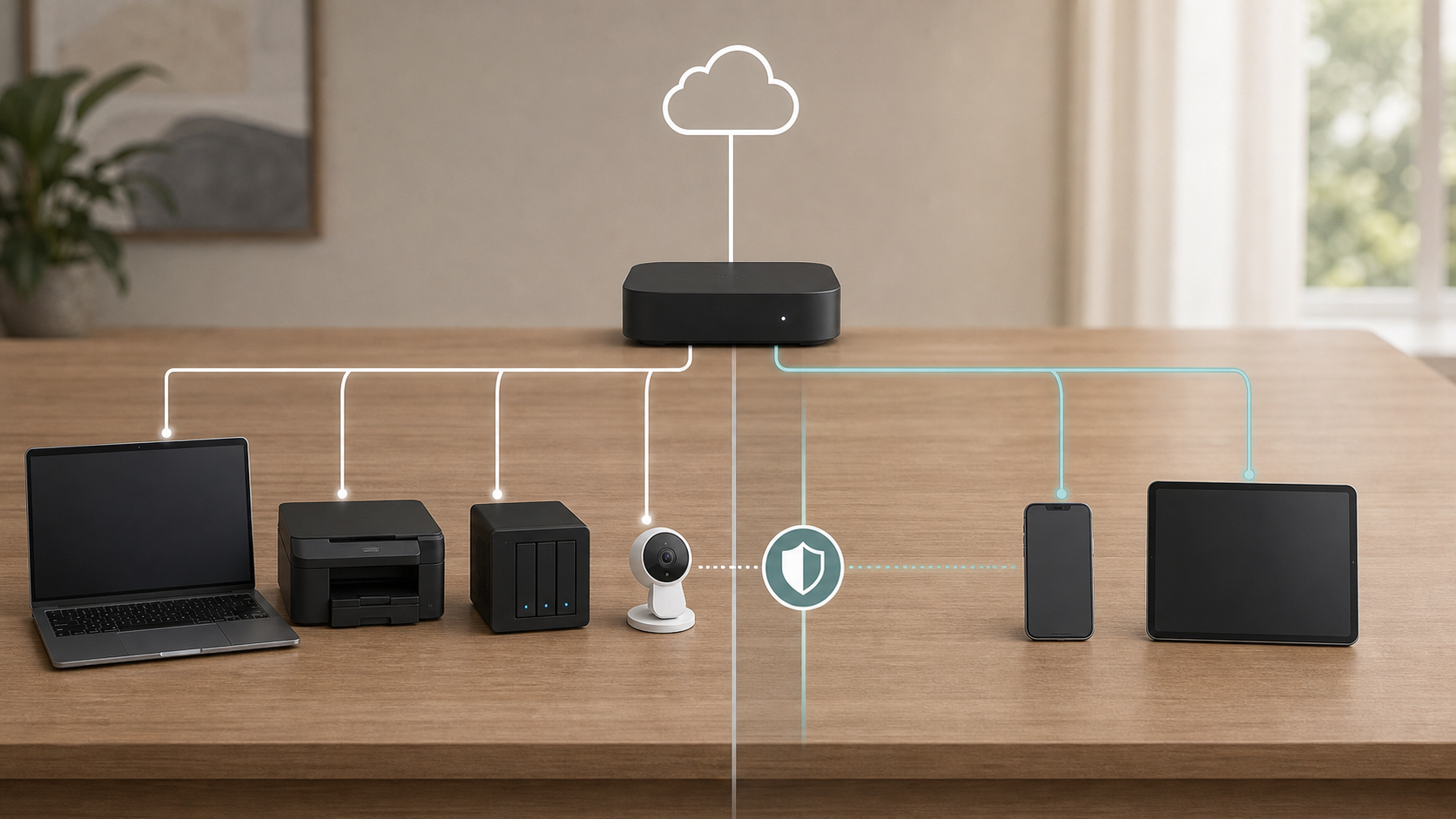
That separation usually happens inside the same router. Guests still use the household’s broadband connection, but the router applies different local access rules to their devices. This is why an isolated guest network can allow a visitor to browse normally while denying access to private local resources.
The router must enforce the intended isolation boundaries
A second network name, also called an SSID, helps people choose the right connection. It does not, by itself, guarantee any security boundary. If a setting such as “Allow local network access,” “Access intranet,” or “LAN access” is enabled, a guest device may still be able to discover or reach equipment on the primary network.
NIST’s consumer explanation of network segregation describes guest settings as a preconfigured way to let devices use the internet while preventing them from connecting to devices on other wired or wireless networks. NIST also notes that some routers provide another kind of isolation that prevents devices on the guest network from seeing one another.
Those are two different boundaries:
- Guest-to-primary isolation blocks guest devices from reaching trusted household devices.
- Guest-to-guest isolation blocks one guest device from reaching another guest device.
A router may offer both, only one, or a combined control. If you host several visitors, guest-to-guest isolation can be useful because one visitor’s phone has no normal reason to communicate directly with another visitor’s laptop. If two of your own test devices need to communicate, that same control may break the function. The setting should follow the intended use.
For a wider view of how routers and connected devices fit together, use the Home Network & Device Security guide.
Why Separate Access Can Matter Even When You Trust the Visitor
Most Wi-Fi sharing is ordinary and harmless. The uncertainty is the device: you may not know whether a visitor’s phone is updated, a laptop has an unsafe extension, or a tablet has been shared across several networks. A guest network reduces the local access you grant without assuming bad intent.
The aim is to make the appropriate boundary normal and consistent. A household can offer internet access easily while limiting the local reach of an unfamiliar device.
A relative, a child’s friend, or a contractor usually needs an internet service, not storage, cameras, printers, or router settings. A borrowed laptop or new gadget can also start on the guest network while you decide where it belongs, provided you do not already suspect compromise. Internet access does not automatically require broad local access.
What a Guest Network Does Not Make Private
It normally uses the same household internet connection
A guest network is usually a local separation feature inside the home router. It does not normally give guests a separate internet provider or a separate physical connection. Traffic from both networks still leaves through the household’s broadband service.
That means a guest network should not be described as anonymity. What a router owner, internet provider, website, or app can observe depends on the connections and systems involved, including encryption, DNS handling, VPN use, and logging. Using a guest network does not necessarily reveal complete browsing contents to the router owner or provider, but it does not hide every connection or activity detail either. For example, Google’s documentation for Nest Wifi and Google Wifi guests says some guest information, including IP and MAC addresses and usage data, may be associated with the owner’s account and visible through the Google Home app.
The privacy benefit discussed here is mainly local: guests receive a different password and less access to private household devices. That is useful, but it is not the same as hiding their internet activity.
It is not a VPN, malware scanner, or device repair tool
A VPN encrypts a connection to a VPN service or organization; a guest network creates a local access boundary. A guest network also does not remove malware, repair an exposed account, or make an unsupported device safe. Disconnect and investigate a device you suspect is compromised. Moving it does not undo stolen credentials.
A setting or operating mode can weaken the boundary
The words used in router interfaces vary. You may see “local access,” “LAN access,” “intranet access,” “private network access,” “client isolation,” “AP isolation,” or “wireless isolation.” Read the explanation beside the control and consult the official instructions for your exact model.
Operating mode can matter as much as the checkbox. TP-Link’s April 2026 instructions for Deco guest networks say the guest and primary networks are automatically isolated in Router mode, while Access Point mode provides an “Allow Local Access” switch. In the Deco app, the Access Point-mode control is under guest network > Advanced > Allow Local Access. Turn that off if guests should not reach main-network devices. The same page documents optional guest bandwidth limits and warns that features vary by model and software version.
That is a useful example of the larger rule: do not assume that a feature behaves the same across hardware, firmware, or network layouts. If local access is enabled and cannot be turned off, treat the guest network as a sharing convenience and do not rely on it for local separation.
Decide Which Devices Belong on Each Network
Start with two questions
Before moving a device, ask:
- How much do I trust this device to stay updated and well managed?
- Does it need to communicate with another device inside the home?
These questions are better than sorting only by owner. A trusted household member may own an old smart plug with poor support. A visitor may carry a well-managed work phone. Placement should reflect both the device’s condition and what it needs to do.
Use this table as a starting point:
| Device or situation | Likely placement | Reason or caution |
|---|---|---|
| Trusted household phone or computer | Primary network | May need printing, storage, casting, or device control |
| Visitor phone, tablet, or laptop | Guest network | Usually needs internet access, not private local resources |
| Contractor or temporary device | Guest network | Limited purpose and limited duration |
| Cloud-dependent smart plug or appliance | Guest or dedicated IoT network, if supported | Test setup, control, alerts, and updates before committing |
| Printer, local storage, media server, or controller | Primary or purpose-built IoT network | Often depends on local discovery |
| Work laptop | Follow employer policy; guest may work if local resources are unnecessary | VPN, printing, and support rules can affect the choice |
| Unrecognized device-list entry | Identify it before deciding | If there is evidence of compromise, disconnect the affected device; guest access is not quarantine |
Start short-term visitors on the guest network. If they need to print or cast, selectively share that function when the router supports it. Scheduled or expiring access can help with events and contractor visits, but a permanent isolated network with a controlled password can also be reasonable.
Check the functions a smart device needs
Cameras, speakers, TVs, locks, hubs, appliances, and printers are harder to place. A cloud-controlled plug may need only internet access, while a speaker, receiver, or hub may depend on local discovery.
The FTC’s camera security guidance suggests considering a separate network for cameras instead of placing them with computers and printers. That can reduce unnecessary local reach around privacy-sensitive equipment, but compatibility still needs checking.
Move one device first and check setup, updates, alerts, control, and required local functions. If something fails, identify the missing communication before changing a broad setting. For cameras, locks, speakers, or appliances, use the Smart Home Security Checklist.
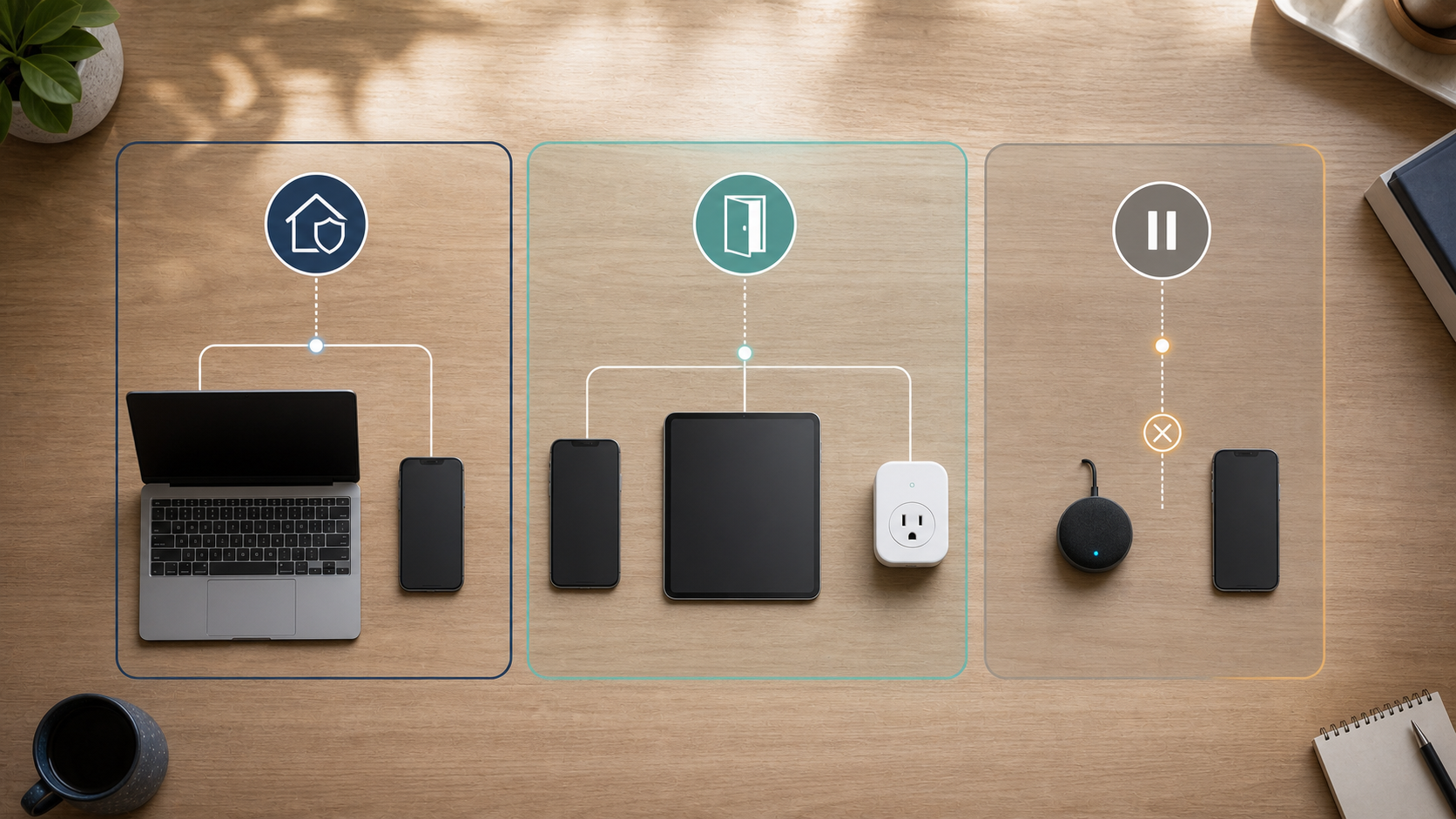
Some routers provide a distinct IoT network or custom profile. It may be a better home for connected equipment when it offers clear rules for internet access, local-device access, and trusted controllers. Do not trust the label alone; check the outcomes you rely on.
Set Up a Guest Network Without Weakening the Router
Record the current setup before changing anything
Identify the router or mesh model, operating mode, management method, and the internet provider’s role. Find the official instructions for the exact hardware version and confirm that update support is active. Record the current network names and any local printing, storage, casting, hub, or camera-viewing functions so you have a baseline.
Before changing guest network settings, work through the Home Router Security Checklist so the router itself is not the weak point.
The 2024 NIST consumer-router cybersecurity profile explains that smart-home and remote-work systems rely on routers. Guest separation should sit on top of a supported, securely administered router.
Choose a neutral name and separate credentials
Choose a recognizable, neutral name that does not reveal your surname, address, apartment number, equipment model, or valuable devices. Rely on the password, wireless security, and isolation rules for protection.
Use different values for three credentials:
- The guest network password lets a device join the limited network.
- The primary Wi-Fi password lets a trusted device join the primary network.
- The router administrator password allows someone to change security settings.
Each credential protects a different layer. Reusing one value defeats the separation; if a card or message exposes the guest network password, it should not expose either stronger credential.
Use WPA3 Personal when supported, or WPA2 Personal for required equipment that cannot use WPA3. Avoid an open network. Obsolete security or missing updates signal a broader router problem.
Turn off local access unless you have a specific reason to allow it
The exact interface will differ, but aim for these outcomes:
- Local-network, LAN, private-network, or intranet access is off.
- Guest devices cannot open the router-management interface.
- Guest-to-guest or client isolation is on when visitors do not need to communicate with one another.
- Deliberately shared devices are limited to the smallest necessary set.
- The guest network has a password.
- Optional expiration or scheduling matches how the household uses the network.
Official vendor pages illustrate why each outcome should be checked. ASUS documents an “Access Intranet” setting that can permit or deny access to the internal network, and it warns that available guest network features differ by model. On supported newer app layouts, use Settings > Guest Network > the profile > Network > General > Access Intranet, uncheck the main network, then Apply. A different model may need a different Guest, Pro or SDN path. NETGEAR’s Orbi instructions show a combined option that lets guests see one another and access the local network when selected.
Do not copy a screenshot or menu path from a different router and assume it applies. Use the official instructions for your model, firmware, app version, and operating mode.
Account for mesh nodes, extenders, and multiple bands
The names 2.4 GHz, 5 GHz, and 6 GHz describe radio bands, not trust labels. Google’s explanation of Nest Wifi radio bands shows that one network name can span the supported bands.
If you use a mesh system, extender, or separate access point, repeat the guest-network test through each connection path visitors will use. Record the result instead of inferring a boundary from a band name or topology diagram.
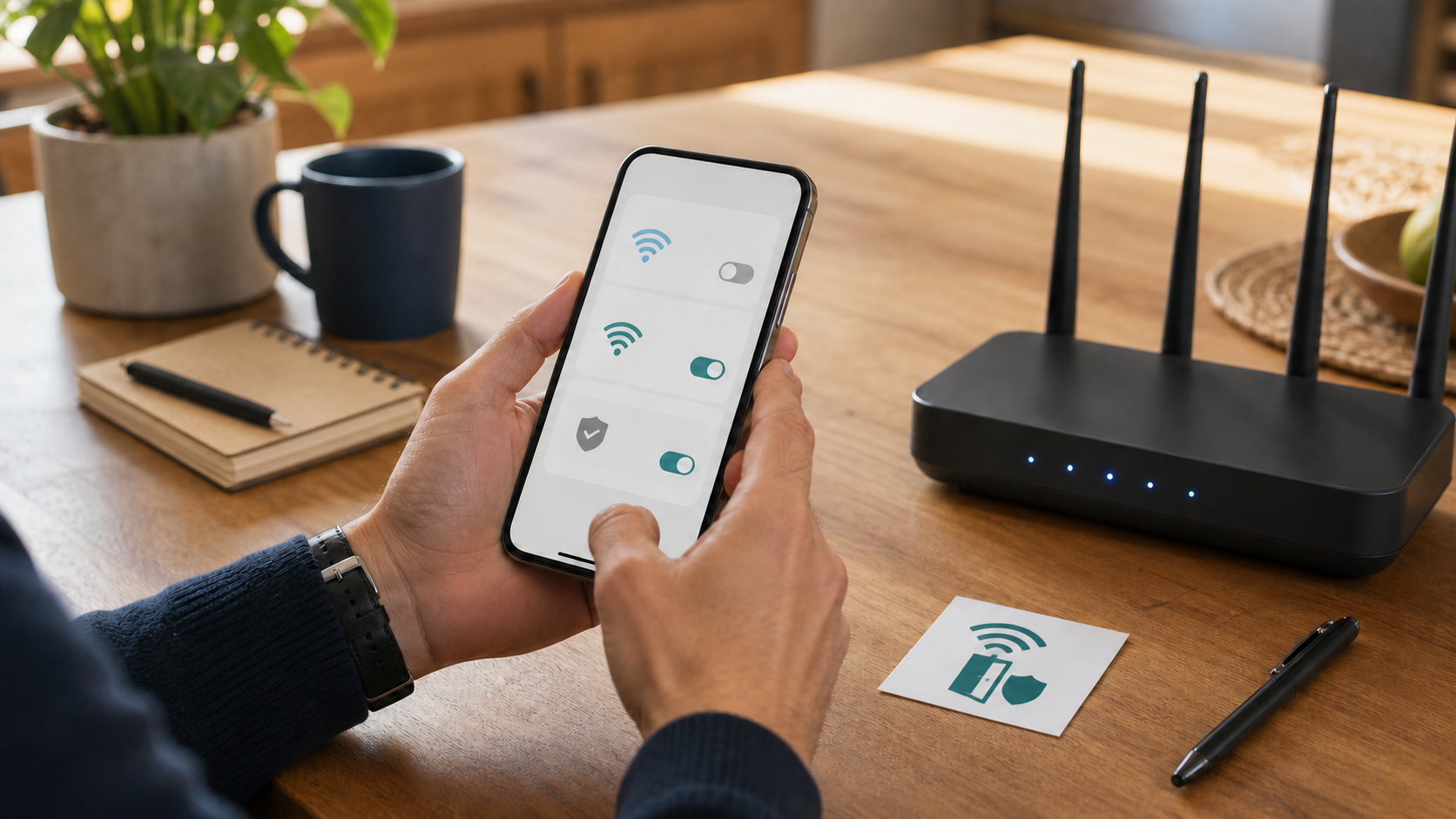
A router-generated QR code can make the guest network credential easier to share. Keep a printed code where only invited visitors can photograph it, never place administrator or primary Wi-Fi credentials on the card, and replace it when the guest network password changes. Make the limited connection the easiest one to share.
Check the Local Outcomes You Rely On
Establish a known-working primary-network comparison
Choose one local resource you own, such as a printer, storage share, camera or casting receiver. From a trusted device on the primary network, confirm the actual function works. Record the address and method you used: opening the same local printer page, browsing the same share or finding the same receiver. Do not create a new file share or open more permissions just to make a test possible. If you have no suitable working resource, record that limit instead of claiming it was blocked.
Use the router maker's official instructions to identify its local management address and confirm the expected local page responds from the primary network. You do not need to change settings or submit an administrator password for a reachability comparison. A vendor cloud app is a different path and may respond without local access.
Repeat the same attempt from the guest network
Use a phone, tablet or laptop you own and are authorized to test. Connect it only to the guest network, then temporarily disable cellular or mobile data and any VPN so those alternate routes do not confuse the local result. Keep the device's normal firewall and security protections on.
- Confirm that ordinary internet access works on the guest network.
- Try the same verified local management address, without entering credentials.
- Try the same address and local resource function that worked from the primary network.
- Note whether the router page or private resource responds, fails or is available through an intentional sharing exception.
- If guest-to-guest isolation matters, use two devices you own and a specific local function you know works between them under a permitted setup. Repeat the same attempt while both are guests; if you cannot establish that comparison, leave the peer boundary unconfirmed.
- Repeat from the mesh node, extender or connection path visitors will use when those paths are relevant. Restore the VPN and cellular data afterward.
The useful result is a comparison of the same function through two paths. Missing discovery, a failed ping or a login that fails authentication is not proof of complete network isolation. Microsoft's file-sharing guidance shows that discovery, service state and sharing permissions affect whether a resource appears or works. Its Windows firewall guidance also describes filtering and network-profile controls. Keep those protections in place; do not disable them to pursue an isolation result.
Read a response as reachability, without bypassing warnings
If a router page, login form or certificate warning responds at the verified local address, that is evidence that a service responded from the tested guest device. A failed administrator login does not turn a reachable management interface into a blocked one. Stop before entering credentials and compare the result with the boundary you intended.
TP-Link's explanation of local router HTTPS certificates notes that a local interface may use a self-signed certificate. For this limited check, treat the warning as a response and stop there. Do not bypass it, proceed past the warning or enter a password. The response does not authenticate an unexpected site or prove anything about other local devices. Ask official support about a management interface that remains reachable when it should be blocked.
Keep cloud access separate and record the limits
Do not treat access through an authenticated vendor app as automatic evidence that local isolation failed. Some apps reach the router through a vendor cloud service even when the phone cannot reach its local management address. TP-Link's guidance on local and remote app management treats those as separate paths and advises disabling mobile data and VPN service for a local check.
Write down the two network paths, the resource and method, what worked on the primary network, what happened on the guest network, and any device deliberately shared. If a private local service responds when it should be blocked, revisit local-access and isolation settings, operating mode and official support. If a function fails only for guests, that is evidence for the tested function; it does not certify every possible route or protocol.
Keep the check limited to your equipment. It is not an invitation to scan other networks or probe devices you do not own. Retest the specific outcomes after a major firmware update, router-app change, new mesh node, mode change or router replacement. There is no promised completion time or claim of complete isolation.
When Isolation Breaks Casting, Printing, or Smart-Home Control
Stronger separation can block useful local discovery
Many household conveniences depend on devices finding one another locally. A phone may need to discover a speaker before casting. A laptop may search for a printer. A smart-home app may need to find a hub during setup. If the router blocks local discovery, those functions can disappear even though both devices still reach the internet.
That failure may be the isolation doing exactly what you requested. eero’s guest-network documentation says guest devices cannot communicate with the primary network or with one another, and it gives local music streaming as an example of a function that will not work across that boundary.
Fix the smallest problem instead of opening the whole network
When a useful function breaks, identify the two devices that need to communicate and why. Then choose the narrowest workable change:
- Keep the controlling household phone and the controlled device on the primary network if both are trusted and local control is necessary.
- Use a dedicated IoT network that allows communication with a trusted controller while blocking broader access, if the router offers that design.
- Use selective sharing for one printer, speaker, television, or casting receiver if the router supports it.
- Leave temporary visitors isolated and perform the needed action from a trusted household device.
Google Nest Wifi’s guest-network instructions show one selective approach: the owner can choose particular devices, such as a streaming device, smart TV, speaker, or printer, for guests to use. In the current Google Home app instructions, open Home > Wifi > Devices > Network settings > Guest Network, choose the specific Shared devices and Save. That is a more precise response than allowing every guest to reach the entire primary network.
If your router offers only an all-or-nothing switch, decide whether the convenience is worth the access it grants. Do not silently weaken isolation for every visitor to solve a one-time casting problem.
Agree on household and shared-housing rules
Children’s devices raise a different issue. Guest isolation limits access to local equipment. Parental controls address content, schedules, purchases, and supervision. One is not a substitute for the other.
Roommates and long-term residents may need a more explicit household design. Decide who can administer the router, which resources are shared, and whether a dedicated resident or IoT network is available. Write down which residents can use the printer, shared storage or casting equipment and which person can change router settings. For a child’s device, review the controls that address schedules, content and purchases separately from local isolation. Ask the router maker which controls apply to the particular network before assuming a guest profile enforces them.
If Someone or an Unknown Device Already Used the Main Network
If there is evidence of active intrusion, disconnect or block the affected device through a trusted route and use known official support before spending time on a long inventory. Keep a device you suspect is compromised off both networks while it is assessed. The guest network is not a malware quarantine or a repair tool.
Identify an unfamiliar entry before assuming intrusion
Finding an unfamiliar name or remembering that you shared the primary password can be unsettling. Access to the network does not prove that someone opened files, changed the router, viewed a camera or installed malware. Check the available evidence and household equipment before assigning a cause.
A device-list label may be generic, old or different from the name you use for a phone or appliance. Google's Android device-address instructions explain that Android 10 and later can use a network-specific randomized MAC address, distinct from the address shown under About phone. In Settings > Network & internet > Internet, open that network's Settings and compare the Randomized MAC address actually used there. You do not need to switch the privacy feature off merely to identify the phone.
Compare the list with household phones, laptops, TVs, hubs and appliances. Check which device is connected and use its own network details when available. A known device using a different address calls for a better label; an unwanted connection calls for access control. Stronger evidence, such as unexplained router-account or settings changes, needs a more urgent response than an unfamiliar name alone.
Restore control over who can connect
The NSA’s guidance for suspected personal-network compromise lists foreign devices and unexplained router-credential changes as possible indicators, while warning that several apparent indicators can also have non-malicious causes. It recommends disconnecting suspected devices and, when the evidence warrants it, updating or resetting network equipment and changing affected credentials.
For an unfamiliar connected device without signs of active intrusion, compare it with equipment in the home first. Note its name, network-specific address, connection time and any other useful details, then pause or block it if the concern remains. When unauthorized activity is ongoing, contain it promptly and collect the remaining details afterward. Change the primary Wi-Fi password when it was shared beyond the intended group, is stored on a device that should no longer connect, or appears to be used without permission. Reconnect trusted equipment deliberately to create a clean inventory.
Create or repair the guest network before sharing access again. Check expected local reachability from a guest device rather than relying on the app’s network label.
Review the router itself
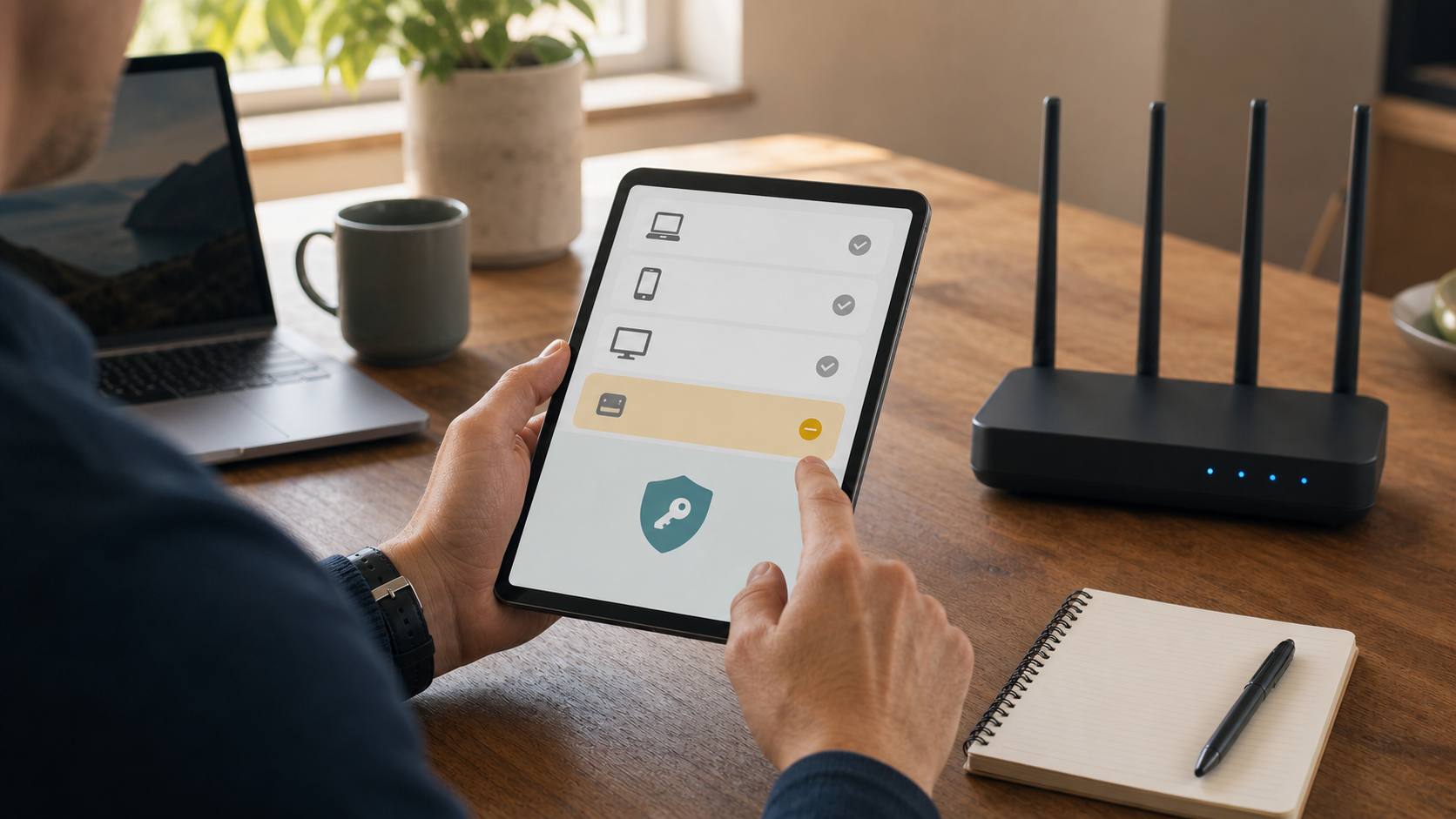
The FTC’s connected-device guidance recommends checking the router’s device list, changing default settings, enabling encryption, installing updates, and keeping device firmware current. Use that broader review after a questionable connection.
Check these items:
- The router administrator password is unique and has not been shared.
- Router and mesh firmware is current and still supported.
- Remote administration is off unless there is a specific, secured need.
- DNS settings, which choose the resolver used for domain-name lookups, match the router or internet provider’s intended configuration.
- Port-forwarding rules, which expose a chosen device or service to inbound internet traffic, contain no unexplained entries.
- Administrator and firewall settings contain no unexplained changes.
- The primary and guest networks use modern encryption and distinct passwords.
- Connected devices are recognized or investigated.
Do not change unfamiliar values blindly. Compare them with official instructions for the exact router model and, when applicable, the internet provider’s configuration. If you cannot establish the intended baseline, contact the provider or router manufacturer before changing DNS, port-forwarding, firewall, or administration settings.
Choose recovery for the affected router, device or account
If a device shows signs of infection, disconnect and assess it; changing Wi-Fi credentials does not remove malware. If an online account may be exposed, use a trusted device to change its password, enable strong multi-factor authentication, and review sessions. Match the response to the evidence rather than assuming every account is compromised because a visitor used the primary Wi-Fi.
A reset may be appropriate when administrator access cannot be trusted, unexplained settings return, an unknown administrator cannot be removed, or official support recommends it. First collect the internet-connection details and secure settings you will need to recreate.
After the reset, follow the router maker’s official setup instructions. Update the router, set a new administrator password, configure the primary network, create the guest network, and check the expected boundary again.
Keep the Boundary Useful After Setup
Change the guest password when access should change:
- It was posted publicly or shared beyond the intended group.
- A former resident, contractor, or recurring visitor should no longer connect.
- The router shows repeated unwanted connections.
- The household changes how the guest network is used.
Use expiring access for short events or temporary workers when the router supports it.
After a gathering, household change, router replacement, or major update, review the client list and retest the local outcomes you rely on. Label devices when possible and remove stale access. Replace printed QR codes when the guest password changes, and keep administrator credentials separate from guest instructions.
Keep a simple note without passwords: router and mesh models, official support pages, the purpose of each network, the date of the last local check, and any printer, speaker, television, or other resource deliberately shared. It gives the household a baseline for troubleshooting and a clear answer about which network to share.
When casting or printing stops after a change, compare the result with this baseline before weakening a broad setting. The note also helps another household member share the right network without exposing administrator details.
Want more calm, practical guidance for protecting your devices and data? Subscribe to Quantum Cyber AI.
Conclusion
A guest network is a small household change with a clear purpose: give visitors and selected devices the internet access they need without automatically giving them the same local access as private computers, storage, cameras, printers, and router settings.
The protection depends on configuration. Use a separate password, turn off unnecessary local or intranet access, decide whether guest devices should see one another, and check expected reachability from a real device. If casting, printing, or smart-home control breaks, solve that specific need instead of opening the entire primary network.
Three actions can move you forward today:
- Check whether your router offers an isolated guest network.
- Configure separate credentials and disable unnecessary local access.
- Connect a test device and record what it can reach locally.
A guest network is not complete protection, but it is a practical expression of a strong security principle: every person and device should receive only the access required for the task.
Frequently Asked Questions
Is guest Wi-Fi the same as using the 2.4 GHz or 5 GHz band?
No. The frequency band describes how a device connects by radio. A guest network describes the access rules applied after it connects. Devices on different bands may still share the same local network, and devices on the same band may be separated by guest rules.
Do not assume that two network names or two bands create privacy. Check whether the router actually blocks guest network access to the primary network and its devices.
Does a guest network slow down the primary Wi-Fi?
Both networks usually share the router and internet connection. Google’s Wi-Fi troubleshooting guidance notes that active devices compete for bandwidth. If performance changes, compare results with and without guest activity and check signal strength, mesh placement, plan limits, and router capacity. A bandwidth limit can manage performance, but it does not replace isolation or secure credentials.
Can devices on the guest network see one another?
It depends on the router. Guest-to-primary isolation and guest-to-guest isolation are separate controls. A router may block the primary network while still allowing guest devices to communicate, or it may isolate every guest device from all others.
Look for settings called client isolation, AP isolation, wireless isolation, or “allow guests to see each other.” Then check with two devices you own. If they can communicate when you intended to block that access, revise the setting or consult the official support documentation.
Should all smart-home devices go on guest Wi-Fi?
No blanket rule works for every product. Cloud-controlled plugs or appliances may work with only internet access, while speakers, printers, receivers, and hubs may need local discovery. Move one device first and check every function the household needs. A dedicated IoT network may be better when it offers clearer communication rules; keep a device on the primary network only when a required local function justifies that access.
Does guest Wi-Fi hide a visitor’s browsing from the router owner or internet provider?
No. A guest network is mainly local separation, not anonymity. What the router owner, provider, websites, and apps can observe depends on encryption, DNS handling, VPN use, logging, and the systems involved. Guest Wi-Fi does not necessarily expose complete browsing contents to the owner or provider, but it does not create a separate internet connection or conceal every connection detail.
It can still provide a meaningful privacy benefit inside the home by protecting the primary password and limiting access to private local devices. Just describe that benefit accurately.
Can a work laptop use the guest network?
Often, if it needs only internet access and the employer permits it. A corporate VPN or cloud apps may work while local printing or discovery does not. Follow workplace policy and do not change security software or weaken the home network without authorization.
What should I do if my router has no guest-network option?
Check whether the router has a supported firmware update and whether the internet provider’s gateway app exposes a guest setting. Confirm that you are looking at the instructions for the exact model and operating mode.
If the router is unsupported or cannot provide the boundary your household needs, consider a supported replacement or a properly configured additional network device. Renaming a band, hiding an SSID, or adding an ordinary extender does not establish isolation. Whatever design you choose, check the expected local outcomes from a connected device before relying on them.