
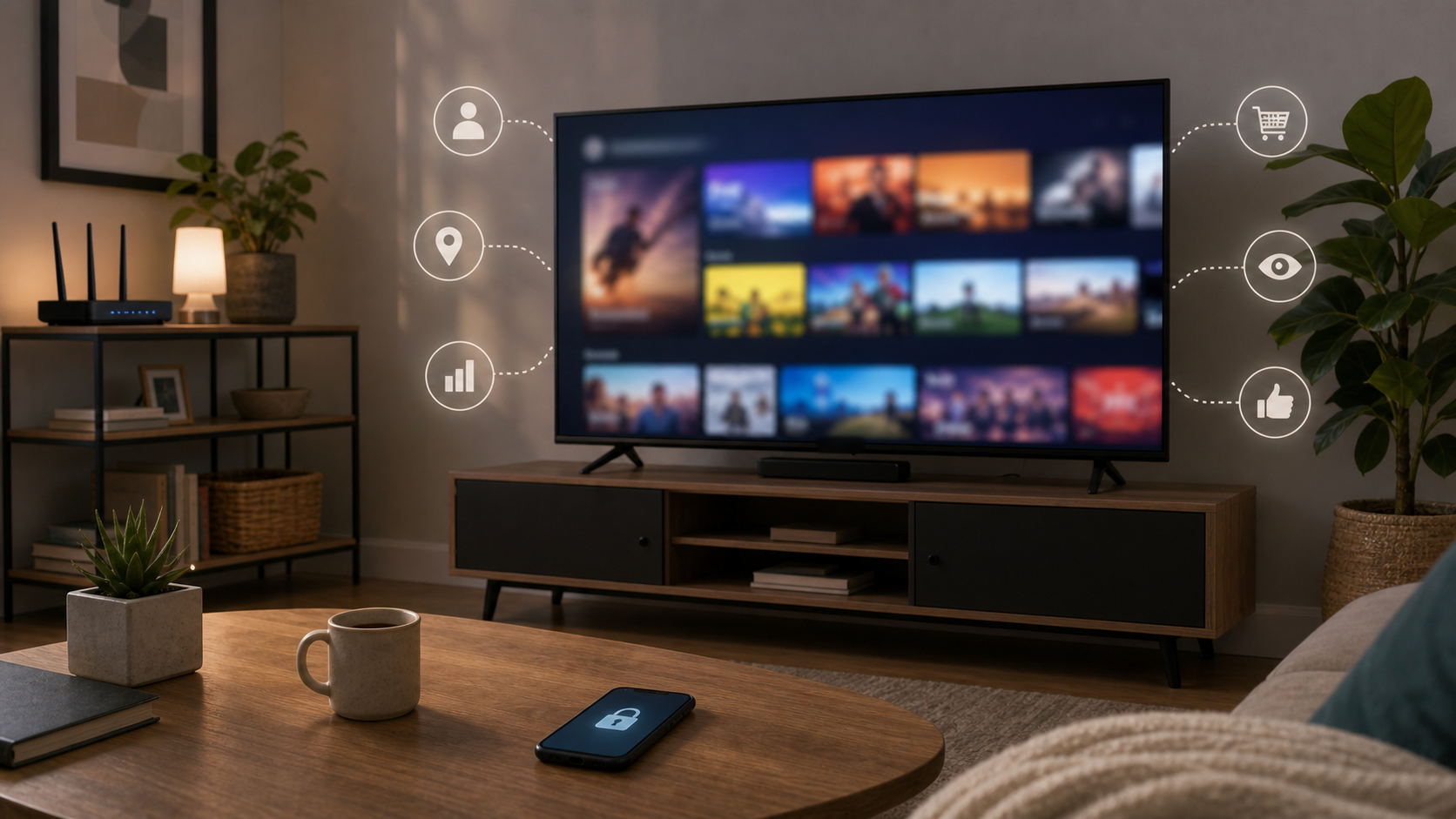
A smart TV is easy to treat like furniture. It sits on the wall, opens streaming apps, remembers the HDMI inputs, and fills the living room with shows, sports, games, and background noise. But smart TV privacy deserves the same attention as a phone app or smart speaker. The screen can also be an app platform, advertising surface, voice device, recommendation engine, and connected-home dashboard in the room where families relax.
Viewing information, app activity, account details, voice features, and advertising identifiers can contribute to a household profile. You can reduce that collection without making the smart TV difficult to use. Start with the controls for recognizing watched content, then review the apps and accounts you actually use. Each layer needs its own decision.
Key Takeaways
- Automatic content recognition, or ACR, can recognize watched content. Its implementation and coverage vary by TV, input, software, region, and consent settings.
- Manufacturer/platform tracking and streaming-app tracking are separate. Turning off viewing recognition does not erase account history or disable every app's data collection.
- Review viewing-data consent, personalized advertising, voice features, unused apps, and account access separately.
- An external streaming device has its own tracking settings. Keeping the smart TV offline prevents its online transmissions while disconnected, but does not make the external device private.
- A guest or IoT network can limit local access when properly configured. Check that needed casting and remote-control functions still work.
- Before transferring a smart TV, sign out, unlink that device where appropriate, and follow its official factory-reset instructions. Preserve household accounts you intend to keep.
Start With These Smart TV Privacy Checks
If you have the remote nearby, begin here:
- Open the smart TV's settings and look for viewing information, content recognition, or viewing-data consent. Disable optional recognition if you do not want the platform identifying your viewing.
- Check personalized ads separately. Read the choice before accepting it; an advertising opt-out and an identifier reset do different things.
- Review the microphone, voice-assistant, and connected-home features you enabled. Disable unused features rather than assuming every microphone works the same way.
- Open the account settings for your most-used streaming services on a trusted phone or computer. Check privacy preferences, signed-in devices, and purchase controls there too.
- Check the smart TV's software-support information and available updates. Record the model number so later instructions apply to the right device.
Menu labels change. Samsung calls its optional ACR consent Viewing Information Services, according to its official Smart TV ACR explanation. The page directs owners to TV settings and the relevant in-device notices rather than giving one route for every model. Use the model's official support page when the option is difficult to find. The sections below explain what each decision changes and what it leaves to other controls.
What Smart TV Privacy Tracking Can Include
A modern smart TV may have a manufacturer account, app store, free streaming channels, recommendation rows, voice assistant, advertising identifier, location setting, and software-update service. Some models also show camera feeds or control lights and speakers. Treat these as separate functions within a connected device, rather than assuming the privacy menu covers them all.
Samsung's current U.S. privacy policy gives an official example of the range. Depending on the product and service, it describes visual-display identifiers, usage and log information, information that can help infer location, and voice recordings when voice commands are enabled. That is a description of Samsung's applicable services, subject to product-specific notices. It does not establish that every category is collected by every model, or that every smart TV continuously records conversations.
The sensitivity comes partly from combination. Viewing interests, the hours a device is active, installed apps, and a persistent identifier can make activity more useful to an advertising or recommendation system. An account can add a connection to purchases, registered devices, and the same person's use of other services. A household's viewing also involves multiple people, so an account profile should not be treated as a reliable description of one viewer.
Ask which functions you want and which data choices accompany them. If the manufacturer account is only being used for a feature you never open, it may add little value. If it manages your apps or accessibility tools, keeping it may be worthwhile. A useful privacy decision preserves the function you need while declining optional collection you do not want.
The Home Network and Device Security hub connects this smart TV review with the other devices, router settings, and shared accounts in the household.
Why Automatic Content Recognition Changes the Picture
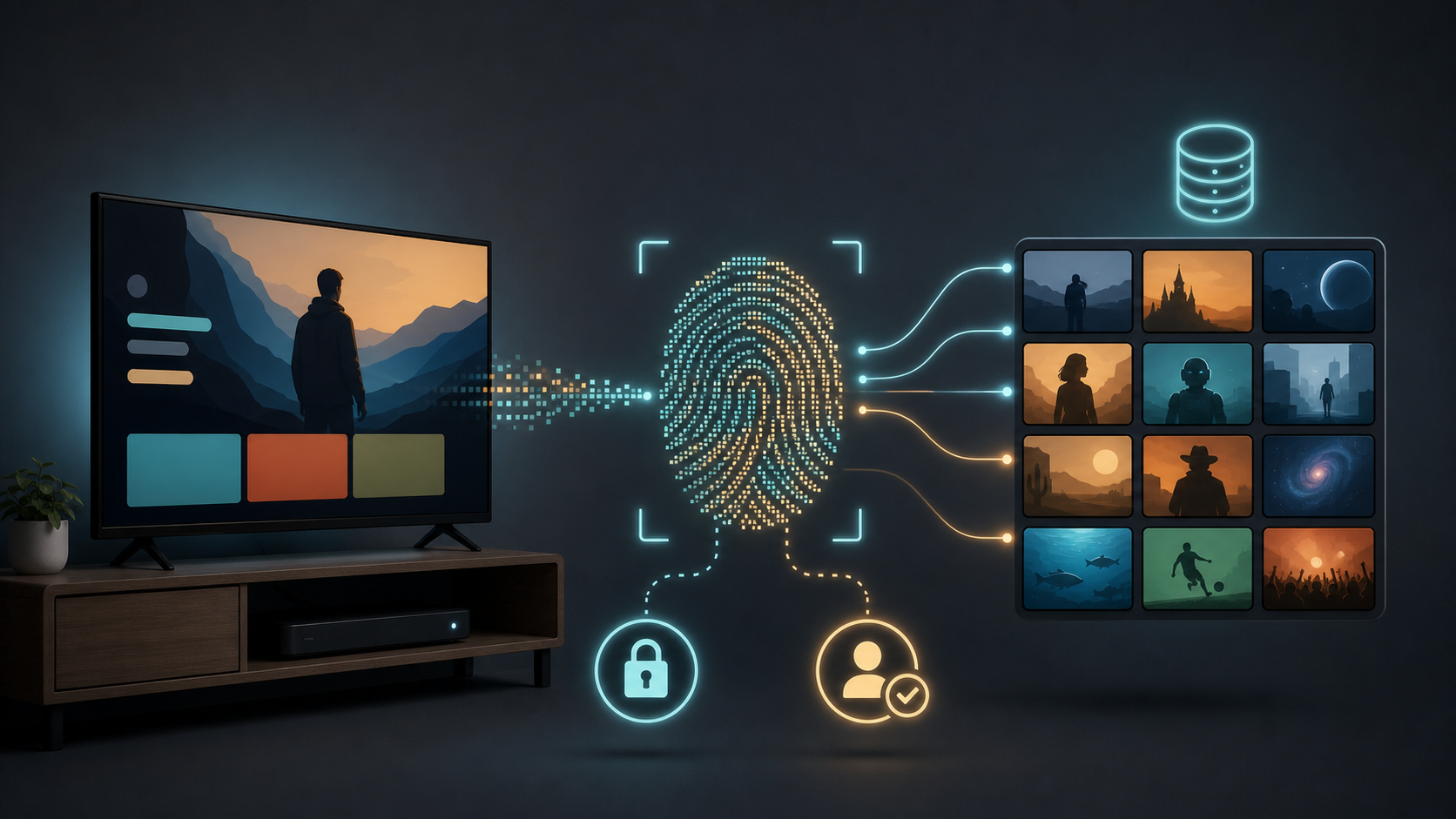
Automatic content recognition identifies media by comparing a content signature with a known library. A system may use audio or video fingerprints, depending on its design. Recognizing a program is different from saving a viewer's face or making a full recording of everything on the screen. The important question is which content sources the smart TV recognizes and what information the enabled service sends or uses.
In a September 2026 statement about privacy on LG smart TVs, LG describes internal audio fingerprints for its supported ACR implementation. LG says its supported sources include Live TV, HDMI, and LG Channels, while third-party Netflix and YouTube apps on LG TVs are excluded from that recognition. It also distinguishes the optional Viewing Information Agreement from the separate Interest-Based Cross Device Advertising Agreement. These are LG's descriptions of its implementation and consent choices, with market and model qualifications. They are not findings from our own hardware testing or rules for every brand.
The history explains why the setting merits attention. In 2017, Vizio agreed to a $2.2 million settlement after the FTC and New Jersey alleged that it collected viewing histories from 11 million connected TVs without adequate disclosure or consent. The FTC's settlement announcement describes the agencies' allegations and resulting requirements. This is a dated enforcement example, not a claim about every current Vizio model or today's settings.
A 2024 study of ACR tracking on selected Samsung and LG TVs found recognition-related traffic under its tested conditions, including when the TVs served as external displays. The researchers also observed that opting out stopped the tested traffic to ACR servers. Their results differed across UK and U.S. conditions. They support checking viewing recognition even when you use HDMI; they do not establish the behavior of every present model, firmware version, or streaming app.
Look for the purpose described in the consent notice, not just the letters ACR. A model might call it viewing information, viewing data, or a recommendation-related service. Read whether the option covers content recognition, personalized recommendations, advertising, or a combination. Turning off a recognition agreement may change recommendations. It should not be confused with an ad preference or a request to delete historical records.
The illustration below shows one conceptual content-matching process. Actual systems differ, including the audio-based implementation LG describes. The fingerprint symbol represents a content signature, not identification of the person watching.
Built-In Smart TV Apps Add a Second Layer
Turning off ACR does not tell a streaming service to stop maintaining your watch history. The service still has its own relationship with the signed-in account. The smart TV manufacturer, operating system, installed app, and voice assistant can each have different policies and controls.
The FTC's explanation of how websites and apps collect and use information describes advertising identifiers, device fingerprinting, cross-device tracking, and privacy settings. It also directs consumers to check smart TV and streaming-device controls. This gives a useful way to think about the layers without assuming that every app collects the same information.
You might disable the manufacturer's viewing recognition and still see a streaming service recommend a sequel to a film you watched. You might limit personalized ads and still see ads. You might clear an app's search history while its account retains other viewing or billing information. Each outcome can be consistent with the specific setting you changed.
For the major services you actually use, review the account or app controls for watch history, recommendations, advertising preferences, profiles, and account access. Some controls are easier to reach in a browser than with a remote. Read what a deletion option covers before assuming it removes all records. Account security and data-use preferences may also live on different pages.
Removing an unused app can simplify the smart TV and eliminate one local sign-in, but it does not necessarily close the service account or cancel a subscription. Keep the billing decision separate. If you subscribed through an app store, another platform, or the provider directly, use that billing route to confirm cancellation when you want it. Do not mistake a cleaner home screen for an ended subscription.
Voice, Cameras, and Smart-Home Features Need Separate Decisions
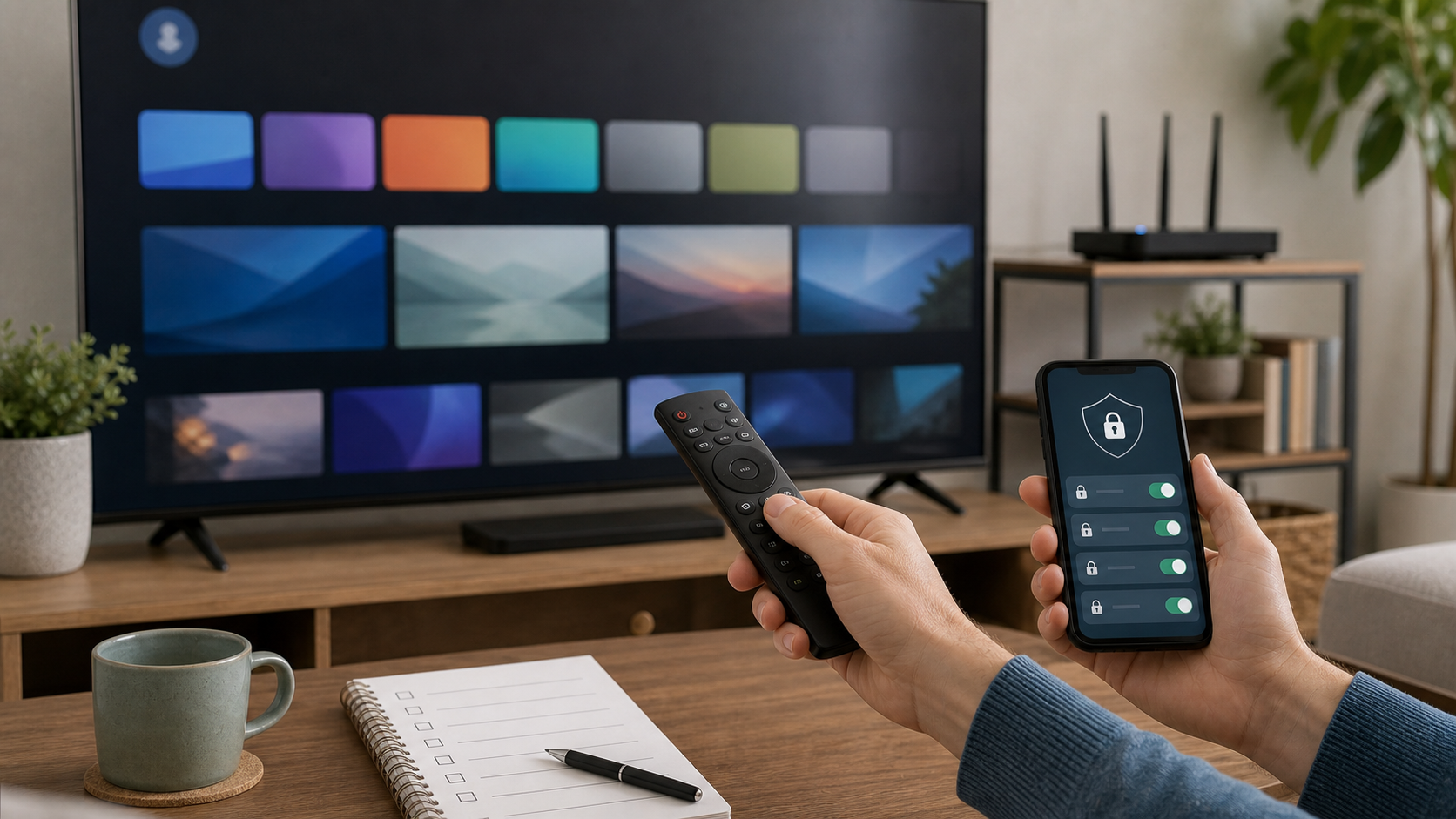
A remote microphone can make searching easier than an on-screen keyboard. A voice assistant may also change volume, launch apps, or control lights. Check whether the particular TV or remote uses a button, a wake word, or both, and which account provides the service. Samsung's policy and LG's statement describe voice-related handling for their services; neither is a substitute for your model's notice.
If you only use occasional voice searches, decide whether a push-to-talk function meets your needs. If the smart TV supports hands-free activation, find its microphone or assistant controls and any physical switch described in the manual. Turning off one assistant integration may leave another remote or device in the room active. Review those separately when they belong to a different service.
Voice-history controls are another decision. Disabling a future listening or activation feature should not be assumed to delete previously stored recordings. Use the associated account's history or data controls if you want to review or delete that material, and read its scope and retention exceptions. Avoid promising the household that one switch erases everything already collected.
If your model or accessory has a camera, check its intended uses, indicators, permissions, and physical shutter where supplied. Disable an unused camera or cover it if the design safely permits. A smart TV that shows a doorbell camera or nursery feed also needs a household decision about who can view that information. Convenience on a large shared screen can expose something that was private on a person's phone.
The Smart Home Security Checklist is a useful companion when the smart TV connects to cameras, assistants, locks, or other household services. Review the actual integrations you enabled; there is no need to activate more features just to inspect them.
Buying and Setup Questions Before Signing In
Setup can bundle connectivity, account creation, voice features, advertising preferences, and optional viewing consent into a fast series of screens. Read the optional choices before accepting them. If an agreement is required for a feature, decide whether that feature is worth using rather than assuming every checkbox is required for the display itself.
Ask whether the exact model can serve your intended inputs without a manufacturer account. A household using an antenna, game console, cable box, or external streamer may need fewer built-in services than one relying on the smart TV's app store. Check what remains available if you skip sign-in, and what account is required for the apps you expect to use.
Google offers a specific example in its Basic TV instructions. On TVs with Google TV built in, Basic TV can avoid a Google account and internet connection while limiting smart functions. This does not describe every Google streaming device or every smart TV. Google also says that returning an already-configured Google TV to Basic TV requires resetting the device; it is not always a reversible menu toggle that preserves the existing setup.
Support matters for a device expected to stay in the household for years. NIST's IoT Device Cybersecurity Capability Core Baseline is a starting point for evaluating device capabilities, rather than a TV endorsement. Translate that idea into buying questions: Where are the official updates? Is there a stated support period for this model? Can the owner change relevant settings? Is a supported offline update method available if the smart TV will usually be disconnected?
Check microphones, camera accessories, and smart-home capabilities before mounting the smart TV. Keep its model number and official support page accessible. An easy-to-find settings menu today is helpful; a clear support and update plan is also important after the first setup session.
Settings to Change Now on a Smart TV
Work through the controls by purpose. Write down a hard-to-find label or save the relevant official instructions so you can find it again after a reset or major update. You do not need to change every feature: decide which ones the household uses and which optional data uses it accepts.
Viewing recognition: Review the notice for identifying watched content and decline or disable it if you do not want that collection. Samsung's Viewing Information Services and LG's Viewing Information Agreement are examples of labels to look for. They are examples from current official sources, rather than an all-brand menu map. If an option is absent, check the exact model, country, and current firmware with official support.
Advertising: Review personalized-ad or cross-device advertising consent separately. Resetting an advertising identifier changes an identifier; it is not a general deletion command for past viewing, account, or voice records. An opt-out may affect future personalization while leaving ordinary ads. If historical data is your concern, look for the provider's separate account-data or privacy-request process and its limits.
Voice and integrations: Disable the microphone/assistant features you do not need using model-specific controls. Review associated account history separately. Unlink an unused smart-home integration if the smart TV no longer needs access to it, particularly when it exposes a private camera feed on the shared screen.
Apps and account access: Remove unused apps or sign out of local accounts you no longer need on this device. Check major services' privacy and purchase settings independently. A children's profile in one service does not govern the TV platform or other apps.
Software: Check official updates for the smart TV and any external streaming device. Samsung's software-update instructions describe online updates and a supported USB route using the correct model's official download. Other models may differ. Follow installation instructions, including power requirements; do not install a file intended for a similar-looking TV.
Network: Protect the router and Wi-Fi first. The FTC's home Wi-Fi security guidance supports WPA3 or WPA2, strong distinct administrative and Wi-Fi credentials, software updates, and review of convenience features such as remote management. A connected smart TV depends on that network even when its own privacy settings are well chosen.
A separately credentialed guest or IoT network may limit what the TV can reach locally, if your router actually isolates it. That does not prevent permitted internet traffic to the TV manufacturer or apps. Test the functions you need before committing to the arrangement: casting, phone control, setup, and local media access may require devices to communicate.
Google's streaming-device connection guidance identifies AP/client isolation as a possible barrier to setup and local communication. Resolve the specific requirement through a supported configuration for the needed devices. Avoid turning off isolation for the entire household just to fix one casting function. The Home Router Security Checklist can help you make that network decision alongside the TV settings.
When a Streaming Device or Offline Mode Fits Better
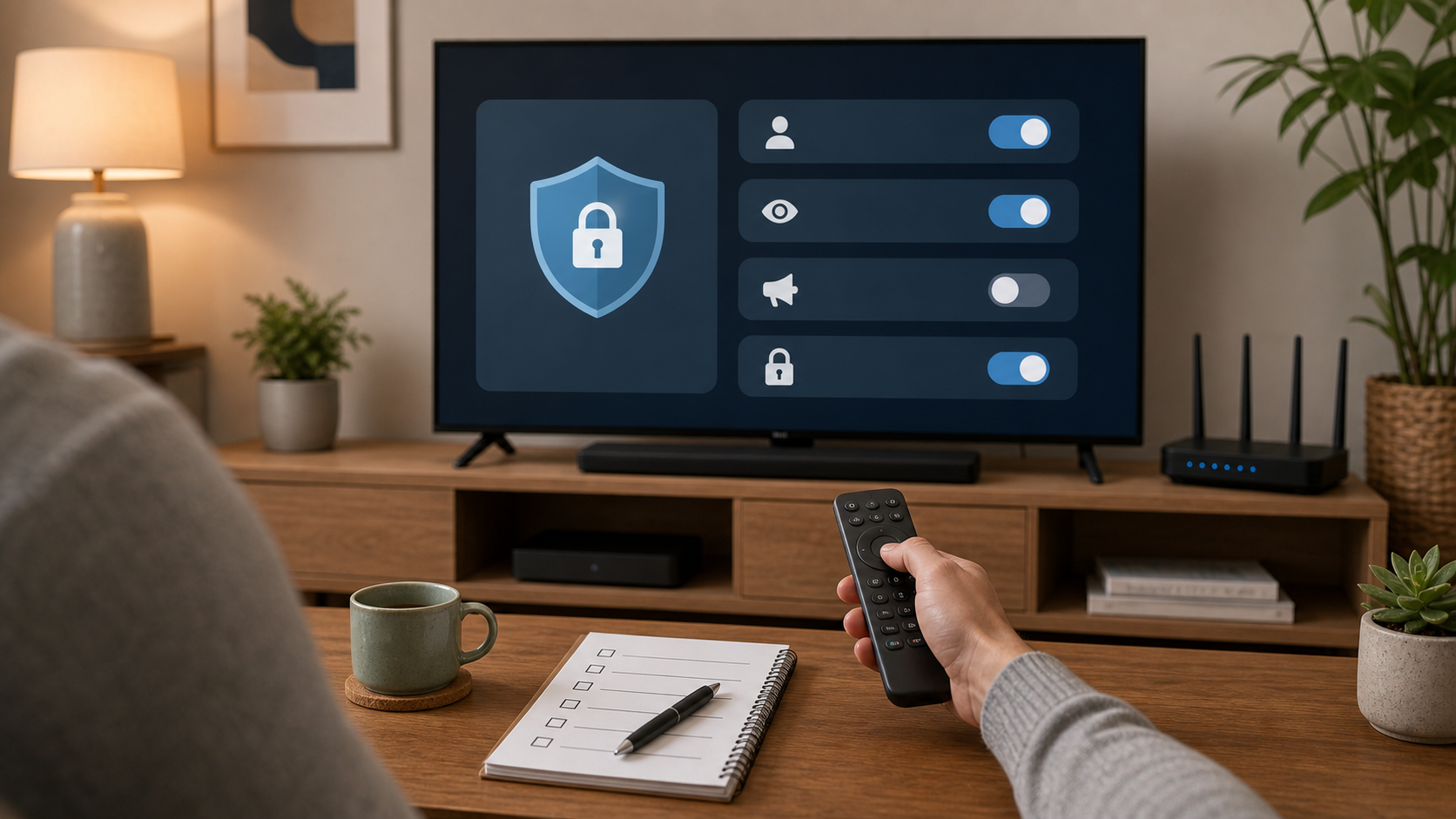
If the smart TV only displays an HDMI source or antenna, you may be able to leave its built-in network connection off. While disconnected, the TV cannot transmit data over that connection. That does not show that it collects no local data, deletes historical information, or cannot send retained information after reconnection. The external source may still have its own online activity.
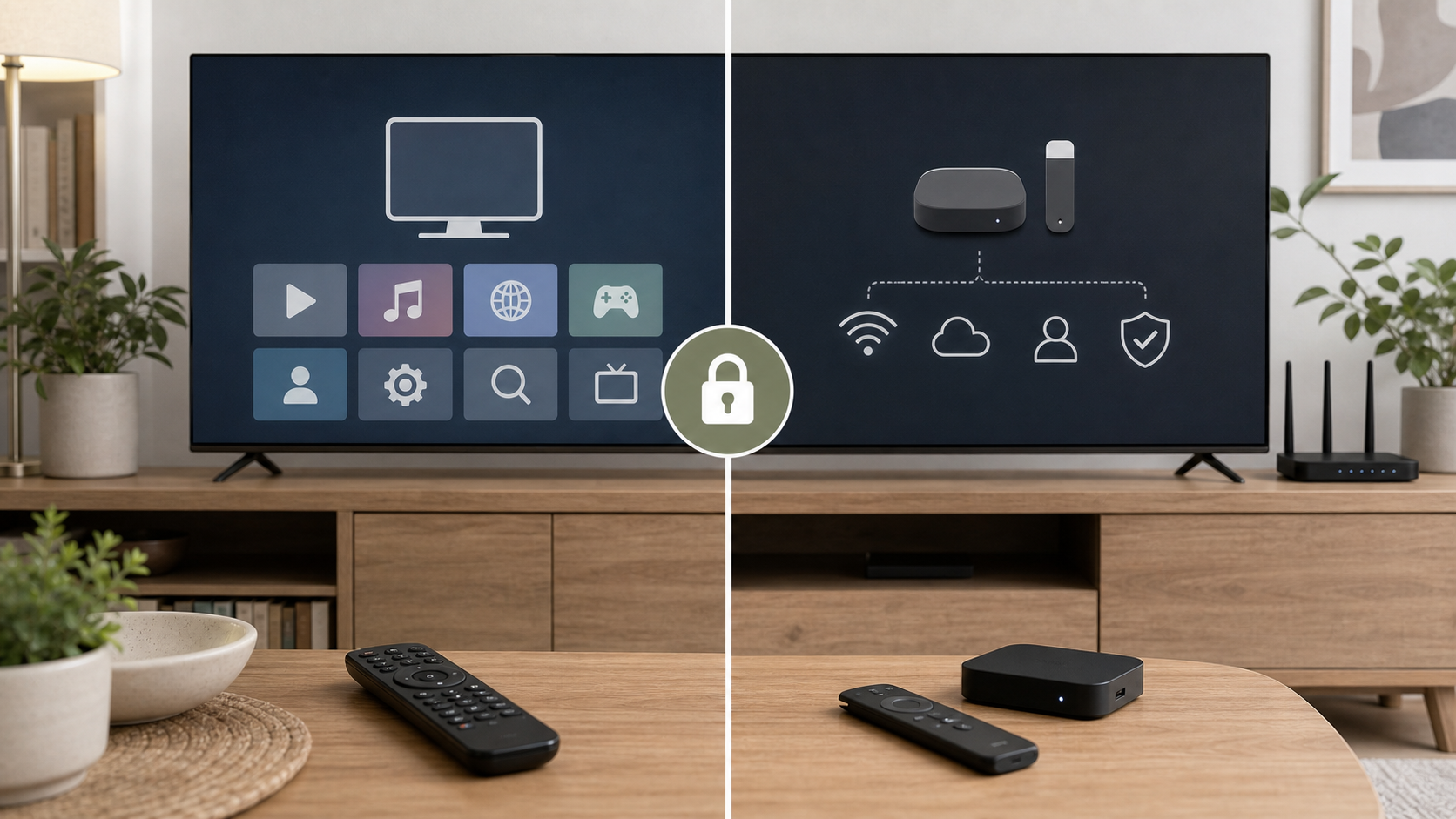
An external streaming stick or box can be easier to replace, update, and reset than the whole television. It can also concentrate apps in one place while the smart TV mainly acts as a display. Review that device's accounts, advertising controls, apps, and voice features on their own terms. A streamer is another platform, not a guarantee of privacy.
Think through updates before choosing mostly offline use. Google warns that an offline Basic TV misses security updates. One update before disconnection is not a lifetime security plan. Check whether the exact model has supported USB firmware updates or arrange intentional update checks while support continues. Reconnecting may also prompt new terms or restore features, so review relevant settings afterward.
If the smart TV's built-in apps are convenient and their controls are understandable, keep using them with deliberate settings. If you prefer an external device, reduce unused built-in features and manage the external platform carefully. If internet connectivity has no useful purpose for the TV, mostly offline use can be reasonable with an ongoing support plan. Choose the setup that fits how you actually watch.
What This Means for Families and Shared Homes
A living-room smart TV is a shared device. A profile, recommendation row, voice result, or camera feed can reveal information to other people in the room. Discuss which accounts belong on the screen, who can make purchases, and whether recommendations should reflect one person or the household. A useful default is to enable only shared features people understand and want.
For children, review the TV's purchase or access controls and each streaming service's profile settings. Test the ordinary route a child uses to launch an app or switch profiles. A restricted profile in one service may do nothing to another app or to purchases through a different account. Avoid assuming a single parental-control screen covers the whole device.
For roommates, separate profiles can reduce accidental mixing, but they are not necessarily private accounts. Check whether other viewers can switch into them and see history or recommendations. Use a profile PIN where offered and useful. Do not put a personal camera feed or account on a communal screen simply because the platform suggests linking it.
For rentals or guest spaces, provide a clear way for visitors to sign in and remove their own accounts. Between occupants, use the supported sign-out/reset procedure for that model and remove the device from accounts that should not remain connected. A guest should not inherit the previous visitor's session, and the host should not treat guests' viewing history as household information to keep.
What to Do Before Selling or Giving Away a Smart TV
Treat the smart TV as a connected device when it leaves your home. Start with the apps, manufacturer account, voice assistant, and smart-home connections actually used on it. Sign out locally where possible, then remove or unlink that device from the relevant account pages when the provider supports it.
Do not delete household-wide profiles or payment methods merely to transfer one TV. Those may belong to a service you will continue using elsewhere. Likewise, cancelling a subscription or closing an account is a separate decision. The goal here is to remove this device's access while preserving the household services you intend to keep.
Roku's instructions for removing a device from an account illustrate the distinction: unlinking and factory-resetting a sold or returned device are separate from deactivating the Roku account or cancelling subscriptions. Other platforms have their own device-removal and reset procedures. Follow the instructions for the service and exact hardware involved.
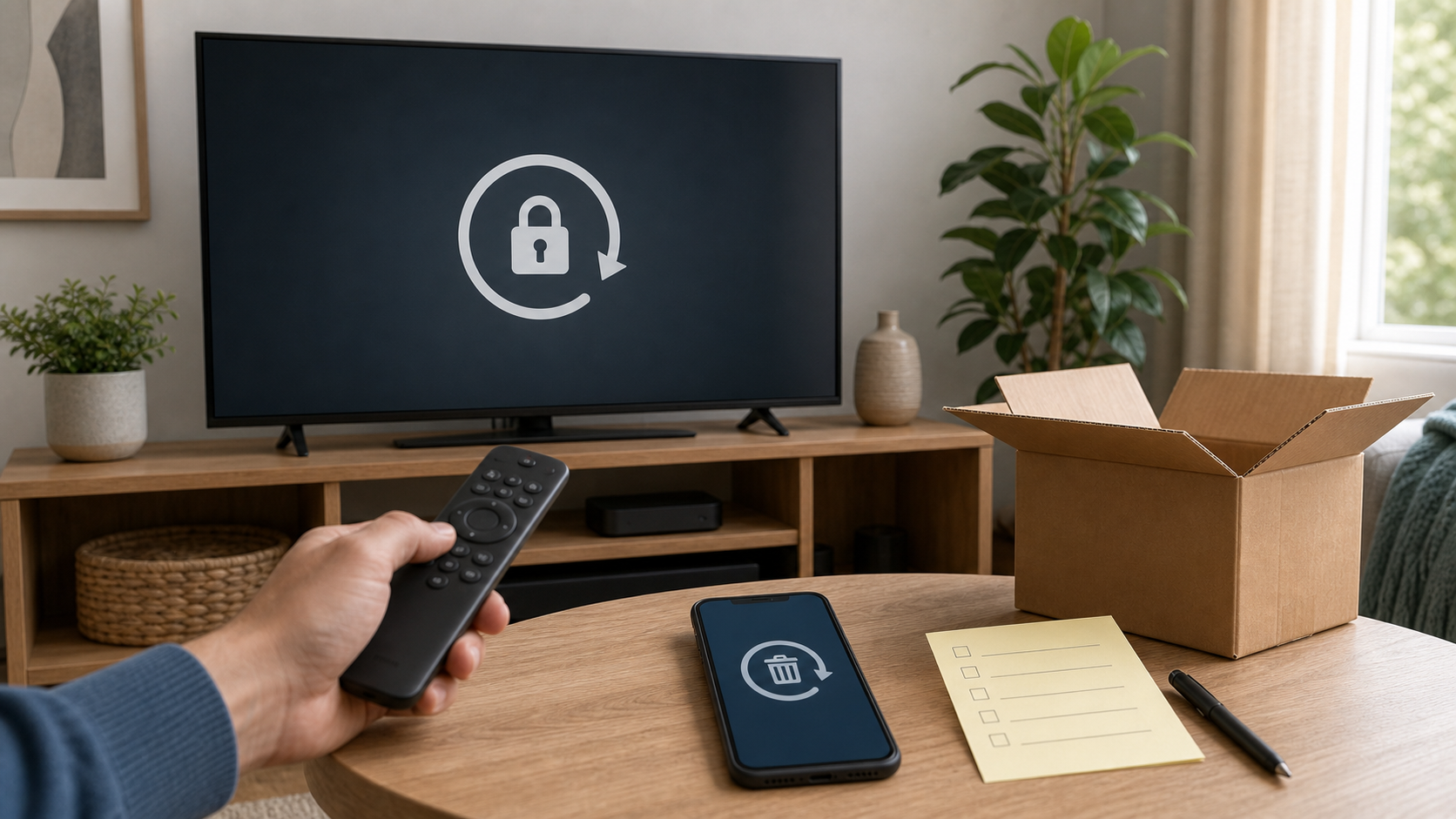
After sign-out and unlinking, perform the official model-specific factory reset. Restart the smart TV and check that it opens to initial setup rather than your apps, account, or household dashboard. Remove external storage and accessories you are keeping, and handle any separate streamer as its own device. Confirm the TV is disconnected from your household network before transfer.
A local reset should not be treated as deletion of cloud watch history, voice records, provider billing, or all previously collected data. Use the account's separate privacy or deletion process if that is also your goal. If the TV is broken and cannot be reset, use official hardware-reset support where available and revoke its account access from a trusted device. State the remaining uncertainty before handing over hardware whose local storage could not be cleared.
If a Smart TV Account or Streaming App Was Compromised
An unfamiliar show in watch history is a reason to check, but it is not proof of intrusion on a shared account. Ask whether another household viewer used the profile. Look for stronger signs such as an unrecognized sign-in, changed recovery information, unauthorized purchases, or a device nobody in the household recognizes. Avoid treating one confusing recommendation as a confirmed security incident.
When access is unauthorized, use the affected provider's account-security process from a trusted phone or computer. Netflix's guidance for stopping someone from using an account recommends a unique replacement password and signing out unrecognized devices or all devices. Apply the corresponding official controls for your service; do not assume every provider offers identical session controls or two-factor authentication.
Disconnecting the home TV may stop that device's immediate online activity, but it does not revoke an intruder's session elsewhere. A local factory reset is also insufficient for a stolen account. Prioritize the account's password, recovery information, and session controls. Secure the associated email account too if there is evidence it was accessed or its credentials were reused, and enable stronger sign-in protection where supported.
Device lists have limits. Netflix's Manage Access and Devices instructions warn that devices can take up to 48 hours to appear and that some signed-in devices may not be shown. An empty or short list therefore does not prove that no other session exists. Use the provider's all-device sign-out option when appropriate and contact official support if unauthorized activity continues or you cannot recover the account.
Review account email changes, recovery information, purchases, and billing for actual unauthorized changes. Preserve useful notices or transaction details if you need to dispute a charge, without delaying containment. Once the account is secure, update or reinstall an app that still misbehaves using official instructions. If the manufacturer account or a smart-home integration was also affected, address its access separately.
Keep the Settings Useful After Setup
A privacy review is easier to maintain when it matches the household's actual choices. Keep a short record of which optional recognition and advertising features you declined, which account handles the apps, and how the device receives updates. That is enough to help you restore the intended setup after a reset or major software change.
Revisit relevant controls when you add a new assistant, replace the streamer, enable a camera dashboard, move to a different router, or hand the smart TV to someone else. Check the changed function rather than repeating a full account review every time. If a feature you use stops working, resolve its specific permission or local-connectivity requirement instead of accepting every optional data agreement again.
The practical aim is a TV that does the jobs you chose. Content recognition, personalized ads, cloud accounts, voice features, and local network access can each be useful, optional, or unnecessary depending on the household. Make those choices explicitly and keep their effects separate.
Conclusion
Smart TVs make entertainment simple, and their data settings are easy to overlook. A platform that recognizes content, runs apps, connects accounts, or uses voice features deserves a deliberate privacy review.
Begin with viewing recognition and advertising consent, then review apps, voice features, account access, and updates. Decide whether built-in apps, an external streamer, or mostly offline use suits the household. Before transfer, remove the device's access and reset it without accidentally deleting services you still use.
Smart TV privacy is easier to manage when each control has a clear purpose. You can keep the useful screen and choose more carefully what accompanies it.
For practical privacy and smart-home checklists as connected devices change, subscribe to Quantum Cyber AI.
FAQ
What is automatic content recognition on a smart TV?
ACR recognizes media by matching audio or video fingerprints against known content. Its implementation and coverage vary by manufacturer, model, software, country, input, and consent settings. It can support recommendations, audience measurement, and advertising. Look for the model's viewing-information or recognition agreement if you want to disable it. The setting should be distinguished from personalized ads and from the histories maintained by separate streaming apps.
Is a smart TV always listening?
Do not assume that every TV or remote uses the same microphone behavior. Some features require a button, while others support hands-free activation. Check the exact model's microphone controls, assistant settings, and associated voice-history options. Disabling an activation feature and deleting already stored voice records are separate actions. Other assistants or microphones in the room also need their own settings.
Can I use a smart TV without a manufacturer account?
Check the exact model and the functions you need. HDMI or antenna use may be possible without the full smart platform, while apps and cloud features can require an account. Basic TV is a specific option on TVs with Google TV built in, with limitations. If the smart TV is already configured, changing its setup mode may require a reset. Read official instructions before assuming you can switch without losing settings.
Does turning off ACR stop streaming apps from tracking me?
It addresses the recognition feature covered by that setting. It does not tell independent streaming apps to stop maintaining watch history, processing account information, or applying their own advertising preferences. Review the major services you use separately, often through their web account settings. Resetting an advertising identifier or removing an app also should not be treated as deletion of every historical provider record.
Is an offline TV or external streaming stick better for privacy?
An offline TV cannot transmit through its disconnected network connection, but that does not erase local or historical data. A connected external streamer still has its own accounts and tracking controls. Either arrangement can be useful if it suits your viewing and you manage the remaining device. Plan for supported software updates over time rather than assuming one last update makes permanent disconnection a complete security solution.
What should I do before selling a smart TV?
Sign out of its apps, unlink that TV from relevant accounts, remove unused integrations, and perform the model's official factory reset. Restart it and confirm it no longer opens into your accounts. Reset or retain any separate streamer independently. Preserve household profiles, payment methods, and subscriptions you still need elsewhere; device cleanup is separate from account closure, billing cancellation, and cloud-data deletion.