
You search for your bank login, a software download, an airline support number, a refund page, or a government service. The first search result looks polished. The name is familiar, the wording matches what you need, and the page that opens has a logo, a sign-in box, and an encrypted connection. Nothing about the route feels like phishing because you started the search yourself.
That sense of control is exactly what makes a dangerous search result effective. A prominent search result may be an advertisement, an optimized page, or a link that redirects through several domains before reaching a fake login page, fake support desk, or malicious download. Placement tells you what the search engine displayed first. It does not tell you who controls the final destination.
The safest response is not to distrust every search result. It is to separate discovery from trust. Search can help you find the name of an organization or service, but high-consequence actions deserve an independently verified route. Before you sign in, pay, call support, or download software, check where you actually arrived. If you already interacted with a suspicious page, match the response to what happened rather than assuming either that nothing is wrong or that everything is compromised.
Key Takeaways
- The first search result may be a paid placement or a page designed to rank well, not the official destination.
- Check each search result’s actual registered domain before clicking when possible, then check the address bar again after the page loads.
- HTTPS protects the connection. It does not prove that the site belongs to the company or agency you intended to reach, and browser connection indicators vary.
- For sign-ins, downloads, payments, and support, use a saved official app, verified bookmark, bill, statement, product packaging, or manually entered known address.
- Recovery depends on the interaction. Opening a page, entering a password, approving a code, running a file, allowing remote access, paying, and sharing identity information require different responses.

Start with a trusted route before using a search result
If the next step involves an account, money, a download, or support, pause before doing it. The first search result is a discovery lead, not an instruction to continue through that page.
| What you need to do | A stronger starting route |
|---|---|
| Sign in, pay, or manage benefits | Open the official app or a bookmark/address you previously verified; navigate from its known homepage. |
| Reach support or ask about a refund | Use a number or support route from an existing account, statement, receipt, card, packaging, or official homepage. |
| Install or update software | Begin at the publisher's verified site or its genuine app-store listing, then find the product there. |
| Identify an unfamiliar service | Use search for discovery, then compare the destination with independent official information before giving it money, credentials, or access. |
If you already interacted with a suspicious search result, stop the interaction. Close the page, do not run the download, and end any remote session. Use the recovery section below to identify the deepest action that actually occurred; entering a password calls for more than merely closing a tab.
Why a search result can feel safer than it is
The search begins with your own intent
An unexpected email or text creates an obvious question: Why did this person contact me? A search feels different. You chose the words, opened the search results, and selected a page that appeared to answer your request. That self-initiated sequence can lower skepticism even when the search result was built specifically to intercept people making the same search.
The riskiest queries often reveal both the organization and the action a person expects next. Searches such as “bank name login,” “airline refund number,” “tax payment,” “VPN download,” or “account recovery” tell an impersonator what branding to copy and what request will seem normal. A fake bank page can ask for credentials. A fake support page can present a phone number. A fake software page can offer an installer. The search result does not need to invent a story because the search already supplied one.
Placement is not endorsement
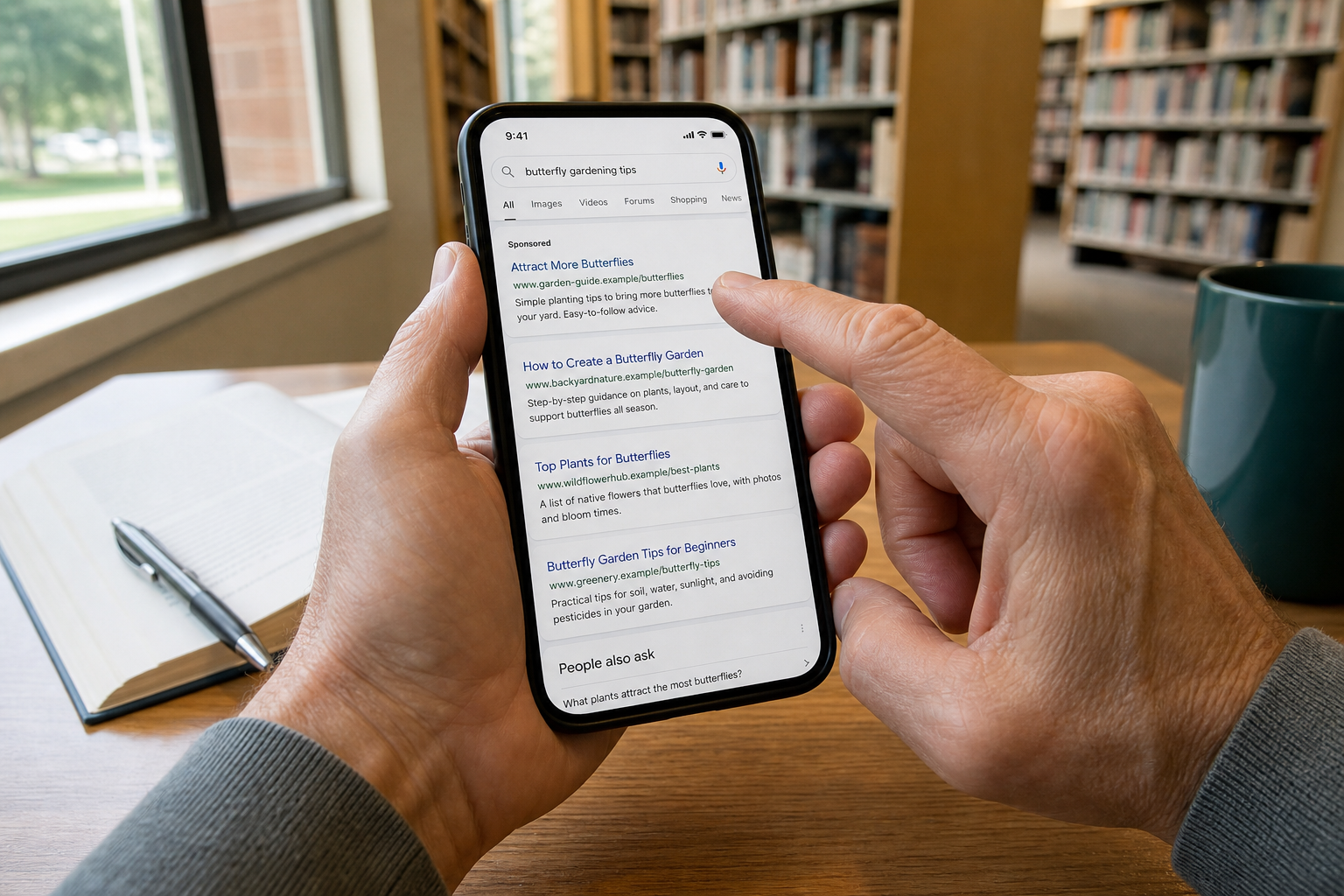
Search results pages commonly mix advertisements with unpaid search results. An advertisement may appear above the official site, while an unpaid page may rank well because its creator optimized it for a popular query. Paid or unpaid placement alone proves neither legitimacy nor fraud.
The Federal Trade Commission’s warning about scammy search results describes impostors using paid search results, familiar company or government names, and fake customer-service numbers to reach people who are already looking for help. The FTC recommends going directly to a company or agency website when possible and finding the contact information there.
A label such as “Sponsored” identifies paid placement. It does not mean the brand named in the ad created the ad. Likewise, the first unpaid search result is not automatically official. The practical question is not “Is this an ad?” It is “Does the final domain belong to the organization I intend to reach, and does the requested action fit that organization’s normal process?”
How a search result reaches a fake login or support page
Paid search result impersonation
A paid search result scam can be simple. Someone buys an advertisement associated with a brand or high-intent phrase. The search result uses familiar language and directs the visitor to a lookalike domain. The page then asks for a username and password, card information, a crypto-wallet connection, a software download, or a phone call.
A December 2022 FBI Internet Crime Complaint Center alert about brand impersonation in search advertisements warned that criminals were placing ads that resembled legitimate businesses and directing people to similar-looking websites. The FBI described fake financial and cryptocurrency pages used to collect credentials and fake software pages used to distribute malicious programs. Its consumer advice included typing a known business address directly rather than reaching the site through an advertisement.
The ad itself may look restrained. It does not need a dramatic warning or an implausible promise. A copied name, plausible description, and destination that differs by a letter, added word, or misleading subdomain may be enough. A person who searched specifically for a login or download is prepared to see exactly those elements.
Support scams use a related route. A search result may display a phone number prominently or send the visitor to a page built around urgent help. Once the call begins, the person answering can claim that the device or account has a serious problem, request remote access, ask for payment, or collect account information. The FTC’s guidance on tech-support scams warns that scammers place support sites and ads in search results and may ask for remote access or payment after claiming to find a problem.
SEO poisoning can promote a malicious search result
Paying for placement is only one path. Search-engine optimization poisoning uses pages and content designed to rank for a target query. A malicious or compromised page may appear among unpaid search results for a software installer, document converter, account portal, update, or troubleshooting question.
In March 2026, Microsoft documented an operation that used SEO poisoning to promote fake VPN clients. The operation targeted enterprise VPN searches, delivered malicious fake clients, collected credentials entered into their fake VPN sign-in screens, and stole stored VPN configuration data. It was not a finding that every VPN search or VPN installer was malicious. The lesson for a consumer is not that every VPN search result is suspect. It is that an unpaid search result can be part of a deliberate delivery path, especially when the search ends in a download.
Software searches create a useful pause point. If a search result claims to offer a free, cracked, enhanced, or special edition of a familiar program, do not treat its ranking as a safety review. The FTC has also warned that fake AI and other software ads can distribute malware. Start from the publisher’s known site or a verified app-store listing, then locate the product from there.
A search result can redirect to a different destination
The destination shown on a results page is not always the destination that ultimately loads. Advertising trackers, link shorteners, compromised pages, and intermediate domains can add one or more steps. Some redirection is ordinary. The security problem appears when the chain obscures who controls the final page or selectively sends certain visitors to harmful content.
A June 2026 FBI warning about malicious traffic distribution systems explains how criminals can route visitors through intermediate nodes, examine details such as device, browser, location, and IP address, then deliver fake login pages, financial scams, or malicious updates to selected targets. The same system can show benign content to visitors the operator does not want to target, including researchers. That helps explain why the same suspicious search result may not behave the same way for everyone.
The reader-facing lesson is concrete: checking the destination preview before clicking is useful, but it is not the final check. After the page loads, read the actual address bar before entering information, calling a number, or downloading a file.
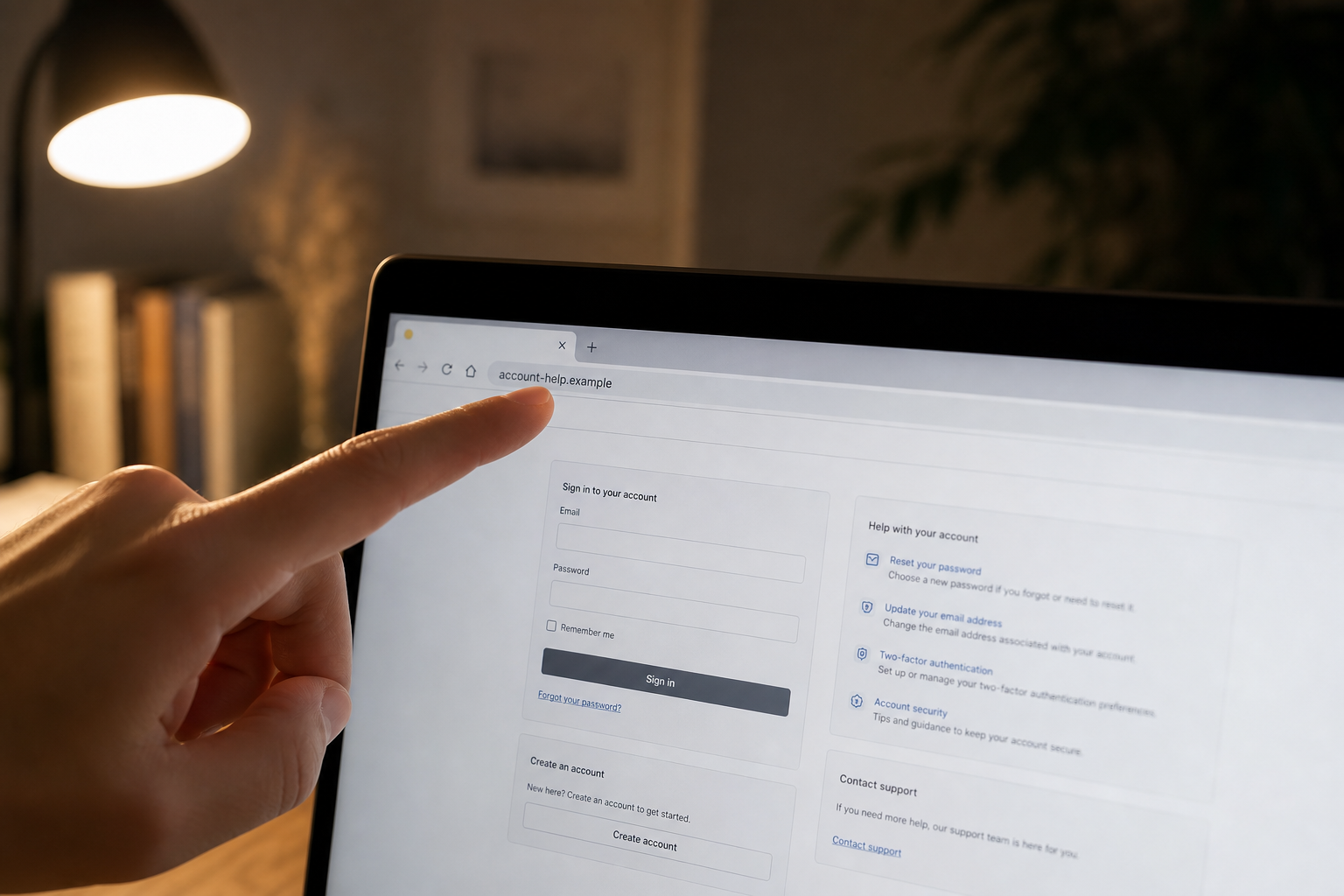
A redirect is not automatically malicious. Many legitimate services use redirects for regional pages, sign-in systems, or measurement. What matters is whether the final registered domain belongs to the expected organization, whether the route from the search result makes sense for the task, and whether the page introduces a request you did not expect.
The signs that matter before you sign in, call, pay, or download
Before opening a search result
Start by identifying what kind of search result you are looking at. An ad label tells you that placement was purchased. A search result menu may provide information about the advertiser or page. The displayed domain may show where the link claims to go. These details can help you investigate, but none should be treated alone as proof of legitimacy.
Google says it requires advertisers to complete identity verification and that people can inspect advertiser disclosures or use the Ads Transparency Center, according to its current advertiser-verification help page. That information can reveal who paid for an ad or what other ads an account has run. It still does not replace comparing the final domain with an independently known official domain.
Before clicking, compare the domain with an independently known address, rather than merely finding a brand name somewhere in the text. In the illustrative name brand.example.com, “brand” is a subdomain under example.com; it is not proof that a company called “brand” operates the site. An added word, switched letter, unexpected ending, or brand name placed before an unrelated domain deserves a separate check.
Do not learn a universal “last two parts” shortcut. The Public Suffix List's examples include com, co.uk, and longer suffixes; the boundary is not always in the same position. If you cannot confidently identify it, use a known app, verified bookmark, or independently confirmed official address instead of guessing before a sensitive action.
A matching domain is still one clue. The domain-name specification describes delegated subdomains, which means a parent name does not identify the operator of every page beneath it. A compromised or delegated page may also make an abnormal request. Combine the address check with the route and the action being requested.
Do not depend on spelling quality as your main test. Some scams contain errors, but others copy legitimate wording and design closely. A clean search result can still point to the wrong place.
After a search result opens
Read the address bar after the page finishes loading. A search result can redirect before the final page appears, so the final domain may differ from the preview. Focus on the registered-name boundary rather than treating every familiar word in a long address as proof. In login.accounts.example.com, the illustrated parent domain is example.com. In example.com.account-help.invalid, the familiar example.com text is only a subdomain under account-help.invalid. These are reserved example names, not live services or a universal parsing rule. If the real boundary is unclear, stop and return through the verified route.
Then compare the page’s purpose with the action you expected. A bank login should not require remote-control software. A retailer refund should not require payment by gift card. A software download should not instruct you to disable antivirus protection. A support representative should not ask for your password or an authentication code. A government payment page should not introduce an unfamiliar person-to-person payment method.
Urgency matters when it is paired with a sensitive request. A countdown, threat of immediate account closure, claim that a device is infected, demand to move money, or instruction to act before speaking with anyone else is a reason to stop. Leave the page and reach the organization through a separately verified route.
The request can be wrong even when the page looks right. Copied logos, help text, privacy links, testimonials, and sign-in layouts are easy to reproduce. Treat the requested action and the domain as stronger evidence than visual polish.
HTTPS and connection indicators do not prove identity
HTTPS encrypts the connection between your browser and the website. That protection is valuable because it helps prevent someone on the network from casually reading or modifying the traffic. It does not establish that the website belongs to the organization whose name appears on the page.
The FTC’s online-shopping guidance states that the presence of HTTPS does not mean a site is legitimate because scammers can also encrypt websites. In practical terms, you can have an encrypted connection to an impersonator. Verify the domain, organization, and requested action separately. Chrome's connection-status guidance uses a connection-status symbol rather than a universal padlock rule; do not interpret a familiar icon as a merchant or account-ownership guarantee.
Other weak clues include a familiar phone-number format, a professional footer, a copyright notice, a support-chat bubble, or a claim that an account is verified. These details may be present on a legitimate site, but they can also be copied or invented. No single design element should outweigh a mismatched domain or abnormal request.
A browser warning is a reason to stop
A full-page phishing, malware, dangerous-download, or lookalike-domain warning is not a routine obstacle to click through. It means the browser or a security service has identified a concrete reason for caution. Google Chrome’s guidance on unsafe-site warnings advises users not to visit pages flagged for phishing, malware, unwanted software, or social engineering.
A red unsafe-site warning is different from a connection or certificate error. Neither should be bypassed on the instructions of an unverified page or caller, and the absence of a warning does not prove a destination is safe. If a page or caller tells you to ignore a warning, turn off antivirus protection, or change security settings so a download will run, leave. Google’s May 2025 scams advisory notes that malicious advertising campaigns may urge targets to ignore security warnings or disable antivirus tools. A legitimate installation may occasionally require troubleshooting, but that should begin from the publisher’s verified support channel, not instructions delivered by an unverified search result.
Use a verified route beyond the search result
Accounts, payments, and benefits
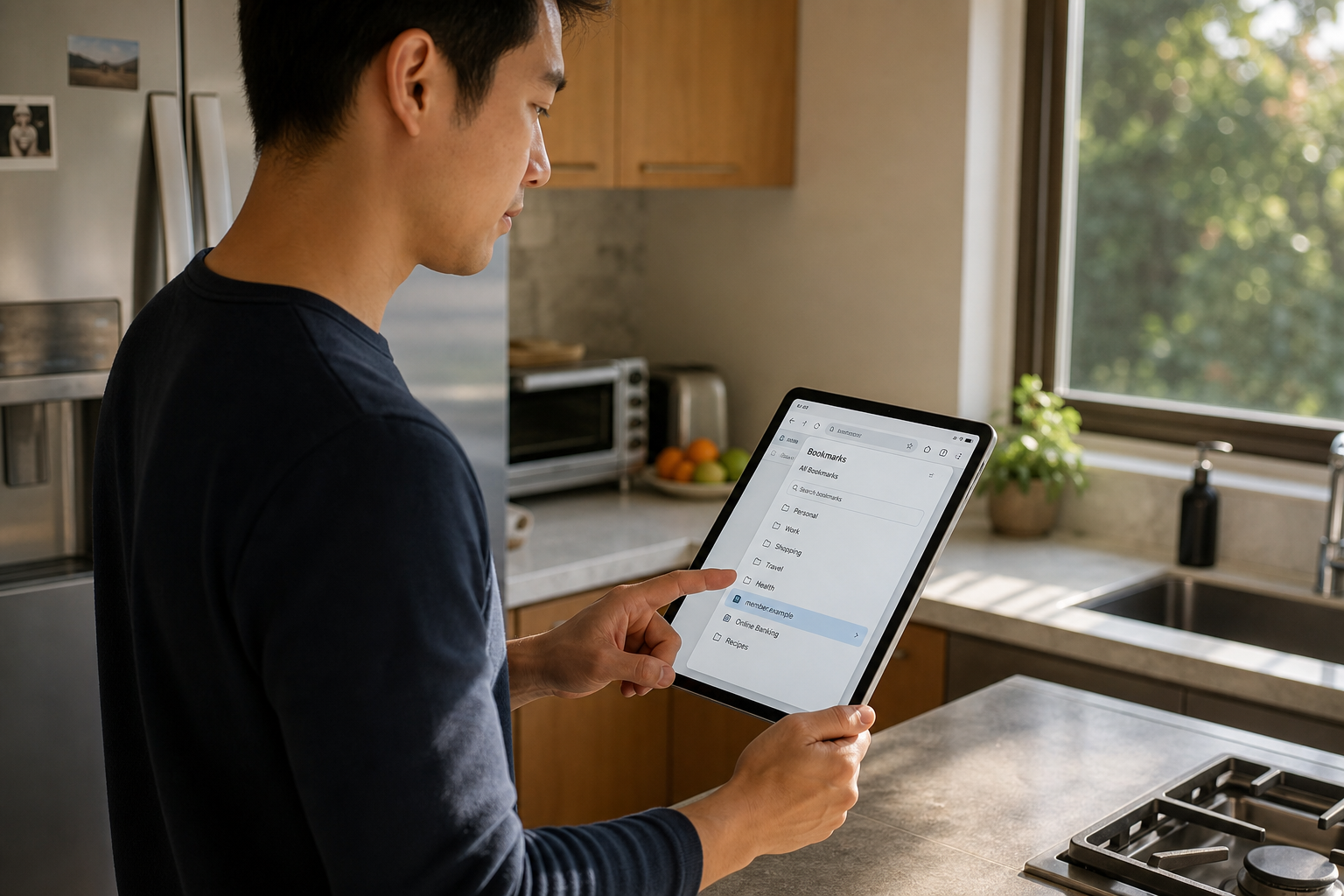
Use a trusted route for any page that can move money or expose an account. The best starting point may be the organization’s installed app, a bookmark you created after verifying the site, a bill or statement, the back of a payment card, or a manually entered address you already know. From the official homepage, navigate to the login or payment area.
If you do not know the address, use a search result for discovery, then verify it independently. Compare the domain with a statement, official correspondence, a government publication, or an app-store listing from the organization. Once verified, save the route so the next visit does not require another search.
CISA's overview of MFA methods explains why methods differ. Multifactor authentication reduces the value of a stolen password, but ordinary codes and push approvals do not make a fake login harmless. A fake page may ask for a one-time code or trigger a real sign-in prompt after collecting credentials. Never approve a prompt or enter a code unless you initiated the sign-in through the verified service and the details match what you are doing.
FIDO Alliance's explanation of passkeys describes a different protection: a passkey is presented only to the site where it was registered, rather than being a password or code you can type into an impostor's page. Passkeys and FIDO/WebAuthn security-key sign-ins resist this kind of credential phishing. That protection applies to the sign-in mechanism; it does not validate a payment, remove malicious software, or undo a stolen session. If your expected credential is not offered, stop and check the route instead of casually falling back to a password on the unfamiliar page.
Customer support
Start with a source tied to an existing relationship: the account page, installed app, receipt, product packaging, contract, or official homepage. Do not call a number solely because it is the largest number in a search result or appears in a highlighted answer.
When a support conversation begins, keep a boundary around what support should need. A legitimate representative may verify limited account details, but should not need your password, a sign-in authentication code, or payment through gift cards, cryptocurrency, wire transfer, or a person-to-person app. Do not install remote-access software unless you independently verified the organization, expected that support method, and understand what access you are granting.
If the caller says your computer is infected, your financial account is under attack, or your refund cannot proceed unless you grant remote access, end the session. Return through the product’s verified support route.
Software downloads
Find the publisher’s known homepage or verified app-store listing first, then navigate to the download. Be wary of third-party installers, bundles, password-protected archives, forced “updates,” and instructions to switch off security tools. Check that the product name, operating system, and publisher match what you intended to obtain.
Downloading a file is not the same as running it, but the moment before execution is a valuable final checkpoint. If the browser or operating system warns that the publisher is unknown, the file is uncommon, or the source is dangerous, do not bypass the warning merely because the search result looked official. Go back to a verified publisher route and compare the file information.
Shopping and government services
For shopping, verify the store’s identity and return policy before paying. A dramatically low price, unfamiliar payment flow, or insistence on a hard-to-reverse payment method raises the stakes of a domain mismatch. The FTC’s payment-specific guidance for people who were scammed lists different response options for cards, bank transfers, wires, gift cards, payment apps, cryptocurrency, and cash. Before a purchase, prefer a method whose dispute process you understand over an unfamiliar or cash-like route.
For taxes, benefits, licenses, permits, and other government tasks, confirm the agency and domain from official correspondence or a known government directory. A page can use government seals, flags, and formal language without being operated by an agency. Do not pay an added “processing” or “expediting” fee until the official service confirms that it exists.
What to do before opening the next search result
Create a small set of trusted routes before urgency makes the decision harder:
- Verify and bookmark the websites you use for banking, benefits, taxes, insurance, travel, and utilities.
- Keep official apps installed from verified app stores and open sensitive accounts from those apps when practical.
- Save support numbers from statements, receipts, cards, packaging, or official account pages.
- Keep the browser, operating system, and security tools updated, and leave phishing and download protections enabled.
- Use a password manager. It may refuse to fill credentials on a lookalike domain, creating an important warning that the address is different.
- Use a unique password for each important account and enable multifactor authentication. Prefer a passkey or FIDO/WebAuthn security-key sign-in when supported; a key used merely to generate a one-time code is a different method.
For a plain-language comparison of these protections, see Passwords, Passkeys, and 2FA Explained. None of these tools removes the need to inspect a route, but together they limit what a copied page can obtain and make recovery more manageable.

If you already interacted with a suspicious search result
Start by identifying the deepest interaction that occurred after the search result opened. Do not treat a page view as if remote access was granted, and do not treat a submitted password as if nothing happened. Use the matching branch below, then add any later branch that also applies.

You only opened the page
Close the tab. Do not return through browser history to inspect it again. If the browser displayed a warning, do not override it. If a download began automatically, check the browser’s download list without opening the file and delete the actual saved file without opening it.
Navigate independently to the real service if the original task still needs attention. Check the account through the official app or known address. If you did not enter information, download or run a file, approve a prompt, call a number, or grant permissions, the response can remain proportionate. A page view alone does not mean every account must be reset.
The practical What To Do If You Clicked a Scam Link guide can help separate a simple click from actions that require account, device, or payment recovery.
You entered a password or approved a sign-in
Open the real service through a clean route. Change the password immediately. If that password was reused, change it on every other account where it appears, starting with email, financial services, and the password-recovery account that could unlock other services.
Review recent sign-ins, active sessions, connected devices, forwarding rules, recovery email addresses, phone numbers, app passwords, and third-party connections. Sign out unfamiliar sessions and remove changes you did not make. If the service offers a “sign out everywhere” option, use it when appropriate.
If you entered a one-time code or approved a push notification, assume the second factor may have been used. A real prompt can be triggered after a fake page collects the correct password. Change the password, revoke sessions, review trusted devices, and contact the provider through its official account-security route if you cannot confirm control.
Keep multifactor authentication enabled. The FTC’s phishing guidance recommends MFA as an additional layer and advises people whose computers may have downloaded malware to update computer security software and run a scan. MFA can still protect an account if the attacker did not obtain or bypass the second factor, but verify the account rather than assuming the failed sign-in ended the risk.
You downloaded or ran a file
If the file was downloaded but never opened, delete the actual saved file without opening it, or use the security tool's quarantine/deletion control. Clearing an entry from the browser's download history is not the same as removing the file from storage. Keep security protections enabled. Run a security scan if the browser, operating system, or security tool warned about the file.
If the file was opened or run, treat the device as potentially affected. Stop using it for sensitive sign-ins. Disconnect it from the network if you see ongoing unwanted activity, unknown windows, disabled security tools, or other signs that software may still be operating. Use the remediation process for the actual platform. On Windows, Microsoft's Windows Security guidance describes Full and Offline scans; follow the current instructions and any work-device policy. On Android, Google's unwanted-software guidance recommends Play Protect, updates, removal of untrusted apps, and manufacturer help if the problem persists. On other platforms, use that operating-system provider's trusted remediation guidance or a technician reached independently rather than looking for Windows-only controls. For an employer-managed device, contact the security or IT team promptly.
Change important passwords from a different trusted device, especially if the affected device stored browser passwords or active sessions. Preserve the filename, download time, and source address if they are already available, but do not revisit the dangerous page to collect more evidence.
You allowed remote access
End the remote session. If the other person may still have control, disconnect the computer from Wi-Fi or unplug its network cable. On a separate trusted device, contact the real organization if the scam involved a bank, retailer, software company, or government agency.
Remove the remote-access program using instructions from the operating-system provider or the legitimate software publisher. Use the platform-appropriate cleanup described above. Review installed programs and browser extensions for unfamiliar additions. Because remote access may expose open accounts, stored files, and saved sessions, change important passwords from another trusted device and review email, financial, shopping, cloud-storage, and social accounts for changes.
Do not let the original caller guide the cleanup. A scammer may claim that a second session, payment, or authentication code is necessary to reverse the first action.
You paid or shared financial information
Contact the card issuer, bank, payment app, wire service, gift-card company, or other provider immediately through a verified number. Explain what happened and ask whether the transaction can be stopped, reversed, disputed, or flagged as fraud. Speed matters, but recovery is not guaranteed.
Follow the FTC branch that matches the actual payment method. Do not send a second payment to someone who promises to recover the first one.
If card or bank details were entered on the page, ask the provider whether the account number or card should be replaced. Monitor transactions and alerts. Change the financial account password through the official app or known website, and review connected contact information and devices.
You shared identity information
The response depends on what was exposed. A name and email address create a different risk from a Social Security number, driver’s-license image, tax record, health-insurance identifier, or full identity questionnaire.
Use the Identity Theft Response Checklist to organize the next steps. The FTC's identity-theft guidance explains credit-report review, credit freezes, and the IdentityTheft.gov recovery process. Match those actions to the sensitive information exposed or misused rather than assuming every name or email disclosure requires the same response.
Watch for follow-up contacts that refer to the original event. Once an impersonator knows the service you use and the information you supplied, a later message may sound unusually specific. Reach the real organization independently rather than continuing through a reply, callback number, or link provided by the same source.
Preserve and report without returning to danger
Save evidence you already have: the search terms, search result text, screenshot, final address, time, phone number, payment record, filename, and messages. Do not reopen the suspicious page solely to improve the record.
Report the search result or advertisement through the search platform’s reporting menu. Notify the impersonated organization through a contact route obtained independently. Report consumer fraud to the FTC, and report cyber-enabled fraud to the FBI Internet Crime Complaint Center. If money or identity information was involved, keep the confirmation details with the recovery record.
Conclusion
The first search result is not automatically dangerous, and a lower search result is not automatically safe. The useful rule is simpler: for a high-consequence action, separate discovery from trust. Search may help you identify an organization, but use an independently verified route to sign in, pay, download software, or reach support.
Before using a search result for a sensitive action, inspect the actual registered domain and the requested action. Check the address bar again after redirects. Treat browser warnings as stop signals, and do not let a polished page, a connection indicator, an ad disclosure, or a top search result substitute for verification.
If something already happened, respond to that event. A click calls for a different response than a submitted password, executed file, remote session, payment, or identity disclosure. Acting quickly matters, but proportional steps are clearer and more effective than panic.
For practical consumer cyber guidance delivered as new risks and decisions emerge, subscribe to Quantum Cyber AI.
FAQ
Are sponsored search results always unsafe?
No. Many legitimate organizations advertise, and paid placement alone does not show that a search result is harmful. It also does not prove that the organization named in the search result purchased the ad. Treat “Sponsored” as a description of placement, then verify the final domain and the requested action independently.
For ordinary reading, an ad may be a reasonable discovery route. For signing in, paying, downloading, or calling support, move from discovery to a verified channel such as an installed app, known bookmark, statement, packaging, or official homepage.
Is the first unpaid search result safer than an advertisement?
Not automatically. Unpaid ranking is different from paid placement, but it is not an identity check. Search-engine optimization poisoning can promote malicious pages for popular or urgent queries, and compromised legitimate sites can redirect visitors elsewhere.
Inspect the domain before clicking when possible and after the page loads. For software, financial accounts, government services, and support, begin from a known official source instead of relying on a search result’s rank.
Does HTTPS make a search result's destination legitimate?
No. HTTPS means the connection between your browser and that website is encrypted. It does not prove who operates the website. A copied login page can use HTTPS, so connection encryption can coexist with impersonation. Browser indicators vary and should not be treated as ownership badges.
Check the registered domain, how you reached it, and whether the page’s request fits the service. A mismatched domain or abnormal request matters more than the presence of a connection-status icon.
What if a search result led me to submit a password but MFA stopped the login?
Use the real service through a clean route and change the password. Change it anywhere else it was reused. Review active sessions, trusted devices, recovery information, and recent security events. Keep MFA enabled.
Do not assume the account is safe solely because one prompt was denied or one code was not entered. Confirm that no unfamiliar session succeeded, revoke anything suspicious, and contact the provider through its official security channel if the account details have changed.
What if I downloaded a file from a search result but did not open it?
Delete the actual saved file from storage without opening it, or use the security tool's quarantine/deletion option. Removing a browser download-list entry alone does not delete the stored file. Keep security protections enabled. If the browser, operating system, or security tool warned about the file, run a scan.
The risk is higher if the file was opened, an installer ran, a script executed, or security settings were changed. In that case, stop using the device for sensitive accounts, follow the platform-appropriate cleanup described above, and change important passwords from a different trusted device.