
An AI note-taking app can turn one conversation into a collection of records: calendar data, audio, screenshots or screen-share captures, a meeting transcript, speaker labels, a summary, action items, email recaps, shared documents, and downloaded copies. That makes meeting privacy a decision to make before the bot joins, not a setting to investigate after sensitive details have been captured.
The question is not simply, “Does this tool save time?” Ask whether this meeting, with these people and subjects, should create these records under the current settings. Before an AI note-taking app starts, organizers need to know what it captures, who receives the results, and who can delete them. Participants need clear notice and a practical alternative.
This guide gives both groups a calm process for deciding whether an AI note-taking app belongs in a meeting, checking its controls, and responding to mistakes. The legal discussion is general information, not legal advice. Recording, privacy, employment, health, education, contract, and sector-specific rules can vary with the facts and jurisdiction.

Key Takeaways
- Treat an AI note-taking app as another participant and another data processor, not as a silent version of a paper notebook.
- Define the purpose and the minimum useful record before enabling capture. A short reviewed summary may be enough when a recording or complete meeting transcript is unnecessary.
- Give advance notice that names the tool, the artifacts it will create, the intended recipients, the retention period, and the way someone can object.
- Before connecting a calendar or enabling auto-join, audit every standing join rule and recurring series. If the service is already connected, audit it immediately and sample at least the next 14 days of events.
- Review audio, video, screenshots, screen-share captures, transcripts, summaries, prompt history, chat messages, email recaps, shared documents, and exports separately. One off switch may not control them all.
- Use the narrowest access settings, verify the saved permissions after the meeting, and set a deletion owner and date.
- Treat AI-generated notes as a proposed record. Check names, decisions, assignments, dates, quotations, and disputed context before relying on them.
- If an AI note-taking app joins or shares notes unexpectedly, stop capture, trace every artifact and recipient, correct errors, restrict access, and escalate when sensitive information was exposed.
Use a Meeting Privacy Check Designed for About Ten Minutes
Start with this practical decision before reading the platform examples below. The AI note-taking app checklist is designed for about ten minutes when the purpose, participants, policy, and available controls are already understood. It is a planning aid, not a deadline for approving an unfamiliar tool. If a material answer is missing, leave capture off while you investigate.
Organizer checklist
- Purpose and authority: Write the one outcome the AI note-taking app should support. Confirm who owns the meeting and who may enable capture.
- Notice: Tell participants the tool, artifacts, recipients, retention period, and objection path in advance.
- People: Check attendee and invitee lists, external guests, group aliases, and late joiners.
- Sensitivity: Mark agenda sections where the assistant must stay off or be paused.
- Minimum artifact: Choose a summary, transcript, recording, screenshots or screen-share captures, or no persistent record based on the purpose.
- Access: Select the narrowest recipients for every saved artifact.
- Retention and ownership: Set a deletion date that matches the purpose. Name the person responsible for reviewing, correcting, restricting, and deleting the result.
- Alternative: Prepare manual notes or a participant-reviewed summary for anyone who cannot join a captured session.
Use a simple traffic-light decision. Green means purpose, authority, notice, recipients, and deletion are clear. Yellow means resolve a setting or move a sensitive topic outside capture. Red means turn off the AI note-taking app because authority, notice, or suitability is missing. The meeting can continue without AI notes.
Participant checklist
Before discussing anything sensitive, ask: What does the AI note-taking app save? Who receives it? How long will it remain? How can I decline? If the answers are unclear, request manual notes or a pause.
A concise boundary is enough: “I can participate, but I cannot discuss this information while AI capture is active.” Do not share secrets while capture status is uncertain.
An AI Note-Taking App Creates More Than Notes
A person taking notes decides what is relevant and usually produces one document. An AI note-taking app may process a much larger stream of information and create several linked artifacts. Even when the final output is a two-page summary, the service may have handled calendar details, participant names, audio, video, screenshots or screen shares, a full transcript, speaker labels, chat content, prompts, and generated action items along the way.
That broader data life cycle is the first meeting privacy issue to understand. The NIST Privacy Framework FAQ identifies review, access, identity management, alteration, transfer, disclosure, deletion, notice, and user options as distinct privacy-management concerns. Applied to an AI note-taking app, those concerns become practical questions: What entered the system? Who could open it? Was it copied elsewhere? Can a participant correct it? When will it be deleted?
A short summary from an AI note-taking app does not prove that no meeting transcript exists, and turning off video does not prove that no speech-to-text data was processed. Deleting a dashboard item may leave an email recap, Calendar attachment, shared-drive copy, or download. Follow the content from invitation through deletion.
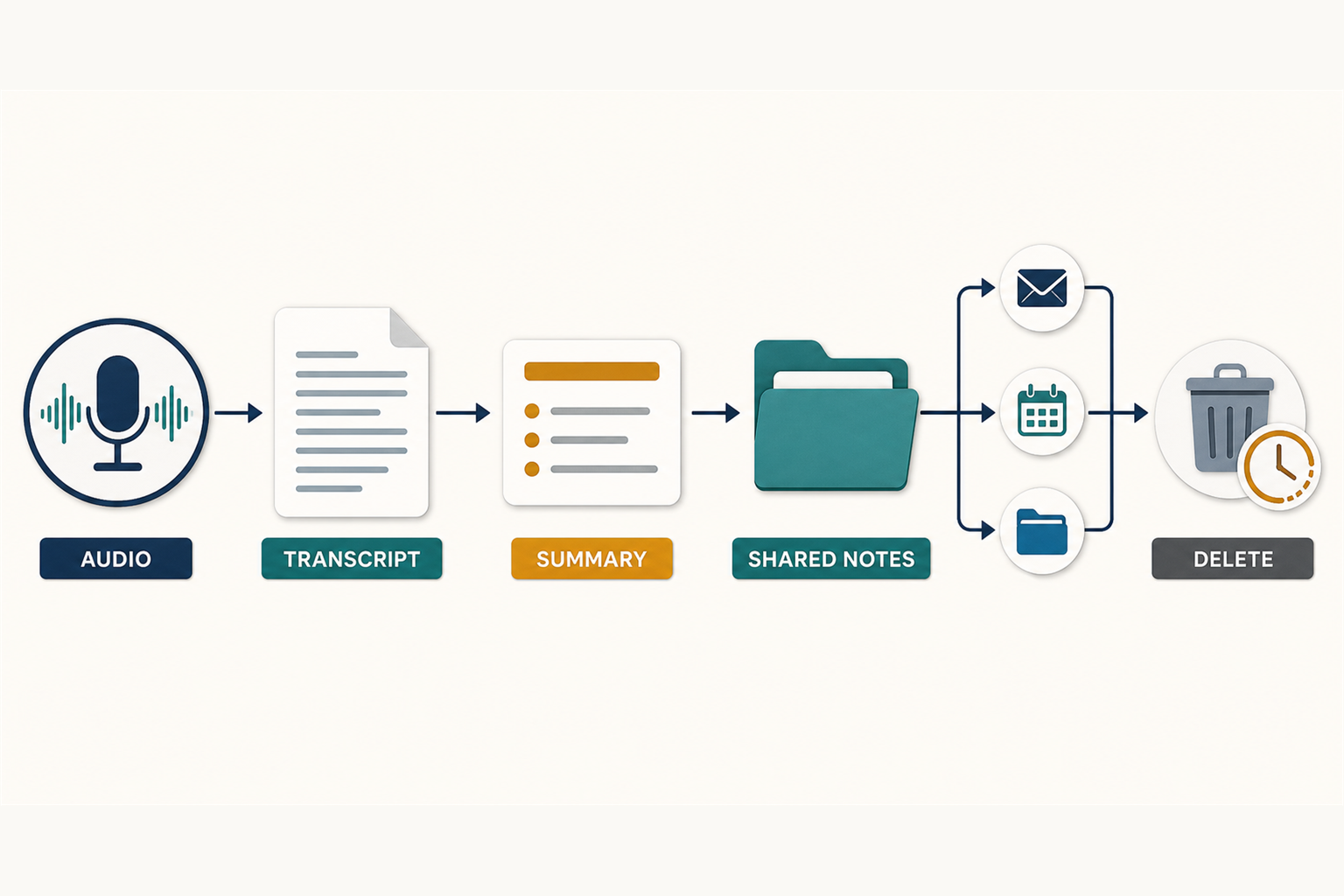
Convenience can change the default
Convenience settings can remove the decision from the moment. A connected AI note-taking app may join automatically, a native feature may start under a standing preference, and a generated document may be shared with invitees who did not attend.
An old setting can carry an AI note-taking app into a job interview, client call, medical appointment, personnel discussion, or family meeting that nobody intended to capture. A participant-list tile is not a universal safeguard because native and botless capture may not use a separate visible participant.
Before connecting an AI note-taking app to a calendar or conferencing account, use the broader questions in Is This AI Tool Safe? A Practical Checklist. For each meeting, add one narrower question: What is the smallest record that would accomplish the purpose of this call?
Decide Whether This Meeting Should Be Captured
The safest meeting privacy control is not a sophisticated permission. It is deciding not to collect information that the group does not need. Start by writing one sentence that explains the purpose of the AI note-taking app. Good answers are specific: “Create a reviewed list of project tasks,” “Provide an accessibility aid during this call,” or “Prepare a factual recap for the three people in the working group.”
“Record everything in case it is useful” is not a defined purpose. An AI note-taking app without a specific purpose can create more records than the group needs. If the group only needs assignments, a reviewed task list may be enough. If exact wording matters, a transcript may help but creates a more revealing record. If the discussion has no durable need, no persistent AI record may be the best choice.
Mark sensitive subjects before the meeting
An AI note-taking app should stay off while the group considers whether to capture legal advice, medical details, personnel complaints, discipline, credentials, financial account information, family issues, security incidents, confidential negotiations, or information covered by a professional duty. These subjects do not all have the same legal effect, but unnecessary collection carries greater cost and may require narrower authority.
A mixed agenda can use a pause boundary. The host can capture an ordinary project update, stop before a sensitive item, verify that capture stopped, and resume only if the group agrees. Mark that boundary in the agenda.
Use this simple decision test before enabling AI notes:
- Can I state the exact purpose of the record?
- Can I name the people who should receive it?
- Can I explain what will be retained and for how long?
- Do I have authority to make this choice for the meeting and its participants?
- Is there a reasonable alternative for someone who objects?
If the organizer cannot answer those questions, do not enable the AI note-taking app. The meeting can still proceed with manual notes while the policy or account settings are checked.
Meeting Privacy Requires More Than a Recording Notice
A recording badge, announcement, chat message, or bot name can signal capture, but it does not answer every consent question. Participants may not know whether the service retains audio, sends notes to absent invitees, uses third-party models, or lets only the host delete the result. Notice should explain how the AI note-taking app handles the data, not merely announce that “AI is on.”
The rules resist a one-line national summary. Federal law includes an exception in 18 U.S.C. Section 2511(2)(d) when a private person is a party or one party has given prior consent, subject to the statute's criminal or tortious-purpose limitation. It does not settle every other jurisdiction, workplace, contract, or regulated-sector question.
Remote participants may be in several jurisdictions, so do not convert the federal exception into permission for every call. Confirm applicable organizational and legal requirements before enabling capture, and seek qualified guidance when the situation is regulated, disputed, or high stakes.
Give people a usable choice
An operationally safer practice is advance notice, a real opportunity to object, and a bot-free option before an AI note-taking app starts. The FTC's 2020 video-conferencing privacy guidance advises organizations to check recording status, review the provider's privacy policy, limit sensitive disclosures, and establish consistent conferencing practices. Those habits remain useful when AI creates a transcript or summary instead of a conventional video file.
An invitation notice can be short without being vague:
We plan to use [tool name] to create a transcript and AI summary for this meeting. The summary will be shared with [named group], and the transcript will be restricted to [named role] and deleted after [period]. Please contact [person or channel] before the meeting if you object or need a no-capture option.
At the start, the host can say:
The AI note-taking app is ready, but it is not starting until we confirm. It will create [artifacts] for [recipients], with deletion planned for [date]. Does anyone need us to use manual notes instead?
A participant can respond professionally:
I am not comfortable having this part captured by an AI assistant. Please turn it off and use a short manual summary that we can review.
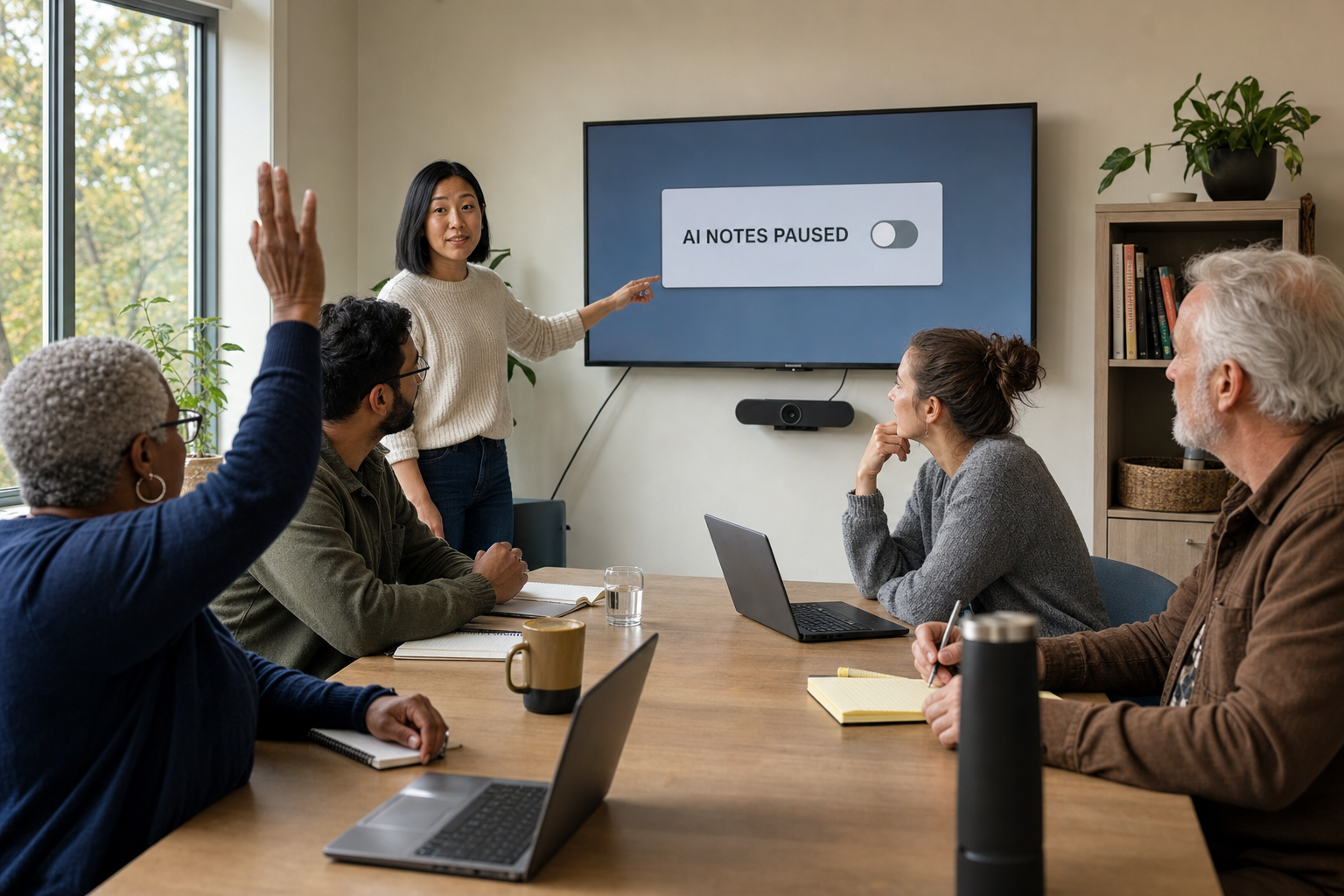
Silence is ambiguous when someone joins late, misses a notice, faces a power imbalance, or does not understand the tool. Keep the AI note-taking app off until the agreed process is clear. A clear process replaces assumptions with a record of what was explained and agreed.
Check Calendar and Auto-Join Rules Before Connecting or Enabling
Do not audit an AI note-taking app one meeting at a time. Before connecting a calendar or enabling auto-join, inspect every standing join rule and every recurring series across personal and work calendars. If the service is already connected, perform that audit immediately. Then review at least the next 14 days of events as an immediate sample, including later-added video links and group mailing lists. The 14-day view does not replace checking rules or recurring series that extend farther into the future.
Fireflies provides a concrete example of why this matters. Its current instructions for inviting Fireflies to meetings describe options for joining all calendar meetings with a web-conference link, only meetings the user owns, or meetings where the assistant is explicitly invited. Recording Rules can override the general join setting. Check the effective rule in the actual account instead of assuming one universal default. The lesson is not that one setting is always wrong. It is that an AI note-taking app can reach more future meetings than the user had in mind unless its standing rule and calendar scope are reviewed first.
For each upcoming event, check:
- Who owns the meeting and who authorized capture?
- Will the AI note-taking app join because of a global rule, an account default, an event-level choice, or a direct invitation?
- Is this a recurring series, and will the setting apply to instances beyond the 14-day sample?
- Does the guest list include group aliases, optional invitees, external addresses, or people who will not attend?
- Does the agenda contain a section where capture should stop?
- Is the same service connected to a personal calendar or another work account?
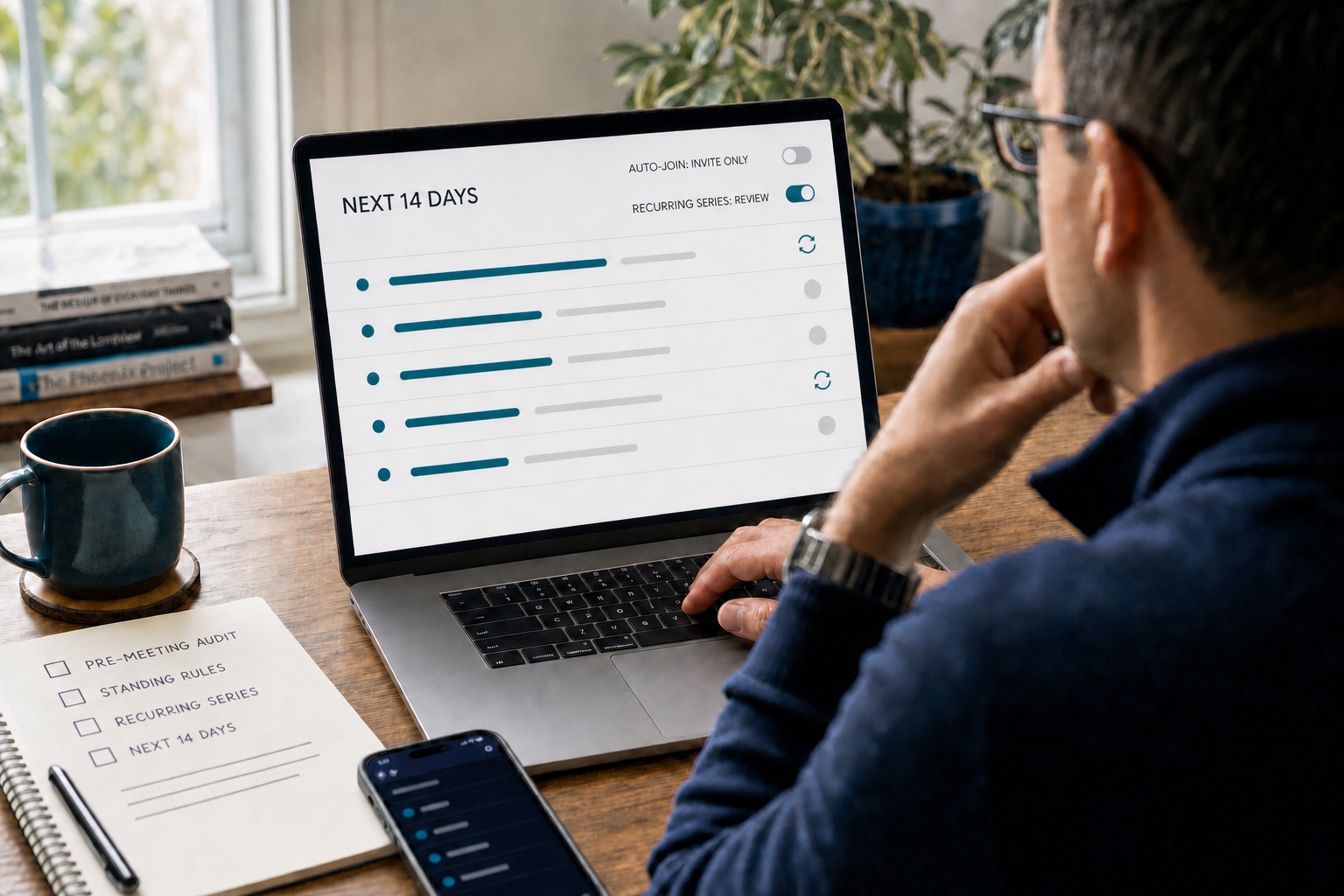
A bot tile is not the only capture path
An AI note-taking app can process meeting content as a native feature or desktop assistant without a separate participant. “I did not see a bot” is not proof that no AI processing occurred. Check recording, transcription, screenshot, screen-share, caption, AI, and local-capture indicators, and ask directly when an invitation mentions automated notes.
Also review operating-system permissions for microphones, screen capture, and system audio on the device running the assistant. A calendar integration determines when a tool may appear, while local permissions can determine what it can hear or capture. Both are part of meeting privacy.
Trace the Meeting Transcript, Audio, and Summary to Their Recipients
Evaluate an AI note-taking app as a chain of records, rather than one finished document. Separate three groups:
- Captured inputs: the conversation, calendar information, chat, presentation content, and any retained audio, video, or screenshots.
- Generated records: a transcript, speaker labels, summary, action items, or answers to prompts. A summary selects and condenses information; it is not the same record as the transcript used to produce it.
- Redistributed copies: email recaps, Calendar attachments, shared documents, downloads, exports, and integration copies.
Choosing a short summary describes the desired output. It does not prove that the service never processed or retained richer inputs. Deleting the summary does not prove that every input and copy was removed. For each group, identify the AI note-taking app or connected service holding the record, its responsible owner and recipients, and its access and retention controls.
Identify the default audience for every artifact the AI note-taking app creates. A host may control the recording but not a participant's download. A Calendar attachment may reach invitees who did not attend, a document may inherit group access, and an email recap can remain after the original is deleted.
The FTC's warning to AI companies about privacy and confidentiality commitments explains why the current product promise matters. The agency warns against breaking privacy commitments, omitting material facts, or quietly using customer information for undisclosed purposes such as model training. Before selecting an AI note-taking app, a buyer or meeting host should check the current policy, active settings, plan terms, and organizational contract instead of relying on a general claim that a tool is “private.”
Ask six data questions
For each AI note-taking app and configuration, answer these six questions:
- What is captured or collected? Include calendar details, audio, video, screenshots, screen shares, transcripts, speaker data, prompts, summaries, chat, and diagnostics.
- Where is it processed and stored? Check the platform, assistant, cloud storage, email, calendar, and relevant subprocessors.
- Who can access it by default? Separate hosts, attendees, invitees, workspace members, link recipients, administrators, and external guests.
- Is it used to train or improve models? Read the exact statement for the service, account type, and feature.
- How long is each artifact kept, and who can delete it? A transcript and summary may have different controls and owners.
- What remains elsewhere? Look for email, chat, calendar, drive, download, backup, and integration copies.
For a broader way to assess collection, access, and sharing, use the site's Privacy and Identity Protection guide. Apply those same principles to the meeting archive: collect less, restrict access, and remove records when their purpose ends.
Protect the account that controls the archive
The account behind the AI note-taking app may control months of sensitive records. Review connected apps, administrators, public links, former team members, and offboarding. Use strong authentication and the best multifactor option available. For account protection, see Passwords, Passkeys, and 2FA Explained.
Current Platform Controls Do Not Work the Same Way
Product controls change, and no AI note-taking app control is universal. Two features from the same vendor may create different records. The examples below show what to inspect in the current account. They are not endorsements, and they do not establish that a product is appropriate for a particular legal, contractual, or regulated setting.
Zoom
Zoom's current documentation for using Zoom AI in third-party meetings says it can join Google Meet and Microsoft Teams through calendar integration, join automatically, appear as a participant, transcribe, and create a summary. It may post a presence notice in chat three minutes after the start, and an optional advance notification can go to the host or all invitees before the meeting. A delayed or automated notice is not a substitute for confirming authorization before the opening discussion.
Zoom's caption and transcript settings documentation distinguishes live captions from retained transcripts and describes automatic generation, timed deletion, host and participant access, and local saving. “Captions were available” and “a transcript was retained and downloadable” are different states.
Zoom's Meeting Summary with Zoom AI instructions say it uses speech-to-text data, may use third-party models, can start automatically, and can distribute summaries through email or chat. The host can delete a summary. Verify who can start, receive, and remove the result.
Microsoft Teams
Microsoft documents a Copilot option that can operate only during a Teams meeting without a recording or transcript. Prompts and responses may still be retained under the organization's Microsoft Purview policies, and late joiners may access content from when Copilot began. “No visible transcript” does not establish that no AI-related record exists. Microsoft also says that once this meeting or call feature is initiated, it remains on for that session; verify the available controls before assuming a participant can switch it off for a sensitive agenda item.
Organizers can customize access to Teams recordings and transcripts with Everyone, Organizers and co-organizers, or Specific people. Microsoft says Everyone is the default and that the setting covers recordings, transcripts, AI recap, and transcript-based Copilot. The control requires Teams Premium or a Microsoft 365 Copilot license, is unavailable for channel meetings and ad hoc meetings, and appears only when recording storage is directed to the organizer's OneDrive for Business. It does not restrict third-party apps. The meeting option also does not permanently freeze the saved file's audience: later SharePoint permissions, sensitivity labels, or recording-link sharing can change access. Confirm that the license, meeting type, and storage path support the control, check the resulting file permissions, and check external assistants separately.
Storage creates another boundary. Microsoft's Teams recording-storage documentation says meeting and event recordings normally save to the organizer's OneDrive, even if the organizer did not attend. Recordings of 1:1 and group calls instead go to the OneDrive of the person who selected Record, while channel-meeting recordings save to the channel's SharePoint site. If an organizer lacks OneDrive, Microsoft documents a fallback order through a co-organizer, the recording initiator, and then temporary storage. Review the actual file permissions and sharing path as well as the meeting option.
Google Meet
Google's current desktop Take notes for me instructions say participants are notified when notes start, the document is saved in the organizer's Drive, and sharing can include all invited guests, invited internal guests, or hosts and co-hosts. Invitees are people on the Calendar event, not only attendees. Being able to see the notes attachment on that event does not itself grant access to the document; inspect the actual file-sharing settings. Google also documents an option to include screenshots of presented content. The screenshot setting is preselected by default for whoever starts the notes unless an administrator has preconfigured it differently. When selected, Meet shows participants a notice, and only presented content that remains onscreen for at least 10 seconds is eligible to be included.
Preselection does not mean every notes document will contain screenshots, and 10 seconds is a content-eligibility threshold rather than a delay before capture begins. For an AI note-taking app built into Meet, review guest lists, aliases, document permissions, and the screenshot setting. The current instructions also say “Also turn it on for future instances” is preselected by default when starting notes. Check that choice on a recurring series before the first capture; today's decision may become a standing preference.
Google also lets a host configure automatic note-taking for future meetings, including hosted meetings that meet a guest-count condition. A standing preference for an AI note-taking app can reach recurring or sensitive calls. Audit the full rule and recurring series before enabling it, or immediately if it is already active, and recheck after any change.
Standalone assistants
A standalone AI note-taking app adds another policy and account boundary. The Fireflies privacy policy, updated September 28, 2026, says personal information covered by that policy is not used for AI training. It also distinguishes business-customer User Content governed by Terms of Service, a data-processing agreement, or other customer agreements. Read the terms that actually cover your account and meeting data rather than treating the general policy as the complete contract.
The policy's zero-retention statement concerns third-party vendors after processing. It does not mean that the meeting record disappears from a user's Fireflies archive. Check the AI note-taking app's own retention and sharing controls, as well as what the agreement says about processors and vendors.
The Otter privacy policy, effective June 16, 2026, says Otter trains proprietary technology using de-identified audio recordings and using transcriptions that may contain personal information. Enterprise or customer-controller arrangements can have different terms, so check which policy and agreement govern the account.
Otter's separate Feedback and Training control instructions say Allow sharing permits Otter and its service providers to use all account conversations for training and product improvement, including human review, while Don't allow prevents that sharing. If the account owner has not chosen a preference, a collaborator may in some situations authorize one shared conversation. Check the current policy, account-level choice, and collaborator exception together. “Don't allow” describes this sharing control; do not use it as proof that every form of de-identified training described elsewhere in the policy has stopped.
Screens can be another artifact. When Otter's Automated Slide Capture feature is in use, it can automatically add unique slides or screen shares from Zoom, Google Meet, and Microsoft Teams to a conversation. The feature can be turned off in settings or during a live conversation, and individual images can be deleted. Verify whether that feature is active instead of assuming a transcript is the complete record.
Manage the Assistant During and After the Meeting
At the start, name the AI note-taking app, restate the artifacts and recipients, and confirm who can stop capture. Repeat the notice for late joiners. Before an excluded topic, announce the pause, stop the relevant capture features, and verify their indicators.
Pausing audio does not necessarily pause every chat, prompt, screenshot, or screen-share record. Keep passwords, tokens, recovery codes, financial details, and private health records out of the meeting system unless an authorized process requires them.
Treat the summary as a proposed record
An AI note-taking app can produce polished notes even when it omits context or assigns a statement to the wrong person. The NIST Generative AI Profile identifies risks including confabulation and automation bias and describes the value of human review, tracking, documentation, and oversight. A fluent summary should not become official minutes merely because it arrived quickly.
Before circulation or approval, verify:
- decisions and whether they were final or tentative;
- action items, owners, dependencies, and deadlines;
- participant names and speaker attribution;
- numbers, dates, product names, and technical terms;
- quotations and any language that could carry legal or reputational weight;
- disagreement, uncertainty, conditions, and context the summary may have flattened;
- material the group intentionally excluded from the record.

If the AI note-taking app makes a consequential error, correct the authoritative record and tell recipients what changed. Quietly editing one copy may leave the inaccurate version in email, chat, or a downloaded file.
Close the data loop
Afterward, open each artifact the AI note-taking app created as a recipient would. Verify access, remove unnecessary viewers, correct the notes, and identify the official record. When its purpose ends, delete it and check connected locations for copies.
If a Bot Joined or Shared Notes Unexpectedly
An unexpected AI note-taking app may appear because of an old auto-join rule, connected calendar, recurring event, or mistaken invitation. Respond promptly because the consequence depends on what it captured and where it sent the result.
Contain the capture first
Stop the AI note-taking app, remove it, and pause sensitive discussion. Record the tool, introducing account, timing, meeting owner, and any distribution notice. Do not forward the transcript to a larger group merely to investigate it.
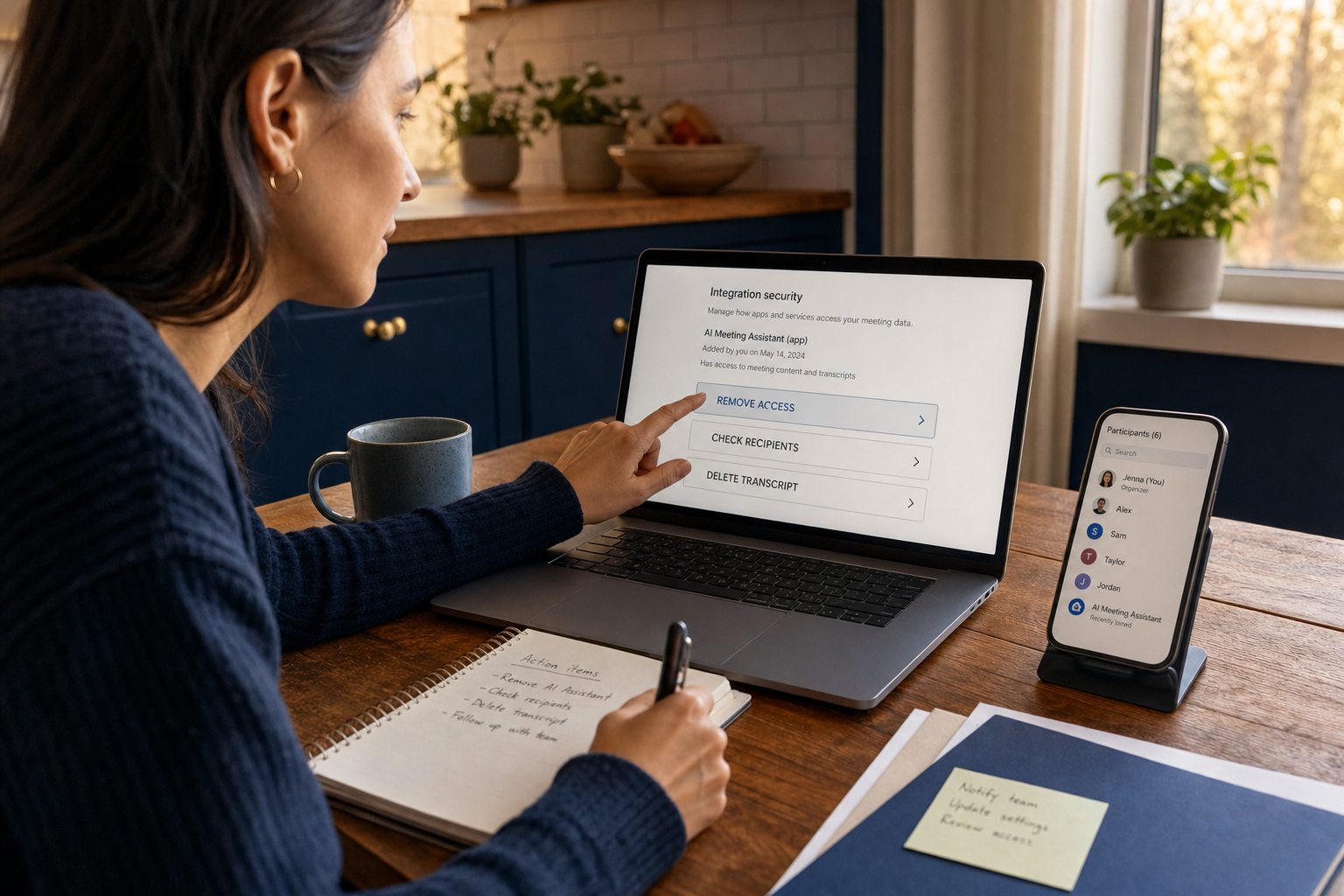
If the host cannot stop the AI note-taking app, end the captured portion or move the discussion to an approved channel. Preserve logs only when a real investigation, legal hold, or incident process requires them.
Find every artifact and recipient
Check the assistant dashboard, conferencing platform, meeting chat, organizer email, participant email, Calendar event, shared drive, downloads, and connected applications. Identify whether the system created audio, video, screenshots, screen-share captures, a transcript, summary, action items, prompts, or attachments. Record who received each item and whether public or organization-wide links were enabled.
Revoke unnecessary integrations through the meeting service's settings. If the controlling account may be compromised, follow the provider's recovery process. The FTC's hacked-account recovery guidance recommends scanning the device, changing the password, signing out other devices, turning on two-factor authentication, checking recovery information, reviewing forwarding plus sent and deleted items, and warning contacts when appropriate. Separately review the meeting service's connected apps, administrators, calendar permissions, and artifact access. Those service-specific checks are not claims from the FTC page. Removing an AI note-taking app from one event does not remove its account permissions.
Correct, delete, and escalate proportionately
Restrict access first, then use the service's deletion controls and check the connected copies. If inaccurate notes were distributed, send a concise correction that identifies the unreliable record and tells recipients which version, if any, is authoritative. Ask recipients not to rely on or redistribute the original. Preserve evidence needed for a legitimate incident or legal requirement before deletion, but do not retain sensitive content “just in case” without an approved reason.
Escalate through the appropriate privacy, security, legal, HR, compliance, school, health, or client channel when the capture involved credentials, regulated data, privileged advice, personnel allegations, private medical information, confidential client material, minors, or broad unintended sharing. A brief accidental join that captured no sensitive content may need only a settings correction and documented follow-up. A long transcript sent outside the intended group requires a more formal response.
The goal is not to blame the person who enabled the assistant. It is to contain the record, understand the data path, support affected participants, and prevent a repeat.
Conclusion
An AI note-taking app can make meetings more accessible and reduce the burden of producing a useful recap. It can also create records that outlast the conversation and reach people who were never in the room. Good meeting privacy starts with the purpose of the meeting, not the availability of a feature.
Before the bot joins, define the minimum artifact, confirm authority, audit every auto-join rule and recurring series before enabling it, notify participants, offer a realistic alternative, narrow access, and set a deletion date. During the meeting, announce and verify capture, pause for sensitive topics, and keep secrets out of chats and prompts. Afterward, review the notes as a proposed record, verify the actual recipients, correct material errors, and close the deletion loop.
A one-page meeting standard can make those decisions routine. If you want more practical guidance for everyday AI, privacy, and security choices, subscribe to the Quantum Cyber AI newsletter.
Frequently Asked Questions
Is an AI note-taking app the same as recording a meeting?
Not necessarily. An AI note-taking app may process speech in real time, retain a transcript, save audio or video, capture screenshots or screen shares, create a summary, keep prompts and responses, or produce several of those artifacts. Each artifact can have different access, retention, and deletion controls. Legal and policy treatment can also depend on the technology, the conversation, the participants, their locations, and the applicable rules. Ask what the specific configuration creates instead of relying on the label “AI notes.”
Is an AI note-taking app in the participant list enough notice?
A visible bot is useful notice that another service may be present, but it does not explain the complete data life cycle. The name may not tell participants whether audio or a transcript is retained, who will receive the summary, whether absent invitees have access, how long the records remain, or how to object. Some native and botless capture methods may not create a separate participant tile at all. Give a clear advance explanation and confirm it at the start.
Can an AI note-taking app work without saving a transcript?
Some platform modes can provide AI help without creating a conventional recording or visible transcript. That does not automatically prove that no related record remains. Prompts, responses, summaries, diagnostic data, policy-controlled records, or connected-system copies may have separate treatment. Check the official documentation and the active organizational settings for the exact feature in use.
What should I say if I do not want AI notes?
Use a specific, calm request: “I am willing to join, but I do not consent to AI capture of this discussion. Please turn off the assistant and use a brief manual summary that participants can review.” If only one agenda item is sensitive, ask the host to pause capture for that section. Raise the issue before disclosing the information you want to protect.
How long should an AI note-taking app keep meeting transcripts?
There is no useful universal number for every meeting. Tie retention to the stated purpose, applicable organizational and legal requirements, and the sensitivity of the content. Set the shortest period that still meets the legitimate need, name a deletion owner, and include connected copies in email, chat, calendars, shared drives, and exports. A retention setting is only effective if someone verifies that deletion occurred.
What should I verify before treating AI notes as official minutes?
Check decisions, assignments, owners, deadlines, names, dates, numbers, quotations, and technical terms. Confirm whether tentative ideas were mistakenly written as final decisions and whether disagreement or conditions were omitted. Remove material the meeting intentionally excluded. Give relevant participants a way to report corrections, then identify one authoritative version so an earlier AI-generated copy does not continue circulating as the record.