
Your laptop still opens documents. Your phone still takes photos. The router still gets everyone online. Then a notice says security updates are ending, and a device that seemed perfectly usable becomes a difficult decision.
Start by checking what support has actually ended and what you need the device to do. Keeping a computer on a supported upgrade path is different from continuing to use an unpatched phone for banking. Giving an old laptop one offline job is different from leaving it connected to your accounts.
The useful question is whether you can still give this device a role that fits its remaining protection, your needs and your budget.
Key Takeaways
- Check the exact model and software version. The date you bought a device does not necessarily start its support clock.
- Keep using a device when its necessary software still receives security updates, or a supported upgrade or extension covers your use.
- Isolation can reduce exposure while you transition. It does not repair missing patches or make an unsupported device safe for every task.
- Prioritize your everyday account devices and an unsupported home router. A working internet connection does not demonstrate continued support.
- Move files and account recovery access before erasing or giving away a device. Write down a specific next action rather than leaving the decision indefinitely.
What changes when security updates end
Security maintenance is easy to overlook because its value rarely appears as a new button. The UK National Cyber Security Centre’s guidance on obsolete products explains that unsupported weaknesses remain unpatched and that mitigation cannot make continued use risk-free. It also identifies routes for harmful content beyond websites, including email, shared files and removable media.
That does not mean an unsupported device has already been hacked. It means you should reconsider which jobs you entrust to it. Avoid treating “it works” as the complete answer, but avoid turning a support notice into proof that someone has stolen your information.
Think about the layers involved. The device has an operating system or firmware. You may also depend on a browser, apps and a cloud service. Check the layer relevant to your task rather than accepting an update to one component as an answer about everything else.
For your own decision, separate three questions: Does it perform the job? Does the software involved still get security updates? What would be affected if this device became unavailable or untrustworthy? A household can reasonably give different answers for a local music player and the phone used to recover its most important accounts.
Check the exact device before you spend money
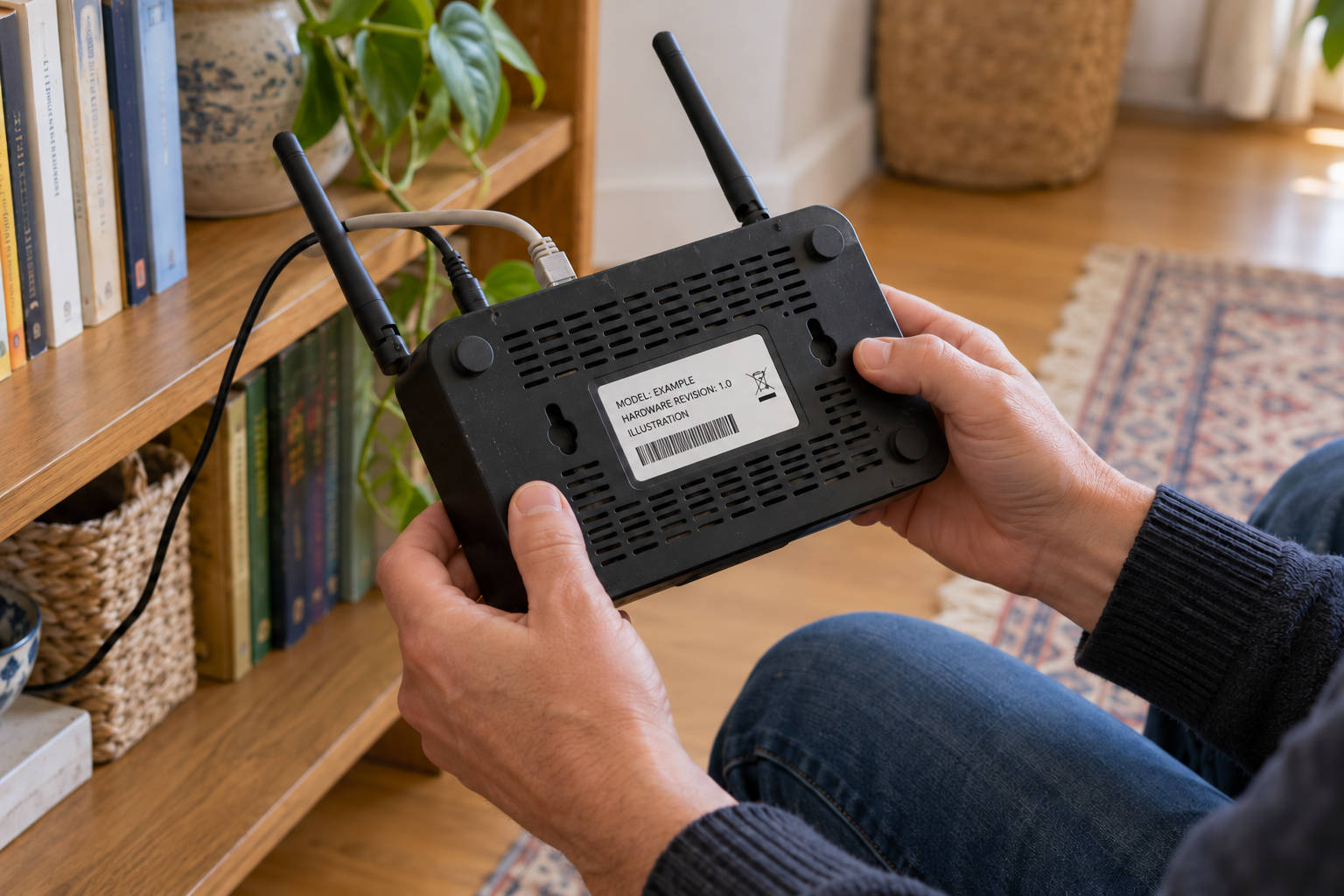
Make a short note with the product name, model number, hardware revision if one is listed, installed software version and manufacturer’s support page. Add the date you checked for security updates. You are trying to establish the present support state, not reconstruct every update the device has ever received.
Look specifically for security updates or security maintenance. A warranty, repair offer or remaining stock at a retailer does not establish whether security updates continue. If the manufacturer says only that a product is discontinued, look for a separate support statement before deciding what that means for patches.
An “up to date” message also needs context. It may mean you have installed everything available to that device. Your next question is whether further security updates are still being provided. If you cannot establish that, record the uncertainty and ask the manufacturer or provider directly.
Windows 10 has a limited extension to check
Microsoft’s current consumer Extended Security Updates program covers eligible enrolled Windows 10 22H2 devices through October 12, 2027. Ordinary Windows 10 support ended October 14, 2025. Existing consumer ESU enrollment continues automatically through the current deadline. Coverage provides critical and important security updates, without feature improvements, other fixes or technical support.
Check Settings, Update & Security, then Windows Update for the enrollment information. Eligibility and enrollment matter; merely having Windows 10 does not establish ESU coverage. The consumer program also has account and device requirements and is separate from commercial arrangements. Follow Microsoft’s current terms for your location and circumstances.
For your decision, this can be a bridge while you plan a supported upgrade or replacement. Write down the extension’s end date and your own next step. Avoid turning the existence of an extension into a reason never to revisit the computer.
A Chromebook’s clock is not its purchase date
Google explains where to check a Chromebook’s update schedule: Settings, About ChromeOS, Additional details, then Update schedule. A final software update notification means ChromeOS and browser updates, including security updates, will stop.
Google’s separate automatic update policy measures its ten-year period from the platform’s release. Some older devices need an opt-in for extended updates and have feature or service limits. Check the exact model’s date rather than counting ten years from the receipt in your inbox.
This distinction is useful when considering a used laptop or a discounted older model. Ask how much supported time remains for the device you are actually getting. A low price may still fit your needs, but compare it with the length of use you expect.

Phone support depends on the model
Google’s Pixel software update policy provides seven years of operating-system and security updates for Pixel 8 and later phones, measured from first availability on the U.S. Google Store. Pixel 6 and 7 families and Pixel Fold have five-year periods. Other Android devices need their own manufacturer or carrier information.
Use that as an example of how to check, not a promise about every phone. Write down your exact model and the manufacturer’s commitment to security updates. Then check what is installed. A promised support period, an available update and a completed installation are separate things.
Keep, isolate or replace: choose a defined role
You do not need a complicated score. Consider whether security updates continue, whether the device handles important accounts or private information, and whether its connections can realistically be limited. Then choose one of these outcomes and attach a next step.
Keep it on a supported path
Keeping the device is the straightforward choice when the software you need remains supported and you can install its security updates. You may already have an update waiting, an eligible operating-system upgrade or a limited extension that covers your situation.
Record how you will keep security updates arriving: install the update, confirm the extension or arrange the upgrade. Avoid describing a future intention as completed protection. If a family member normally manages updates, make sure the task has an owner and that everyone understands whether the device is ready for its usual work.
A supported device does not need replacing simply because it is unfashionable. If it performs the required job and receives security updates, its age alone is not the decision this article is asking you to make.
Isolate it only when the new role is realistic
Isolation means reducing connections and use, not adding a reassuring label. For a household decision, ask which connections you will actually remove and which activities you will stop. Will this device still browse? Receive files? Sign into personal accounts? Connect to a manufacturer’s cloud service?
A narrower role may be reasonable during a transition when you understand what remains exposed. It should be something the household can sustain. “Never use email on this laptop” is a weak plan if it remains the only convenient way to open the family’s mail.
Prefer a clear boundary such as “this computer is being kept for one local task, without household account access.” If maintaining that boundary becomes burdensome, reconsider the role. Isolation should simplify the decision rather than create a permanent collection of exceptions nobody remembers.
Replace or retire it when its job needs current protection
My recommendation is to move routine banking, primary email, password management and account recovery away from a device whose necessary software no longer gets security updates. Treat replacement as replacing the device’s role; you may already have a supported computer or phone that can do the work.
The Canadian Centre for Cyber Security’s obsolete-product transition guidance recommends prioritizing internet-facing, security-critical and sensitive-information systems. Its advice is written for organizations, but that priority is useful when deciding where a household’s limited budget should go first.
If immediate replacement is difficult, choose the most important activity to move now. A staged transition with an identified destination is more useful than either buying everything at once or postponing every change until money is easier.
Give an unsupported router higher priority
A router deserves its own decision because it is the household’s connection point. In a May 2025 alert, the FBI described criminal proxy services exploiting end-of-life routers. It recommended replacing end-of-life models where possible, applying available firmware updates and disabling remote management.
That evidence does not mean every old router is infected. It does make “the Wi-Fi still works” an inadequate answer to a support question. Find the model and check whether firmware security updates continue. If the provider supplied the router, ask it to confirm support and explain any replacement arrangement.
Give the provider a concrete question: “Does this exact model still receive security updates, and who installs them?” If the answer is unclear, ask for the model’s support page or a supported replacement option. Keep the question about security maintenance rather than speed alone.
For settings and maintenance beyond this decision, use the Home Router Security Checklist. Moving another device to a guest network is not a solution to an unsupported router that provides both networks.
What a guest network can and cannot do
The FTC’s home Wi-Fi security guidance recommends keeping router firmware current, checking with the ISP about provider-managed updates and using a separate guest network. It also recommends strong administrative credentials and disabling unnecessary remote-management features.
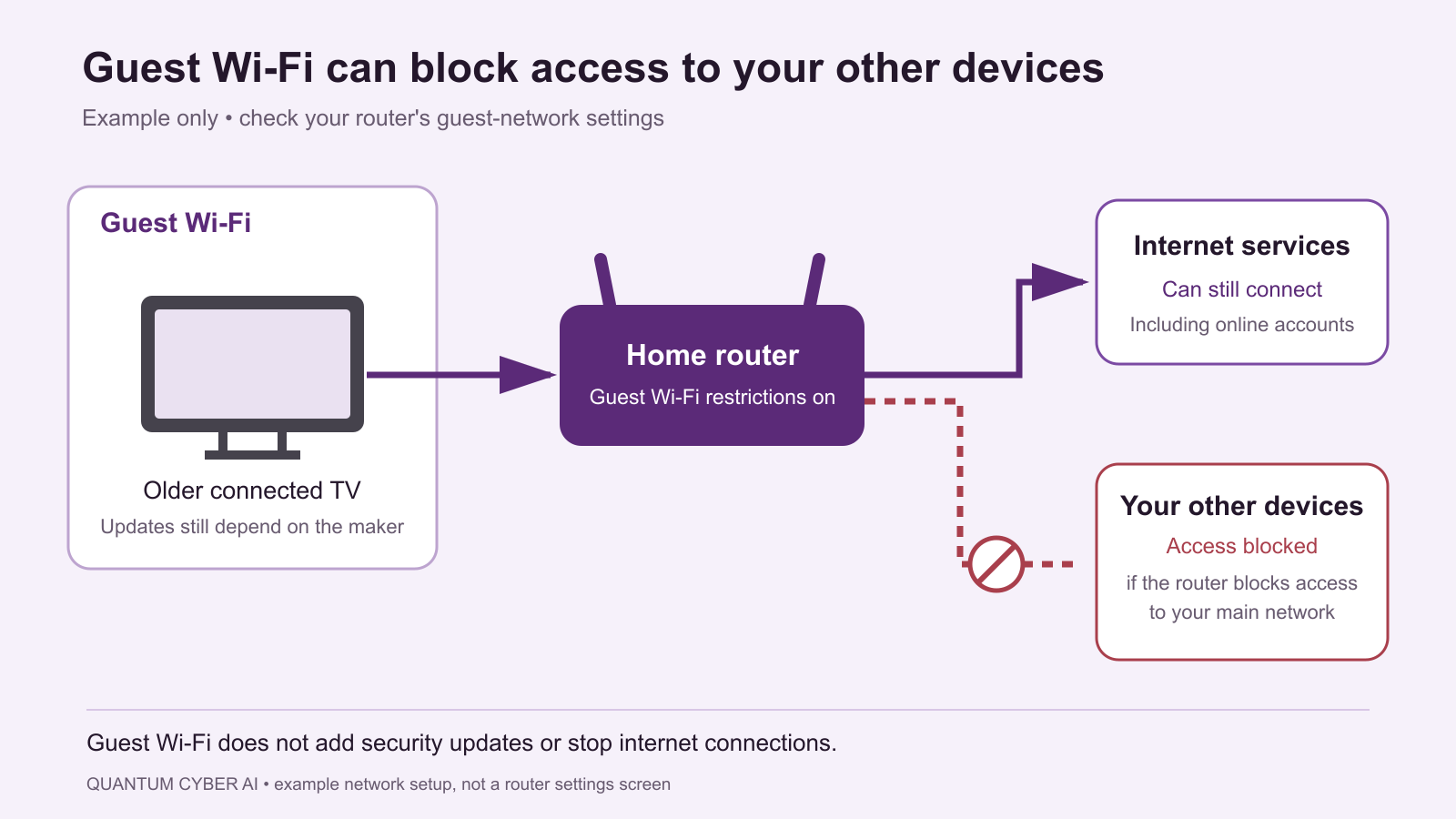
For an aging connected device, treat a guest network as one possible limit on access to your other devices. Check the router’s actual settings and instructions. Do not assume that creating another network name establishes every separation you intended.
Also ask what has not changed. A device on a guest network may still use the internet and its cloud account. That arrangement does not make its own unsupported software receive security updates again. If your concern is the device’s microphone, camera or stored information, explain how the proposed connection change addresses that concern before relying on it.
The Smart Home Security Checklist can help with the broader setup. Here, the narrower question is whether keeping this device connected still fits the role you have chosen. When the answer depends on settings you cannot confirm or maintain, choose a simpler arrangement.
Three household examples of different decisions
These are hypothetical examples of how to apply the decision, not reports of specific incidents.
A supported bridge for a familiar computer. Someone has a Windows 10 laptop that meets their needs. They confirm it is eligible for consumer ESU, verify enrollment and install the available security updates. They decide to keep it while arranging a supported long-term option. Their note contains both the program deadline and a nearer task: check whether their essential software and files will transfer. The useful outcome is a planned bridge rather than an unnecessary emergency purchase.
A genuinely narrower job for an old laptop. A household wants to keep a computer for a local music project. It will not hold their email, passwords or financial accounts. They assess whether the project can run without internet access and whether files need to come in from elsewhere. If the job constantly requires downloads or new connections, they abandon the offline description. Their decision depends on the actual workflow, not on calling the laptop “just a spare.”

A phone that still works but carries too much responsibility. An older phone has stopped receiving security updates and remains the owner’s banking, email and recovery device. Instead of trying to preserve every existing habit, the owner arranges a supported replacement for those roles first. They check sign-in and recovery access before retiring the phone. Keeping the old handset as a local camera can be considered separately; it does not justify leaving important accounts on it.
The examples reach different outcomes because the support states and jobs differ. They are not a ranking of product brands or a rule that every device needs replacement at the same age.
What to do now: turn uncertainty into one next action
Start with the devices you rely on most. You do not have to inventory every object in the house today. Choose your everyday phone or computer and the router, then add a connected device whose support notice prompted the question.
For each, write five short answers:
- What exact model and software version is this?
- Where does the manufacturer state whether security updates continue?
- What important accounts, data or household functions depend on it?
- Am I keeping it supported, narrowing its role or replacing its role?
- What is the next action, and who will do it?
Make the action small enough to complete. “Call the provider about this router model” is better than “fix home security.” “Confirm my recovery method on the supported phone” is better than “deal with old phone.” If you are helping a relative, do the first step together rather than leaving an unexplained technical list.
Where a transition needs time, give it an actual appointment or deadline based on the task. This is a planning commitment, not a claim that unsupported use is safe until that date. Security updates ending does not come with a universal grace period.
Consider the cost of disruption as well as the purchase price. List the tasks that must continue, the files needed and anyone who can help. You might replace one role using a device you already own while saving for another. Avoid spending money on an accessory or subscription unless you can explain which specific problem it solves.

If you have already used an unsupported device
Discovering a support gap is a reason to act, but it does not tell you that an account was compromised. Begin by moving sensitive work to a supported device and addressing the support problem. Do not invent an incident solely because a date passed.
If you also see suspicious account activity, respond to that activity directly. From a supported device you trust, use the account provider’s recovery process, review unfamiliar sessions and secure the affected account. Preserve useful notices and transaction details before discarding them. Contact the relevant bank or provider when money or account access is involved.
For planning the move, review Passwords, Passkeys, and 2FA Explained. Check which device receives your verification prompts and where recovery information is kept. Do not erase your only working way into an account before setting up and checking another one.
Keep incident response separate from the replacement decision. A new device does not by itself settle an existing account problem. Conversely, you do not need to assume all your accounts were stolen to conclude that a routinely connected, unsupported device needs a different role.
Move your data before you erase or give away the device
The FTC’s computer retirement guidance recommends backing up important information, using the operating system’s erase or reset process and considering responsible recycling or donation. Follow the actual manufacturer’s procedure for your device rather than applying a computer’s steps blindly to a phone or router.
Before erasing, open a few important copied files at the destination. Check the things you would most regret losing: family photos, documents and project files. A note that says “backup done” is less useful than knowing you can find and open what matters.
Make account access part of the same transition. Confirm sign-in on the replacement, review recovery methods and follow the manufacturer’s account-removal instructions. For a device shared by several people, ask each person what remains on it. Avoid letting the most confident user decide that everyone else’s files are already elsewhere.
If you cannot erase a broken device or do not understand the storage involved, ask a reputable repair or recycling service about data handling before handing it over. Do not rely on an ordinary deletion as your retirement plan.
Donation does not renew the device’s security updates. Describe its support state honestly so the next person can make an informed choice. Reuse is valuable when the remaining role is clear; passing on an unresolved support problem is not a complete transition.

Make remaining support part of the next purchase
When you do need a replacement, compare the exact model’s commitment to security updates with how long you expect to use it. Ask whether the period runs from release, first sale or another date. For used or refurbished equipment, look up its remaining security updates rather than relying on the seller’s description of its condition.
Choose around the required jobs. Write down which apps, connections and accessibility features matter before shopping. A cheaper supported device that does those jobs may fit better than a more elaborate product whose advantages you will not use.
Also ask how you would leave the product later. Can you export the information you need? What happens if its cloud service changes? Is the support statement clear enough to revisit? You are buying a usable period of service as well as a physical object.
Conclusion
When security updates end, check the exact support state and choose a role deliberately. Keep a supported path where one exists, use limited isolation with honest boundaries, and move important jobs away from devices that can no longer support them responsibly.
You do not have to replace everything today. Choose the next action that matters most, make it concrete and follow through. For more practical guidance on everyday digital safety, subscribe to Quantum Cyber AI.
FAQ
Does antivirus make up for missing security updates?
No. It may still offer some detection benefits, but it does not restore the operating system’s maintenance. Do not treat a subscription renewal or a clean scan as proof that an unsupported device is suitable for its old role.
Will a factory reset restart security updates?
No. A reset and a manufacturer’s support commitment are different things. Follow the device’s retirement instructions when removing your information, but do not interpret a fresh setup screen as a new support period.
How long can I safely wait after support ends?
There is no universal safe waiting period. Base the next action on the device’s exposure and job. Move sensitive activity first and make a specific transition plan instead of assigning an unsupported device an invented grace period.
Can I keep an old device completely offline?
Consider whether the intended job can truly remain offline and what files or connections it still needs. An occasional download or shared drive changes that arrangement. Offline reuse should have a defined purpose and limits; it is not a general guarantee against every risk.
Does one emergency patch mean full support has returned?
Do not assume that it does. Read the manufacturer’s statement about ongoing security updates for the exact device and software. One available update answers what you can install now; the forward support commitment is a separate question.