
If you are trying to clean up your digital life in 2026, the advice can feel oddly contradictory. One expert tells you to use a password manager. Another tells you passwords are obsolete. Your phone offers to create a passkey. Your bank still asks for a password. Your streaming account is shared with a family member.
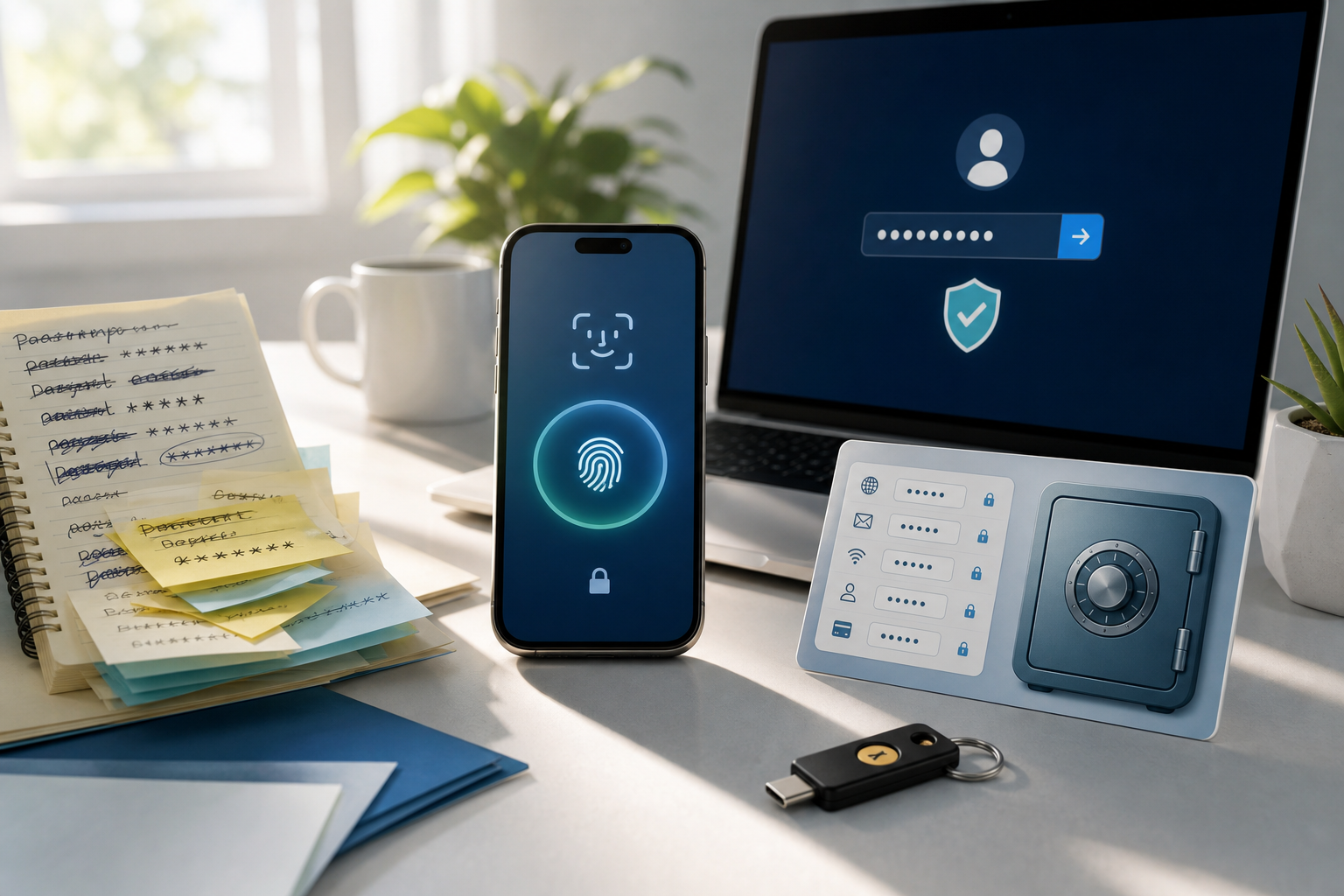
The password managers vs passkeys choice becomes easier when you separate two questions: how you prove an account is yours, and where you keep the credentials you need. Passkeys can improve sign-in security. A password manager can hold passwords, passkeys and other account information. You can use both.
For most households, the useful starting point is to enable passkeys on supported accounts, keep unique passwords for the rest, and arrange another way into important accounts before a phone disappears. Hardware security keys can provide that alternative where supported. The right setup must survive ordinary device changes as well as deliberate attacks.
Key Takeaways
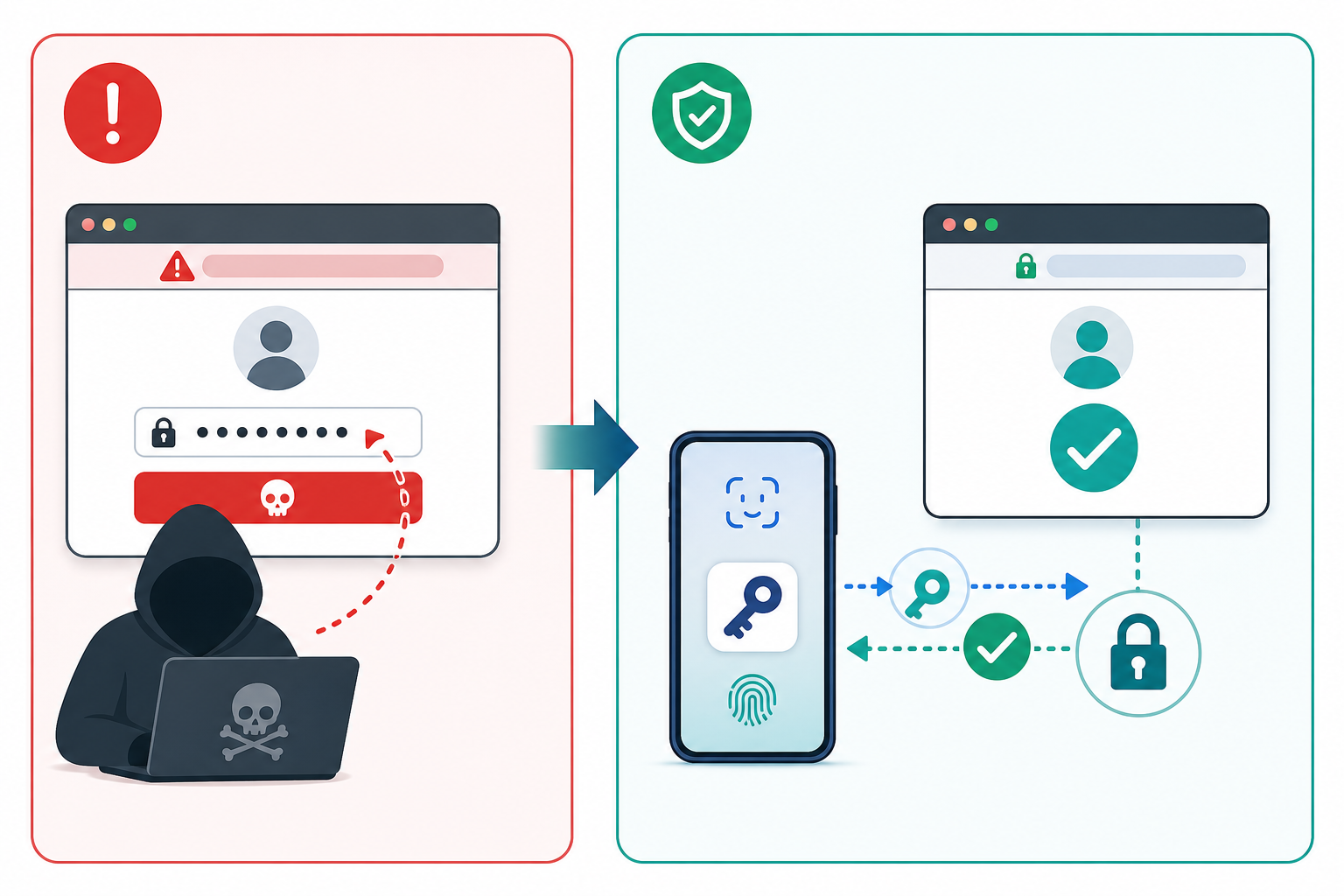
- Passkeys are designed to resist phishing by binding authentication to the legitimate service. A convincing lookalike site cannot simply collect a passkey response and reuse it for the real account.
- A password manager remains useful for password-only accounts, recovery information and supported passkeys. Its features and recovery arrangements matter more than whether it is built in or sold separately.
- Synced passkeys can be available on other approved devices. Device-bound passkeys stay on one authenticator, so losing that authenticator requires another enrolled method or account recovery.
- A hardware security key may hold passkeys or work as a second factor. It is a physical authenticator, rather than a separate rival to passkeys.
- Strong sign-in does not remove risks from stolen sessions, malicious devices or weak recovery routes.
- Keep the means to recover your credential manager somewhere you can reach without first unlocking that same manager.
Passkeys and a password manager solve different problems
The central distinction is the most useful one: passkeys are an authentication method; a password manager is a place to manage credentials. Those jobs overlap, but they are not identical.
An account with passkey support associates your account with a cryptographic public key. Your authenticator holds the corresponding private key and proves possession during sign-in without sending that private key to the website. The FIDO Alliance's passkey overview describes both synced and device-bound passkeys, including credentials held on phones, computers and hardware security keys. The website does not receive a password that you could accidentally reuse on another service.
A password manager helps with the accounts that still use passwords and, depending on the product, can store passkeys too. It also gives you a record of which email address belongs to a login, where the genuine service is, and what recovery information you have saved. That account memory matters when you are trying to distinguish an unfamiliar subscription from a fraudulent account alert.
Think about an ordinary household: primary email, a bank, a child's school portal, a mobile carrier, cloud storage, a router and a shared travel account. Those services need not offer the same sign-in methods. Buying one product or switching on passkeys cannot make their requirements identical. Choose a manageable credential home, then use the strongest workable authentication each service offers.
Our guide to passwords, passkeys and two-factor authentication explains the underlying terms. Here, the important decision is how to combine them without creating a single lost-device problem that shuts you out of everything.
Why passkeys help with phishing
A password is a secret you can type into the wrong page. A one-time code can also be captured and relayed while it is valid. A polished message, familiar logo or urgent account warning can persuade someone to provide both. Good spelling and a professional appearance cannot establish that a sign-in request is legitimate.
Passkeys change this exchange. The browser and authenticator check which service is requesting authentication, and the credential is scoped to that service. The FIDO technical explanation of phishing resistance describes the relying-party identifier and origin checks behind this protection. A passkey for the real service should not authenticate you to an unrelated lookalike domain. That binding, alongside keeping the private key out of the website's hands, explains the advantage.
The fingerprint, face check or device PIN you use is a local authorization step. It is not a new universal password sent to every merchant. Google's account passkey guidance confirms that biometric data stays on the device and that adding a Google account passkey does not remove its existing authentication or recovery factors. Those are separate settings worth reviewing.
This distinction also helps explain two-factor authentication. A code-generating authenticator app can improve on a password alone, but a code you manually enter can still be phished. NIST's authenticator comparison distinguishes one-time-password methods from phishing-resistant cryptographic authenticators such as FIDO2 passkeys with user verification. Use the strongest supported method you can maintain; do not treat all options labeled MFA as equivalent.
What passkeys do not protect
A stronger front door does not secure everything that happens after you enter. Malware running on a device, a stolen authenticated session or an attacker abusing account recovery may avoid the normal sign-in challenge. NIST's security considerations address recovery weaknesses and session hijacking separately from authentication. Passkeys are a substantial defense against a particular route into an account, rather than a promise that the account cannot be misused.
That means you still need device updates, a screen lock, sensible app permissions and attention to account alerts. If a fake support agent persuades you to approve a payment inside a genuine account, successful authentication has not made the payment safe. Likewise, passkeys cannot decide whether a service's requested access to your email is appropriate.
Be suspicious of anyone who says you must weaken recovery settings, enroll their device or disclose a code to fix your passkeys. Open the service through a known route and inspect its security settings yourself. A sign-in method that resists credential phishing does not turn an unsolicited support conversation into a trusted one.
Why a password manager still earns its place
The remaining passwords should be long and unique, rather than variations of a memorable household password. A password manager can generate and remember them so you do not have to build a personal code based on seasons, birthdays or service names.
NIST's password requirements tell service providers not to impose arbitrary character-mixture rules or routine password changes without evidence of compromise. That is guidance for how providers build authentication systems; it is not a reason to keep an exposed password. For a consumer, the useful lesson is to prioritize uniqueness and sufficient length, then change passwords when exposure or suspicious activity warrants it.
Use the generator rather than making a strong password and reusing it elsewhere. If a service imposes restrictive rules, generate a unique value within those limits. For the credential manager's own account, follow its setup instructions and arrange an independent recovery route before relying on biometric convenience to unlock it every day.
Autofill also provides useful context: when a saved login does not appear on a page, pause rather than copying the password into it immediately. A mismatch can be innocent, but it deserves an explanation. Neither autofill nor a breach-warning dashboard is a complete safety verdict. Review the destination and avoid overriding warnings simply to get through a hurried sign-in.
You also need records that passkeys do not replace: a mobile carrier's account PIN, recovery codes, the account owner's email address, and instructions for a shared household service. Store sensitive information in appropriate protected entries rather than scattered messages. Separate the recovery material that opens the manager itself from the information that only needs the manager once you are inside.
Where should your passkeys live?
The most important question at a creation prompt is where the credential will be saved. A phone, an operating-system feature and a credential manager may all offer a choice. Read the selected location before continuing; otherwise, you may later search the wrong place for passkeys that exist elsewhere.
Synced passkeys: convenient access with provider dependencies
Synced passkeys are designed to become available through a credential provider on other authorized devices. That can make a broken phone less disruptive, but access depends on the provider's enrollment, unlocking and recovery requirements. Signing in to a cloud account is not always the only requirement for decrypting its saved credentials.
For example, Google's Chrome passkey documentation describes Google Password Manager support on several desktop platforms, synchronization through a Google account, and unlocking with a Google Password Manager PIN or eligible Android screen lock. It also distinguishes that arrangement from passkeys stored locally in Windows Hello. This is why a general claim that built-in managers work only within one device ecosystem is too crude.
Before choosing synced passkeys, ask which devices you will actually use and what you would need after losing the current one. A household that knows where its credentials are stored and understands the provider's recovery route has a clearer plan than one that assumes every passkey prompt saves to the same place.
Device-bound passkeys: know the independent fallback
Device-bound passkeys remain on a particular authenticator. Microsoft's creation guidance distinguishes a synced manager, another phone or tablet, a physical security key, and local Windows Hello storage. Work or school policies may limit the available choices. The same word, passkey, therefore does not tell you whether a credential will appear on a replacement laptop.
For an important account, inspect its options for another enrolled authenticator. Where supported, that might mean a separate passkey on another device or a hardware key kept apart from the device you carry. Creating a spare requires enrolling it with the service; owning another phone or buying another key does not automatically make it a backup.
Decide based on the account's actual controls. Some services allow several credentials; others provide narrower choices. If there is no suitable independent sign-in option, understand and document the official account recovery route before removing a working method.
Built-in or dedicated password manager: compare your actual use
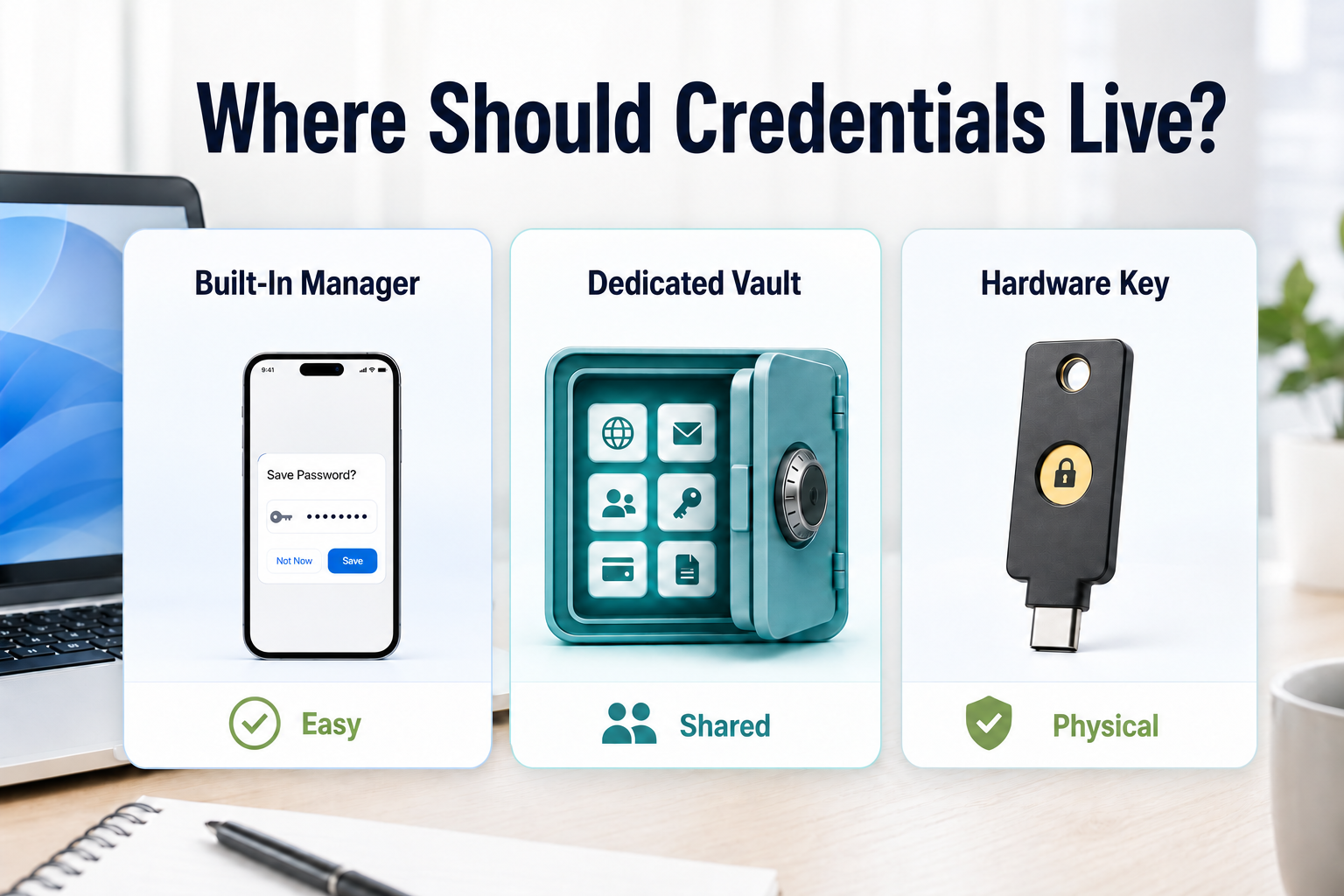
A built-in tool can be a good choice when its device support and sharing arrangements match your life. A dedicated password manager can be a good choice when you need a particular mix of browsers, household access or organization. Neither category wins simply because of its label.
Apple, for example, documents using iCloud Keychain passkeys on approved devices and signing in with an iPhone on another device. That does not mean every feature works identically on every platform. It means you should compare actual supported workflows rather than assume that a familiar logo guarantees compatibility, or that a separate subscription automatically solves it.
Consider an iPhone owner with a Windows laptop, a partner using Android and a shared household account. Ask each person to identify which device they would use to sign in, whether the chosen manager supports that workflow, and whether sharing is permitted by the service. A manager that works beautifully for one person's phone may still create friction for another household member.
Compare these practical points:
- Daily access: Does autofill work in the browsers and apps you use, including any device that is managed by an employer?
- Passkeys: Can the manager save and use them in the relevant apps, and can you identify the selected provider at creation?
- Sharing: Can you share a selected household entry without handing over your entire vault? Can access be revoked later?
- Recovery: What happens if you forget the account password or lose the usual second factor? Which capabilities depend on a family organizer or administrator?
- Leaving: Which items can be transferred, which require a fresh enrollment, and what sensitive export files would be created?
- Practical fit: Are the required features in your plan, and will the people involved maintain it?
Do not mix work credentials into a personal sharing arrangement without your organization's approval. Do not assume a family organizer can decrypt every private vault entry or that an emergency-access feature works without advance setup. Those are product-specific decisions to check in the provider's current documentation.
Hardware security keys are another place to authenticate
A hardware security key is a physical authenticator, commonly connected through USB or NFC. Depending on the key and service, it may hold a device-bound passkey or supply a second factor alongside a password. It can complement a password manager, but it does not replace the manager's record of all the other credentials and recovery information you still need.
Consider a key for accounts whose loss would cascade into serious harm: primary email, a credential provider, a domain registrar or an administrative account. First check the service's enrollment options and the key's compatibility with your devices. A key that the account does not accept cannot provide the intended protection.
For a service that permits several keys, a separately enrolled spare stored apart from the everyday key can reduce loss-related lockout risk. If the service allows a different suitable backup method, assess that instead. The principle is independent access, rather than a blanket instruction that everyone must buy two devices for every account.
Test the spare while the normal method still works, and label account entries clearly enough to recognize the enrolled authenticators later. Avoid carrying the only two usable keys in the same bag. A successful login with the daily key says nothing about whether the unused spare was ever enrolled.
Account recovery must work outside the locked vault
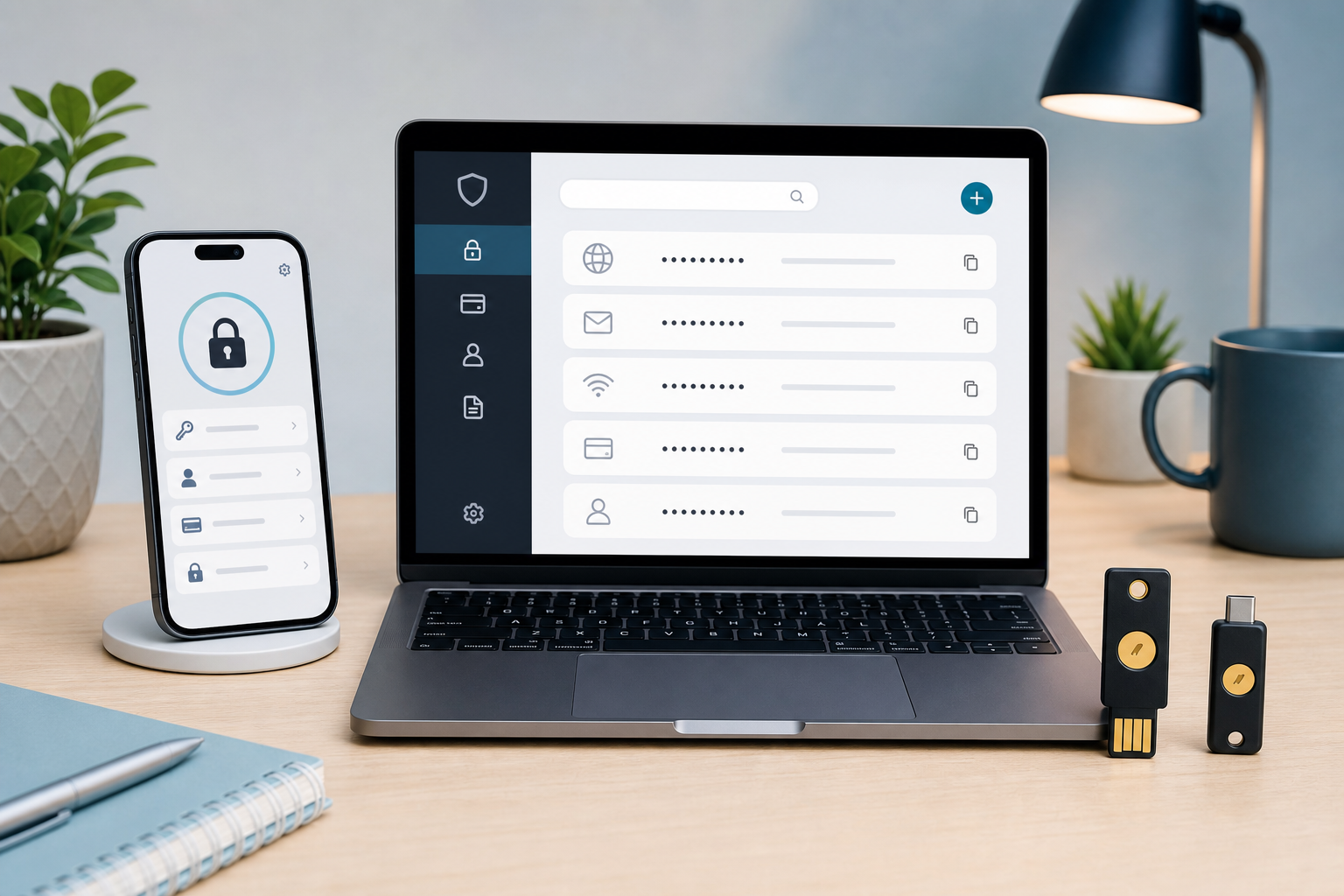
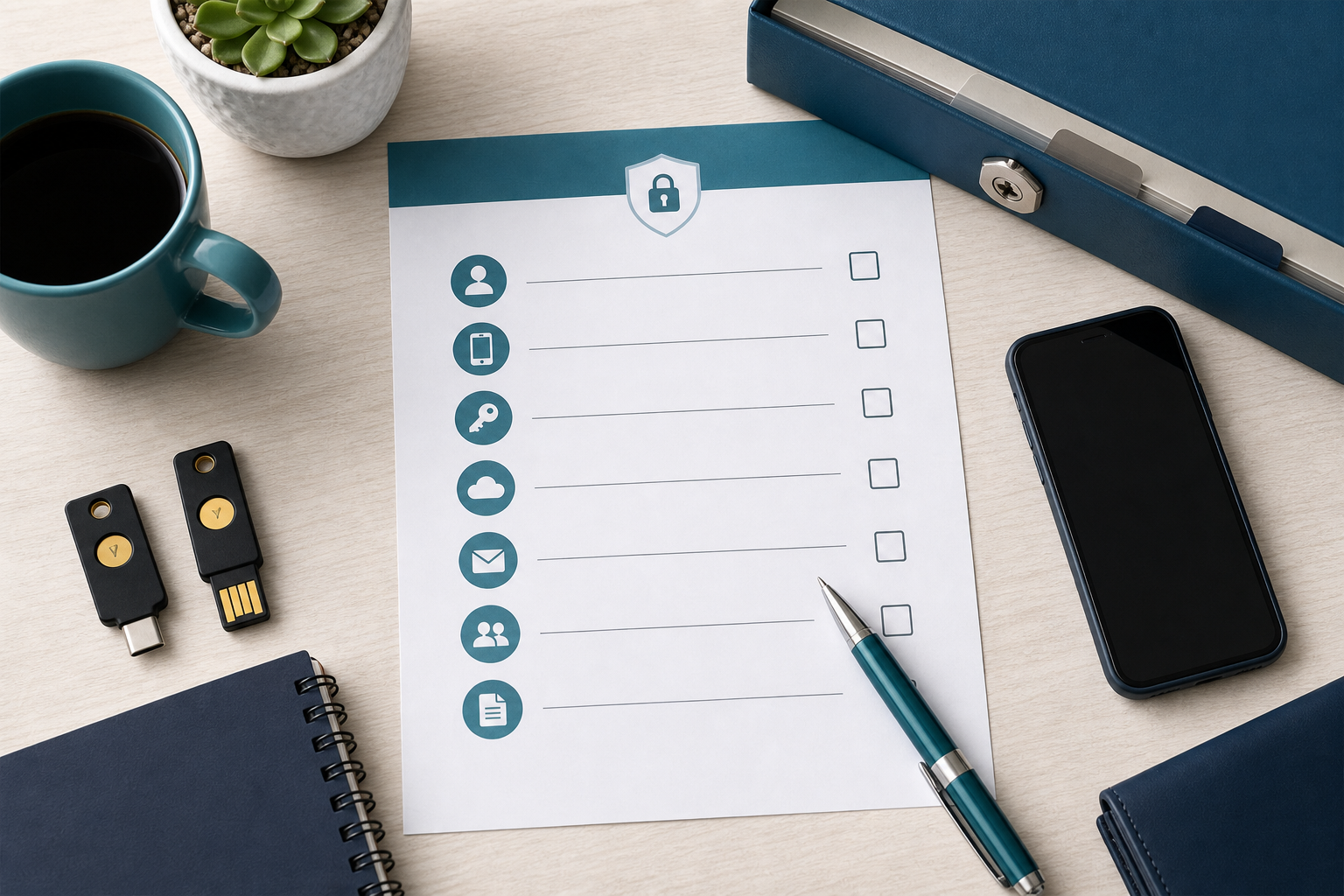
Account recovery deserves the same attention as sign-in. Start with a practical question: if your phone disappeared and the password manager asked you to sign in again, what would you use?
Writing “recovery codes are in the vault” is insufficient if those codes are needed to open that vault. Keep the credential manager's required recovery information in a separate protected place you can access under that scenario. The contents depend on the product: an emergency kit, account password, recovery code, additional secret or a previously configured recovery arrangement may have distinct roles.
The distinctions are real. 1Password's recovery-code guidance describes a recovery process for eligible accounts and its required access to the account's email. Bitwarden's two-step recovery code can remove two-step login, but does not recover a forgotten master password. Treating every document called a recovery code as interchangeable would produce a plan that fails when needed.
Prepare a short recovery record with the credential provider's name, account email, the location of its recovery material, independent enrolled methods, and relevant trusted-person instructions. Secure it as sensitive information. Do not leave a complete account-unlocking packet in a publicly accessible note or keep its only copy on the phone it is meant to replace.
For household continuity, share selected service access through supported features and explain where emergency instructions are kept. A trusted person should understand the scope of their access. A list of account names can help someone contact providers, but it does not confer legal authority or guarantee they can bypass a service's recovery checks.
If the phone is already lost and the vault is locked
Use another trusted device, if available, and keep any existing legitimate signed-in session intact while you establish another route. Check the credential manager's official recovery instructions and the independent material you prepared. Do not reset or delete the only surviving credential store in the hope that doing so will reveal its contents.
For an account with another enrolled passkey or security key, use that method to regain access and review registered devices and recovery settings. If no working method remains, follow that service's account recovery process. It may take time and may not succeed; a provider cannot always restore encrypted information merely because you can prove you own the email address.
If the phone may have been stolen, use the device maker's lost-device controls and remove the missing device's account access as appropriate. Where you still have access, distinguish removing an old authenticator from signing out an existing session. Replacing a credential does not prove every session has ended. Check the service's separate device and session controls.
Can you move passkeys to another provider?
Portability has improved since the early passkey rollout. It is no longer accurate to describe credential exchange as an entirely future capability. It is also too early to assume that any export button transfers every credential everywhere.
1Password's current export documentation describes passkey transfer through Credential Exchange on supported iOS and Android versions, while its desktop exports require a different approach for passkeys. Bitwarden's import guidance describes direct CXP transfers between compatible apps, including platform requirements and limitations. These are working, documented paths, rather than a promise of universal provider interchangeability.
Before switching, check both the sending and receiving products for your actual operating system. Distinguish passwords, passkeys, one-time-code seeds and secure notes; their export coverage can differ. A CSV containing login passwords is not evidence that passkeys or every recovery field moved with them.
Transfer a manageable set first and try the destination on an important account while the original still works. Where transfer is unsupported, use the account's security settings to enroll a new credential in the intended provider. Confirm it works before removing the old one. Protect export files carefully, because some formats contain readable secrets; follow the product's instructions for handling and removing them.
What to do now: improve the accounts that unlock others
Start with primary email and the account that controls your credential manager or synced passkeys. Then address financial, cloud-storage, mobile-carrier and administrative accounts according to what they can expose or reset. A short, deliberate session on these accounts is more useful than attempting a hurried conversion of every login.
- Choose the credential home. Confirm daily device support, sharing needs and the recovery route. Resolve duplicate entries that make the correct account difficult to identify.
- Enable passkeys where supported. Open the genuine service directly, inspect where the new credential will be saved, and confirm a normal sign-in works.
- Keep remaining passwords unique. Replace reused or exposed values with generated ones. Review fallback passwords even on accounts where you normally use passkeys.
- Arrange independent access. Enroll another suitable method when available and protect the required recovery information outside any vault it must unlock.
- Review the rest of the account. Check recovery email addresses, phone numbers, authorized devices, linked apps and alerts. Remove access you no longer recognize or need.
When a suspicious page has already received a password or code, use the exposure-based steps in what to do after clicking a scam link. Move to a trusted device if the original may be compromised, secure primary email, change exposed passwords and examine sessions and recovery settings. Merely adding passkeys afterward does not undo earlier access.
Revisit the arrangement after replacing a phone, changing providers or changing household access. For the wider account and device habits that support this work, use our Cybersecurity Basics hub. The aim is a system you can explain and recover, not an impressive collection of sign-in options nobody understands.
Conclusion
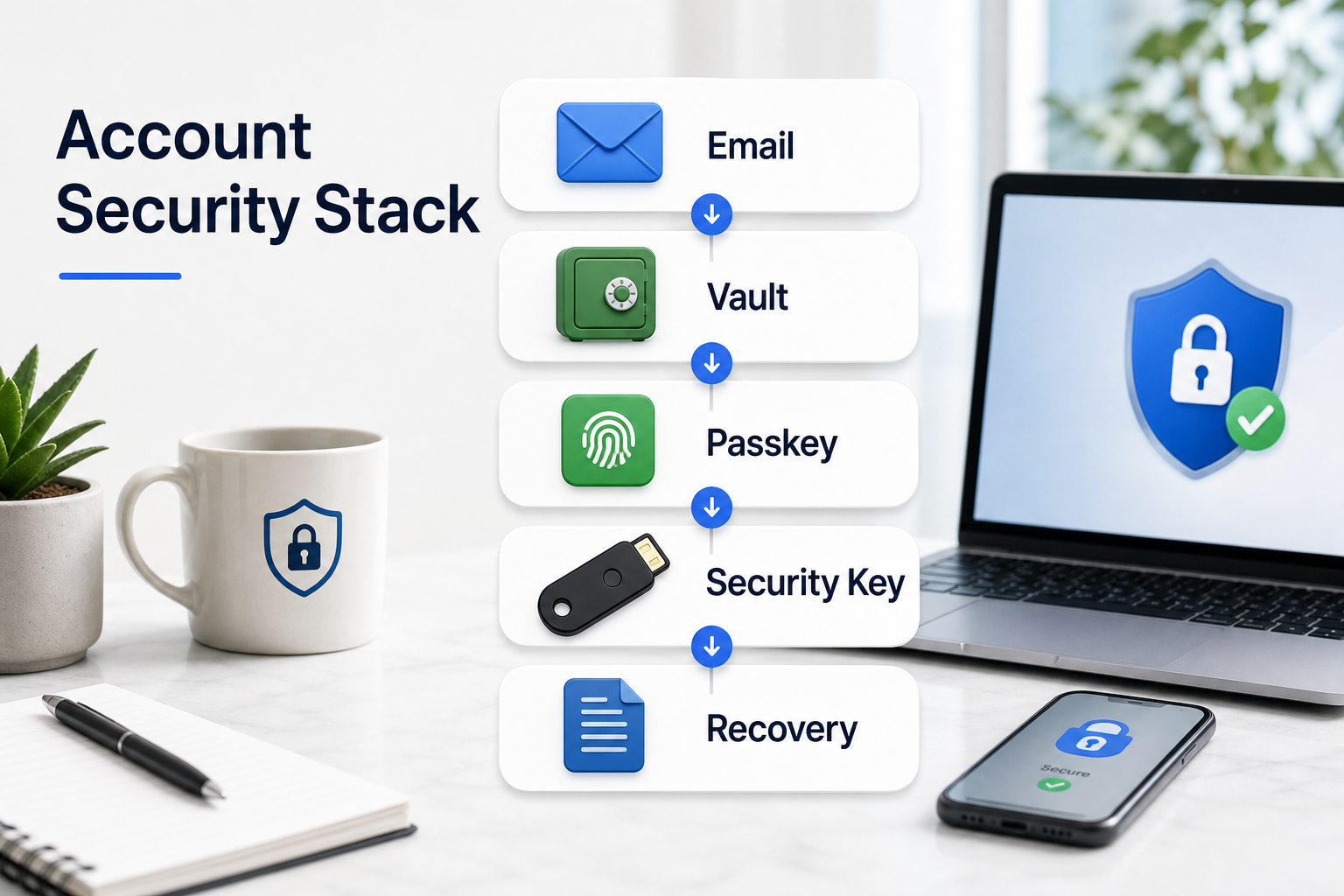
Passkeys make an important improvement to sign-in security, while a password manager still handles the passwords and account information that remain. Hardware security keys can provide a useful authenticator where the service and your recovery needs justify them. These pieces work together.
Choose where credentials live deliberately. Use passkeys on supported accounts, unique passwords where required, and an independent route into the accounts that protect everything else. Check that your recovery instructions remain accessible when the usual phone and vault are unavailable. That is what makes stronger authentication practical in daily life.
For more practical AI and cybersecurity guidance for everyday digital risks, subscribe here.
FAQ
Do passkeys mean I can delete my password manager?
Only if you no longer need anything it stores and have arranged a suitable replacement. Most importantly, check password-only accounts, recovery information and any passkeys saved there before removing the app or account. Deleting a credential manager is different from turning off a fallback password at a particular service. Keep working access until the replacement is confirmed.
Are passkeys the same as fingerprint sign-in?
No. A fingerprint or face check can authorize local use of a credential, while passkeys perform the cryptographic authentication to the service. A device PIN may provide the local unlock instead. The sign-in experience does not mean the website receives your biometric template, and the same gesture can unlock different kinds of credentials.
Are passkeys safer than an authenticator app?
Passkeys provide phishing resistance that manually entered one-time codes do not. An authenticator app can still be a useful supported second factor when stronger options are unavailable. Compare the particular method, rather than assuming every app or every MFA label has the same properties. Account recovery and existing sessions also remain relevant.
Can a family share passkeys?
Some credential providers offer sharing features, but availability and the service's account-sharing rules vary. Check the actual supported arrangement rather than handing over a phone unlock code. For an individually owned account, another person's access has privacy consequences. For a shared household service, plan what happens when the person who enrolled it is unavailable.
Should everyone buy hardware security keys?
No. First identify an account that supports them and a reason an independent physical authenticator would help. Confirm compatibility, enrollment options and a backup route. Hardware security keys can be valuable, but purchasing a device without enrolling and testing it does not improve access or recovery.
Will synced passkeys automatically return on a replacement phone?
They may become available after the provider's setup and unlocking requirements are met. Do not assume possession of the account email is sufficient. Know which provider holds the credentials, which secrets or trusted devices its recovery process needs, and which independent options exist if the normal recovery route fails.