
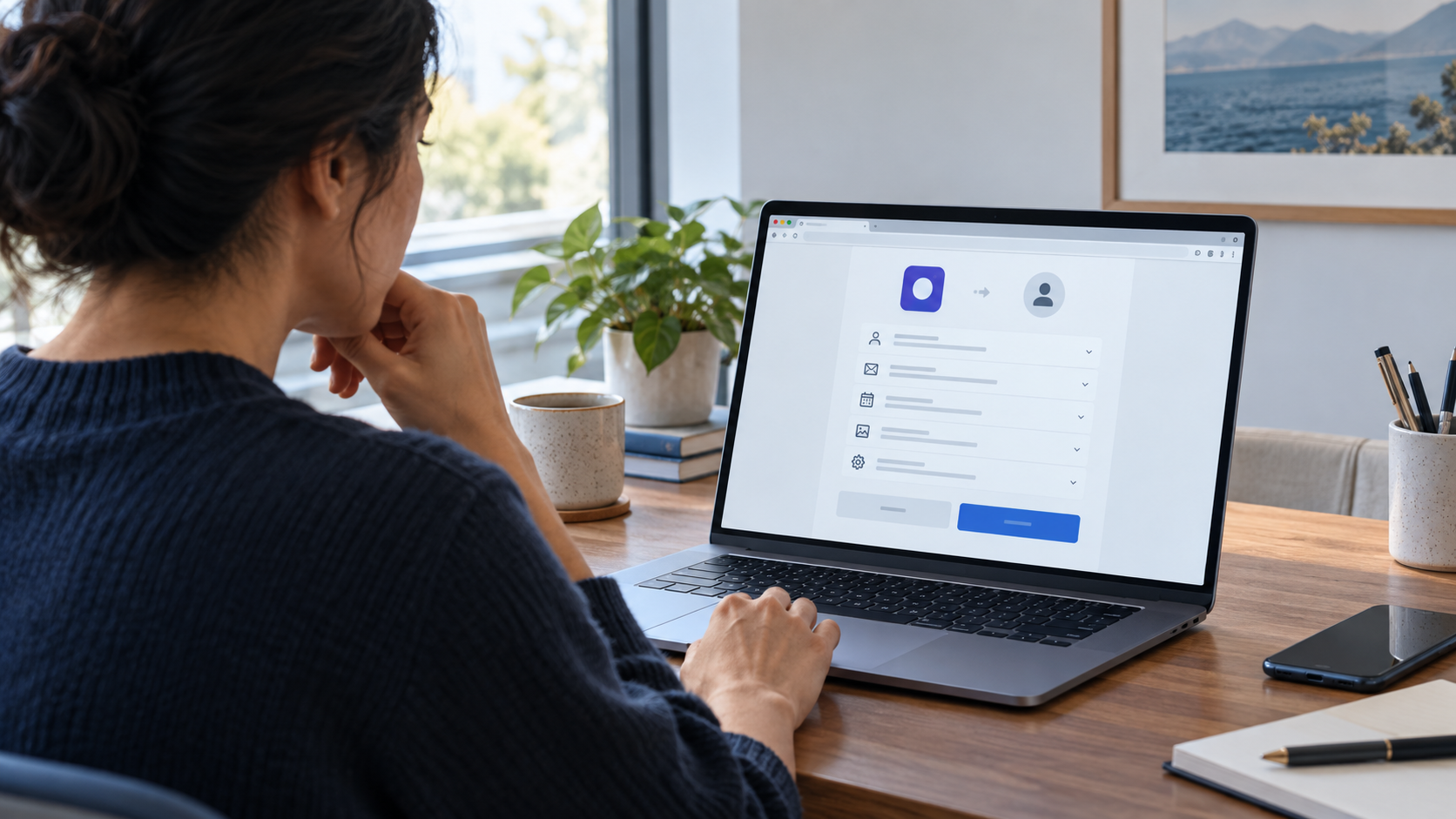
A shared document, calendar tool, file converter, or AI service asks you to continue with Google or Microsoft. The sign-in page looks normal because it may be completely real. You sign in, see the familiar account design, and reach a screen showing app permissions that could let the service view or manage parts of your account.
That final screen deserves a separate decision.
In a consent-phishing attack, the criminal may not need to imitate the sign-in provider or steal your password. As Microsoft's explanation of consent phishing describes, a malicious app can use a legitimate identity system and ask the user to grant it access. If the user approves the request, the app may receive a valid token with the app permissions shown on the screen.
Apple's explanation of Sign in with Apple describes a narrower identity-sharing flow. When you first use Sign in with Apple, the participating app or website can ask only for your name and email address to set up an account. A genuine Apple page still does not certify the outside app, but it should not be described as a broad Apple-service permission screen.
A real sign-in page can confirm where you are signing in, but it does not establish that the requesting app is trustworthy or needs the access it wants. The app permissions screen is a security decision, not routine fine print.
Key Takeaways
- Signing in and granting app permissions are two different decisions.
- A legitimate Google or Microsoft page does not vouch for an app requesting broad service permissions, and a genuine Sign in with Apple page does not certify the outside app even though that flow is limited to name and email sharing.
- Compare every requested permission with the specific job you expect the app to perform.
- A verified publisher is a useful identity signal, not a guarantee of safety.
- MFA remains important, but it cannot decide whether you should authorize an app.
- If you already approved a questionable app, revoke its access first and then investigate what else may have happened.
Table of Contents
The Page Can Be Authentic While the Request Is Not
When you use a "Continue with" button, at least three parties may be involved:
- You, the account holder.
- The identity provider, such as Google or Microsoft. Sign in with Apple can also authenticate you through a narrower name-and-email sharing flow.
- The outside app asking the provider for information or account access.
The identity provider authenticates you. It does not necessarily operate, sponsor, or recommend the outside app. An attacker can create or compromise an app, prepare an authorization request, and send that request through email, chat, a QR code, a shared document invitation, or a search result. Google or Microsoft may correctly display their own sign-in and app permissions pages. Apple may correctly display its narrower Sign in with Apple identity-sharing page. In either case, the provider's genuine page does not certify the outside app.
That is why a domain check answers only one question. It can help you determine whether you are on the provider's site, but it does not tell you whether a Google or Microsoft app deserves permission to read your mail, inspect your cloud files, or act on your behalf. A correct Apple domain confirms the identity provider, but not the trustworthiness of the outside app receiving your name and email address.
Think of the provider as a building receptionist checking your ID. The receptionist can confirm that you are you. That does not mean every person waiting in the lobby has a legitimate reason to receive your records.
This does not make all connected apps suspicious. Account integrations and proportionate app permissions support useful features such as adding an appointment to a calendar, importing a document, or signing in without creating another password. The safer approach is to separate familiarity from authorization. Apply the same basic habits you would use for any unexpected account request, including the checks in Cybersecurity Basics, even when the first page looks polished and familiar.
What Clicking Allow Can Authorize
The word "Allow" can sound temporary or minor. Technically, it may authorize the app to receive a token that represents the app permissions you approved. The app can then use that token to request permitted data or actions from the provider. It may not need your password, and it may not need to show the consent screen every time it returns.
The exact power depends on the listed app permissions. Google's explanation of third-party access levels separates common requests into useful categories:
- Basic account information may include your name, email address, and profile picture.
- View or copy access may let the app retrieve information from a service.
- Manage access may let it edit, create, or delete information.
- Account-action app permissions may allow behavior such as sending messages, changing files, or managing settings, depending on the service and scope.
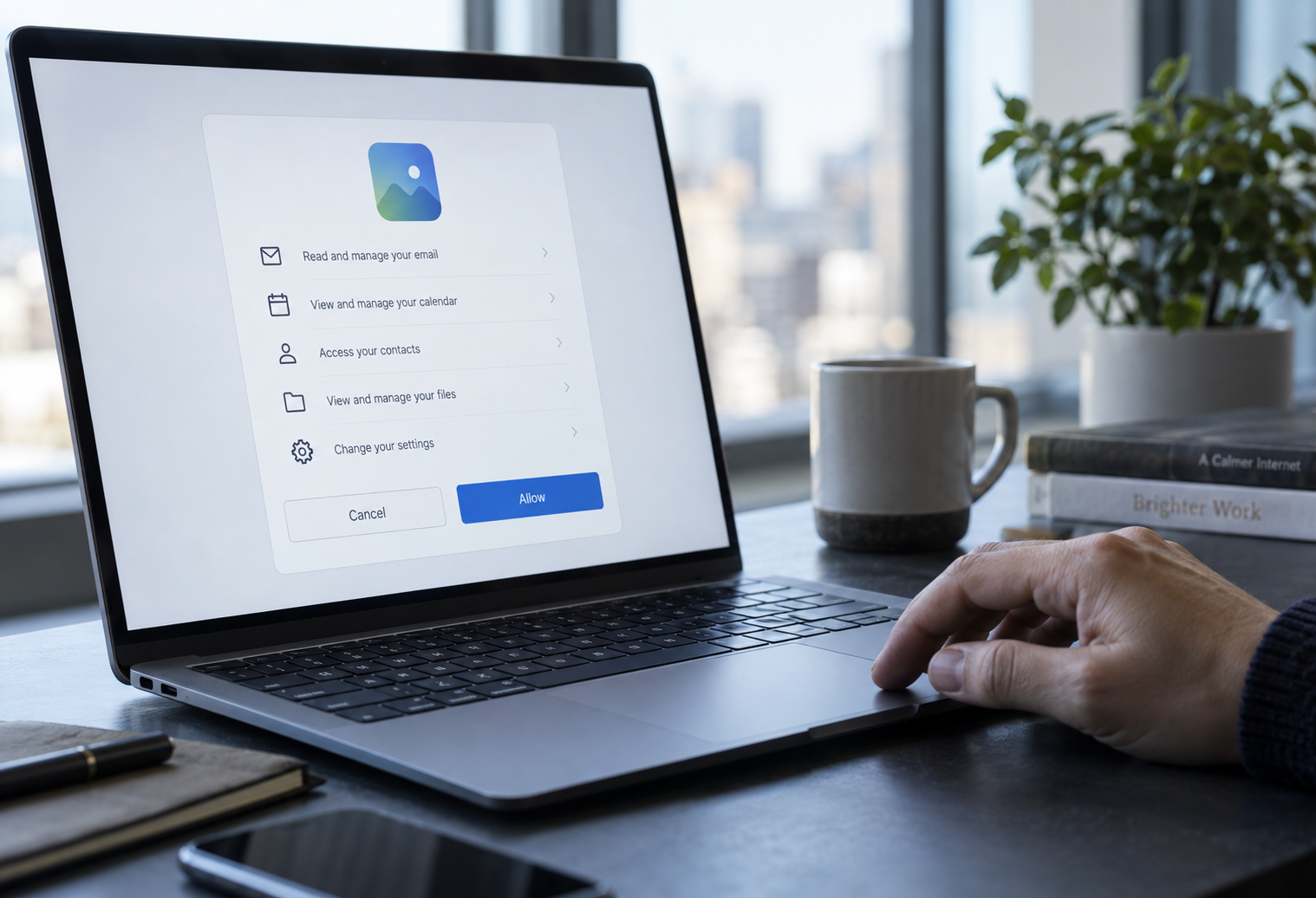
Context matters. A video-meeting service may reasonably need your basic identity and permission to create a calendar event. A document editor may need access to a file you intentionally select. Those same app permissions become harder to justify when requested by a coupon tool, simple calculator, one-time file viewer, or service whose purpose has nothing to do with email, contacts, or storage.
Pay particular attention to wording that permits an app to act on your behalf or maintain access when you are not using it. Offline or ongoing access can be legitimate for a background synchronization service, but it also means closing the browser does not necessarily end the connection. In Microsoft's permission model, for example, Mail.Send can permit sending as the signed-in user, Files.ReadWrite can permit reading and changing files, and offline_access can maintain previously granted access. The labels and effects differ across providers, but the decision principle is the same.
Approval is therefore more than a sign-in convenience. It is a grant of authority. Before you approve app permissions, you should be able to explain in plain language what the app will be able to see or do. If the app permissions cannot be translated into a necessary feature, pause.
Consent Phishing and OAuth Redirect Abuse Are Different Traps
Not every dangerous OAuth link works in the same way. The distinction matters because it changes what you should do afterward.
In a consent-phishing attack, the app asks for app permissions. The victim approves them, and the app receives authorized access within those scopes. The attacker's objective may be to read email, inspect files, gather contacts, establish persistence, or use the account's information in another attack.
A different technique uses trusted authorization infrastructure mainly as a route. In March 2026, Microsoft described OAuth redirection abuse that led victims toward phishing and malware. In the campaign Microsoft analyzed, the attacker did not receive an OAuth access token. Instead, crafted authorization URLs and legitimate identity-provider infrastructure helped move the victim toward a malicious destination.
Your next step depends on what happened:
- If you approved app permissions, you need to find and revoke the app connection.
- If you were redirected and entered a password or code on another page, you need to treat the credentials as potentially exposed.
- If you downloaded or opened a file, you may also need a device-security response.
- More than one of these events can happen in the same encounter.
Do not let a legitimate first page lower your guard for every page that follows. Recheck the destination, the task, the app permissions, and the requested action whenever the flow changes.
Read the Permission Request, Not the Familiar Branding
The consent screen is not a speed bump to clear before reaching the tool. It is the point where the provider tells you what the tool is asking to receive.
The broad app permissions in this section refer to Google, Microsoft, and similar service integrations. Sign in with Apple is different: it shares identity information limited to your name and email address for account setup. You should still verify the app and developer before using it, but it does not grant the outside app access to Apple mail, files, contacts, or calendars through that flow.
Start with the app's purpose. Then translate the app permissions into ordinary actions. "Read your mail" means the app may be able to retrieve message content. "Manage files" may include changing or deleting them. "Send as you" may let the app create messages that appear to come from your account. Exact labels vary across providers, so read the provider's full explanation instead of relying on a short summary.
Google's guidance on third-party connection risks notes that connected services can involve sensitive data from email, photos, Drive, Calendar, and Contacts. It also warns that an outside service may copy data to its own servers. That matters because removing access later does not reach backward and erase every copy already made.

Use these warning signs as decision points:
- You did not initiate the request.
- The app's name is unfamiliar or very close to the name of a well-known product.
- The developer or publisher is not the organization you expected.
- The requested app permissions are broader than the stated function.
- A simple task asks to read all files, manage mail, access contacts, or act on your behalf.
- The app requests ongoing or offline access without a clear need.
- The prompt asks for administrator approval.
- The message that brought you there creates urgency, secrecy, or fear of losing access.
- The explanation is vague about where your data will be stored or how it will be used.
The FTC's consumer guidance on app access recommends questioning app permissions that do not fit an app's purpose and reviewing the developer's privacy practices. The same principle works for cloud connections: the right amount of access is the smallest amount needed for the feature you chose.
Publisher labels require judgment too. An unverified-app warning is not conclusive proof that an app is malicious. A small or newly registered developer may not have completed a provider's verification process. Still, the warning removes one layer of reassurance. Unless you independently know the developer and understand the app permissions request, stopping is the safer choice.
A verified publisher gives you better evidence about the identity associated with the app. It does not prove that every app permission is necessary, that the software cannot be compromised, or that the developer's data practices meet your needs. Microsoft's overview of user and administrator consent pairs publisher verification with low-risk app permissions policies, which illustrates the point: identity and permission risk are separate factors.
Use Privacy & Identity Protection to check what data will be shared, who will receive it, and why.
A One-Minute App Permissions Check Before You Click Allow
You do not need to become an OAuth expert. You need a short sequence that interrupts the automatic click.
1. Confirm That You Started the Task
Ask why the prompt appeared. Did you deliberately open the app and choose to connect your account, or did an unsolicited message send you there? If the request was unexpected, stop.
An invitation can still be fraudulent when it appears to come from a colleague. The sender's account may be compromised, or the display name may be misleading.
2. Name the App and Developer
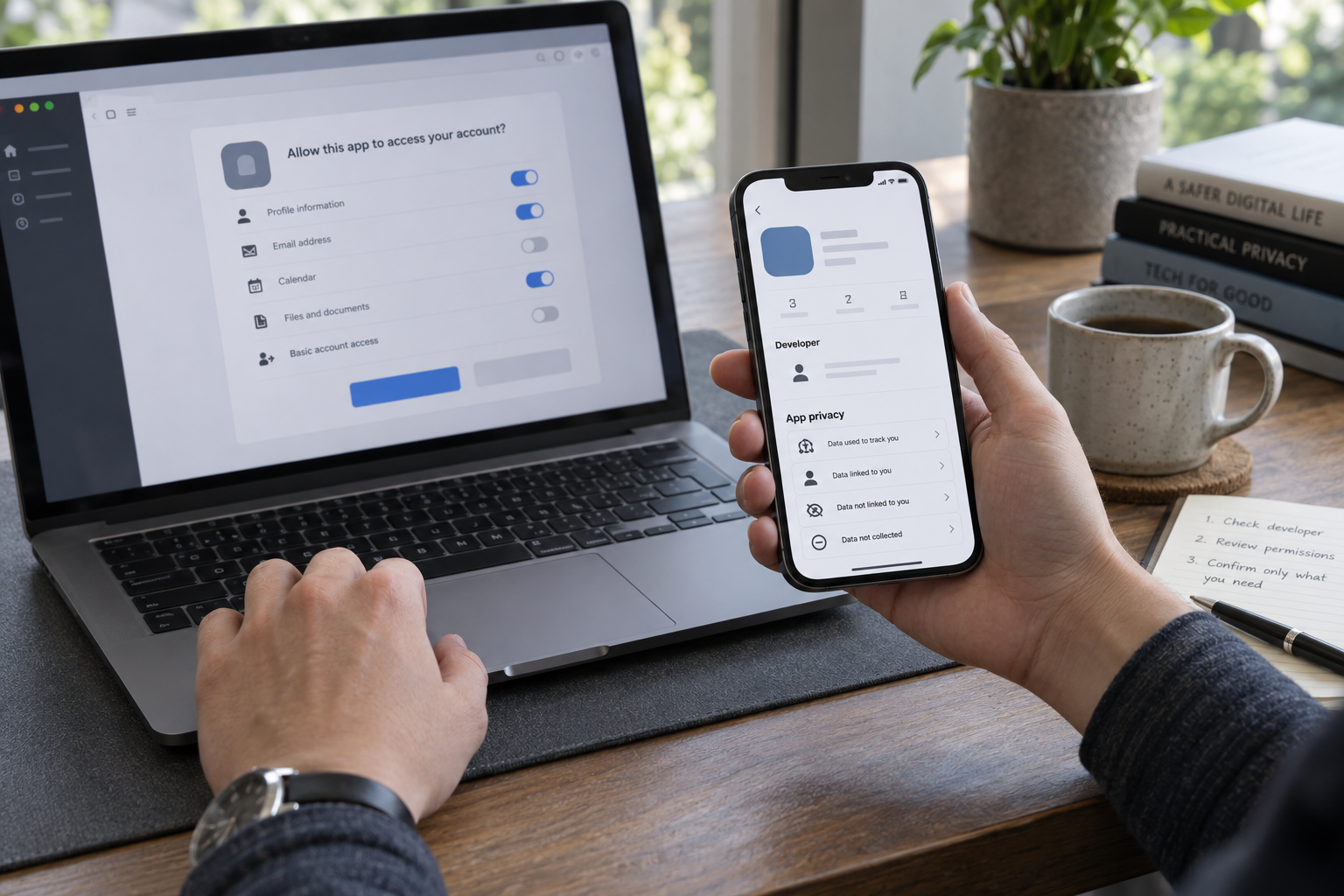
Read the app name and publisher information on the provider's screen. Do they match the service you intended to use? A familiar logo beside the app permissions is not enough.
If the app claims to come from your employer, school, bank, or software provider, confirm that relationship independently.
3. Translate Every Permission
Replace technical labels with verbs:
- What can the app read?
- What can it copy?
- What can it create or change?
- What can it delete?
- Can it send or act as me?
- Can it keep access when I am not present?
- Does the permission apply to one selected item or an entire service?
If you cannot tell, expand the app permissions details or consult the provider's help page before deciding.
4. Compare Access With Purpose
Ask whether each of the app permissions is necessary for the action you chose. A calendar scheduling feature may need calendar access. It probably does not need unrestricted file storage or full mailbox management.
One questionable permission may be enough to cancel. You are not required to accept a bundle of app permissions merely because one part makes sense.
5. Verify Outside the Prompt
Do not use only the message, QR code, or link that initiated the request. The FTC's phishing guidance recommends reaching an organization through contact information or a site you already know is real.
Open the service separately from a bookmark or typed address. Check its official documentation for the integration. If a coworker supposedly sent the request, contact that person through a known channel and ask what they intended to share.
6. Look for a Lower-Access Route
The task may not require an account connection at all. You might be able to upload one file, share one folder, export a calendar item, or create a separate account instead of authorizing broad access.
If the provider offers granular app permissions choices, select only the resources required. Do not expand access merely to avoid another setup step.
7. Stop at Administrator Consent
A prompt for administrator approval is not a routine version of the same request. It may involve access across an organization or app permissions that ordinary users cannot grant.
Do not forward an administrator-consent link with a note saying, "Please approve this so I can continue." Send the app name, developer, business purpose, requested app permissions, and official documentation to the appropriate IT or security team. Let them evaluate it through their established process.
8. Cancel When the Story Does Not Add Up
Canceling does not damage your account. If the app is legitimate, you can reconnect after verifying it. Granting questionable access creates a recovery job that cancellation avoids.
Approve only when you can say this:
I initiated this task, I recognize the app and developer, and every requested permission is necessary for the result I expect.
If any part is missing, do not approve the app permissions yet.
Extra Caution for Work and School Accounts
A personal account can expose private email, contacts, or files. A work or school account can also provide a route into shared documents, internal conversations, customer information, research, or organizational systems.
Do not assume a request is approved because your organization uses Google Workspace or Microsoft 365. Those platforms host many outside integrations. Your organization may restrict user consent, permit only lower-risk requests, or require an administrator workflow.

If you already approved an unfamiliar app, report it promptly. Administrators may be able to inspect the consent event, determine which app permissions were granted, revoke the app centrally, and look for related activity. MITRE's cloud application integration detection guidance specifically identifies unexpected consent grants and OAuth integrations as activity defenders can monitor.
Prompt reporting matters even if you have not noticed missing data or suspicious email. The absence of a visible symptom does not establish that the app was harmless.
For organizations deciding what users may approve, Microsoft's consent model supports limiting user consent to verified publishers and selected low-impact app permissions or routing exceptions through an administrator workflow. CISA's high-assurance Entra ID baseline likewise recommends restricting user consent, using an admin-consent workflow, limiting app registration, and forwarding security logs. The federal baseline reflects federal risk and licensing assumptions, so private organizations should adapt the controls rather than treating every setting as universal.
If an integration is determined to be malicious, the response must address both the app and affected users. Microsoft's app-consent incident response playbook recommends investigating the grant, requested scopes, affected users, and later activity while disabling the suspicious application. Administrators may also need to revoke user tokens and sessions. A password reset by itself may not remove every app grant or service-issued session.
Why MFA Still Matters but Does Not Answer the Consent Question
MFA protects the authentication step by making a stolen password less useful on its own. It remains one of the most valuable account protections available, so keep it enabled and compare your authentication choices in Passwords, Passkeys, and 2FA Explained.
Consent occurs after authentication. If you successfully complete MFA and then approve malicious app permissions, the provider can issue that app a valid token. The attacker did not necessarily defeat MFA. The attacker persuaded an authenticated user to authorize access.
The Microsoft Digital Defense Report 2025 highlights why these attacks can persist beyond the controls users normally think of first. App-consent access can outlast a password reset, so changing a password is not a substitute for reviewing and removing authorized applications. Removing a connection is still the right containment step, but it may not invalidate an already-issued access token immediately.
Use MFA to protect sign-in. Use consent-screen judgment to protect authorization. You need both.
If You Already Clicked Allow
Do not panic, but do not wait for an obvious problem. Your first actions should match the app permissions you granted and anything that happened afterward.
1. Remove the App Connection
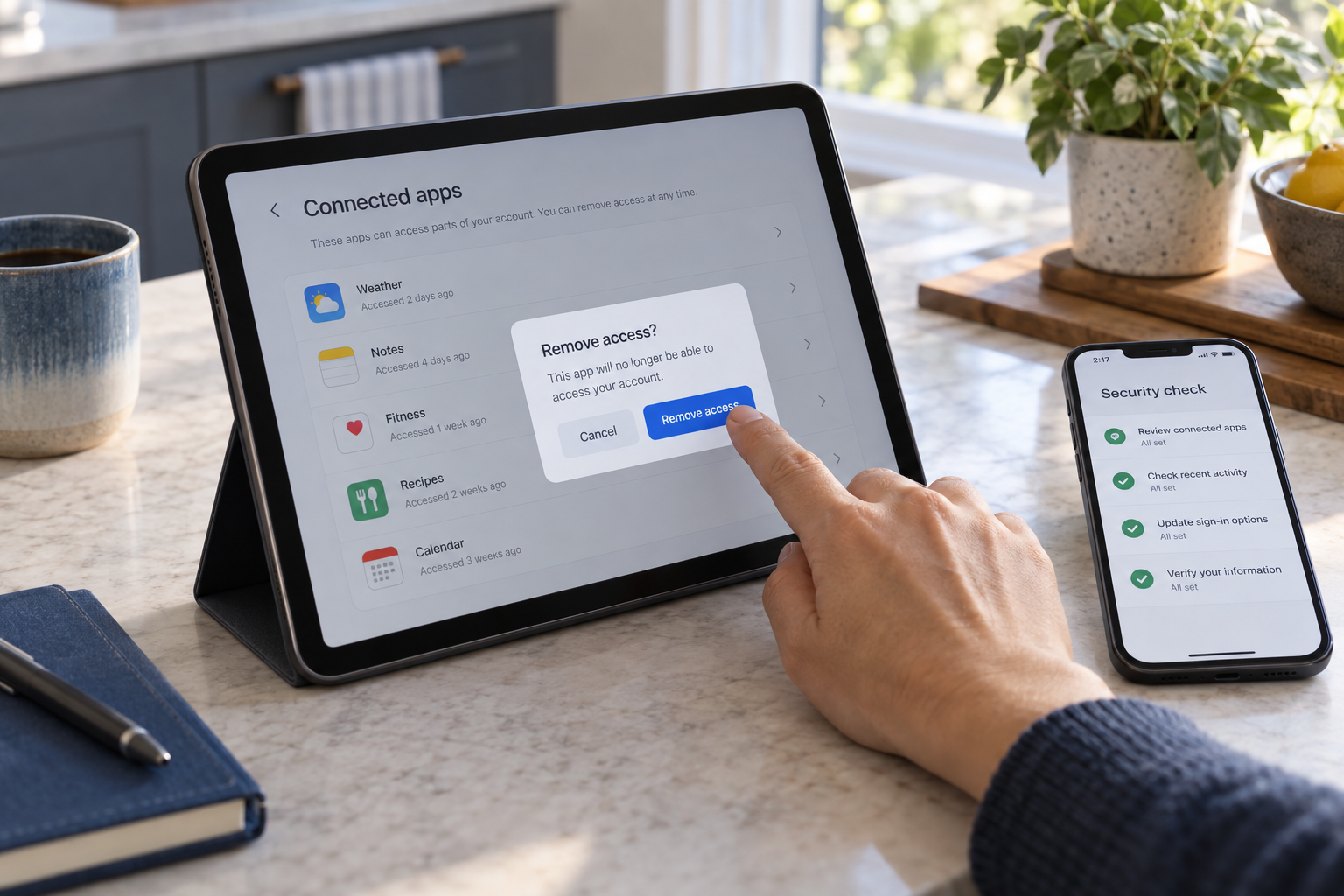
Open the account provider directly, not through the original message. Review connected apps or third-party access, select the questionable app, and remove its access.
For Google accounts, use Google's current instructions for managing third-party connections. Check whether the connection is "Sign in with Google," a linked account, or access to Google Account data. Review the app permissions before removal if that information is available, record what the app held, then remove the connection. Google also provides a way to report a questionable app.
For Sign in with Apple, follow Apple's instructions for managing connected apps and choose Stop Using Sign in with Apple for the app or developer. This ends that identity-sharing connection; it is not revocation of broad Apple-service permissions. Be aware that stopping use can sign you out, does not delete the separate app account, and may affect multiple apps associated with the same developer.
Personal Microsoft-account users can open Microsoft's account consent options, choose the app, and select "Remove these permissions." Work or school users can use My Apps for app permissions they granted personally, but administrator-granted access may require central action. Microsoft's guide to revoking work or school application permissions explains that distinction.
Do not rely only on deleting the outside app from your phone or computer. Uninstalling local software does not necessarily withdraw an authorization stored at the account provider. Removing a Google or Microsoft OAuth connection, choosing Stop Using Sign in with Apple, withdrawing phone camera or location access, uninstalling an app, and deleting the third-party account are separate actions.
2. Determine Whether You Exposed Credentials Too
Recall the entire path, not just the Allow screen.
- Did you enter your password only on the provider's real domain?
- Did the flow send you to another sign-in page?
- Did you type a password, one-time code, recovery code, or payment information there?
- Did you download or open a file?
- Did you install a browser extension or application?
If credentials may have been entered on an untrusted page, change the password from a known-good device and provider page. Review MFA methods, remove unfamiliar recovery options, and sign out unknown sessions. If you downloaded or installed something, follow your device or organization's malware-response process.
Use What To Do If You Clicked a Scam Link to respond based on whether the incident was a simple click, credential exposure, a download, or an account change.
3. Review the Areas the App Could Access
Use the app permissions list to guide the inspection. Do not audit unrelated parts of the account without a reason.
If the app could access email, check:
- Recently sent and deleted messages
- Forwarding addresses
- Inbox rules and filters
- Delegated mailbox access
- Unfamiliar drafts or replies
- Security alerts that may have been archived or deleted
If it could access files, check:
- Recent activity
- New or changed sharing settings
- Public links
- Deleted or moved files
- Sensitive files the app may have been able to read
If it could access contacts or calendars, look for exports, unfamiliar events, changed invitations, or messages sent to people in your network.
Google's compromised-account recovery guidance also directs users to review recent security events, devices, two-step verification settings, third-party access, and Gmail rules. Those checks are valuable when the incident may involve more than a single authorization.
4. Alert the Right People
For a work or school account, contact the security or IT team immediately. Provide:
- The app name
- The displayed developer or publisher
- The app permissions requested
- The time you approved it
- The message or page that led you there
- Any later redirect, download, or credential entry
- A screenshot, if you can preserve one safely
Do not send passwords, one-time codes, or recovery codes. Those are not needed for an investigation.
If the request appeared to come from a colleague, tell them through another channel. Their account or identity may have been used to reach additional people.
5. Understand What Revocation Cannot Do
As Microsoft's consent-phishing guidance explains, removing or disabling the grant prevents the app from obtaining new authorization under that connection, but an already-issued access token may remain usable until it expires or is otherwise invalidated. Microsoft's guidance on revoking user access also explains that an outside app's own session can require separate termination. Sign out of the app and use its session controls, or ask IT to do so for a work or school account. Revocation does not guarantee that data already retrieved has disappeared from the developer's systems.
If sensitive information may have been copied, review the app's privacy policy and contact the developer to request deletion. For an organizational account, let your legal, privacy, or security team handle that contact when appropriate.
6. Do Not Reconnect Until You Know What Happened
A malicious flow may send another invitation after revocation. Do not assume the second request is a repair step. Reconnect only after you independently confirm the service, developer, app permissions, and intended task.
Use Start, Name, Scope, Match, and Exit Before You Approve
When the next account-connection screen appears, use five words:
- Start: Did I start this task myself?
- Name: Can I identify the app and its real developer?
- Scope: What can every requested permission let the app do?
- Match: Does that access fit the feature I chose?
- Exit: If one answer is unclear, cancel and verify elsewhere.
The safest habit is not to reject every integration. It is to make each grant of app permissions intentional. Useful apps should be able to explain who operates them, what data they need, why they need it, and how to remove the connection later.
Conclusion
A correct Google or Microsoft address is reassuring, but it answers only whether you reached that provider. It does not prove that the outside app is trustworthy or that its requested app permissions are appropriate. A correct Apple address likewise does not certify the outside app, although Sign in with Apple is a narrower flow limited to name and email sharing.
Before you click Allow on a Google or Microsoft consent screen, verify four things: the task, the app, the developer, and the app permissions. Before using Sign in with Apple, verify the task, app, and developer before sharing your identity information. If a request is unexpected, overly broad, or difficult to explain, cancel it and verify through a separate route.
If you already approved a questionable Google or Microsoft connection, remove it at the account provider first. If you used Sign in with Apple, choose Stop Using Sign in with Apple. Then let the actual data scope guide your review of mail, files, contacts, calendars, sessions, and security settings. Provider timing differs, so an already-issued access token or app-issued session may outlive the removal step; involve IT for a work or school account. Change credentials when there is evidence they may also have been exposed, but do not treat a password change as a substitute for removing the app.
Get updates on recognizing online risks and recovering when something goes wrong by subscribing to Quantum Cyber AI updates.
FAQ
Is a Google or Microsoft sign-in page safe if the domain is correct?
The correct domain is important because it helps confirm that you are authenticating with the real provider. It does not validate the outside app, the message that sent you there, or the app permissions being requested. Treat authentication and authorization as separate checks. Confirm the provider domain, then separately inspect the app name, developer, purpose, and access.
Does MFA stop consent phishing?
Not by itself. MFA helps stop someone from signing in with a stolen password. In consent phishing, you may complete MFA normally and then authorize the malicious app. Keep MFA enabled because it remains valuable against credential attacks, but read every consent request before approving it.
Will changing my password remove a connected app?
Do not assume it will. A connected app may hold a token authorized separately from your current password. Review and remove the app through the provider's connected-app or third-party-access settings. Change the password as well if you entered it on a questionable page or see signs of broader compromise.
Is every unverified app malicious?
No. A legitimate developer may not have completed a provider's verification process. The warning still means you have less assurance about the publisher. Proceed only if you independently know the developer, expected the request, and understand why every permission is necessary.
Is every verified publisher safe?
No. Verification can help link an app to an identified publisher. It does not certify that the app is secure, that it has not been compromised, or that every requested app permission is proportionate. Use it as one signal alongside the task, developer, app permissions, privacy practices, and independent documentation.
What does "access your data when you are not using the app" mean?
It generally means the connection can maintain previously granted access without requiring you to be actively signed in to that app each time. This can be necessary for background syncing, alerts, or scheduled tasks. It also makes careful review more important because closing the tab does not necessarily end access.
Which app permissions deserve the most caution?
Scrutinize app permissions that allow an app to read or manage email, access broad cloud-storage collections, retrieve contacts, act on your behalf, delete data, or retain ongoing access. The deciding factor is not only how powerful a permission is, but whether it is proportionate to the task.
What should I send my IT team if I already approved an app?
Send the app name, developer, requested app permissions, approval time, initiating message, and any later redirects or downloads. Include a screenshot if available. Explain whether you entered credentials anywhere other than the organization's normal provider page. Never send your password or one-time authentication codes.
Sources
- Microsoft Security Blog, "Microsoft delivers comprehensive solution to battle rise in consent phishing emails."
- Apple Support, "What is Sign in with Apple?"
- Google Account Help, "Share access to your Google Account data with third-party apps."
- Microsoft Learn, "Microsoft Graph permissions reference."
- Microsoft Security Blog, "OAuth redirection abuse enables phishing and malware delivery."
- Google Account Help, "Learn about the safety and risks of sharing access to your Google Account."
- Federal Trade Commission, "Heads Up: Stop. Think. Connect."
- Microsoft Learn, "Overview of user and admin consent."
- Federal Trade Commission, "How To Recognize and Avoid Phishing Scams."
- MITRE ATT&CK, "Cloud Application Integration."
- CISA, "SCuBA Microsoft Entra ID baseline."
- Microsoft Learn, "App consent grant investigation."
- Microsoft, "Microsoft Digital Defense Report 2025."
- Google Account Help, "Manage connections between your Google Account and third parties."
- Apple Support, "Manage your apps with Sign in with Apple."
- Microsoft, "Microsoft account consent options."
- Microsoft Support, "Edit or revoke application permissions in the My Apps portal."
- Google Account Help, "Secure a hacked or compromised Google Account."
- Microsoft Learn, "Protect against consent phishing."
- Microsoft Learn, "Revoke user access in an emergency."