
The trade-in mailer has arrived. Your home screen looks familiar on the new phone, and yesterday’s pictures have appeared. Then a bank asks you to approve a sign-in from the device you are about to put in the box. That is a good reason to set the mailer aside for a few minutes. You still depend on something the transfer screen cannot check for you.
The same problem can come up when you sell a phone privately, give one to a relative, or drop it off for recycling. A phone can hold your only copy of a file, your access to an account, and a link to a service such as your mobile line. The person who receives the device needs to start with their own accounts. Before you give it away, work through each of those jobs while you still have it in hand.
Key Takeaways
- Back up your data, then open what matters on the replacement or another device you control. Check a few important files, messages and apps by using them.
- Test the sign-ins that could strand you. Start with primary email, your password manager and the accounts that protect your money or work.
- Move or close your mobile line through your carrier. Confirm which number actually rings on the replacement, then address physical SIMs, eSIM profiles and removable storage separately.
- Follow your model’s supported handoff and factory reset instructions. Check for a startup screen and resolve any prompt for a previous account or organization before the handoff.
Why a phone handoff has three separate jobs
The first job is continuity. You want your information and the means to reach it after the old phone is gone. A copy of your photos does little for an account whose approval request still appears on the old screen. A working account, in turn, does little for an important recording that never left local storage. Treat both as things you can check.
The second job is clearing what you are leaving behind. The FTC’s advice on removing personal information before getting rid of a phone starts with backup, then covers removable cards and restoring or resetting the device. It also calls out changes to the number you use for account verification and the possibility that an authenticator needs reactivation. Build those tasks into the same appointment with yourself. Once the phone is in the mail, the window for checking things on it is much smaller.
The third job is making the hardware ready for the next owner. Think about what you expect when you buy a used device. You should be able to follow setup with your own account. A prompt that wants the previous owner’s credentials can stop you even when their personal files are gone. That possibility is why the sign-out steps are worth completing while you are present.
Check who owns the hardware before taking any of these actions on a device you use for work or school. Google’s Android Enterprise documentation on factory reset protection describes organization-controlled activation rules on company-owned devices. If the organization owns or manages the equipment, ask its administrator who handles erasure and release. Separately ask what personal material you may move off it. A personal phone with a work profile can also warrant a conversation with IT before you assume its work apps or approvals will transfer.
Back up the old phone and check what came across
Make an independent copy of anything important that exists only on the device or inside an app that handles its own storage. Save it somewhere you control and open it from another trusted device. Check where each app keeps its data before assuming a system backup covers it.
Backup and transfer answer different questions
A backup is a copy you can turn to later. A transfer puts information into a new setup. Even if a migration is underway, check the account and date associated with your most recent completed backup. If a transfer stalls or the new phone has to be replaced, you will want a way to recover that does not depend on the old one being nearby. Give your backup time to finish, especially if you only recently took a large batch of photos.
Apple’s instructions for selling, giving away or trading in an iPhone cover backup, transfer and subsequent erasure. Apple also warns that manually deleting certain synchronized iCloud items while signed in removes them from iCloud and other connected devices. If you’re trying to empty the old iPhone, skip the photo-by-photo cleanup. Preserve your copy first and use the built-in erase procedure at the end. If you actually want to delete some material everywhere, make that a separate decision after checking what syncs.
Google’s Android backup guide explains which data types it covers, including categories that depend on specific apps. It also points out that apps vary in what they back up or restore, and that a backup from a newer Android version cannot be restored onto a device running an older version. If the replacement is a used device, check its model and software before committing to the transfer. When changing platforms, consult the receiving platform’s migration instructions and the individual apps you care about. A backup described for one platform does not establish what another platform can import.
Open a few things on the replacement
Pick samples from different categories. Open an older photo and a recent video. Find a particular attachment in a conversation. Open a file from downloads and a note you recently edited. Play the first few seconds of an important recording. If you use a private vault or a chat app with its own backup, check inside it. This short test can reveal an account mismatch, a partial sync or a category you had not considered before wiping the original.
If something is missing, start from the old phone while it still works. Find the item there, identify the app or storage location, and see which export or backup options that app offers. Then open the recovered item on the destination. If an app reports that a larger restore is still in progress, wait for the parts you need. You can use the replacement while you wait, but leave the old one in its current state until you know where the material is.
Sometimes the store needs the old phone before you can finish setting up the replacement. Test access to your backup account and primary email from another trusted device. Before releasing the account, export the files and app data you still need and open those independent copies on a different device. Arrange another way to verify sign-ins if the old phone is still your only second step.
Google’s Pixel factory reset guidance warns that removing the Google Account can delete the device backup. Signing in elsewhere checks account access. The data itself still needs a usable copy. If essential data on an Android phone still depends on its device backup, postpone the handoff until you can restore and check it, or ask the manufacturer how to preserve it on your model before removing the account.
Test sign-ins and recovery before you let go
An app icon can reappear even when the service needs you to register a new device. Start with your primary email and password manager. Ask yourself where a password recovery link would arrive and where you would get the code or approval for that sign-in. If each waits on the other, use the access you have now to establish a recovery option you can use independently. Then test a sign-in on the replacement before removing the old phone from the account.
Work through the services that would cost you the most time if you were locked out. Open the bank app and confirm that you can reach your account. Check where work approvals arrive, especially if your employer requires a distinct registration step. Open the password manager and confirm you can actually use an entry at a service you own. If you normally approve a prompt on a watch or tablet, check whether that remains available after the change. This is a practical access check, so choose the few accounts you are most likely to need immediately.

Authenticator codes, passkeys and trusted devices
For an authenticator app, open the provider’s transfer or recovery instructions before you reset the old phone. For example, the Google Authenticator setup guide distinguishes codes linked to a Google Account from codes stored only on a device. The first can sync when you sign in to the app on the replacement. The second require a transfer while you still have the old phone and its codes available, or another way to recover account access. Other authenticator apps may use different restoration rules. Verify a supported sign-in after the move so you know the new app entry actually works.
Passkeys deserve their own check. Which account or credential manager holds the passkey you normally use, and can you unlock that manager from the replacement? For example, Apple’s iCloud Keychain guidance describes how passwords and passkeys sync to devices you approve when the feature is enabled. If you change ecosystems or lose access to a credential manager, look at that provider’s transfer support and each account’s recovery choices. Where the service allows it, add and test a new sign-in method before removing the previous one. Our guide to passwords, passkeys and two-factor authentication explains why the type of sign-in method matters here.
If you change your number, update account recovery details while you still control the old number or have another verified way in. Keep offline recovery codes somewhere private that you can reach after either device is gone. If a service needs verification you cannot complete, use its official account recovery process while you still have the old phone. Keep passwords, one-time codes, passkeys and backup codes to yourself during the transaction. A recipient who cannot complete setup needs the manufacturer’s supported ownership process or a return, rather than access to your account.
Move the number and check both phones
Before you erase the old phone, test the replacement over cellular service. Turn off Wi-Fi briefly, open a page, make an ordinary call and ask someone you know to call and text you back. If you use a second line for work or travel, test each line you plan to keep and check which one appears on outgoing calls. A successful data transfer says little about whether the carrier sent the correct calls and texts to your new device. The goal is to know where your number reaches you and whether you can still receive any account messages you rely on.
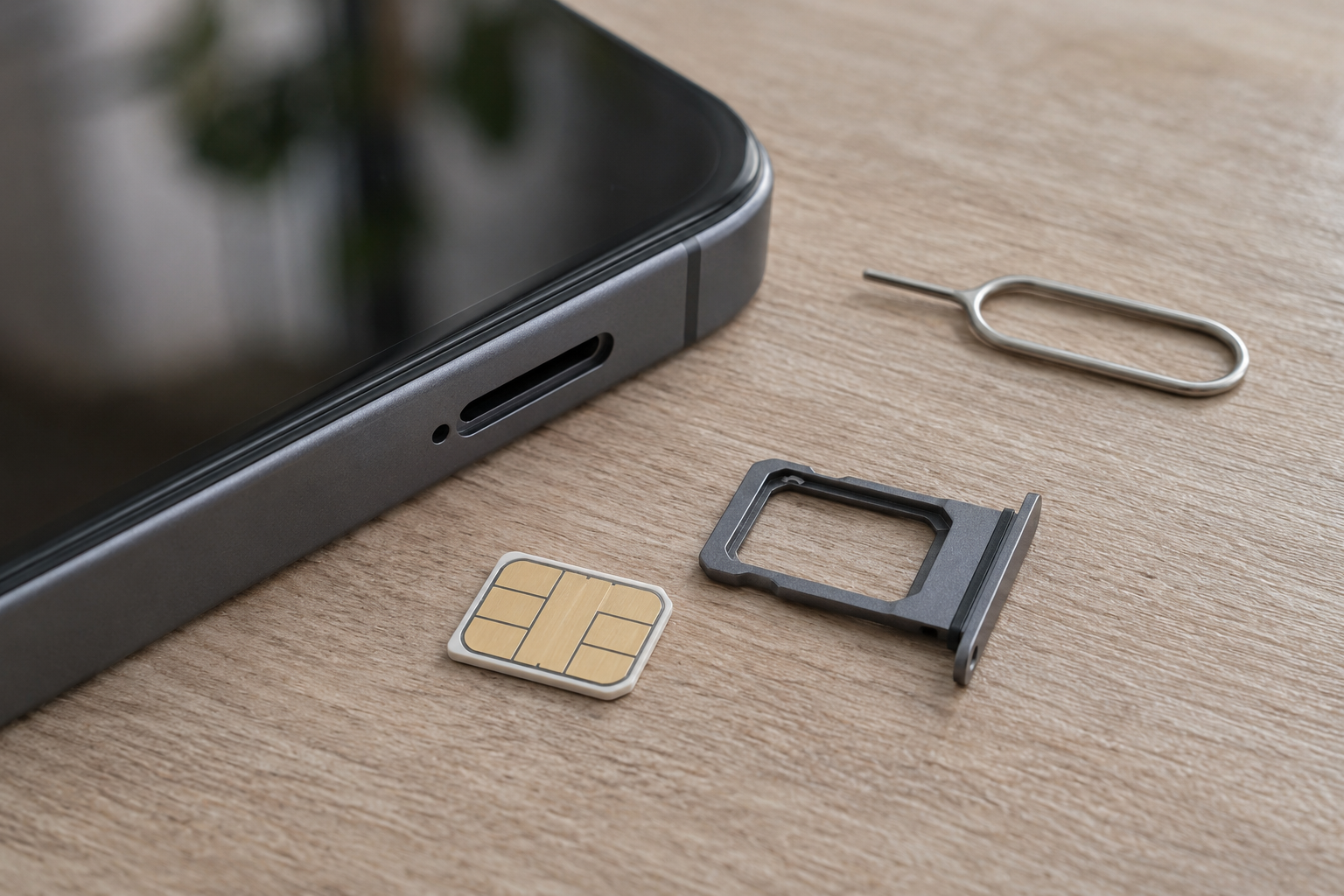
With a compatible physical SIM, the carrier can tell you whether to move the card or use a replacement. Remove any physical SIM you are keeping before the old phone leaves. Check for removable memory, too. If there is a microSD card, copy what you need and set the card aside unless you have arranged a separate, deliberate transfer of it. Take a moment to inspect the tray rather than assuming every piece of storage stayed in the internal memory. If you are unsure how the tray opens, check your model’s documentation.
If you use eSIM, first have the carrier move or activate the line on the replacement. Google’s Pixel SIM transfer instructions explain that transfer behavior depends on the carrier and that a failed transfer can leave the existing device or eSIM working. Check the new line before deleting the old profile. If you’re ending the line instead, arrange that with your carrier and change any affected recovery numbers before you lose access to incoming messages.
Apple’s eSIM erasure guide distinguishes deleting the device profile from canceling the cellular plan and tells owners to erase the eSIM when handing over an iPhone. When you have verified the line on the replacement or arranged cancellation, choose the erasure option appropriate for the outgoing phone. On Android, ask the manufacturer and carrier how your model handles downloaded SIMs during factory reset. Pay attention to prompts and to the specific line affected. An empty screen in the old phone’s cellular settings tells you about that device. The carrier can confirm the status and billing of your plan.
Sign out and factory reset the old phone
Once the important data, sign-ins and line are accounted for, use your device maker’s current instructions for a handoff. The details depend on the model and software. Keep the charger handy, give the process time to finish and verify that the device you are about to erase is the outgoing phone. When you have two similar-looking phones on a table, a labeled mailer is easier to mix up than it sounds.
On an iPhone, follow the account and erasure prompts
Apple’s handoff instructions cover unpairing a connected Apple Watch, signing out of the Apple Account and erasing all content and settings. Have your account credentials available to enter yourself if prompted. If you moved to a non-Apple device, check Apple’s iMessage deregistration steps, especially if messages from iPhone users are not reaching the new phone. Follow the instructions for your software version, including the eSIM decision when the erase screen offers it. A sign-out option that leaves data behind is only part of the handoff.
On supported versions the separate erasure option is in Settings under General, then Transfer or Reset iPhone, then Erase All Content and Settings. Read the final prompt, which tells you what will be removed. Apple says the supported on-device erase turns off Find My and Activation Lock and leaves your iCloud content in iCloud. Review your trusted devices after verifying access elsewhere. If the settings do not look as expected or a security delay prevents an account change, consult Apple’s official support using another device before leaving the phone with someone else.
On Android, protect the backup before removing the account
If you have a replacement, finish restoring your essential data and open it there before removing the old phone’s account. If you cannot complete a restore yet, make independent copies and open them from a trusted device. Google warns that taking the account off a Pixel can delete its device backup. If anything you need still depends on the device backup, keep the phone until you can check the restore or get model-specific guidance on how to preserve the data.
Google’s device protection explanation describes how a reset can require the prior owner’s information and how removing the Google Account on the device turns off that consumer protection. Once your data and sign-ins are secure, follow your manufacturer’s handoff order, including the Google or manufacturer accounts it tells you to remove. Keep your screen lock and credentials to use privately until those steps are complete.
Google’s Android factory reset guide says a full factory reset removes the device’s data and directs owners to model-specific instructions. A settings-only or network reset serves a different purpose. Choose the full data-erasure option and read the confirmation carefully. Google directs Pixel owners to use the reset option in Settings for a trade-in. If the screen is broken, the phone will not boot, or you do not know the account linked to it, talk to the manufacturer or the receiving program before sending it. Tell them what you have actually been able to erase.
Check that the next owner can start setup
When erasure finishes, the personal home screen should be gone. Look for the initial welcome or setup screen. Leave the phone there, with the SIM and any removable storage handled as intended. A welcome screen is one useful check. The other is whether the ownership steps were actually completed, because some requests to confirm a previous account can arrive later in setup. If you see a previous-owner or organization prompt while preparing the device, resolve it with the legitimate account holder, manufacturer or administrator before transferring it. Avoid signing in again just to see what happens.
If you are giving the phone to someone in person, they can follow setup with their own account. Let them choose a screen lock and settings suitable for their use. If it is being handed to a child, discuss the setup with their parent or guardian and have the guardian choose the appropriate account and controls. Keep your family access arrangements, such as a shared photo library or emergency contact, separate from the account that previously owned the device. An independent setup makes it easier to understand who can see and change each setting later.
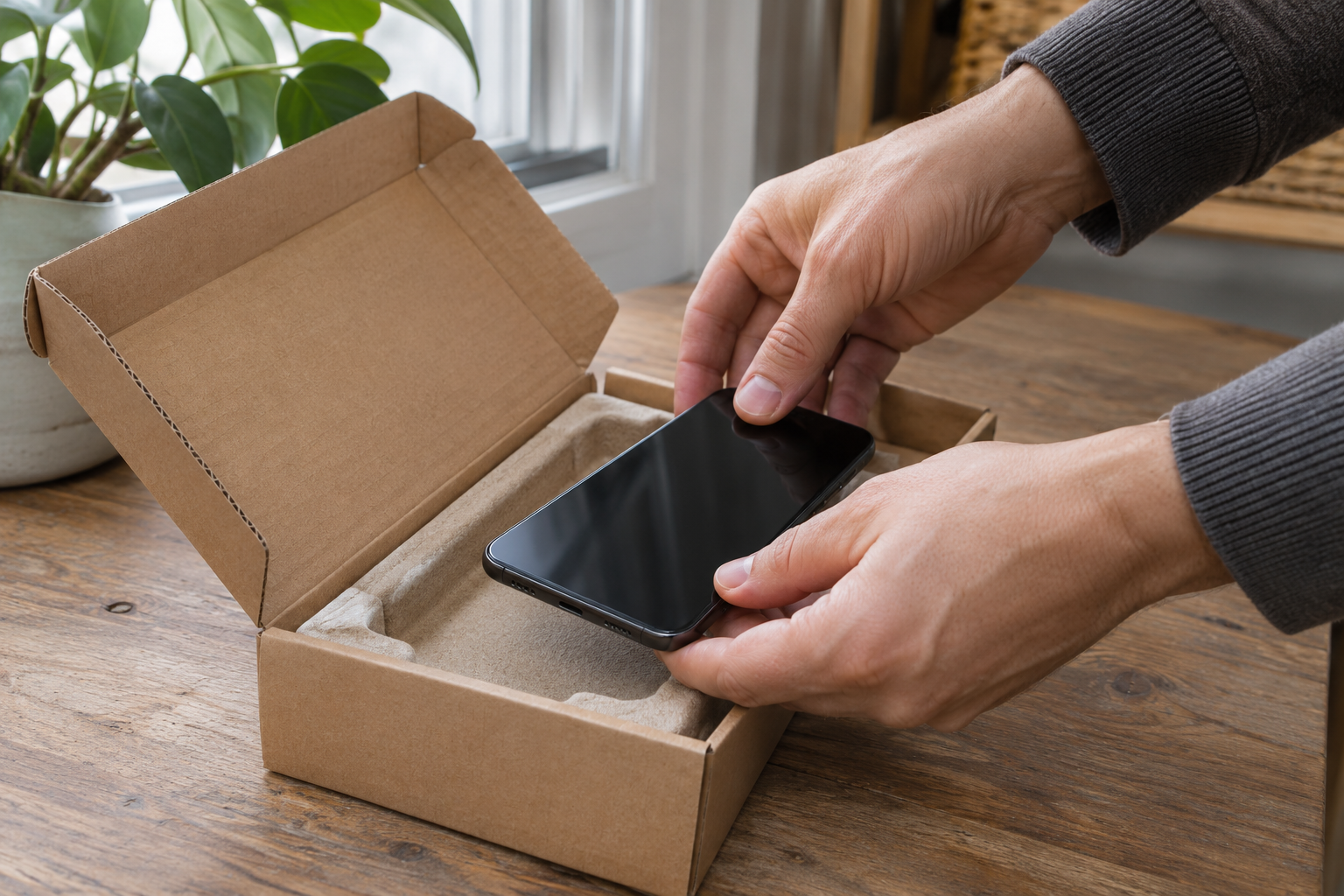
For a mail-in trade, match the outgoing model to the instructions and return label. Check what the program asks you to include, what condition it requires, and how you will see that it has received the device. Keep the receipt or tracking information somewhere other than the phone itself. If the trade-in kit has been lying around for a while, check the deadline directly with the program before you assume it is still open.
If the phone is going to recycling, use a program that accepts your device and its condition. The EPA’s electronics donation and recycling guidance recommends removing personal information and directs owners away from household garbage or recycling bins for electronics containing lithium-ion batteries. If the battery or phone is damaged, ask the recipient or your local waste authority how it can safely be accepted. If you cannot erase the device, ask how the program handles storage and whether there is an option suited to a device that still contains personal information. Get an answer before you leave it behind.
If the phone has already left your hands
Start with what happened. Did you finish the full reset, or did you only log out of one app? Did you see the welcome screen, or did the device leave while it was still processing? Do you know where it is now? Contact the recipient or trade-in program through a channel you already trust, describe the state and ask what they can do to hold or return it. Keep the case number and the time of any contact so you know what has actually been requested.
If a phone may be lost or stolen, use the device maker’s security steps. Google’s Find Hub guidance for lost Android devices describes the conditions for remote actions, including power, connectivity, the relevant account and Find Hub settings. Check whether the erase completed. A completed Find Hub erase can leave an SD card intact.
For a lost or stolen iPhone, Apple’s Activation Lock guidance says to mark it as lost in Find My. If you erase it remotely, leave it in Find My so Activation Lock can continue to protect it. The authorized handoff to a known recipient is a separate situation.
If you suspect exposure, begin with the accounts that can open other accounts. From a device you trust, secure primary email and your password manager, review their device and session lists, and update recovery options. If someone could still receive messages on the outgoing phone or its SIM, ask the carrier to confirm where the line is active and take the appropriate steps to secure it. Review wallet or bank activity through the official app or a phone number you already know. Unusual activity deserves prompt follow-up with the relevant provider. Our Privacy & Identity Protection hub has more guidance if a handoff turns into an account or identity problem.
Keep a clear record of the difference between asking for a remote action, seeing the account disconnect, and seeing erasure complete. If the phone is already with the intended recipient, use the maker’s official handoff instructions to confirm erasure and release ownership, or arrange its return. For an iPhone, follow Apple’s handoff guidance for a device you no longer have. Removing trusted access and erasing local content are separate checks. Enter credentials yourself through the official process and verify which device you are acting on.
Conclusion
Give yourself enough time to use the new setup before you let the old one go. Open the files you would miss, finish a sign-in that matters and make sure your number reaches you. Once you have those checks in hand, follow the manufacturer’s account removal and erasure instructions and leave the device ready for setup. That brief overlap is your best chance to catch the things you only discover by trying them.
For more practical guides you can use when a device or account changes, subscribe to Quantum Cyber AI.
FAQ
Can I just delete my pictures and remove a few apps?
Use the full manufacturer-supported erase process after confirming your copies. Deleting a selection of pictures or apps leaves other material and account connections to address. It can also affect shared or synced copies, depending on how the service works. Backup gives you something to keep. The supported handoff procedure prepares what you are giving away.
What if the phone asks for my old account after I erased it?
Treat that prompt as an ownership issue. Use the manufacturer’s official support and your own proof of ownership or contact the administrator if it is an organization’s device. A buyer should contact the seller to arrange a legitimate release or return. Keep your account credentials private.
What if I do not have the replacement yet?
Confirm that you can reach your backup account and primary email from a different trusted device. Before removing the account, export the data you still need and open the copies independently. Google’s Pixel instructions warn that account removal can delete a device backup. If important Android data is still available only through that backup, keep the phone until you can restore and check it, or get help from the manufacturer before handing it over. Plan how you will receive verification messages in the meantime.
Does removing the SIM finish the job?
Removing a physical SIM or deleting an eSIM profile addresses the service connection on the outgoing phone. Work through the separate storage, account and erasure steps as well. If the line is meant to follow you or close, confirm the result with a test on the replacement or with your carrier. Check removable memory separately if your model uses it.