
A message arrives inside a messaging app and claims that your account is in danger. It may tell you to reply with a verification code, scan a QR code, approve a linked device, or copy a recovery key into the chat. The request sounds like security help. In reality, following it may give someone else the exact access the warning claims to prevent.
This kind of messaging app account takeover does not require an attacker to break end-to-end encryption. The attacker may persuade the account owner to complete a real authorization step on the attacker’s behalf. That is why an ordinary-looking code or device prompt deserves the same care as a password.
The practical defense is to know what each action does. A one-time code may register a new primary device. A QR scan may add a secondary device without logging you out. An app PIN may block a new registration. A backup recovery key may unlock stored message history but may not recover the account itself. Those are different secrets, different risks, and different recovery jobs.
Every messaging app handles those controls a little differently, so the safest response begins with identifying the exact action the app asked you to approve.
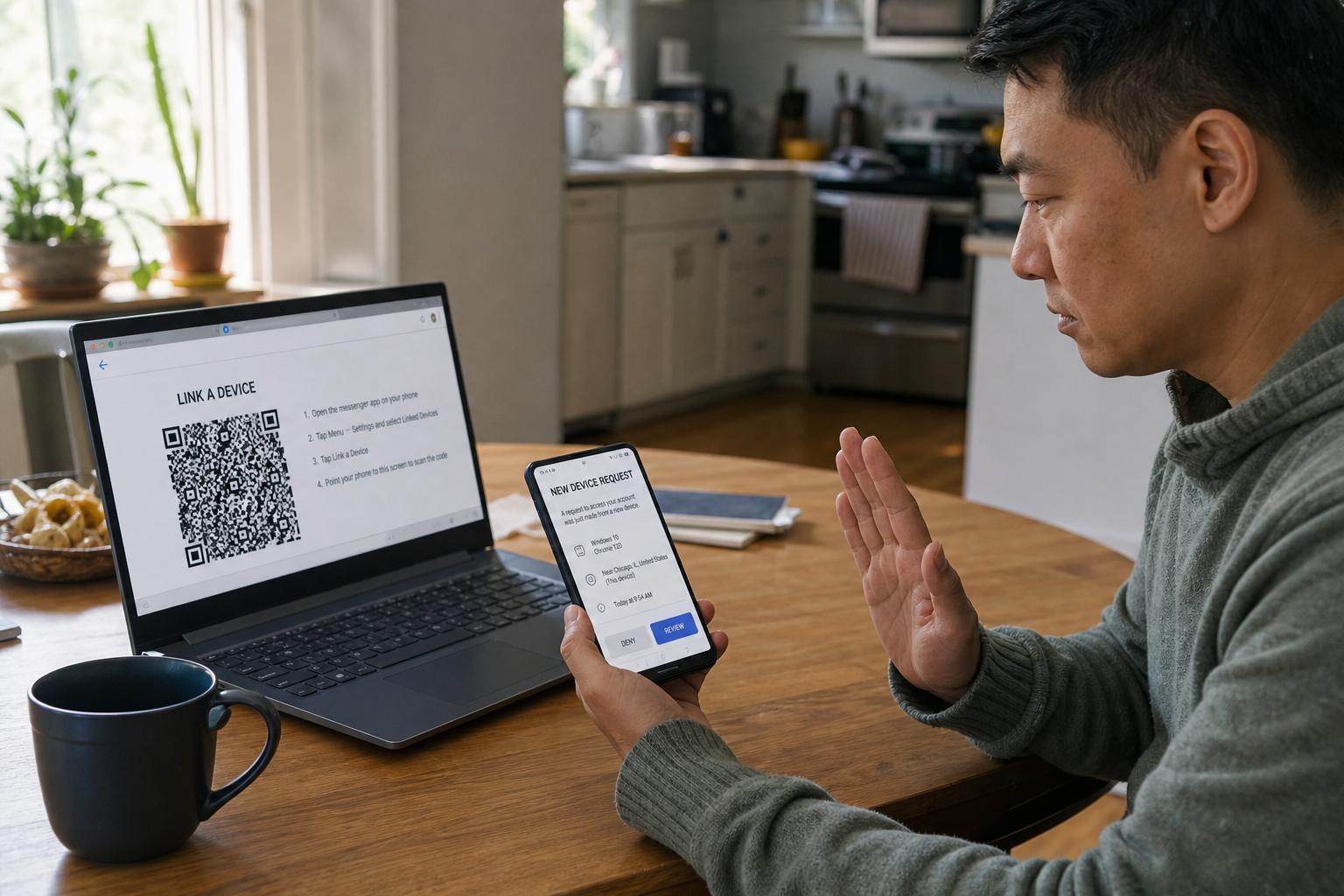
Table of Contents
Key Takeaways
- Never share a login, registration, or verification code for an action you did not personally start.
- Treat a QR code or device-linking code as an approval to let another device use your messaging app account.
- Review linked devices and active sessions from inside the official app, not from a link sent in a message.
- Never paste a backup recovery key into a chat, form, or “support” conversation.
- Turn on the messaging app’s additional PIN, registration lock, two-step verification, or passkey option when it is available and appropriate.
- Secure the phone number, recovery email, cloud account, and physical device because they can all affect messaging app recovery.
- If you may have granted access, remove unknown sessions, rotate exposed secrets, warn contacts, preserve evidence, and use official recovery channels immediately.
Why Messaging App Account Takeover Is a Current Consumer Risk
In March 2026, the FBI and CISA warned about a campaign targeting commercial messaging applications. The agencies described two related methods. In one, a target was tricked into linking an attacker-controlled device. In the other, a target was persuaded to provide a PIN and verification code for a full messaging app account takeover. The warning said the reported actors compromised individual accounts, not the encryption of the messaging apps themselves.
The campaign was associated with Russian intelligence services and focused on people of high intelligence value, including government officials, military personnel, political figures, and journalists. Most readers are not in that target group. The broader lesson still matters because the authorization steps are ordinary consumer features. A fake support account, a compromised friend, a bogus vote, or a false “sync problem” can use the same code, device, and recovery language against anyone.
The threat then changed. A June 2026 FBI and CISA update reported attempts to obtain backup recovery keys. The sample lure told a user that Signal messages and media were at risk and instructed the user to enable a backup, view the recovery key, and paste it into the chat. The agencies warned that an exposed key could be used to reach historical messages and could remain dangerous until a new key was generated.
WhatsApp users face a closely related device-linking trick. Meta’s March 2026 anti-scam announcement described scammers asking for a phone number and device-linking code or persuading a user to scan a QR code under a false pretext. Meta said WhatsApp added warnings when behavioral signals suggest that a linking request may be suspicious.
These warnings point to a useful rule: do not judge a messaging app request by how technical or urgent it sounds. Judge it by the authority it grants. If the action can register, link, restore, export, or decrypt, it belongs in the same mental category as handing over a key.
Three Different Ways an Attacker Can Get In
Registration-code or PIN takeover
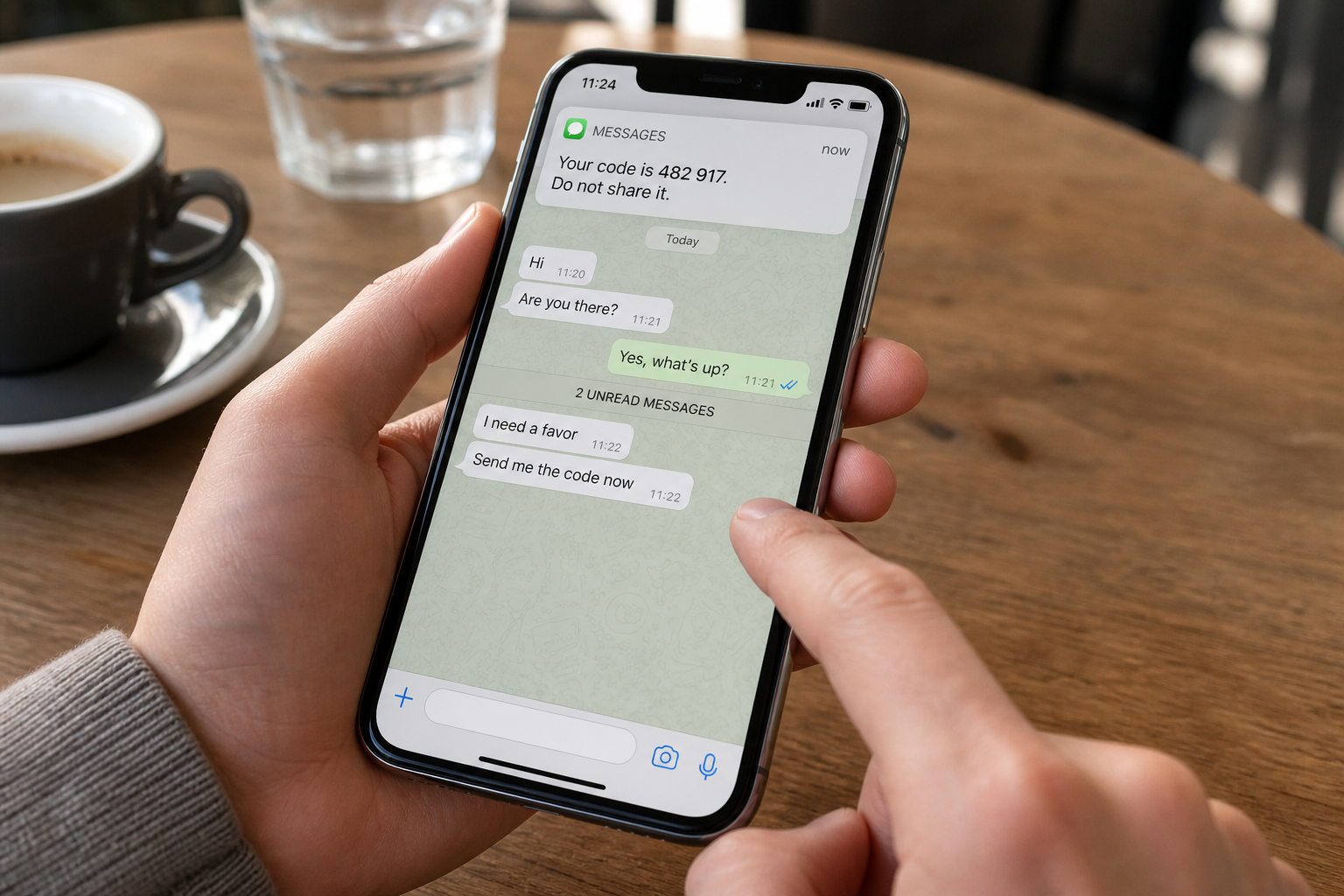
A messaging app often needs to confirm that a person controls the phone number or account being registered. The service may send a one-time code by text, call, an existing in-app session, or another approved route. That code is not merely a notice. Entering it can complete a registration or sign-in step.
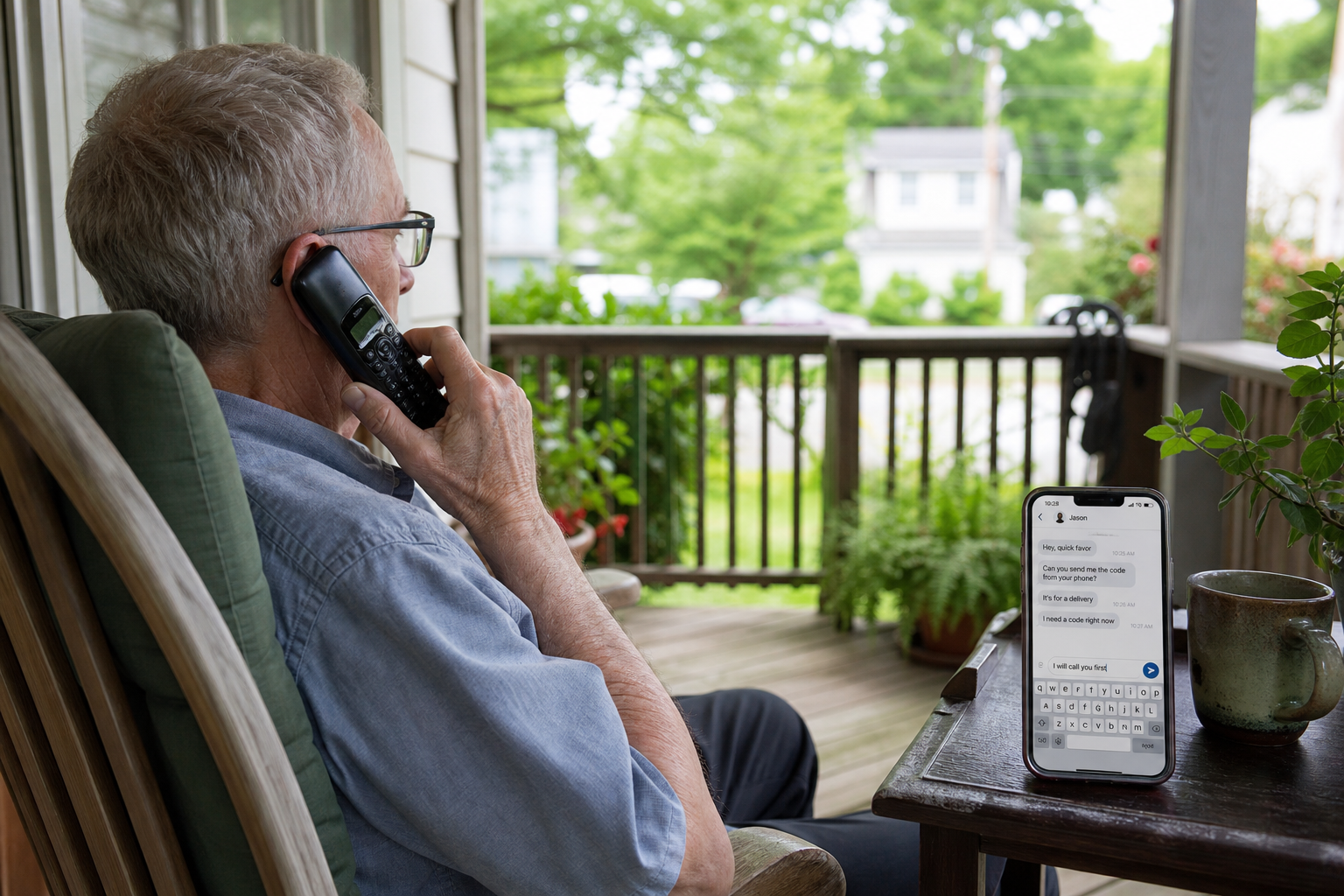
The scammer’s story is designed to make the victim treat the code as a cancellation tool. The message may say, “Reply with the code to block the login,” “Send this code so support can secure your account,” or “Confirm that you are the real owner.” The wording reverses the meaning of the code. The code does not cancel the attacker’s attempt. It can complete it.
When a messaging app sends an unexpected registration code, the safest assumption is that the code belongs only in a sign-in screen you opened yourself.
Some messaging app accounts also use an added PIN or password. If the attacker obtains both the one-time code and that added secret, the service may accept the attacker as the account holder. Depending on the app and the exact flow, the victim may see a “device no longer registered” notice, lose the ability to send messages, or find that account settings have changed.
This is why “I never told them my password” is not enough reassurance. Many phone-number-based services do not begin with a traditional password. The verification code can be the critical proof, and the app PIN can be the second barrier.
Linked-device abuse
A linked device is different from a new primary registration. Messaging apps commonly let people use a computer, tablet, or secondary phone alongside the primary phone. Linking may involve scanning a QR code displayed on the secondary device or entering a short device-linking code.
That convenience creates a quiet compromise path. If you scan an attacker’s QR code, the messaging app may treat the attacker’s computer or tablet as one of your authorized devices. You can remain logged in and continue receiving messages, so there may be no dramatic lockout. The attacker may read messages, observe group conversations, contact people as you, or wait for a useful conversation.
Because the victim’s own messaging app can keep working, linked-device abuse may be harder to notice than a full registration takeover.
A QR code is not safe merely because it contains no readable password. In a linking flow, the QR code carries the information needed to connect the two devices. Scanning it is the approval. A code shown inside the app for “link with phone number” serves a similar function. Never scan or enter one to vote, confirm your identity, restore a conversation, join support, or fix a supposed account problem.
The authoritative check is the linked-device or active-session list inside the official messaging app. A browser history, antivirus scan, or absence of unfamiliar apps on the phone does not prove that no remote session exists.
Backup recovery-key theft
A backup recovery key usually protects stored data rather than an ordinary daily login. The key may decrypt a cloud backup, local archive, or portable message history. Its length and appearance can make it seem like an inert technical record. It is a secret with real authority.
The recovery key’s role varies by product. One messaging app may use it only to restore message history. Another ecosystem may use a recovery secret as part of account recovery. A backup key may not change the active account password or remove linked devices. That means the correct response depends on exactly which key was disclosed.
Check the messaging app’s official backup documentation before assuming that a recovery key also restores account access.
The June FBI/CISA warning makes one limit especially important. Generating a new backup recovery key can invalidate the old key for future backup downloads, but it cannot erase a copy that an attacker already downloaded. Rotation stops one future path. It does not rewind the compromise.
Do not send a recovery key to anyone, including a person claiming to be messaging app support. Legitimate troubleshooting may tell you where to enter a key during an official restore flow on your own device. It should not require pasting the key into a chat.
Stop Calling Every Secret a Verification Code
Confusing labels can lead to the wrong response. Before changing settings or deleting anything, identify which secret or approval was involved.
One-time login or registration code
This is a short-lived code sent or displayed during sign-in or registration. Its job is to prove control of a phone number, existing device, email account, or other channel. Treat it as a credential. If you did not start the sign-in, do not share, forward, read aloud, or enter the code anywhere.
An unexpected code can mean that someone typed your number by mistake. It can also mean someone is attempting access. The safe response is usually to leave the code unused, inspect the messaging app directly, and follow the app’s official security guidance if other warning signs appear.
Do not reply to the sender for clarification when the sender is already asking for messaging app credentials.
App PIN or two-step-verification password
This is a secret the user sets in advance. It may be required when registering the account on another device or changing a sensitive setting. It is different from the one-time code and different from the phone’s screen passcode.
An app PIN adds value only if it is not reused or disclosed. Store it in a trusted password manager if the app allows a password-like value and you may forget it. If the messaging app uses a short numeric PIN with reminders, choose one that is not a birthday, address, phone-number fragment, or common sequence.
Linked-device approval
This is the act that adds another endpoint. It may be a QR scan, a numeric code, a confirmation screen, or a nearby-device flow. The important question is not whether the prompt says “link,” “sync,” or “continue.” Ask which physical device will gain access when you approve it.
After linking a device you own, name it clearly when the app offers that option. Then review the list periodically. Remove old work computers, borrowed tablets, repaired devices, and hardware you sold or gave away.
A clean messaging app device list should contain only hardware you can identify and still control.
Backup recovery key or passphrase
This secret protects a backup or archive. It may be long because it is designed to resist guessing. Losing it can make the backup permanently unreadable. Sharing it can let another person restore or decrypt information when they also satisfy the product’s other requirements.
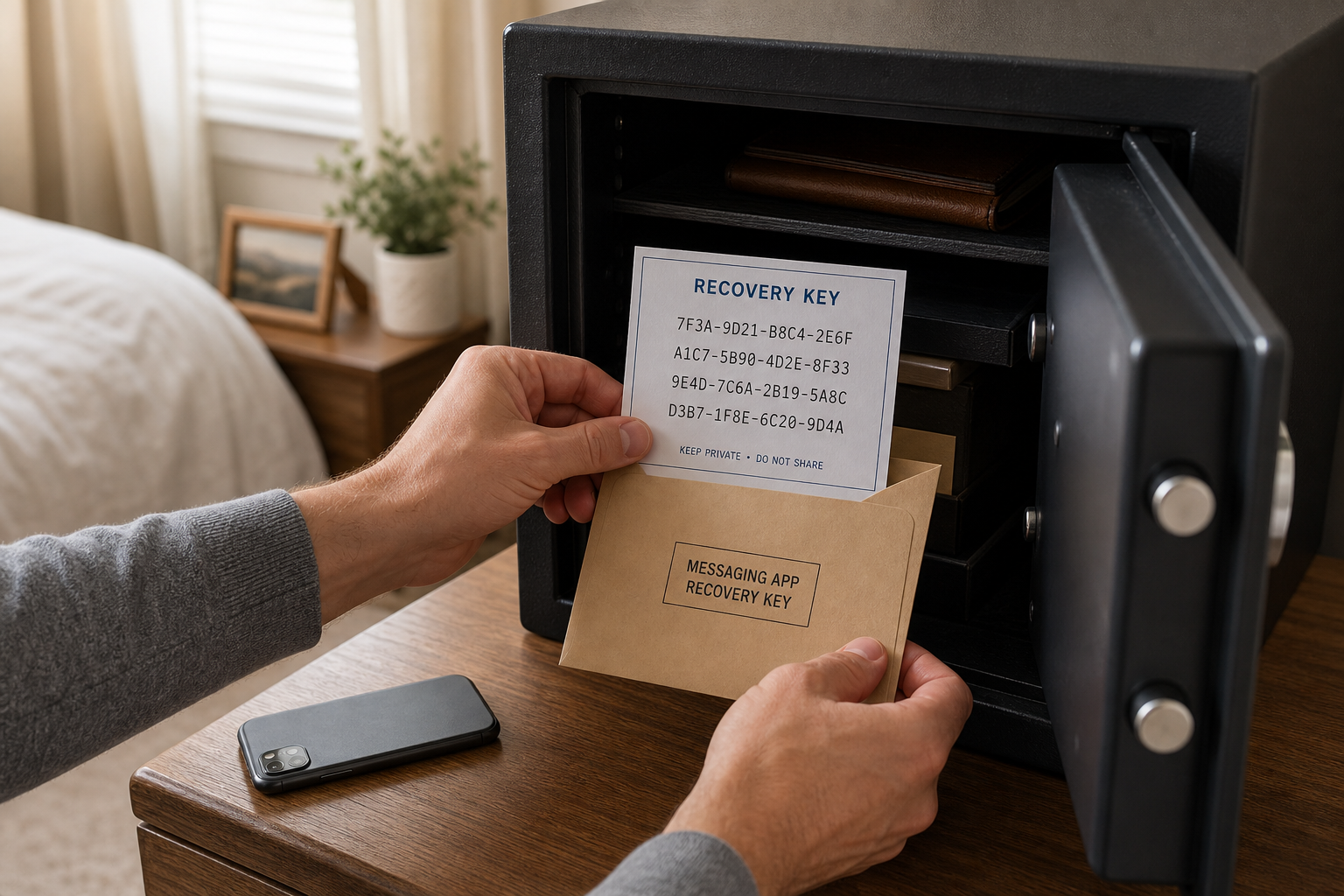
Do not store the only copy inside the messaging app conversation history or cloud account that the key is meant to help recover. A printed copy in a secure location, an encrypted password-manager entry, or another controlled offline record can avoid that circular failure. The right storage choice depends on the sensitivity of the messages and who must be able to recover them.
Device passcode, cloud recovery, and carrier PIN
The phone’s unlock passcode protects the physical device. A cloud-account recovery method may restore access to the Apple or Google account that supports backups, contacts, notifications, or app downloads. A mobile-carrier PIN can help block unauthorized changes to the phone line. These are connected layers, but none is automatically the same as the messaging app PIN.
The NIST digital identity guidance on account recovery recognizes saved recovery codes, issued recovery codes, recovery contacts, and repeated identity proofing as distinct recovery methods. The consumer lesson is simple: a secret called “recovery” can be powerful, but its exact power comes from the service that issued it.
Warning Signs Before and After a Takeover
Before access is granted
The clearest warning sign is an unrequested code paired with someone asking for it. The account requesting the code may call itself Security, Support, Verification, or a service chatbot. It may use a familiar logo or speak in formal language. None of that changes the code’s function.
Realistic branding does not turn a direct message into an official messaging app recovery channel.
Pause when a message asks you to:
- reply with a code that just arrived by SMS or inside the messaging app;
- scan a QR code to vote, join a group, restore messages, stop a hack, or verify your identity;
- open the app’s Backups area and copy a long recovery key;
- turn off an existing security feature to complete a repair;
- move the conversation to another app before “support” can help;
- act immediately because messages will supposedly be deleted;
- trust a friend’s account that is making an unusual technical or financial request.
Verify the sender through another route. Call the person at a number you already know, use a workplace directory, or speak in person. If the message claims to come from the platform, close the conversation and navigate to the official app settings or official website yourself.
After access may have been granted
A linked-device compromise may be quiet. Look for a device, browser, location, or last-active time you do not recognize. A vague device name is not proof of an attacker, because operating-system updates and browser sessions can change labels, but an unexplained entry deserves immediate investigation.
Other signs include:
- a notification that the account was registered, linked, or changed when you did not do it;
- a “device no longer registered” or unexpected sign-out notice;
- messages marked read on a device you were not using;
- new groups, changed profile details, altered privacy settings, or unfamiliar contacts;
- a new or changed recovery email, PIN, password, passkey, or backup setting;
- contacts reporting that your account requested money, codes, files, or sensitive information;
- sudden loss of mobile service that could indicate a carrier problem or SIM swap.
Do not wait for every sign to appear. If you scanned an unfamiliar linking code or sent a secret, treat that known action as enough reason to inspect the account.
A Messaging App Security Review Before Anything Goes Wrong
Review devices and sessions
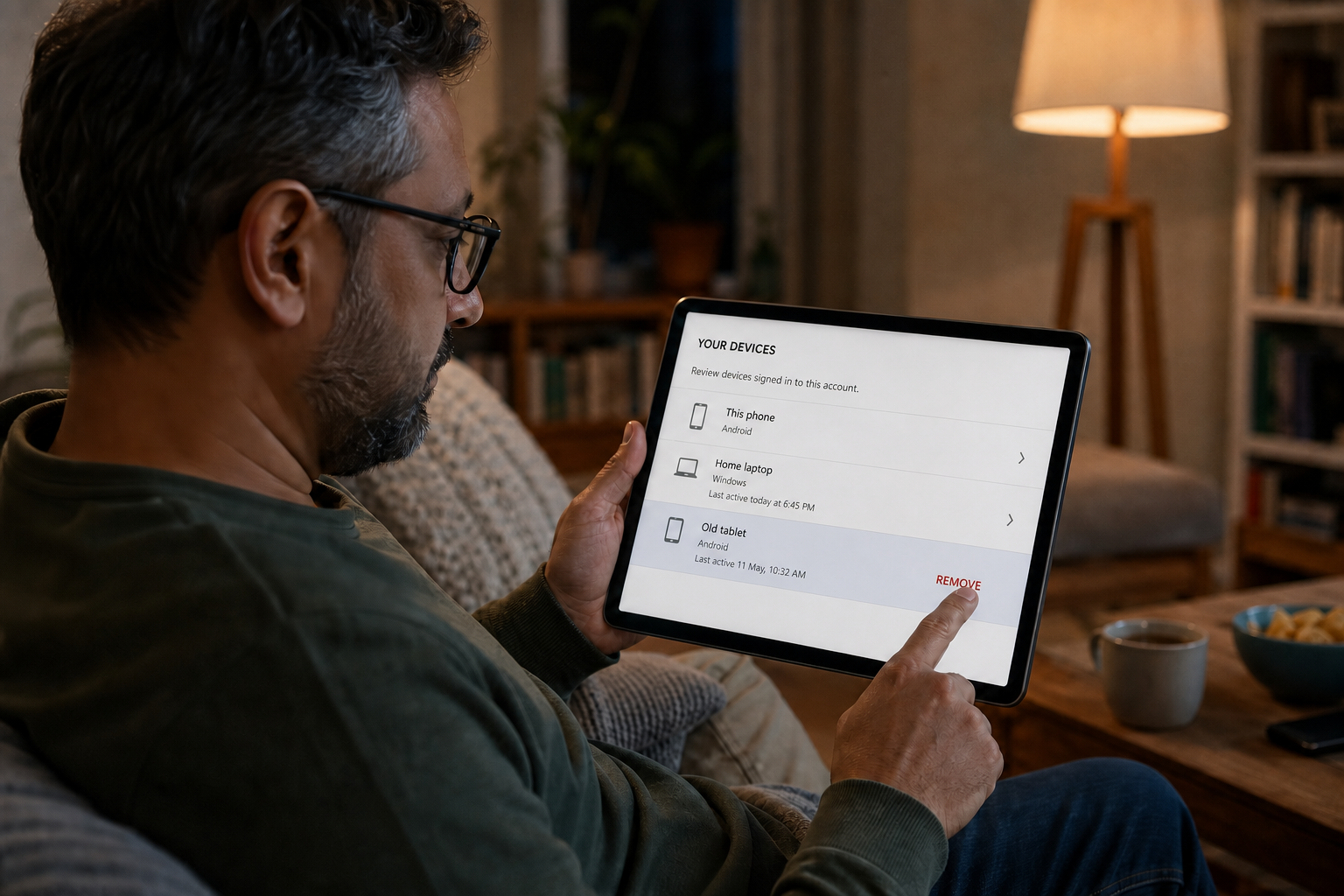
Open each important messaging app on the primary phone and find its devices, linked devices, sessions, or active sessions area. The label differs by product. Confirm every entry against a device you still own and use.
Remove devices that are old, lost, shared, repaired, sold, or no longer needed. If an entry is ambiguous, sign it out and relink your own device later. A short inconvenience is preferable to preserving unexplained access.
Repeat the review after travel, device repair, a workplace change, or use of a shared computer. Also review the operating-system account’s trusted devices because an Apple or Google account can affect app installation, backups, notifications, and recovery.
Turn on the app’s added account protection
Look for a registration lock, PIN, two-step verification password, passkey, or similar control in the messaging app’s account or security settings. These controls are product-specific. Read the recovery consequence before enabling one.
Use a unique secret. Do not choose the same PIN used to unlock the phone, access voicemail, or authorize the mobile-carrier account. When the app offers a recovery email, use an address you control, keep it current, and protect that email account with strong authentication.
For a broader explanation of authentication choices, the Passwords, Passkeys, and 2FA Explained guide can help you separate passwords, passkeys, authenticator codes, device prompts, and SMS codes.
Protect the recovery email and cloud account
The recovery email can become a second route into the messaging app if an attacker controls it. Review its password, multi-factor authentication, recovery address, phone numbers, forwarding rules, sessions, and trusted devices.
Do the same for the Apple or Google account connected to the phone. Remove unknown devices and old recovery methods. Avoid using the same weak password across the messaging app ecosystem, email, carrier, and social accounts.
Store recovery keys outside the account they protect
If the app offers encrypted backups, decide whether you need them before enabling them. A backup improves resilience when a phone is lost or damaged, but it also creates a recovery secret and another data copy to protect.
Document which messaging app backup is enabled, where its key is stored, and which device is required for restoration.
Record the key accurately and test the storage process without exposing it. Do not take a screenshot that automatically uploads to a broadly shared photo library. Do not paste it into a message to yourself. Do not place the only copy in a note that requires the same locked account.
Apple illustrates the circular-access problem in its Apple Account recovery-key guidance. Apple says its optional 28-character recovery key changes the normal account-recovery model and warns users not to store the key only in Apple Passwords, iCloud Photos, Notes, or iCloud Drive. An Apple Account key is not a Signal backup key, but the storage principle is useful across services: keep the recovery tool reachable when the primary account is not.
Harden the mobile-carrier account
Ask the carrier which protections it offers for SIM changes, eSIM activation, number transfer, and account access. Set a carrier account PIN or password that is not reused. Turn on port protection or number lock if the provider offers it and understand how to remove it when you legitimately change carriers.
The FBI’s SIM-swap warning explains that a criminal who takes control of a phone number can receive calls, texts, and SMS codes and can use them in account-recovery attempts. A carrier PIN cannot replace the messaging app’s own security settings, but it can reduce one path to the phone number.
Lock and update devices
Use a strong device passcode and biometric unlock when appropriate. Configure the lock screen so one-time codes and sensitive message previews are not fully exposed to anyone holding the locked phone. Install operating-system and messaging app updates from official stores.
Treat computers and tablets as real message endpoints. A linked laptop may retain conversations and attachments. Use full-disk encryption, a login password, automatic locking, and separate user accounts on shared computers. Unlink a device before repair, return, resale, or reassignment.
Create an out-of-band verification habit
Families and teams should decide in advance how to verify an unusual request. It can be a phone call, a known secondary number, a video conversation, an in-person check, or a workplace directory. The goal is not a secret phrase posted in the same chat. It is a different route that a person controlling one messaging app account cannot automatically control.
This habit matters after a messaging app account takeover because the attacker may use the trusted account to target contacts. A recipient who pauses and verifies can stop the compromise from spreading.
What the Controls Look Like in Signal, WhatsApp, and Telegram
Signal
Signal separates several controls that are easy to confuse. Its official linked-device instructions say the primary phone can review linked devices and that linking a new device involves device authentication and scanning a QR code. Signal currently allows up to five linked devices per account.
The Signal PIN documentation says the PIN can serve as registration lock. It also states that the PIN is not the SMS verification code, is unrelated to the device screen lock, is not a chat backup, and cannot recover lost message history. If registration lock is enabled and the PIN is forgotten, Signal says the user may be locked out for up to seven days.
Signal’s optional Secure Backups feature uses a 64-character recovery key. Signal says the key is not shared with the service and cannot be reset or bypassed. Without it, the encrypted archive cannot be restored. That is why a Signal backup key must be preserved for recovery and never sent to a support impersonator.
If Signal shows an unknown linked device, unlink it from the primary phone. If the phone says it is no longer registered, follow Signal’s official re-registration flow. If a backup key was exposed, create a new key through the current backup settings and assume that any archive already obtained may remain exposed.
WhatsApp device-linking scams may present a QR code or a numeric code as a vote, identity check, customer-support step, or security repair. The safe rule is to initiate linking only from the official WhatsApp settings while both devices are physically under your control.
Never use a messaging app linking flow to prove your identity to a contest, marketplace, recruiter, friend, or support account.
Review Linked Devices inside WhatsApp and sign out anything you do not recognize or no longer use. Turn on WhatsApp two-step verification and keep its recovery email current. Do not rely on a warning screen alone. A suspicious-linking alert is a useful pause, but the user still needs to reject any request they did not initiate.
If you lose control of the account, follow WhatsApp’s official compromised-account recovery instructions from the app or Help Center you navigate to yourself. Do not follow a “restore” link sent by the account that contacted you.
Telegram
The official Telegram FAQ says Telegram login codes should never be shared and recommends two-step verification, which adds a password to the SMS code. Telegram also allows a recovery email for that password and advises protecting the recovery email with its own strong password and two-step verification.
Telegram users can review Settings > Devices, or Privacy and Security > Active Sessions, and terminate an old or suspicious session. If a phone is stolen but another Telegram session remains available, Telegram advises enabling two-step verification, terminating the old device, and contacting the carrier to block the old SIM and issue a replacement.
The current Telegram FAQ also describes passkey support. Availability and labels can change, so use the options shown in the current official app rather than copying a menu path from an old screenshot or third-party tutorial.
Other messaging apps
Do not assume another messaging app uses the same registration, device, or backup model. Find the official help page for account security, devices or sessions, two-step verification, backups, and lost-phone recovery. Confirm the domain before following instructions.
For a simple baseline that applies across accounts and devices, use the Cybersecurity Basics hub to review updates, authentication, phishing checks, backups, and recovery preparation.
What to Do If You Shared a Code, Scanned a QR Code, or Sent a Key
1. Stop the conversation and preserve evidence
Do not argue with the account or wait for it to explain. Take screenshots of the sender profile, messages, username, phone number, links, QR-code context, and time. Record which code, PIN, key, or approval was involved. Do not include the exposed secret in notes that will be widely shared.
Evidence can help the platform, employer, law enforcement, financial institution, or affected contact understand the path of compromise. It also helps you avoid performing the wrong recovery step.
2. Use a trusted device that is still signed in
If the primary phone or another trusted device still has access, use it immediately. Open the official messaging app directly. Do not use a recovery link supplied by the suspected attacker.
Review linked devices or active sessions and remove unknown entries. If the app offers “sign out all other sessions,” consider using it after you identify your own current device. Be ready to relink legitimate computers later.
3. Re-register or recover the account when necessary
If you were logged out or the account was registered elsewhere, begin the provider’s official account-recovery or re-registration process. The FTC hacked-account recovery guide recommends following the provider’s recovery instructions, signing out all devices, turning on two-factor authentication, checking recovery information, reviewing what changed, and notifying contacts.
Do not repeatedly request codes if the app warns of a waiting period. Follow the displayed official timeline. Repeated attempts can create more confusion, and a scammer may use the delay to offer fake expedited support.
4. Replace the app PIN or two-step-verification password
After regaining trusted access, change the added PIN or password if it may have been disclosed. Confirm that the recovery email and other recovery settings belong to you. Remove any unfamiliar passkey, trusted device, phone number, or account relationship.
Use a unique replacement. If the same secret was used anywhere else, change it there too. Start with email, cloud, carrier, banking, and other accounts that can reset or receive messages for the compromised identity.
5. Generate a new backup recovery key
If a backup recovery key or passphrase was exposed, use the app’s official backup settings to replace it or disable and recreate the backup as the product requires. Store the new key securely before deleting any old local record you still need for incident documentation.
Assume the old key may already have been used. Rotating it protects future backup access when the service invalidates the old key, but it does not delete a backup that another person already downloaded or the messages they already read.
6. Secure the phone number, email, and cloud account
Contact the carrier immediately if mobile service disappeared, the SIM changed, or the phone number may have been transferred. Ask the carrier to restore the number, investigate unauthorized changes, and add the strongest available account and transfer protections.
Change the recovery email password from a clean, trusted device if email compromise is possible. End unknown email sessions, check forwarding rules, and verify recovery information. Review the Apple or Google account for unknown devices and security changes.
7. Warn contacts through another channel
Tell close contacts that the messaging app account may have been compromised. Use a phone call, different account, email address, workplace alert, or in-person message. State a clear boundary: do not send money, share codes, open files, or trust recent requests until you confirm recovery.
Name the affected messaging app so contacts know which channel should not be trusted during the incident.
If the attacker posted in a group, ask an administrator to warn the group and remove duplicate or fake accounts. Do not assume deleting one visible message removes copies, forwards, notifications, or screenshots.
8. Review exposure and downstream fraud
Consider what the account contained: private conversations, contact lists, group membership, photos, documents, travel plans, financial discussions, work information, identity documents, or password-reset messages. The response should match the data that may have been accessible.
Check important financial and identity accounts for alerts or unauthorized changes. If identity information or financial access may be involved, the Identity Theft Response Checklist provides a structured way to preserve records, contact institutions, and decide whether additional reports or freezes are appropriate.
9. Report through official channels
Report the impersonating or compromised account inside the messaging app. If the account belongs to an employer, government office, campaign, newsroom, school, or another organization, notify its security or IT contact promptly.
The FBI/CISA warnings direct victims to IC3 and local FBI field offices. Financial or identity fraud may also require reports to the affected institution, local law enforcement, the FTC, or other agencies depending on what occurred. Report facts, not guesses: what you received, what you did, which access changed, and what losses or exposures you observed.
If the Phone Is Missing or the Number Stops Working
A lost phone creates two separate questions. Can someone unlock the physical device, and can someone move or reuse the phone number? Act on both.
The messaging app response depends on whether the phone is merely unavailable, physically stolen, remotely controlled, or no longer registered.
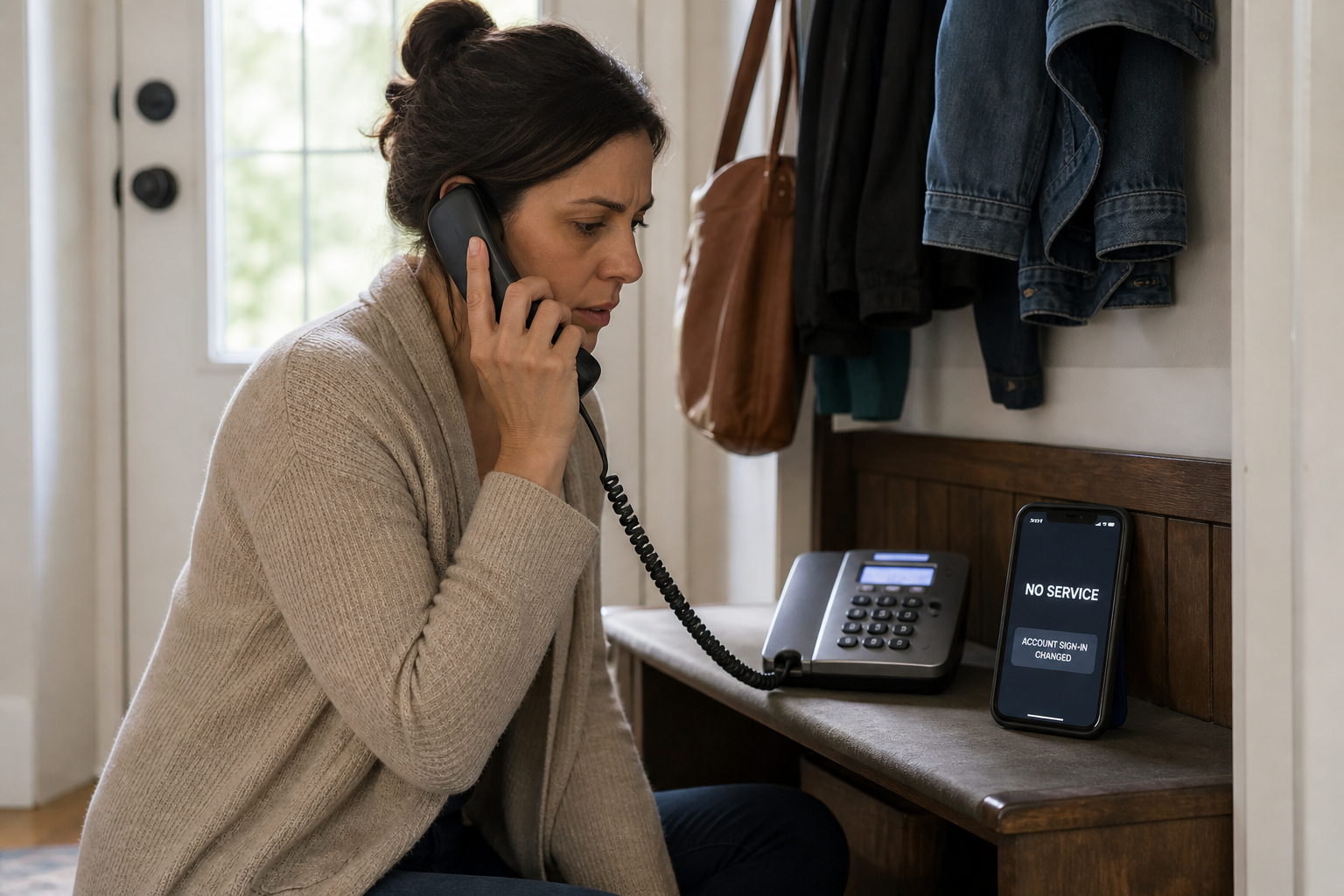
Use the operating system’s official lost-device controls from another trusted device. Contact the carrier to suspend the missing SIM or eSIM and restore the number on a replacement device. If mobile service vanished without an obvious outage or billing explanation, treat a SIM swap or number transfer as a possibility and call the carrier from another phone.
If another signed-in messaging app session remains available, use it to review active devices, strengthen account protection, and remove the lost phone where the product permits. Telegram documents this path explicitly. Signal allows one registered primary mobile device, so re-registration on the replacement phone has different effects from simply unlinking a desktop. Follow the app’s current official instructions.
Do not uninstall or factory-reset a device that you still possess until you understand the message-history and backup consequences. A messaging app may not store full history on its servers, and a linked desktop may not be able to restore a phone. Preserve the recovery key, backup file, and old device when the official transfer process requires them.
Expect a second wave of scams. Someone may claim to be support and offer to recover the account faster. Navigate to the provider yourself. Real recovery delays and inconvenient identity checks are not proof that the person offering an instant shortcut is legitimate.
What End-to-End Encryption Can and Cannot Protect
End-to-end encryption is designed so that message content is readable at authorized endpoints rather than by every system carrying the traffic. It is important protection. It is not a test of whether the person holding an authorized endpoint is honest.
If you approve an attacker’s linked device, the messaging app may encrypt messages to that device because it now appears authorized. If an attacker registers the account with a valid code and PIN, the service may treat that session as the account holder. If an attacker has the valid recovery key and required backup material, the encryption can work exactly as designed while decrypting the archive for the wrong person.
That does not mean encryption failed or does not matter. It means account authorization and endpoint security are separate layers. Strong encryption protects against one set of threats. Careful code handling, session review, device locks, recovery planning, and resistance to fake support protect against another.
Be precise when telling contacts what happened. “Someone linked a device to my account” or “I shared a backup key” is more useful than “the app’s encryption was hacked.” The precise description points to the right cleanup and prevents unnecessary panic.
A Small Household or Workplace Recovery Plan
You do not need an enterprise incident-response program to prepare for messaging app account takeover. A one-page plan can save time when a code or device prompt creates confusion.
List the messaging apps that carry important family, work, school, medical, legal, or financial conversations. For each one, record the official help-center domain, where linked devices or sessions are reviewed, whether an added PIN or password is enabled, whether backups exist, and who controls the recovery email and phone number.
Choose a second verification route for unusual requests. A family may use a direct call. A small business may use a published staff directory and a manager callback. A newsroom or campaign may require a security contact before any code, QR scan, or account change.
Decide where recovery keys are stored and who is authorized to use them. Do not circulate the key in a team chat. For a shared organizational account, document custody, replacement, and offboarding rules. For a personal account, make sure a trusted person can find recovery instructions without automatically having access to private messages.
Write the first five response actions in order:
- Stop interacting and preserve the message.
- Use a trusted device to inspect sessions.
- Remove access and replace the exposed secret.
- Secure the phone number and recovery accounts.
- Warn contacts through another route.
Rehearse the plan once without changing live settings. Make sure people can find the correct device list and official support page. A plan that depends on searching through the compromised chat is not ready.
A 60-Second Decision Check
Before you share a code, scan a QR code, approve a device, or reveal a recovery key, ask:
- Did I personally start this sign-in, link, backup, or recovery action?
- Am I inside the official messaging app or a website I navigated to myself?
- Which device, account, backup, or message history will this step authorize?
- Is the request coming from a person or support channel I verified outside this chat?
- Can I inspect and revoke the result from the account’s own settings?
If any answer is unclear, stop. A legitimate action can wait while you verify it. An attacker depends on urgency and ambiguity.
Review Devices Before an Urgent Message Arrives
A messaging app account takeover can begin with a very small action: reading out six digits, scanning a square image, approving a device, or copying a long key. The size of the action does not match the amount of authority it may grant.
Keep the categories separate. A login code proves a current sign-in. An app PIN adds another registration barrier. A linked-device approval authorizes another endpoint. A backup recovery key can unlock stored history. A carrier PIN protects changes to the phone line. Once you know which door is involved, you can protect it and recover with much less guesswork.
Review active sessions now, before an urgent message arrives. Turn on the protections your messaging app actually supports. Store recovery material where it remains available but private. Give family or coworkers a second way to verify unusual requests. If something goes wrong, act from a trusted device, remove access, rotate the right secret, and warn the people an attacker may contact next.
Want more calm, practical guidance for protecting your accounts, devices, and data? Subscribe to Quantum Cyber AI.
FAQ
Can a messaging app support agent ask for my verification code?
Treat any in-chat request for a login, registration, or two-factor code as hostile unless the app’s official documentation clearly describes a flow you personally initiated. The March and June 2026 FBI/CISA warnings say legitimate commercial messaging application support does not request verification codes inside the application or send links to “verify” or “restore” accounts.
Close the conversation and open the official messaging app settings or help center yourself. Do not use the link, phone number, or account supplied by the message. If you started a legitimate recovery, enter codes only in the official recovery screen that requested them.
Does an unknown linked device mean the attacker has my phone number?
Not necessarily. A linked device can be added after a QR scan or device-linking approval without a SIM swap. The attacker may have persuaded you or someone with access to the unlocked phone to authorize the connection.
Remove the unknown device from the app’s linked-device or active-session list. Then review the phone number, carrier account, app PIN, recovery email, and other sessions because more than one compromise path can occur at the same time.
Is a recovery key the same as a two-factor code?
No. A two-factor or registration code is usually short-lived and used for a current sign-in. A recovery key is commonly a longer-lived secret used to recover an account, decrypt a backup, or restore data, depending on the service.
Signal specifically distinguishes its PIN, SMS verification code, device screen lock, and Secure Backups recovery key. Do not assume another app uses the same model. Read the official documentation for the exact secret you have.
If I rotate a recovery key, are old messages safe?
Rotation can invalidate the old key for future backup access when the product supports that behavior. It cannot erase an archive that an attacker already downloaded, undo messages already read, or remove screenshots and copies.
After rotating the key, review active sessions, account settings, backup configuration, and the sensitivity of the messages that may have been exposed. Warn affected people when the history contained information that could be used to target them.
What should I do if my phone suddenly loses service?
Use another phone to contact the carrier immediately. Ask whether the SIM, eSIM, or phone number was changed or transferred, restore control, and add the strongest available account PIN and number-transfer protection.
Then secure the messaging app, email, cloud, financial, and other accounts that use the phone number for login or recovery. A service outage or device fault is possible, but unexplained loss of calls and texts is serious enough to check quickly.
Does end-to-end encryption stop messaging app account takeover?
No. End-to-end encryption protects message content between authorized endpoints according to the app’s design. It does not prevent a user from authorizing the wrong linked device, giving away a valid login code, or exposing a backup recovery key.
Encryption remains important. Account security adds another layer: protect codes, review devices, use the app’s added PIN or password, secure the phone number and recovery accounts, and prepare a recovery plan.