
Smart locks can make a front door easier to manage until the phone is dead, the owner account is inaccessible, a guest code fails, or nobody is sure whether a former resident still has a working key. Those are not edge cases. They are predictable access problems that should be planned before a household depends on smart locks every day.
A safe setup for smart locks does more than connect a deadbolt to an app. It gives each person the right level of access, protects the account that controls the lock, provides a tested way in when technology fails, and makes old access easy to remove. This guide explains how to build that system without assuming every model or smart-home platform behaves the same way.
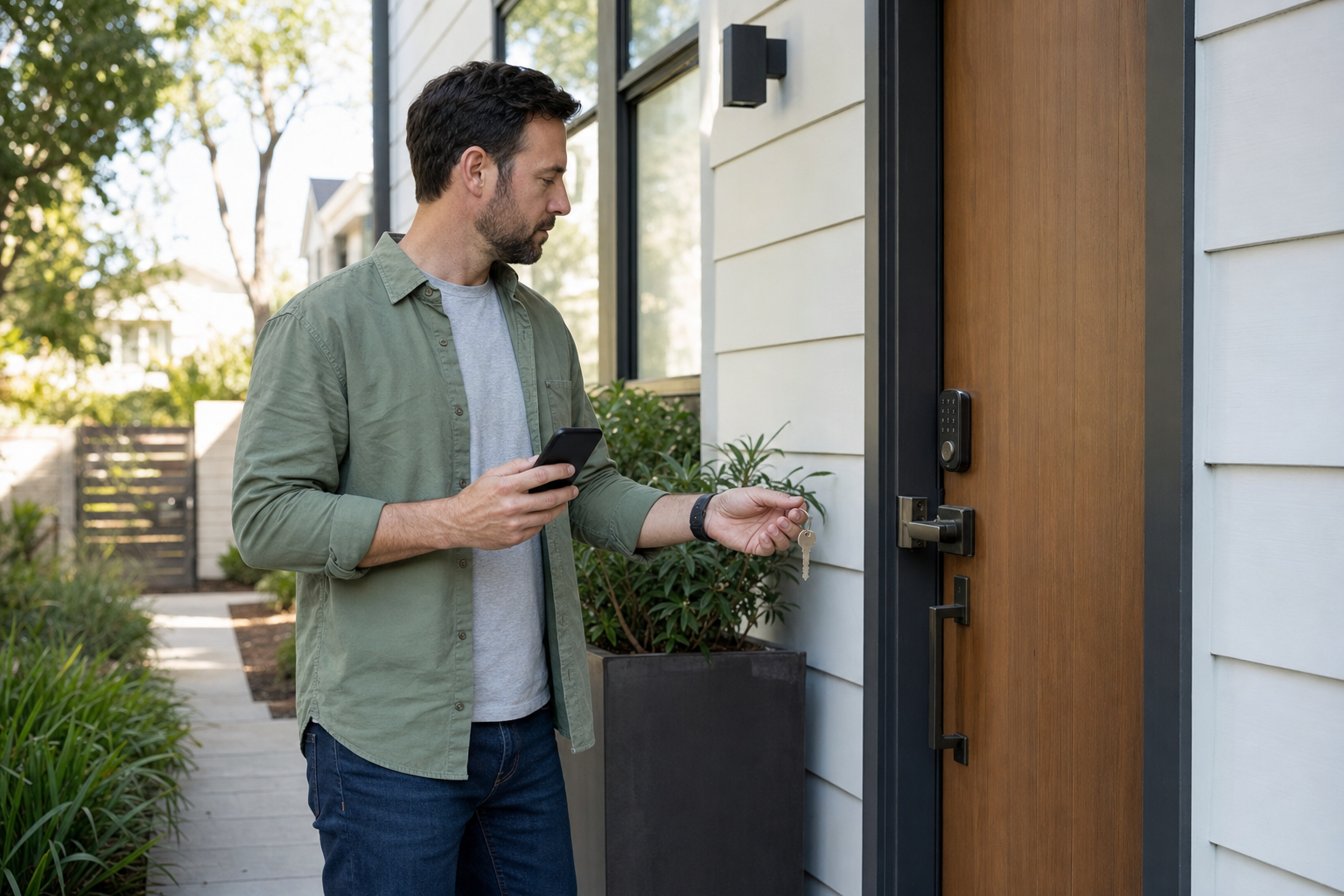
Table of Contents
Key Takeaways
- Give each regular user an individual account, passcode, or digital key instead of sharing the owner's sign-in.
- Use temporary or recurring guest access that expires automatically whenever the lock supports it.
- Protect the owner account and its recovery email before relying on phone-based entry.
- Keep a backup method that still works when the phone, account, network, or lock battery is unavailable.
- Remove former users from every layer, including the lock app, smart-home platform, wallet, alarm integration, keypad, and physical key system.
- Test normal access and the documented fallback before the household depends on the lock.
- Quantum Cyber AI recommends reviewing smart locks after household changes and at least once each quarter.
Smart locks are access systems, not just deadbolts
The metal hardware on the door is only one part of modern smart locks. The rest of the system may include a manufacturer account, mobile app, phone wallet, smart-home platform, hub, router, cloud service, keypad, Bluetooth connection, and several people with different permissions. If any critical part is misconfigured or unavailable, the door may still lock normally while the person who needs entry cannot use the method they expected.
Digital access is also changing. In February 2026, the Connectivity Standards Alliance released Aliro 1.0 for interoperable mobile access credentials. The standard supports NFC, Bluetooth Low Energy, and Bluetooth Low Energy plus Ultra-Wideband. It is entering certification and commercialization, which means it points toward more consistent digital keys across phones, wearables, and readers. It does not mean smart locks already support Aliro or that current guest sharing and account recovery work the same way across brands.
That distinction matters because credentials for smart locks can live in more than one place. A keypad code may be stored by the lock. A digital key may be held in a phone wallet. Household membership may be managed by Apple Home, Google Home, or another platform. Remote controls may depend on the manufacturer's cloud account. Removing one credential does not automatically prove that every other route is gone.
NIST's consumer IoT baseline treats a connected product as the device plus the companion apps, backend services, and other components required to use it. That is the right way to evaluate smart locks. Ask how the entire access system identifies authorized people, limits privileges, protects data, installs updates, reports security events, and returns to a secure state.
Create a simple access inventory for every exterior door. Record the person, credential type, controlling platform, door, start date, expiration date, and backup method. Include app keys, wallet keys, keypad codes, fingerprints, integrations, and physical keys. The list does not need to contain actual secret codes. Its purpose is to show where access exists and where it must be removed.
Some compatible smart locks support more than one local method. Apple's current home key instructions explain that a supported lock may use a Wallet home key, an access code, or both, while also warning that not every Home-compatible lock supports those features. Treat feature labels as model-specific facts, not general promises.
Owners, household members, and guests need different access
The safest access plan for smart locks starts with roles. Smart locks often use labels such as Owner, Administrator, Resident, Member, Full Access, or Guest, but the names are less important than the powers behind them. Before inviting anyone, review what the role can actually do.
Reserve administrator access for people who manage the home
An owner or administrator may be able to add and remove users, change lock settings, view activity, connect services, reset the device, or transfer ownership. That is much more authority than simply opening the door. Limit this role to people who are trusted to manage the home and who understand that an account compromise could affect physical access.
A second trusted adult can provide continuity for smart locks if the primary owner's phone is lost or the primary owner is unavailable. Do not add a backup administrator merely for convenience. Add one when the household has a real recovery need, the platform supports the arrangement, and both accounts are independently protected.
Google's Nest family account guidance illustrates the difference. The Owner and people with Full Access can control products, change settings, review history, and invite others. Home Entry Only users receive keypad access and can be limited to scheduled times. Google also advises each person to use a separate account rather than sharing the owner's credentials.
Give each regular user an individual credential
Every person who routinely enters through smart locks should have an individual passcode, digital key, or account when the product allows it. Individual credentials make it possible to remove one person's access without disrupting everyone. They also make activity records more useful because a named event can be connected to a known credential instead of a shared family code.
Avoid placing the owner's password on a shared note, texting it to family members, or signing several phones into one owner account. Shared sign-ins weaken two-factor authentication, confuse activity records, and make it harder to remove a lost or former user's device. Smart locks are easier to manage when identity and access remain separate.
Young children or people with accessibility needs who use smart locks may require a different arrangement. A simple keypad code may be more reliable than an app invitation. A caregiver may need recurring access during broad time windows. The principle is still the same: give the person a credential suited to the task, not more administrative power than the task requires.
Give visitors only the access they need
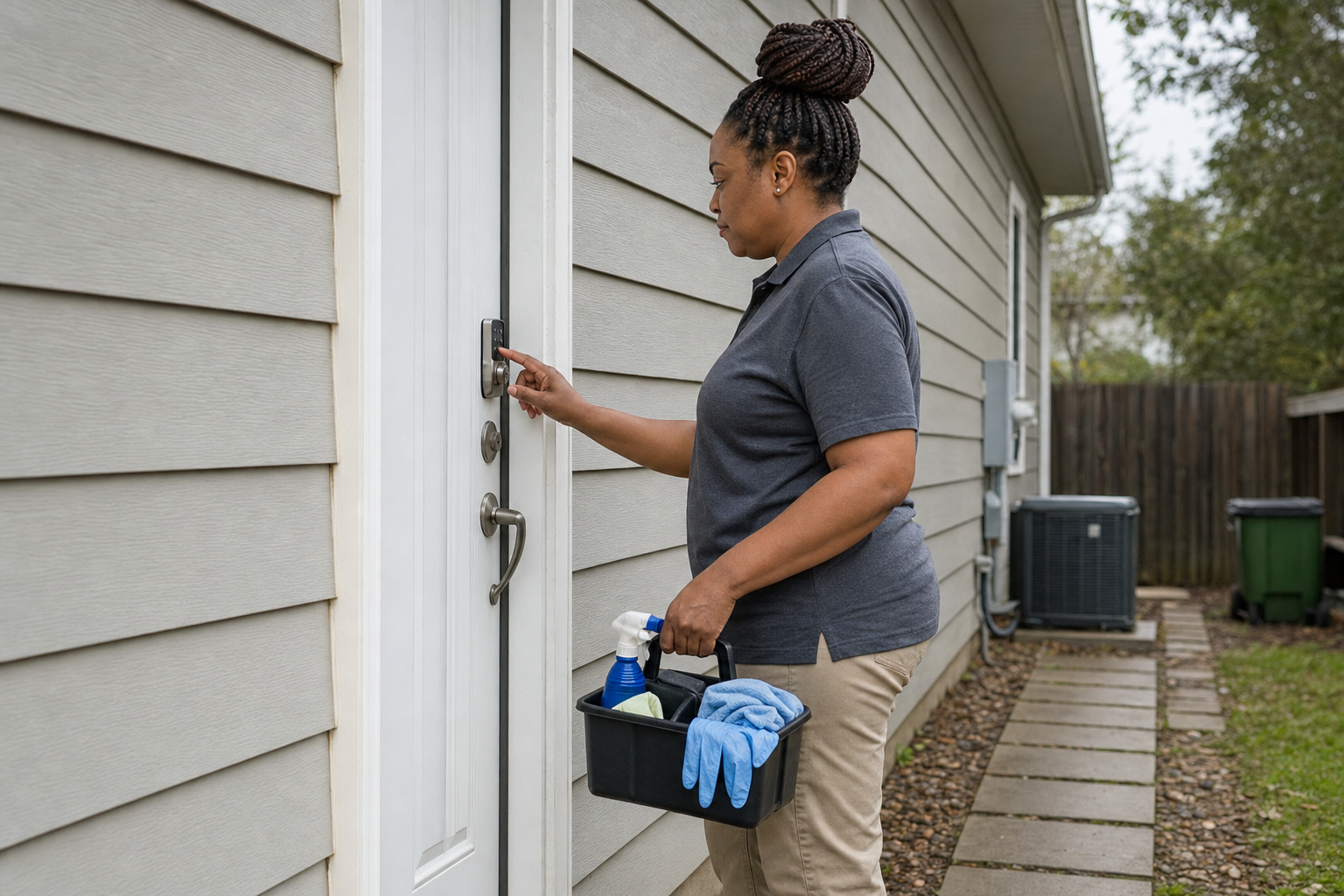
When smart locks serve a cleaner, pet sitter, contractor, visiting relative, caregiver, or short-term guest, those people do not all need the same access. Most need one door, a limited time window, and no ability to add other users or change settings. An emergency contact may need ongoing entry but still should not receive the owner's sign-in.
| Person | Recommended access | Duration | Administrator rights | Removal trigger |
|---|---|---|---|---|
| Household administrator | Individual protected account | Ongoing | Yes | Role or household change |
| Regular resident | Individual code or digital key | Ongoing | Usually no | Move-out or lost device |
| Cleaner or caregiver | Recurring named credential | Scheduled hours | No | Service ends or schedule changes |
| Contractor | Temporary code | Defined work window | No | Work completed |
| Short-term guest | Temporary code or guest key | Visit dates | No | Checkout or departure |
| Emergency contact | Individual limited credential | Ongoing with review | No | Trust or contact change |
The table is a starting point for smart locks, not a substitute for the product's permission screen. Read the exact description before granting access. A platform's household member role may include cameras, activity history, address data, automations, or other devices in addition to the front door.
Use scheduled guest access instead of permanent sharing
Guest access is one of the best reasons to use smart locks, but it is also where a convenient setup can become a long-lived security problem. A single permanent guest code may be copied, forwarded, remembered after a visit, or reused by several people. The owner then cannot tell who used it or remove only one person.
Choose a code or digital key based on the guest
For many smart locks, a keypad code is often the simplest option for someone who needs entry without an app. A phone-based digital key can provide a richer identity and revocation path, but it may require a compatible phone, account, operating-system version, or home hub. Ask what the guest can reliably use before choosing the method.
Apple's resident and guest access documentation lets a Home Guest receive local-only access to selected doors and locks on specific dates or recurring days and times. Apple notes that remote and guest access require a home hub, and current guest access requires supported software. That makes compatibility part of the handoff, not a detail to discover at the door.
Google Home supports personal and guest passcodes for compatible Matter locks and the Nest x Yale lock. Its current guest passcode controls allow an indefinite or scheduled guest code that can be shared, edited, or revoked. Yale likewise documents Always, Temporary, and Recurring access schedules for supported Wi-Fi locks.
These examples show how smart locks can support limited access, but they are not universal features. Verify the exact model, app, and connected platform. Some schedules control only one service. An alarm schedule, building access schedule, or smart-home invitation may not automatically limit a separate lock credential.
Set the shortest practical schedule
Smart locks should grant guest credentials only for the duration of the visit. A pet sitter for one weekend should not receive a code that works forever. A cleaner who comes every Tuesday can receive recurring access for a reasonable window. A contractor can receive access that begins shortly before the appointment and expires after the expected work period. A visiting relative can receive a credential for the dates of the stay.
Before sending guest access, verify five details:
- The credential is going to the intended person.
- It opens only the intended door or doors.
- The start and end dates are correct.
- The time zone and recurring schedule are correct.
- The guest knows whether an app, account, phone setting, or keypad step is required.
When smart locks are the main entrance, keep another entry plan available for the first arrival. A guest who cannot accept an invitation should not be told to solve an unfamiliar account problem while standing outside. If smart locks support a temporary keypad code, that may be the simplest fallback. If they do not, arrange a trusted person, property manager, or other controlled method.
Keep alerts useful and proportional
Named credentials and activity history can confirm that a guest arrived or that an old credential was used. They should not become an excuse for unnecessary monitoring. Choose alerts that support safety and maintenance, such as repeated failed entries, an unknown administrator, low battery, a jammed lock, or access outside an expected window.
After the visit, confirm that the credential expired or remove it manually. Do not rely only on the calendar. Open the access list and verify the person's current status. If the guest received a physical key, return or rekey decisions remain separate from the app.
Prepare for a dead, lost, replaced, or disconnected phone
People often say that a phone is their key, but four different phone problems can affect smart locks in different ways. The battery may be dead. The device may be lost or stolen. It may be offline. It may be replaced with a new phone. Each failure has a different response.
A dead phone is different from a lost phone
With smart locks, a dead phone creates an immediate entry problem but does not necessarily create an account-security event. A lost phone creates both. An offline phone may still use a local wallet credential or Bluetooth connection on some systems, while remote app controls may fail. A replacement phone may require a fresh sign-in, device authorization, wallet provisioning, or invitation.
When evaluating smart locks, do not rely on a sales-page phrase such as "works without Wi-Fi" without learning what it means. It may mean the keypad continues to work. It may mean Bluetooth works within range. It may not mean remote access, schedule changes, notifications, or cloud-based digital keys work. Test smart locks with home internet disabled while the door remains open and another entry method is available.
Build the lost-phone response before it is needed
Before depending on smart locks, turn on the phone's device-finding and loss protections. Use a strong device passcode, protect the phone account, and know how to mark the device lost or end its sessions from another device. Apple's lost iPhone response instructions describe Lost Mode, remote erase, and an account-security review. Apple also warns that remote erase is irreversible, so it should follow an effort to locate the device.
Do not claim that one lost-device switch revokes every door credential. A digital key already shared to another person is a separate credential. A keypad code remains on the lock until its own schedule or deletion takes effect. A third-party integration may remain connected after the manufacturer's app signs out.
Yale's alternate-device sign-in instructions show why recovery email access matters. A user who cannot receive a verification text on the missing phone may be able to sign in on another mobile device through email instead. Yale's separate lost-phone procedure provides a way to log the Yale app out on all devices, while warning that third-party integrations can continue working.
Keep the lock's make, model, support route, and backup instructions somewhere that does not depend on the missing phone. Another trusted household administrator should understand how your smart locks work, know where that information is, and know which backup door or key to use.
Use a six-step lost-phone response
- Enter through the tested backup method rather than improvising at the door.
- Mark the phone lost, lock it, or use the platform's other official device-security controls.
- Suspend or remove the missing device's lock access through the manufacturer, wallet, and smart-home platform as applicable.
- Review recent lock activity, authorized devices, household members, and account sessions.
- Set up access on the replacement device only after the controlling accounts are secure.
- Confirm that the old device no longer has access when the platform provides a safe verification method.
If a phone controlling smart locks is being sold or traded rather than lost, complete the transfer while both old and new devices are available. Verify the new credential at the door before erasing or surrendering the old phone. Remove the old device from trusted-device and authorized-session lists according to the platform's instructions.
Secure account recovery before you depend on the lock
The email address behind many smart locks may be more powerful than the keypad. If that inbox can reset the owner's password, receive verification codes, or approve a new device, it is part of the home's access perimeter. Protect it accordingly.
Treat the recovery email like a master key
Use a unique password or passkey for every account that controls smart locks, including the owner account and linked email. Turn on two-factor authentication wherever it is offered. Review the recovery phone number, recovery email, trusted devices, authorized sessions, and connected services. Remove information that is old or controlled by someone who should no longer have access.
The FTC's two-factor authentication guidance explains that text-message codes can be exposed through SIM-swap attacks and email codes depend on the security of the inbox. An authenticator app or security key is safer when the account offers those choices. Use the strongest method the platform supports, while maintaining a recovery path you can actually reach.
For a broader account setup, use the site's guide to passwords, passkeys, and 2FA. The lock account should not become the weakest credential attached to the home.
Do not put every recovery method on one phone
If the app controlling smart locks, email inbox, authenticator, recovery codes, and password manager are all available only through one phone, losing that phone can block every recovery path at once. A second method might be a hardware security key, a saved recovery code, another trusted device, or access by a second protected household administrator. The right choice depends on what the account supports.
Store recovery information for the accounts behind smart locks in a secure location that a trusted adult can use during an emergency. Do not tape a password or recovery code beside the lock. Do not place secret codes in the access inventory. Record where the recovery material is kept, who is authorized to use it, and how to contact official support.
Test the owner account's recovery path without completing a destructive reset. Confirm that the recovery email is current, the second factor works, another trusted device is still authorized, and support instructions can be reached without the main phone. A recovery plan that has never been checked is only an assumption.
Plan for ownership changes
Smart locks can outlast a phone, account, tenant, relationship, or property owner. Decide what happens if the primary administrator moves out, becomes incapacitated, dies, or permanently loses account access. A second trusted owner may prevent a crisis, but it also has broad power and should not be added casually.
When a property changes hands, follow the manufacturer's ownership-transfer and factory-reset process. A reset may remove all users, codes, schedules, and integrations. Complete it while the door is open, physical access is controlled, and official setup information is available. Never assume that changing Wi-Fi ownership or deleting the app removes the former owner's registration.
Keep a physical key or emergency-power fallback
Smart locks can be unavailable because of depleted batteries, a jammed deadbolt, severe weather, phone failure, account trouble, lost connectivity, damaged hardware, or a service outage. One fallback does not solve all of those conditions. The household needs at least one method that is both independent and reachable.
Match the fallback to the exact model
Some smart locks keep a traditional key cylinder. Some keyless models provide exterior contacts for temporary power. Some continue accepting keypad codes during a network outage. Some can use local Bluetooth. The exact design determines what works.
Schlage says its Encode family includes a backup key, advance low-battery notice, and local Bluetooth during a Wi-Fi outage. It also supports temporary or recurring codes. Those features apply to the named product family, not to every Schlage lock or every smart lock.
Google says the Nest x Yale lock has no physical key but can receive temporary power from a 9-volt battery. The battery is held to exterior terminals, then the user enters a valid passcode. The same guidance explains that the keypad can operate during a Wi-Fi outage while app controls, settings changes, and notifications may be unavailable.
Yale's Assure Lock model guidance demonstrates why model numbers matter. Some versions use a mechanical backup key, while another uses exterior 9-volt contacts. A 9-volt battery is not a universal smart lock tool, and it does not unlock the door by itself. It only provides temporary power on supported models, after which valid authentication is still required.
Store the fallback where it can actually help
When smart locks include a key cylinder, a backup key kept inside the locked home is not an emergency entry plan. Spare batteries stored in the kitchen do not help a keyless lock whose internal batteries are already dead. Place the needed fallback under deliberate control outside the single point of failure.
Backup options for smart locks include a trusted nearby person, a properly secured lockbox in a considered location, another exterior door with independent access, or a building manager who can respond. Avoid predictable hiding places such as under a mat, inside a nearby planter, or above the door frame. If a physical key may have been copied or lost, rekeying may be necessary even after digital access is revoked.
Renters and multifamily residents should confirm what the lease, building system, and property manager require. A unit door may use one credential while the lobby, elevator, parking area, or package room uses another. A working apartment code does not guarantee entry through the building's exterior door.
Maintain batteries and door mechanics
Replace batteries in smart locks when the warning appears, not after the door fails. Use the battery type the manufacturer specifies. Check whether low-battery alerts reach the person who will act on them. If only a former administrator receives notifications, smart locks can appear healthy to everyone else until they stop.
Smart locks also depend on correct door alignment. A bolt that rubs against the strike plate can make the motor work harder and can prevent reliable locking. Test smooth manual operation with the door open and closed. Correct physical alignment before treating an app or battery as the cause of every problem.
Test fallback entry at least twice a year and after changing the lock, phone, batteries, router, hub, or household administrators. Perform the test while someone is inside or another door remains available. Follow official instructions for exterior power contacts. Do not intentionally drain the lock unless the manufacturer provides a safe procedure.
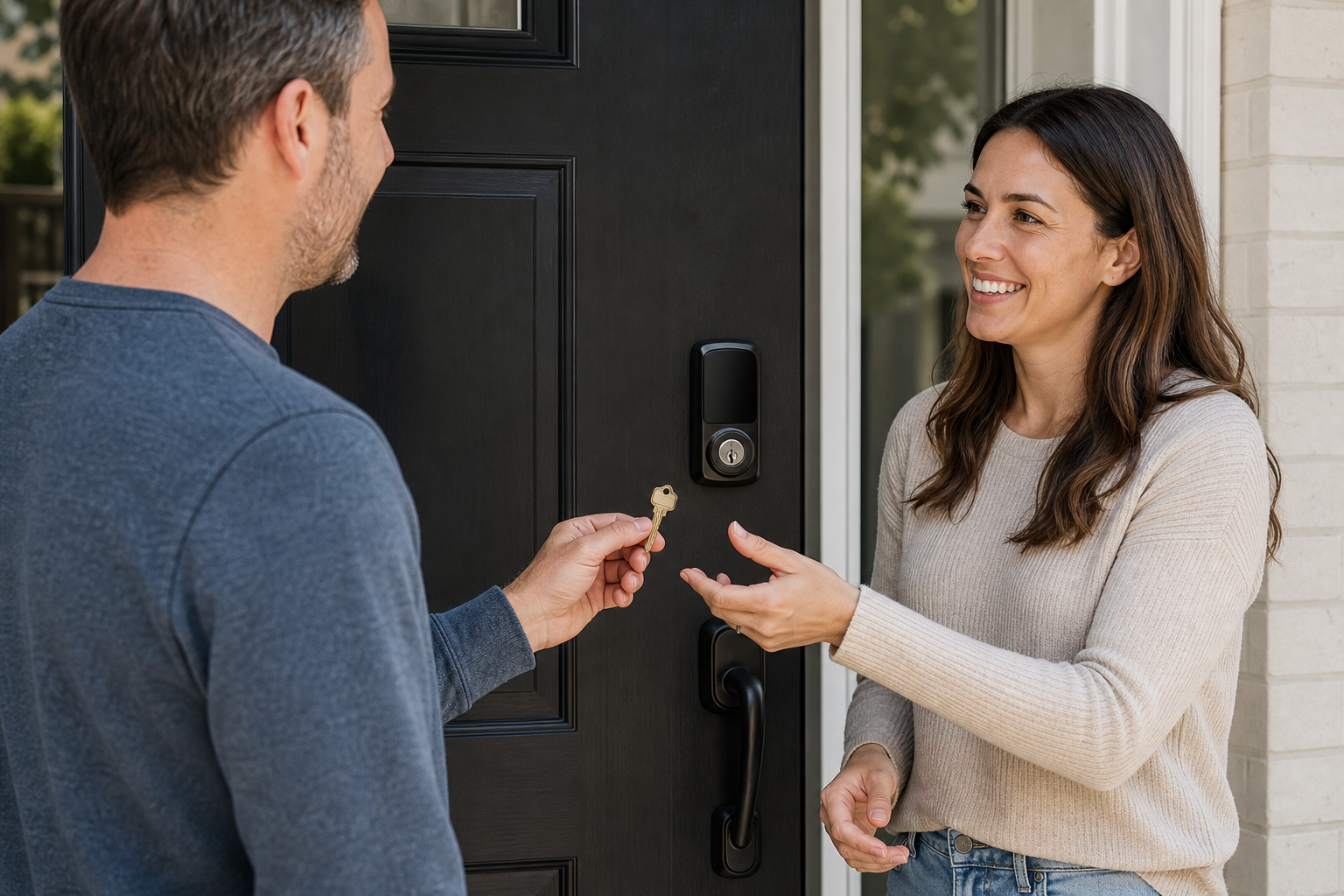
Smart lock setup and testing checklist
Careful installation and testing can prevent avoidable lockouts with smart locks. Use the following checklist for new smart locks and as an audit of an existing door.
Before installation
- Confirm that the door closes cleanly and the deadbolt moves without force.
- Identify the exact make, model, serial information, battery type, and support page.
- Confirm whether the model has a physical key, exterior emergency-power contacts, or another local fallback.
- Check which phone versions, apps, accounts, hubs, Wi-Fi bands, Bluetooth features, or smart-home platforms are required.
- Ask how security updates arrive and how long the manufacturer expects to support the product.
- Decide who will own the account and whether a second administrator is justified.
- Keep the existing entry method available until setup and testing are complete.
The FTC recommends that connected-device owners change default credentials, avoid password reuse, enable two-factor authentication, install firmware and app updates, and disable unused remote features. Those recommendations appear in the agency's guide to securing internet-connected devices at home. Apply them to the lock account, app, hub, and related services.
During account setup
- Create an individual owner account instead of a shared household sign-in.
- Protect the linked email account and enable the strongest available second factor.
- Save recovery methods in a secure location outside the only phone that controls the lock.
- Add a second administrator only if the household needs continuity and the person understands the responsibility.
- Review every requested app permission and connected service.
- Enable automatic updates or update notifications where the product provides them.
- Turn on useful alerts for low battery, failed entries, access changes, or device problems.
For the rest of the connected-home review, follow the Smart Home Security Checklist. Smart locks should fit into one household security plan instead of becoming an isolated app that nobody audits.
When adding people
- Give every regular user an individual credential.
- Use an expiration date or recurring schedule for temporary users.
- Restrict each person to the doors and times actually needed.
- Avoid administrator, resident, or household-wide privileges for guests.
- Confirm that the invitation went to the intended account or phone number.
- Explain how the guest will enter and what to do if the first attempt fails.
- Remove test codes, expired invitations, and people who never accepted access.
- Record the credential type and removal date in the access inventory without recording the secret itself.
Test normal and failure conditions
Do not finish setup after one successful app unlock. Test smart locks under the conditions the household is likely to face:
- Unlock with every active method, including app, wallet key, keypad, biometric, and physical key where supported.
- Lock and unlock while the home internet is unavailable.
- Test local phone access with cellular and Wi-Fi disabled if the product claims local operation.
- Confirm what happens when the primary phone is unavailable.
- Test the physical key or manufacturer-supported emergency-power procedure.
- Verify that low-battery alerts reach the current owner.
- Confirm that activity records identify individual credentials as expected.
- Ask another authorized administrator to remove a test guest and verify the credential no longer works.
- Confirm the interior manual control works for emergency exit.
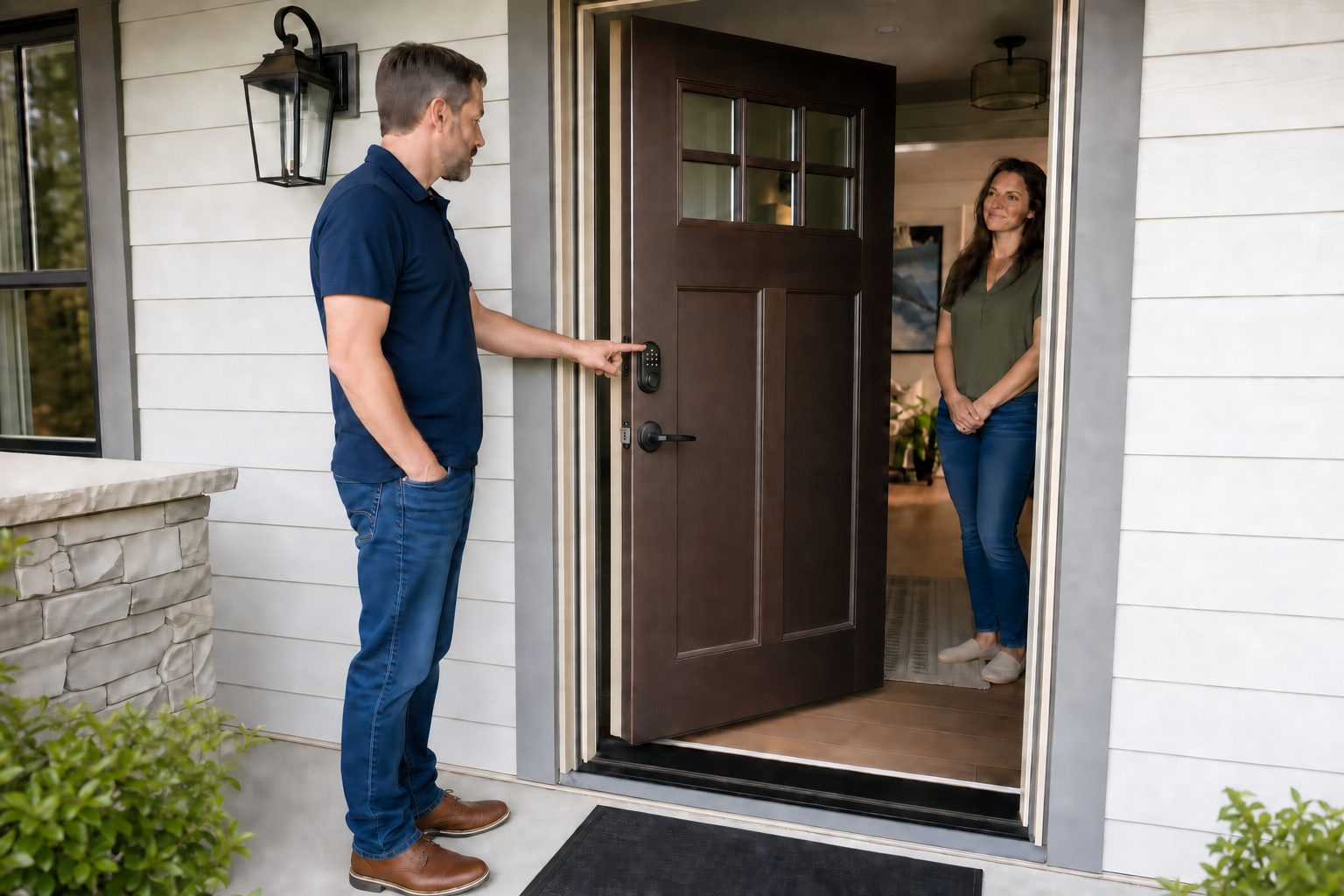
Network setup affects smart locks, remote reliability, and the security of connected devices. Use the site's Home Network & Device Security hub to review router updates, network access, and connected-device management. A secure lock account cannot compensate for an abandoned router or unknown household administrator.
Record the final access plan
Store a non-secret record with the lock model, battery type, official support route, owner accounts, backup administrator, credential types by person, fallback method, backup location, last test date, and next review date. Do not write down actual passcodes or account passwords in an exposed household checklist.
Schedule a review every three months. Use the review to remove expired access, confirm recovery contacts, test alerts, check battery status, review connected services, and verify that the backup key or emergency power source is still where it belongs.
Remove access when someone leaves or no longer needs it
Smart locks make revocation faster than collecting every copied physical key, but only when the owner removes all relevant credentials. A guest departure, completed contract, roommate move-out, relationship change, sold phone, property sale, or unexpected account event should trigger an immediate access review.
Use a complete removal sequence:
- Remove the person from the manufacturer's lock app.
- Delete that person's individual keypad codes, fingerprints, app keys, and digital keys.
- Remove the person from Apple Home, Google Home, another household platform, phone wallet, alarm system, and third-party service as applicable.
- End unfamiliar account sessions and remove devices that should no longer be trusted.
- Change any shared credential that cannot be revoked for one person.
- Review recent activity and safely verify that the removed credential no longer works.
- Rekey or replace the physical cylinder if a key may be missing, copied, or retained.
If a person had broad household access, review more than the door. They may also have access to cameras, automations, garage controls, address information, or activity history. The site's Privacy & Identity Protection hub can help frame the account and data cleanup beyond the lock.
Do not assume an expired schedule removes a user record. Expired credentials can clutter the access list and may be reactivated accidentally. Delete access that no longer serves a purpose. Keep only the records needed for legitimate safety, maintenance, or legal reasons.
Physical access remains separate. If a former roommate had a mechanical key, removing a digital key is not enough. If a contractor learned a shared keypad code, deleting only the contractor's app invitation is not enough. The access inventory exists to catch these parallel routes.
What to do if smart lock access has already gone wrong
The right response depends on whether the problem is a lockout, lingering access, account compromise, or immediate safety threat. Stay calm, use official procedures, and avoid making a recoverable problem worse with a rushed reset.
If you are locked out
Use the tested physical key, exterior emergency-power method, independent entrance, or authorized nearby contact. If the lock has temporary power contacts, follow the exact manual and use the specified power source. You will still need a valid passcode or credential.
Contact another authorized resident, the building manager, or the manufacturer's official support channel. A locksmith may be necessary when no valid local credential or supported fallback remains. Do not rely on remote support to reveal or override secret codes. A legitimate provider may not have that ability.
Avoid factory-resetting smart locks from outside unless the manufacturer specifically directs it and physical access is controlled. A reset may erase valid credentials without opening the door. It may also complicate ownership recovery.
If a guest or former user can still enter
Revoke every credential associated with the person. Remove app access, household membership, wallet keys, keypad codes, fingerprints, alarm integrations, and connected services. Change a shared code immediately. If a physical key may exist, rekey the cylinder or replace the relevant hardware.
Review access history and save records that may be relevant. Test revocation without creating a confrontation. If there is a personal-safety concern, move to a safe location and involve the property manager, locksmith, law enforcement, or emergency services as appropriate.
If the owner account is compromised
Secure the linked email account first if it may have been used for password resets. Change passwords, enable or repair two-factor authentication, sign out unauthorized sessions, and remove unknown recovery details. Then use the lock provider's official recovery process.
Remove unfamiliar administrators, devices, automations, and integrations. Review activity for unexplained changes or entries. Consider disabling remote control or disconnecting nonessential integrations until ownership is trustworthy again, but preserve a tested local entry method.
Do not share a verification code with someone who contacts you unexpectedly and claims to be support. Navigate to the manufacturer's official site or app yourself. A person who gains the verification code may be trying to enroll a device, reset an account, or take over the owner role.
If there is an immediate personal-safety risk
Do not rely only on an app revocation when someone may have a physical key, shared code, another administrator account, or access through the building. Go to a safe place and contact emergency services if danger is immediate. Ask the landlord, property manager, or locksmith to change physical access promptly.
Smart locks can speed up digital revocation, but personal safety may require simultaneous account, keypad, building, and mechanical changes. Document what was changed, when it was changed, and who remains authorized.
Test the access plan before you rely on the lock
Smart locks are most useful when they provide controlled access without creating one fragile digital point of failure. The resilient setup is straightforward: individual credentials for regular users, expiring guest access, a protected owner account, a lost-phone response, a reachable physical or emergency-power fallback, and prompt removal when someone leaves.
This week, verify how the door behaves without home internet, without the primary phone, and with the lock's documented backup method. Confirm that another trusted person can help without sharing the owner's password. Then review the access list and remove credentials that no longer belong there.
For practical consumer cyber guidance on protecting your accounts, devices, identity, and home, subscribe to Quantum Cyber AI.
Frequently Asked Questions
Can smart locks still work when the internet is down?
Some smart locks can continue using a local keypad, physical key, phone wallet, or Bluetooth connection when home internet is unavailable. Remote app controls, notifications, schedule changes, and cloud-dependent features may stop. The behavior depends on the exact model, credential type, hub, and platform. Test offline entry before relying on it.
What happens to digital keys when a phone is lost?
A lost phone should be marked lost or otherwise secured through its platform, then removed or suspended through the lock, wallet, and smart-home controls that apply. Do not assume one action revokes every credential. Existing guest keys, keypad codes, third-party integrations, and household members may remain separate. Use a tested backup method to enter while the phone and accounts are secured.
Should every family member have a separate smart lock code?
Usually, yes. Individual credentials let the owner remove one person's access, apply different schedules, and understand activity without changing the whole household's code. A young child or a person with an accessibility need may require a simpler arrangement, but sharing the owner account is rarely the right solution.
How long should guest access remain active?
Use the shortest practical window. A weekend guest should receive access for the visit, a contractor for the work period, and a regular cleaner for a recurring schedule. Include a small buffer for reasonable arrival or departure changes, then verify that access expired or remove it manually.
Is a physical backup key still necessary with smart locks?
A physical key is valuable when the model includes a cylinder, but not every model does. Keyless smart locks may use exterior emergency-power contacts, another local credential, or a manufacturer-specific procedure. What matters is having an independent, reachable, tested fallback that addresses the failures the household could actually face.
Where should a backup key be kept?
Keep it with a trusted nearby person, in a properly secured lockbox at a deliberate location, or through another controlled arrangement. Do not use an obvious hiding place close to the door. A key stored only inside the locked home is not a useful lockout fallback.
Can a former roommate still use a copied digital key?
Possibly, if the credential was not removed from every controlling system. Delete the person from the manufacturer app, household platform, wallet, keypad, alarm integration, and other connected services. End their account sessions and test revocation. If they may possess a physical key or know a shared code, rekey or change those methods too.
How often should smart lock access be reviewed?
Quantum Cyber AI recommends reviewing smart locks quarterly as a practical baseline, not as a universal vendor or standards requirement. Review access immediately after a guest leaves, a service relationship ends, a resident moves, a phone is lost or replaced, an administrator changes, or unexpected activity appears. Check users, schedules, integrations, recovery contacts, batteries, updates, and the backup method.
What should I do before replacing my phone?
Confirm a second way into the home, verify account recovery, and make sure another trusted administrator can help if appropriate. Set up and test the new phone at the door before erasing or surrendering the old device. Then remove the old phone from trusted-device, wallet, and authorized-session lists according to the platform's official instructions.