
Home Wi-Fi safety
Home Router Security Checklist
Lock down the router settings that protect your phones, laptops, smart devices, guests, and everyday home Wi-Fi.
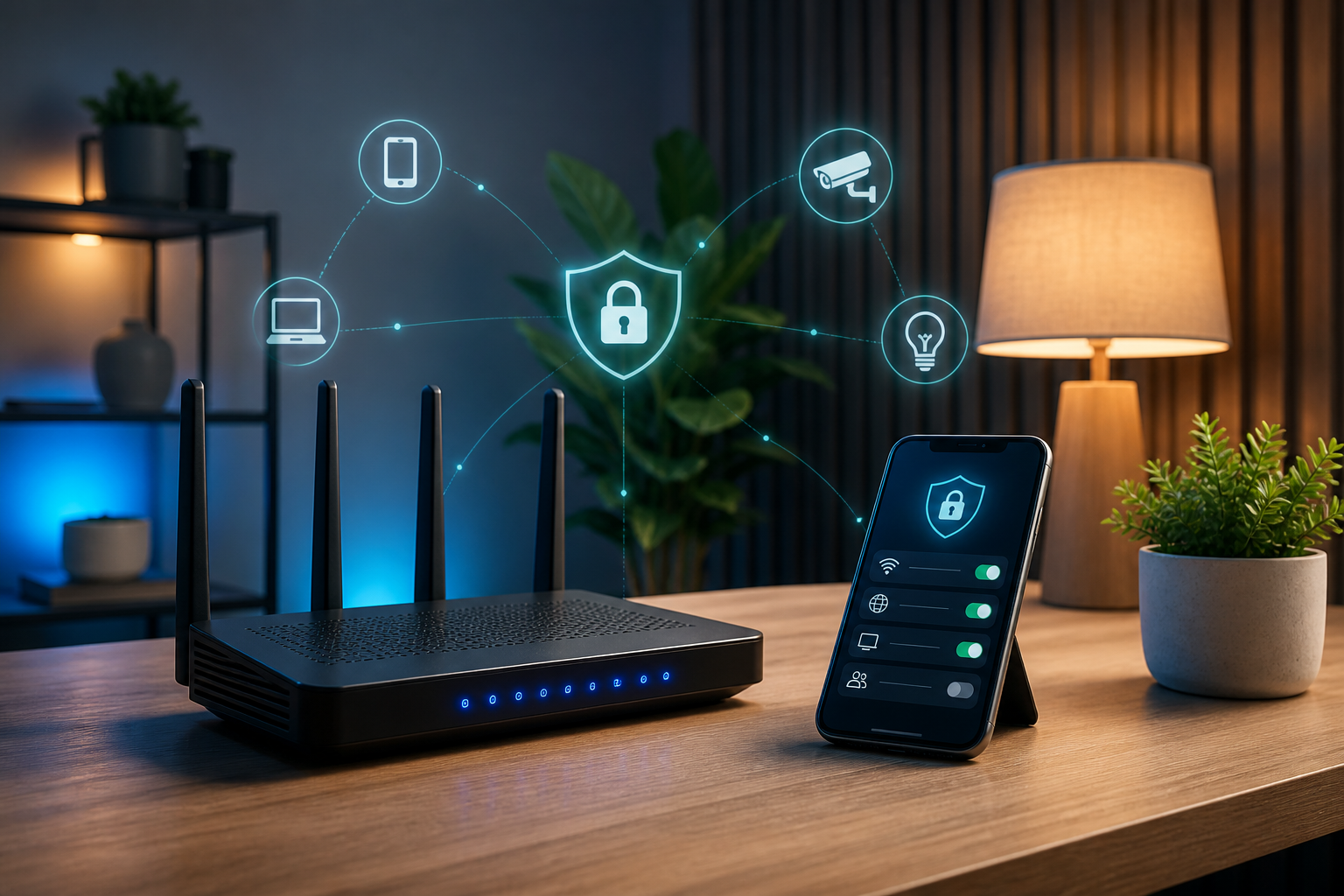
Use this guide when
You have a new router, changed internet providers, set up mesh Wi-Fi, noticed unknown devices, or have not checked your router settings in a long time.
Start with the admin account
Your router has two different passwords: the Wi-Fi password people use to join the network, and the admin password used to change router settings. The admin password is the one people often forget to change, and it matters because it controls updates, remote access, connected-device lists, guest networks, and security mode.
Router checklist
- Change the router admin password from the default.
- Use a strong Wi-Fi password that is not reused anywhere else.
- Use WPA3 Personal if available, or WPA2 Personal if WPA3 is not supported.
- Install firmware updates or turn on automatic router updates.
- Disable remote administration unless you intentionally need it.
- Review connected devices and remove anything you do not recognize.
- Create a guest network for visitors or lower-trust smart devices.
- Save your router or internet provider support details before you need them.
Do a 15-minute router check
- Open the router app or admin page and confirm you can still sign in.
- Check for firmware updates before changing other settings.
- Review the connected-device list and rename devices you recognize.
- Confirm remote administration is off unless you intentionally use it.
- Make sure the guest network has a different password from the main network.
- Save the router model, provider support link, and admin address somewhere you can find later.
If your router came from your internet provider
Provider routers and mesh systems often hide advanced settings behind an app. That is fine if the basics are covered: unique admin access, strong Wi-Fi password, current updates, safe encryption, guest network controls, and a way to see connected devices. If the app will not show updates or security mode, use the provider’s support page or ask whether the router still receives security updates.
Choose the safest Wi-Fi mode available
If your router offers WPA3 Personal, use it. If some older devices cannot connect with WPA3, WPA2 Personal is usually the practical fallback. Avoid WEP, WPA, open networks, and vague mixed-mode settings if they keep old weak modes alive. The goal is not a perfect lab setup; it is making the normal Wi-Fi password hard to guess and hard to reuse elsewhere.
Use a guest network on purpose
A guest network is useful for visitors, short-term helpers, and devices you do not fully trust. It can also be a good place for smart-home devices if your router lets you keep guest devices away from your main phones, computers, and file sharing. Give the guest network its own password, review it occasionally, and turn it off if nobody needs it.
If you see an unknown device
Unknown devices are often ordinary things with bad names: a TV, printer, speaker, game console, old phone, or mesh node. Check the device name, manufacturer, connection time, and whether anyone in the house recognizes it. If it still looks wrong, change the Wi-Fi password, reconnect known devices, and watch whether the unknown device returns.
What not to overthink
You do not need enterprise networking at home. Focus on passwords, updates, encryption, known devices, remote access, and whether the router still receiaes support. If your router is old enough that updates are no longer available, replacing it can be more useful than trying to perfect every setting.
When to call support
Call your internet provider or router maker using a known support path if you cannot reach the router admin page, cannot find update settings, see unfamiliar devices that keep returning, or suspect someone else changed the network. Do not use phone numbers or links from pop-ups, texts, or unsolicited support messages.
Latest on this topic
Get the field guide in your inbox
Get practical cyber and AI safety checklists when new resources go live. No popup, no pressure, just the next useful thing.