
If you are trying to clean up your digital life in 2026, the advice can feel oddly contradictory. One expert tells you to use a password manager. Another tells you passwords are obsolete. Your phone offers to create a passkey. Your bank still asks for a password. Your streaming account is shared with a family member.
That is why the password managers vs passkeys choice matters. It is not a debate about which technology sounds more modern. It is a practical question about what protects real accounts, on real devices, when phishing texts, fake QR codes, polished AI scam pages, data breaches, and account recovery problems all collide.
The short answer is this: use passkeys wherever they are available and reliable, keep a password manager for everything that still uses passwords, and reserve hardware security keys for the accounts that would be painful or expensive to lose. The better answer is more specific. A good 2026 setup needs to protect your primary email, money accounts, phone ecosystem, family logins, recovery codes, and shared accounts without making daily life so annoying that you stop using it.
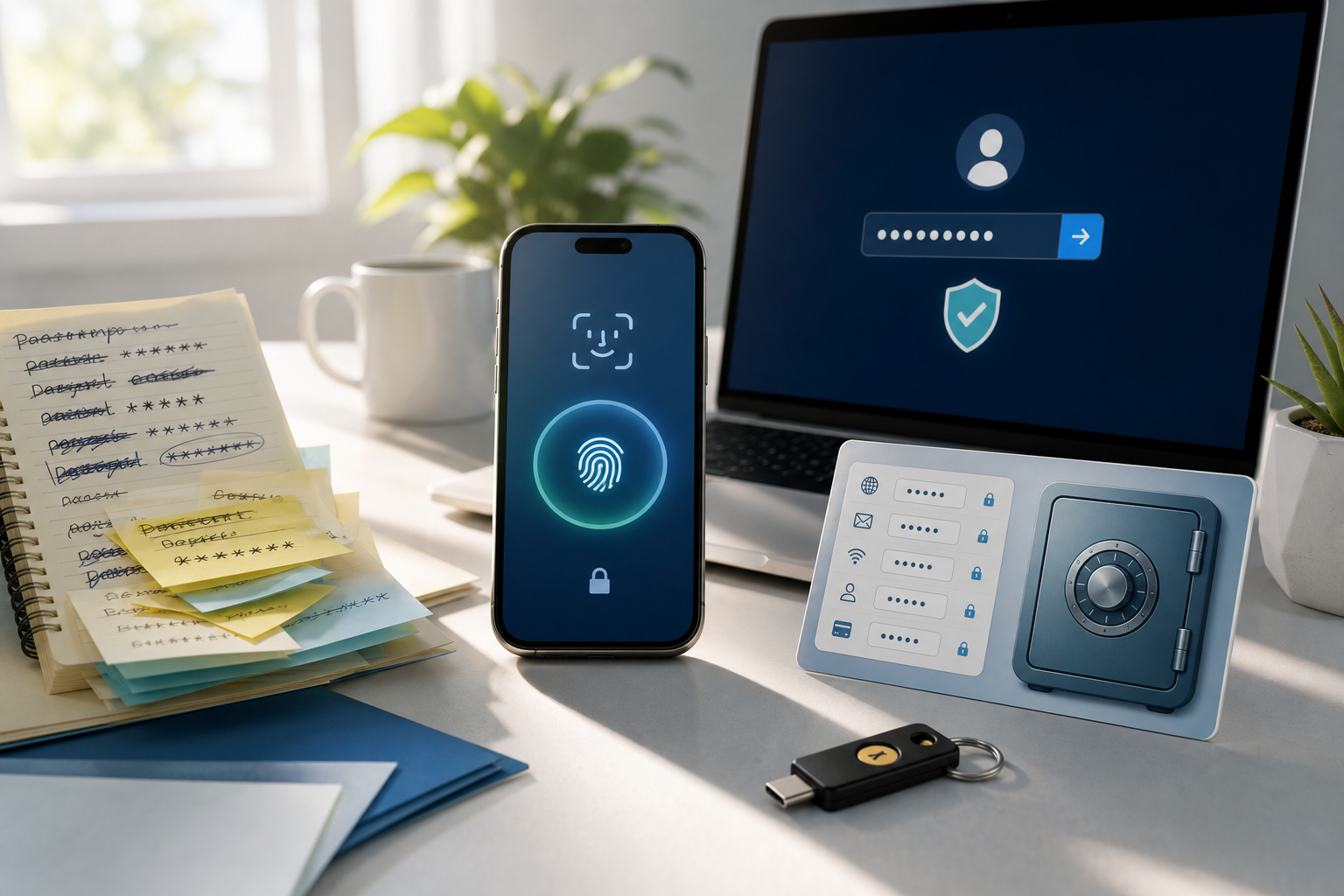
Key Takeaways
- Passkeys are usually safer than passwords for supported accounts because they remove the reusable secret that phishing sites and data breaches depend on.
- A password manager still matters because most people have password-only accounts, recovery codes, secure notes, shared logins, and family access needs.
- Built-in password managers are easiest for people who live mostly inside Apple, Google, or Microsoft ecosystems.
- Dedicated password managers are better for mixed-device households, families, people who switch browsers, and anyone who wants one vault across platforms.
- Hardware security keys are not necessary for every login, but they are worth considering for primary email, financial accounts, domain registrars, creator accounts, and admin accounts.
- The real weak spot is account recovery. Passkeys can make sign-in safer, but you still need a plan for a lost phone, broken laptop, locked password manager, or estate access.
The Real Answer: Authentication Method vs. Account Vault
The debate is easiest to understand if you stop treating it as a winner-take-all fight. Passkeys are an authentication method. A password manager is an account vault. Those jobs overlap, but they are not identical.
A passkey helps you sign in without typing a password. It is strongest when a site supports it directly and your device or credential manager handles the private key safely. In its overview of passkeys and phishing-resistant authentication, the FIDO Alliance explains that passkeys use public-key cryptography and reduce attacks such as phishing and credential stuffing because there is no password to steal and no reusable sign-in data to replay.
A password manager helps you survive the rest of the internet. It stores the strong unique passwords you still need, plus recovery codes, secure notes, identity details, payment cards, software licenses, Wi-Fi passwords, family vault entries, and sometimes passkeys themselves. In 2026, that vault function is still essential because passkeys are spreading quickly but not universally. Headline adoption numbers look high because the big platforms have switched on passkey support, but real-world coverage across the long tail of sites you actually use is still patchy and inconsistent.
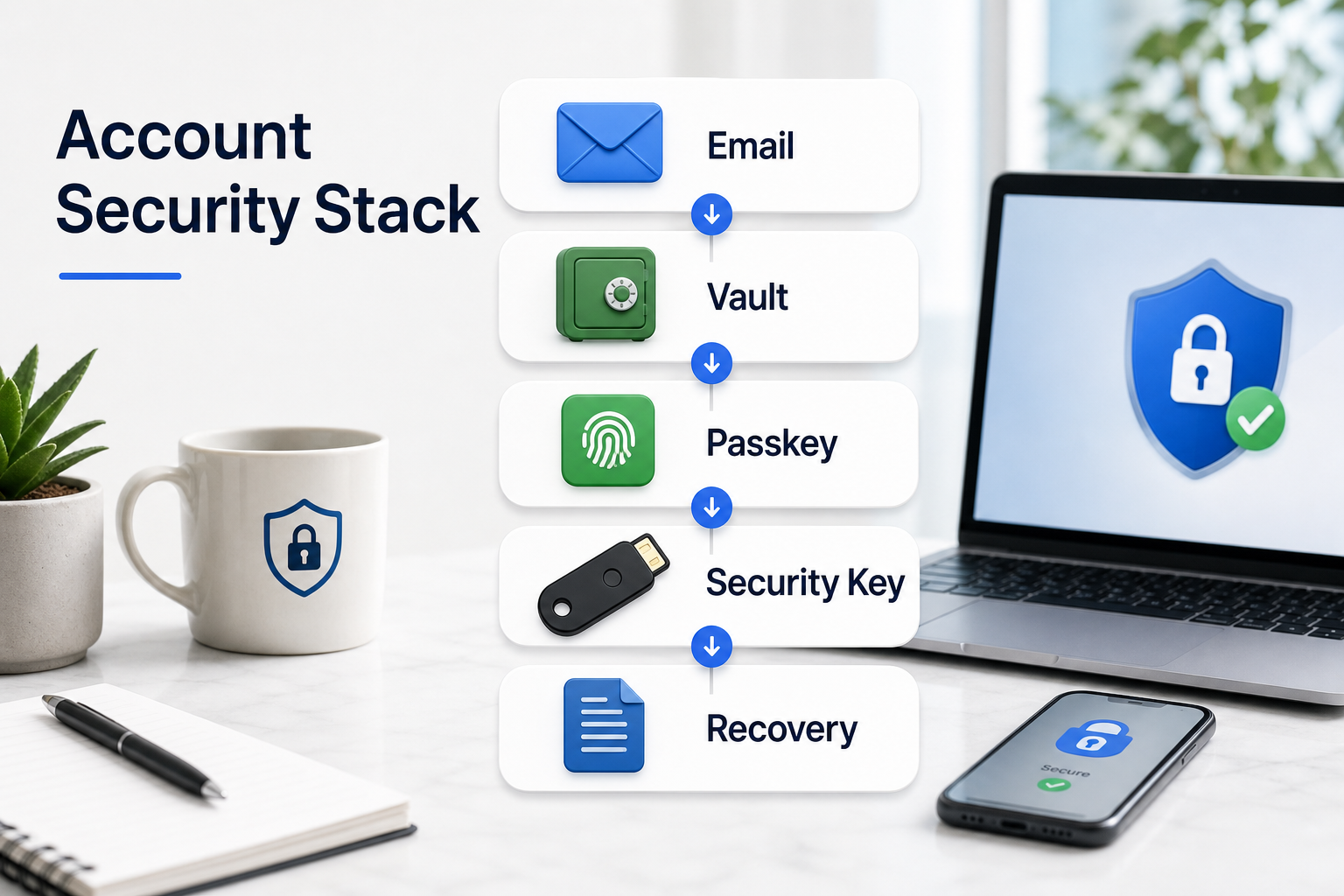
So the best answer is layered. Use passkeys for high-value accounts that support them. Use a password manager for unique passwords everywhere else. Use hardware security keys for accounts where a takeover would cascade into serious harm. Then write down a recovery plan before you need it.
This matters because many modern scams are not trying to beat your cryptography. They are trying to make you open the wrong page. The same pressure patterns that show up in AI text scams also show up in fake account alerts, fake delivery messages, fake security warnings, and fake login prompts. Passkeys help because a fake site should not be able to use the passkey created for the real one. Password managers help because they reduce reuse and autofill only when the saved site context matches.
Why Passwords Are Still the Weak Link
Passwords fail in boring ways. People reuse them. People choose predictable ones. Companies leak password databases. Scam pages capture them. Family members text them to each other. Old accounts keep them forever. A single reused password can turn one breached shopping account into an email, bank, or social media problem.
The old advice did not always help. For years, people were told to create passwords with a capital letter, a number, a symbol, and a forced rotation schedule. That created passwords like Summer2026!, not security. NIST now says password verifiers should not impose composition rules such as forced mixtures of character types and should not require periodic password changes unless there is evidence of compromise, according to the password section of NIST SP 800-63B.
That guidance points to a more realistic model: every important account should have a long, unique password generated and stored by a password manager, unless the account can move to passkeys. You should not be memorizing dozens of secrets. You should remember one strong vault password, protect that vault with strong authentication, and let the manager generate the rest.
AI makes the transition more urgent. A fake login page can now be cleanly written, visually convincing, and paired with a text message that sounds ordinary. A fake QR code can hide the destination until you scan. A fake support message can tell you that your account is locked and your password must be verified. The old "look for bad grammar" advice is weaker than it used to be. Passkeys and password managers both shift protection away from your ability to judge every page perfectly.
What Passkeys Actually Change
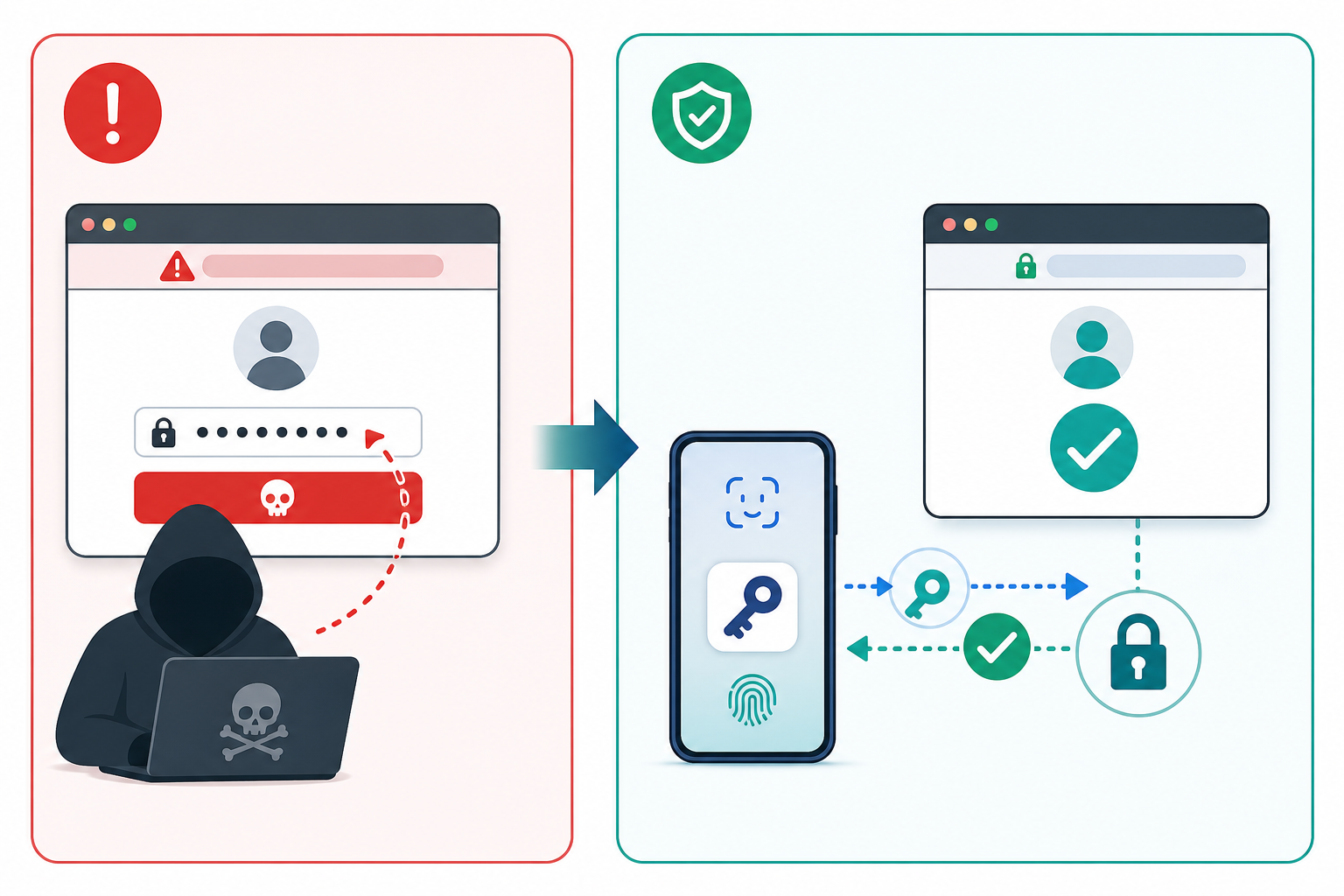
A passkey changes the sign-in model. With a password, you and the website both rely on a shared secret. You type it. The site checks it. If a fake page tricks you into typing it, the attacker can reuse it. If a breached service exposes password hashes and your password is weak or reused, the attacker may be able to use it elsewhere.
With passkeys, the website stores a public key, while the private key stays with your device, hardware security key, or credential manager. When you sign in, your device proves that it has the private key without handing the private key to the site. You usually unlock that process with a fingerprint, face scan, device PIN, or security key touch.
That unlock gesture is not the same thing as the passkey. Your fingerprint is not being sent to every website. Your face scan is not becoming a universal password. The local biometric or PIN unlocks the device or credential manager, and the passkey does the cryptographic sign-in.
Google's security blog post on moving beyond passwords describes passkeys as a safer and more convenient alternative that lets users sign in by unlocking a computer or mobile device with a fingerprint, face recognition, or local PIN. That convenience matters because security that people actually use is better than perfect security they avoid.
Passkeys are especially useful against phishing and credential stuffing because both attacks depend on reusable secrets. A fake login page wants a password, a one-time code, or a session token. A breached service can expose passwords that attackers try elsewhere. With a properly implemented passkey, the fake site should not get a usable secret, and a breached service should not leak a password for reuse somewhere else.
Still, passkeys are not magic. You can lose a phone. A laptop can die. A credential manager can lock you out. A service can keep password fallback enabled. A scam can target account recovery instead of sign-in. A family account can be hard to share when the passkey is tied to one person's device. A work account can restrict which passkey providers are allowed. A bank may not support passkeys yet. This is not really about choosing the future or the past. It is about managing the messy middle safely.
Why Password Managers Still Matter in 2026
Password managers remain useful because the internet still runs on passwords. A 2026 census of the top 100,000 websites found that passkey adoption is uneven and difficult to measure because sites implement passkeys through different flows, hidden buttons, JavaScript-heavy pages, and external identity providers, according to the academic paper State of Passkey Authentication in the Wild.
For consumers, that means many accounts will still ask for passwords. Some will offer passkeys only after you dig through settings. Some will support passkeys on the web but not in the app. Some will support passkeys for new accounts but not old ones. Some will keep passwords as fallback. A password manager is the tool that keeps those gaps from turning into reused passwords.
A good password manager does several jobs. It creates strong unique passwords. It stores them in an encrypted vault. It fills them only when the site or app context matches. It can warn you about reused or weak passwords, though those warnings should not be treated as perfect. It can store recovery codes and secure notes. It can share selected logins with a spouse, partner, child, parent, or assistant without sending passwords through text messages.
Password managers also solve a problem passkeys do not fully solve: account memory. Think about what you actually need to manage: your primary email password, bank login, mobile carrier PIN, child's school portal, router admin password, domain registrar, and so on. A passkey may protect some of those sign-ins, but it does not replace the need for a trustworthy place to store the rest.
Some password managers now manage passkeys too. 1Password's guide to saving and using passkeys says users can save and sign in with passkeys through its browser workflow. Bitwarden documents passkey storage and autofill in its help material on storing passkeys. Those examples matter because dedicated password managers are trying to become credential managers, not just password vaults.
That is good for mixed-device households. If you use an iPhone, a Windows laptop, Chrome at work, Safari at home, and an Android tablet for a child, a single ecosystem vault may become awkward. A dedicated manager can give you one place for passwords, passkeys, recovery codes, and shared family access across platforms. The tradeoff is that you must protect that manager carefully.
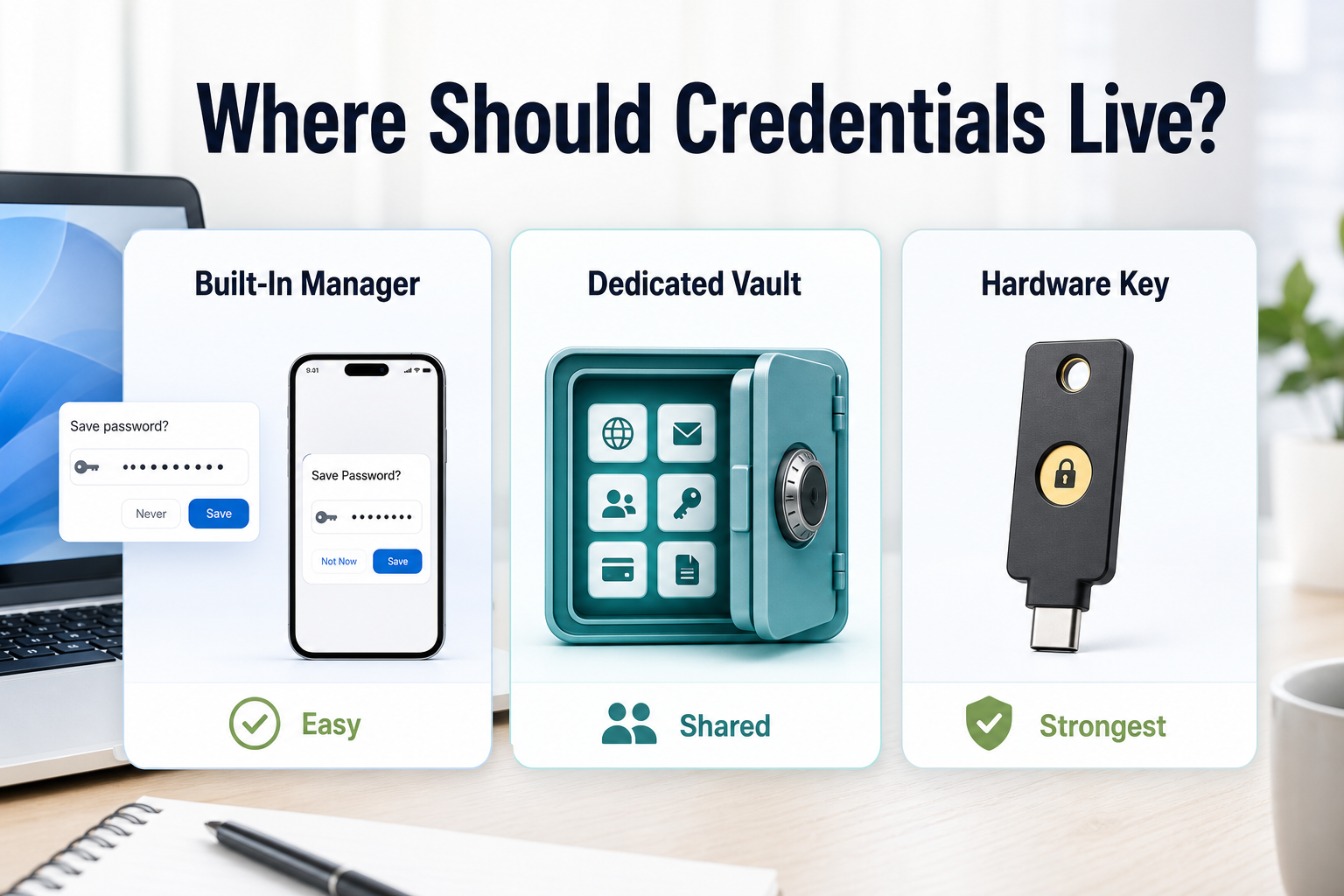
Built-In Manager, Dedicated Manager, or Hardware Security Key?
The product choice is where the decision becomes useful. You are not choosing one abstract technology. You are choosing where your credentials live.
Built-in managers are the easiest path for many people. Apple Passwords and iCloud Keychain, Google Password Manager, Microsoft Password Manager, Windows Hello, Chrome, Safari, and Edge are designed to make sign-in feel native. They are often good enough for people who live mostly inside one ecosystem and do not want another subscription. They also reduce friction for less technical family members. If your household is all Apple and you do not switch browsers much, Apple Passwords may be the most realistic tool you will actually maintain. If you live in Chrome and Android, Google Password Manager may be the path of least resistance. If you use Windows and Edge, Microsoft has built passkey workflows into its account security experience.
Microsoft's guide to creating and saving a passkey says passkeys can be saved to Microsoft Password Manager or another synced credential manager, to a phone or tablet, to a physical security key, or locally through Windows Hello. That menu of choices captures the 2026 reality: passkeys are not one product. They are a sign-in standard that different products store and present in different ways.
Dedicated password managers are better when your life crosses ecosystems. They are also better when you need shared vaults, emergency access, advanced organization, secure notes, cross-browser consistency, or a clearer export plan. This is where products like 1Password, Bitwarden, Proton Pass, Dashlane, Keeper, and similar tools compete. The right question is not "which one is trendy?" The right question is what you need it to do.
Look for several things. Does it support your devices and browsers? Does it support passkeys? Can you share items safely with family? Does it store recovery codes and secure notes cleanly? Can you export your vault? Does it offer emergency access or family recovery? Does the company explain its security model? Does the free or paid plan fit the number of people who will use it? Does it make daily autofill easy enough that you will not work around it?
Hardware security keys are different. A hardware key is a physical authenticator, often USB, NFC, or USB-C, that you use for high-value accounts. It can be excellent for primary email, financial accounts, domain registrars, cloud storage, social media accounts with business value, WordPress admin accounts, and political, legal, or public-facing work. It is not usually necessary for every shopping login. It is also not something to buy as a single key. If you use hardware security keys, buy at least two and register both, because losing the only key can create its own disaster.
NIST treats phishing-resistant authentication as important enough that AAL2 systems must offer at least one phishing-resistant option and should encourage its use when practical. For consumers, that translates into a simple rule: use the strongest practical method on accounts that protect everything else.
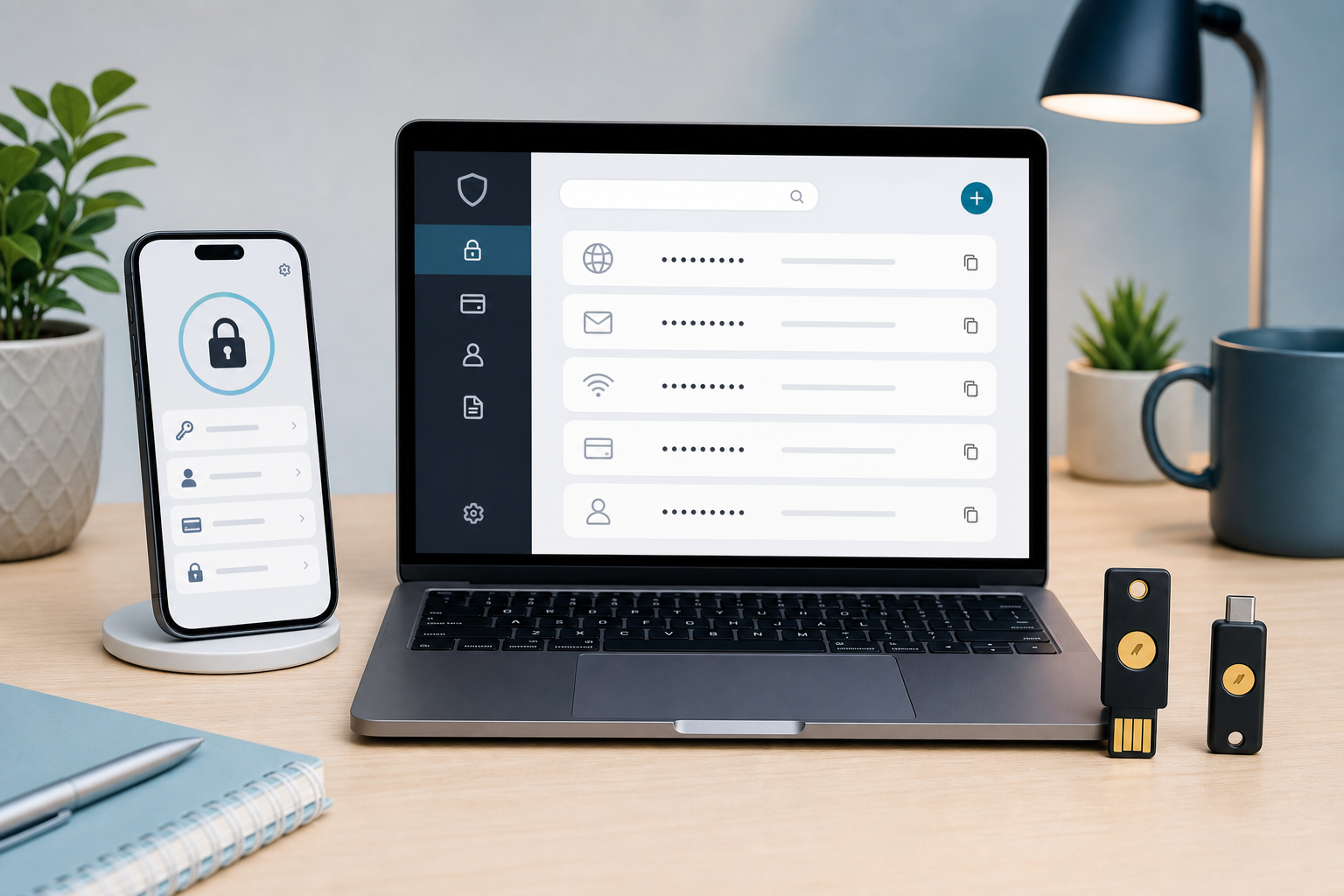
Protect the Accounts That Unlock Everything
Do not try to upgrade every account at once. Start with the accounts that unlock other accounts: primary email, phone ecosystem, bank, brokerage, cloud storage, password manager, mobile carrier, domain registrar, creator accounts, and any work or admin login. These are the accounts where a takeover can cascade.
For those accounts, use passkeys where the service supports them clearly. Keep a long, unique password in your password manager anywhere a password remains. Save recovery codes. Prefer an authenticator app or hardware security key over SMS when the account allows it. Turn on alerts for financial accounts and creator accounts so you notice suspicious changes quickly.
For family, shopping, travel, school, and household accounts, choose the tool that people will actually use. Shared vaults are usually safer than texting passwords or keeping a family password list in an unprotected note. Passkeys are useful when they fit the workflow, but a passkey tied to one person's phone may be awkward for shared accounts. The goal is not theoretical purity. The goal is fewer reused passwords, fewer recovery surprises, and fewer openings for fake login pages.
The Recovery Problem Nobody Should Ignore
Passkeys make login safer, but account recovery remains the soft underbelly. A secure login method is not enough if recovery can be tricked, guessed, socially engineered, or lost.
Start with device loss. If your passkeys are synced through a platform or password manager, a lost phone may not mean lost accounts. If your passkeys are device-bound, losing the device may be more serious. If your password manager requires a master password and a second factor, losing both the phone and the backup codes can be painful. A simple recovery sheet stored safely at home can prevent a bad day from becoming a lockout.
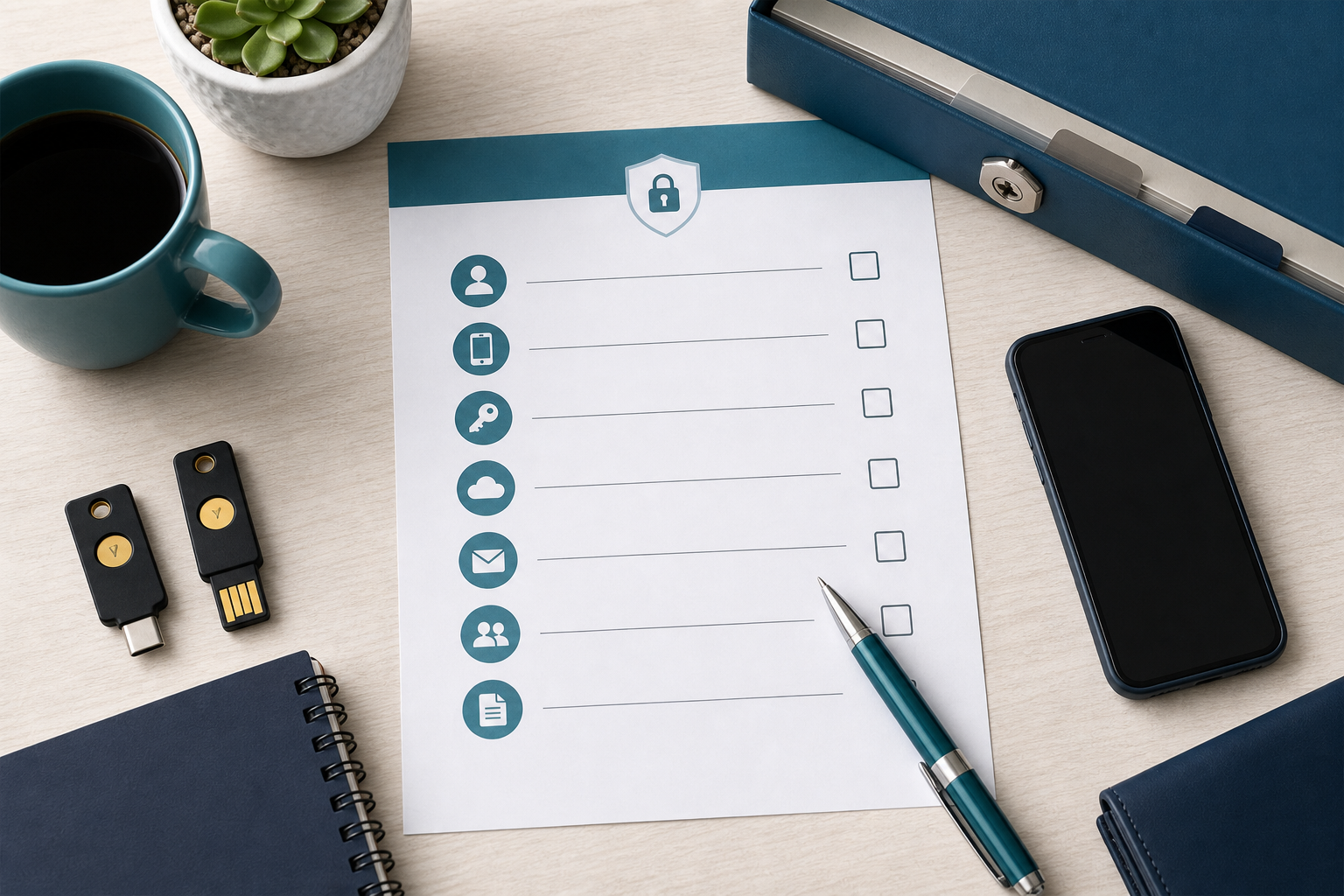
The recovery sheet should not contain every password. It should contain the minimum information needed to regain control: password manager name, account email, emergency kit location, recovery code storage location, hardware key location, backup email, and instructions for trusted family access. If you use hardware security keys, write down where the backup key is stored. If your password manager offers emergency access, configure it before a crisis.
Provider switching is another issue. Passkeys are becoming more portable, but the process is not fully mature everywhere. The FIDO Alliance published draft specifications for secure credential exchange so users can move passkeys and other credentials between providers without transferring them in the clear, according to its announcement on Credential Exchange Protocol and Credential Exchange Format. That is encouraging, but it does not mean every product you use today will make switching painless.
Synced passkeys create another tradeoff. They are easier to recover across devices, but they place more trust in the provider that syncs them. A 2025 academic comparison found that synced passkeys improve availability but concentrate important security assumptions in the passkey provider, according to Device-Bound vs. Synced Credentials. That does not make synced passkeys bad. It means you should choose the provider deliberately and protect that account well.
Finally, account recovery is also a family and estate issue. If you are the only person who can unlock every household account, the household has a resilience problem. A spouse, partner, adult child, or trusted person should know how to find the recovery instructions if something happens to you. The safest credential setup is not the one with the most impressive cryptography. It is the one that can survive real life.
A Simple 2026 Setup That Works for Most People
A practical baseline is simple: pick one credential home, protect it well, and stop scattering important logins across five places. That credential home can be Apple Passwords, Google Password Manager, Microsoft Password Manager, or a dedicated password manager. The right choice is the one that fits your devices, browsers, family sharing needs, and recovery plan.
Once you have chosen it, clean up the accounts that can cause the most damage first. Move supported accounts to passkeys. Replace reused passwords with generated ones. Store recovery codes. Add hardware security keys to the accounts that would hurt most to lose. Review recovery settings twice a year, especially old phone numbers, backup emails, shared vault members, and backup key locations.
This setup is not glamorous. That is the point. Security that depends on heroics fails. A good account-security setup should be easy enough that you keep using it when you are tired, traveling, distracted, or helping a family member log in.
Conclusion
Passkeys are the direction of travel. They are a major improvement over passwords for accounts that support them, especially because they blunt the power of phishing pages and stolen credential databases. But passkeys do not eliminate the need for a password manager in 2026. They change what the password manager is for.
The best answer is a layered setup. Use passkeys where they work. Use a password manager everywhere passwords still exist. Use hardware security keys for the accounts that protect your money, identity, business, or reputation. Build recovery before you need it.
The goal is not to become a security hobbyist. The goal is to make account takeover harder, recovery easier, and daily sign-in boring. Boring is good. Boring means your system works.
Related reading: if you are tightening account security at home, review the guide to cheap router security risks, because weak home devices can undermine strong account habits.
For more practical AI and cybersecurity guidance for everyday digital risks, subscribe here.
FAQ
Do passkeys mean I can delete my password manager?
No. Passkeys reduce your dependence on passwords, but they do not eliminate all the other things a password manager does. You still need a place for password-only accounts, recovery codes, secure notes, shared family logins, Wi-Fi credentials, identity details, and backup instructions. Some password managers can also store passkeys, which makes the choice less binary.
Are passkeys safer than two-factor authentication?
Passkeys are often safer than password plus SMS or password plus one-time code because they are designed to resist phishing. A scam page can trick you into typing a password and a code. A properly implemented passkey should not give the fake site a reusable secret. That said, some accounts still keep fallback methods, so the whole account recovery setup matters.
Should I store passkeys in Apple, Google, Microsoft, or a dedicated password manager?
Use the place you can maintain reliably. Apple, Google, and Microsoft built-in managers are convenient if you mostly stay in one ecosystem. A dedicated password manager is usually better if you use mixed devices, multiple browsers, family sharing, or want one vault that is less tied to a single platform. For high-value accounts, consider adding hardware security keys.
What if a website does not support passkeys?
Use a long unique password generated by your password manager. Turn on the strongest available MFA option, preferably an authenticator app or hardware key instead of SMS when the account supports it. Store recovery codes in the password manager. Revisit the account later because passkey support is still expanding.
Should I buy a hardware security key?
Maybe. Most people do not need hardware security keys for every account. They are most useful for primary email, financial accounts, cloud storage, domain registrars, business admin accounts, and social media accounts with real value. If you buy one, buy two and register both so losing one key does not lock you out.
What happens if I lose my phone?
It depends where your passkeys and recovery methods live. Synced passkeys may be recoverable through your platform or password manager. Device-bound passkeys may not be. That is why you should keep backup devices, recovery codes, hardware key backups, and password manager recovery instructions in a safe place before the phone disappears.