
Cloud storage is convenient, but a synced folder should not be your only backup. When syncing is enabled, saving a document on your computer updates the cloud copy automatically. You can then open the updated document on another device.
That automatic update can also copy a change you did not want. If ransomware encrypts files on your computer so you cannot open them, those encrypted files can be uploaded to the cloud too. The NCSC's ransomware guidance explains this risk and recommends keeping backups offline, protecting older cloud versions, and checking that you can restore files. Some cloud services keep older versions you can recover, but the available versions and recovery period depend on the service and your account.
This is why a separate, disconnected backup matters. Copy your important files to an external drive, check that the backup finished, then safely eject and unplug the drive. While the drive is disconnected, malware on that computer cannot change the files on it. The FBI's ransomware advice recommends regular backups kept disconnected from the computers and networks they protect.
This guide explains what to copy, how common backup tools work, and how to check that you can get your files back. If files are already locked or you suspect an infection, start with the immediate steps below before connecting a drive or trying a restore.
Key Takeaways
- Cloud syncing can upload ransomware-encrypted files as well as changes you made yourself.
- Check whether your cloud service keeps older file versions and how long you have to restore them.
- Keep a separate backup of important photos and documents. Safely eject and unplug a removable backup drive after an update finishes.
- On a healthy computer, restore a few sample files to a temporary folder and open them. Leave the originals where they are.
- If you suspect ransomware, keep backup drives away from that computer and get trusted help before restoring anything.
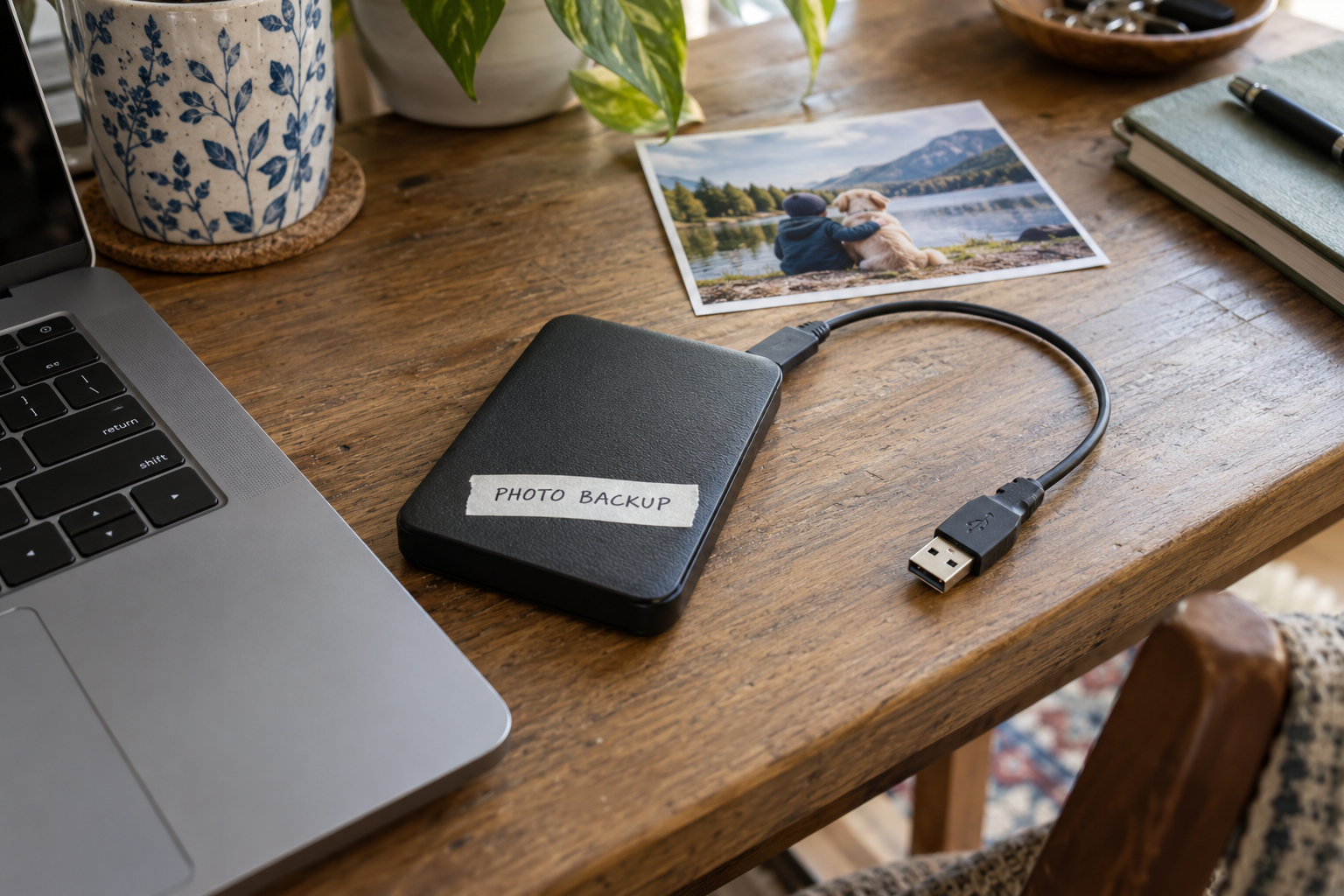
If files are already locked, protect the copies you still have
Files that suddenly will not open, unexpected changes, and a payment demand need prompt investigation. A frightening browser message alone does not establish that ransomware encrypted your files. Avoid experimenting while you work out what happened.
- Disconnect the suspect computer from Wi-Fi and unplug any network cable. Stop using its shared drives. Leave preserved backup drives disconnected.
- Use another trusted device to contact a known repair provider or security professional. Explain what changed, when it started, and which drives were attached. For a managed work or school device, contact its IT team instead.
- Record the message and the actions you took. Do not follow the sender's links or install a suggested recovery tool. Tell your helper before sharing sensitive household records.
- Ask what evidence should be preserved before erasing or reinstalling the computer. If files are still being damaged, get advice promptly about shutting it down.
- Keep the remaining copies separate until the helper has assessed both the destination computer and the selected copy. Restoring files onto an infected computer can expose them again.
The NCSC's immediate incident-response guidance, written for organizations, explains the tradeoff: network isolation can limit spread, but malware may keep changing local files. Shutdown can stop running processes and lose useful evidence. Household readers should seek help promptly rather than treat either action as a complete cleanup.
If you do not have a usable backup, preserve the affected files where feasible and ask about recovery options. The absence of a copy does not make the attacker's payment promise reliable. The later recovery section explains how to assess saved files, look for an applicable decryptor, and address possible information theft alongside file recovery.
Cloud syncing can copy ransomware-encrypted files
Syncing means keeping files up to date in more than one place. If you edit a document in a synced folder on your laptop, the cloud service uploads the edited version. If you delete a synced file, that deletion may also reach the cloud and your other connected devices. The exact behavior depends on the service and its settings.
Ransomware is malicious software that can encrypt files and demand payment to unlock them. Encryption changes the file so you cannot open it without the right decryption key. A syncing service may upload that changed file just as it uploads a document you edited. A copy visible in the cloud is therefore not enough by itself to show that you can recover the original.
Earlier versions can help. Your provider may let you select an older version of a document or restore an account to an earlier date. Check the provider's recovery instructions, the dates available in your account, and any subscription requirement. Do this before relying on a feature you have never used.
A disconnected backup provides another copy. Once you unplug its drive, the computer cannot keep changing that copy. The backup will contain the files saved during its last completed update, so check the date and which folders were included. An old backup may contain last year's photos but miss photographs you took yesterday.
List the photos and documents you need to back up
Start with files you could not easily recreate: original photos and videos, school projects, creative work, and important household documents. Check every device that holds those files. Your own laptop may not contain the photographs on another family member's phone or the coursework on a child's computer.
Write down where the files are stored. For photos, that might be a phone's photo library, a cloud account, an old camera card, and folders on a computer. For documents, check the folders and applications each person actually uses. A backup of your Documents folder will not include a project saved somewhere else unless you add that location.
Ask each person to open a few files they want to keep and show you where they are saved. Record the folder or account, who manages it, and how it will be backed up. If a file needs a particular application to open it, record the application's name. Store passwords in your password manager or another secure place, separately from an ordinary household checklist.
Check the actual files you copy. A thumbnail is a small preview of a photograph; it is not a substitute for the full-resolution original. If a cloud library holds your originals, use the service's download or export instructions to save the files you want on the external drive. Open a few downloaded images to check their size and quality. Include recent photos as well as older ones; a familiar album on the drive does not show that yesterday's photographs were copied.
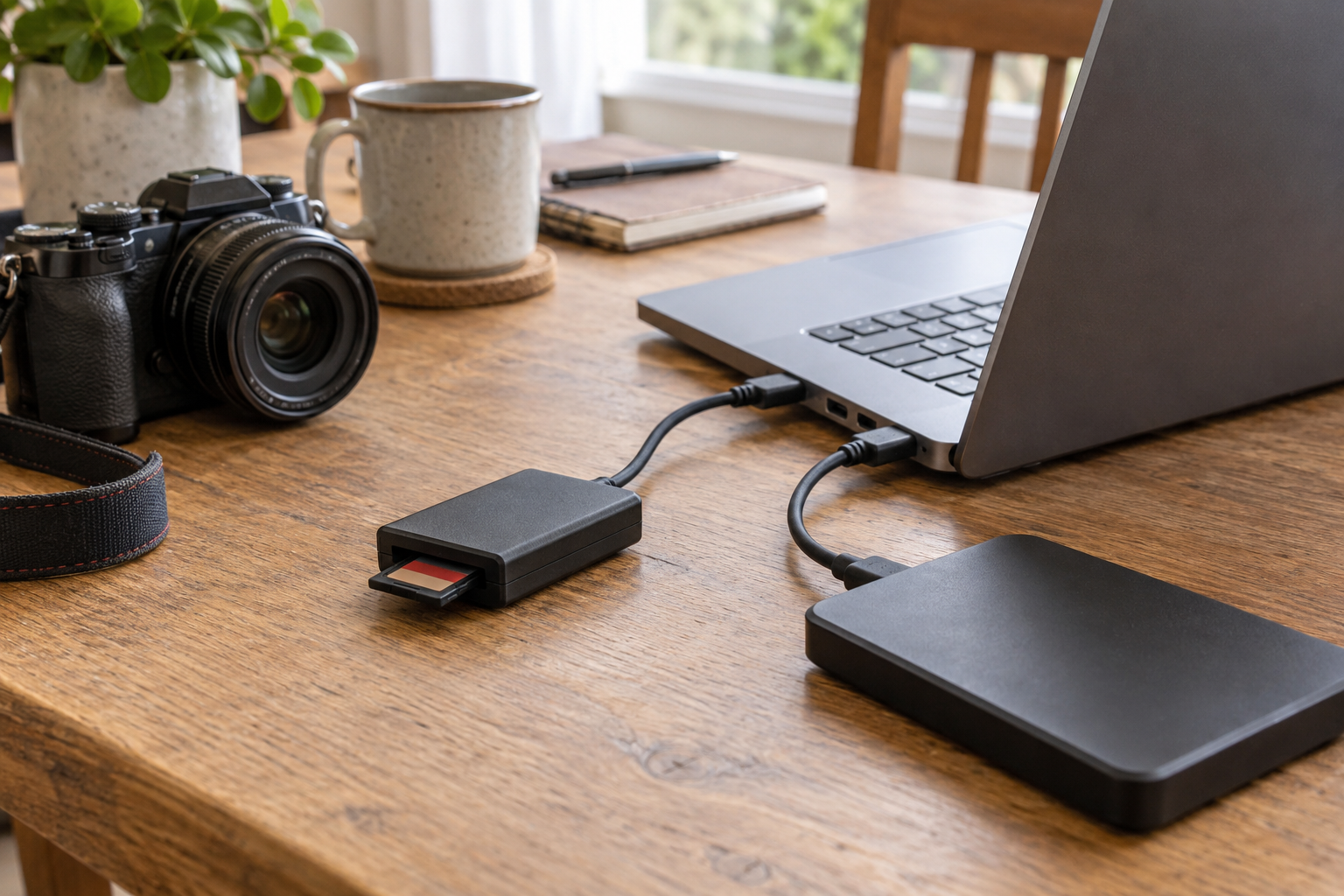
For current work, decide how many recent changes you could accept losing. If a student works on a project every evening, a backup made several weeks ago will not contain that work. Update those files more often than an archive that rarely changes. After a major family event, copy the new photos rather than assuming the usual backup already includes them.
For work or school-managed devices, ask the organization's IT team what it backs up and how to recover files. Follow its rules for organizational records. Do not put those records in a personal cloud account or on a personal drive unless the organization allows it.
Keep an external backup drive disconnected after an update
The NCSC's advice on backing up family data recommends keeping a copy in a separate safe location. It covers cloud and removable storage, recommends disconnecting removable media when it is not being used, and suggests both cloud and removable copies for irreplaceable files.
When updating the drive, connect it to a computer you believe is healthy and run the backup. Wait for the tool to report that the job completed. Check for errors, confirm the date of the latest backup, and make sure the folders you intended to copy are included. Then use the operating system's eject command and unplug the drive.
If you are manually copying files instead of using backup software, wait for the copy operation to finish and check the destination folder before ejecting the drive. If your backup is encrypted, make sure you know where to find its password. A backup you cannot unlock will not help you restore files.
Do not assume that two folders on one disk are independent backups. If the disk fails, you may lose both. If malware can change both folders, it may damage both. A separate drive and, where practical, another copy stored securely elsewhere reduce dependence on the same computer and location.
Choose where to store the disconnected drive and who will update it. If the drive is kept outside your home, arrange how it will be brought back for updates. Protect sensitive files on a drive that another person might find, and keep any encryption password somewhere you can access if the computer fails.
Check what Windows Backup, File History, and OneDrive save
Windows has several tools that can help you recover files, but they do different things. Check which one is enabled, which folders it includes, and where it saves the copies. Do not assume that every file on the computer is covered because one backup feature is switched on.
Microsoft's Windows Backup explanation describes syncing selected Desktop, Documents, Pictures, Videos, and Music folders to OneDrive. This consumer app uses a personal Microsoft account, which includes 5 GB of free storage. It can also save settings and application information to help set up another device.
Open the backup settings and check which folders you selected. Look for any warning about insufficient cloud storage or an incomplete upload. A file saved outside those folders needs another backup method or a change to the selected locations. If you expect a file to be in OneDrive, sign in to its website and check that it is there. Saving information about an application does not mean every application has been reinstalled on a replacement computer.
Microsoft's File History instructions describe saving versions of personal files to an external drive or a network location. File History covers libraries, and you can include other folders by adding them to a library. Its settings are in Control Panel.
Check the destination shown in those settings. If you use a removable drive, it must be connected while File History writes the backup. When that update has finished, safely eject and disconnect the drive if you want to keep that copy separate from the computer. Check the latest completed date when you reconnect it for the next update.
To recover a file, Microsoft's instructions let you inspect dated versions through Restore previous versions on the original folder. The usual restore action replaces the current version, and Microsoft warns that this cannot be undone. Use Restore to… when you want to save the recovered file somewhere else. For a small test, choose a temporary folder and leave the current file untouched.
Microsoft's whole-OneDrive restore option requires Microsoft 365 and can undo file and folder activity from the previous 30 days. You use its activity chart and feed to choose an earlier point. Files permanently deleted from the recycle bin cannot be recovered with that feature.
Choose the recovery method according to the damage. If you accidentally overwrote one document, an earlier version of that document may be enough. If many files changed, the account-wide restore may help if your subscription and available history support it. Check the dates before you start, and keep a separate backup so those cloud features are not your only recovery option.
Use Time Machine for Mac backup and check your cloud photos
Apple's Time Machine guide describes automatic Mac backups to an external storage device. Apple recommends a disk with at least twice the Mac's storage capacity. An encrypted backup protects its contents with a password, and you need that password to restore the files. Keep the password somewhere you can open from another trusted device if the Mac stops working.
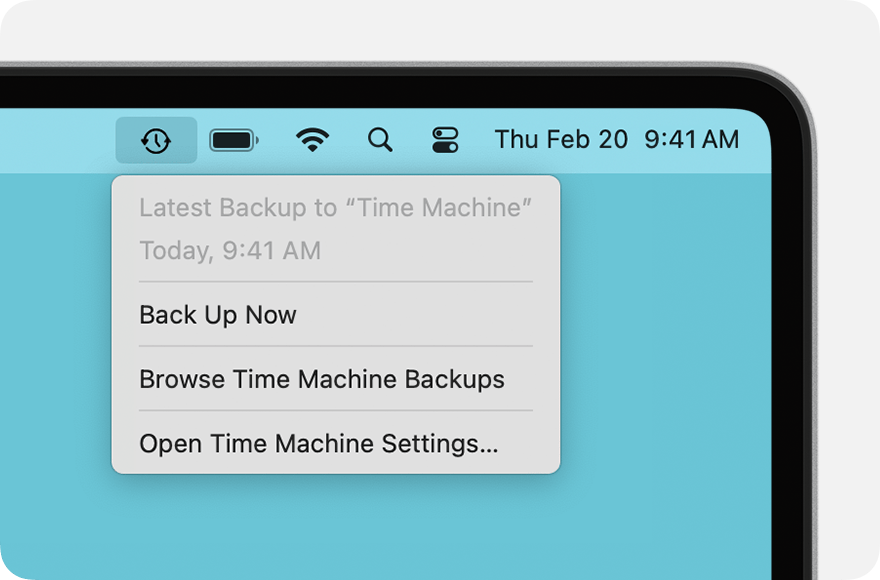
Open the Time Machine menu and check whether a backup is still running or has completed. Record the latest completed date. Time Machine keeps hourly, daily, and weekly copies as disk space allows, then deletes the oldest backups when the disk fills. A file saved after the latest completed backup may need another backup before you disconnect the drive.
Check that the backup contains the folders and files you intend to save. While the Mac is healthy, restore a few harmless samples and open them. After the backup finishes, safely eject the drive before unplugging it. Time Machine backups resume when you reconnect the drive. Do not reconnect it to a Mac you suspect is infected merely to finish the usual update.
Apple's iCloud storage guidance explains that deleting a photo from iCloud Photos also deletes it on other devices signed in to the same Apple Account. Recently Deleted normally allows 30 days for recovery. Apple warns that deleted photos can be immediately unavailable there if you exceed the iCloud storage limit. Shared-album deletions can also be immediate.
If iCloud reports that its storage is full, check which uploads and backups stopped. Running out of space stops new photo uploads and device backups. Older photos can remain visible in the cloud while the newest photos have not uploaded. Check the photo library and device backup separately; a completed device backup and a completed photo upload are different actions.
Google's current Photos deletion guidance gives a 30-day Trash period for backed-up items in the latest app and for unbacked-up items deleted on Android 11 and later. Check the current policy and the recovery options available in your account before relying on that period. Deleting through the app removes the same items from the device. Backed-up content is also deleted on other devices with backup enabled.
Google says permanently deleted items cannot be recovered with Takeout, its data-export tool. Archive changes where a photo appears in Google Photos; it does not create another copy. Do not delete an irreplaceable photograph to test recovery instructions. Use a harmless sample and leave its original untouched.
Store backup passwords where you can open them from another device
An encrypted backup drive cannot be opened without its password. A cloud account may require a password and another sign-in step. If that information is stored only on the computer that failed, you may have the copied files but no way to open them. Check how you would sign in or unlock the drive from another trusted device.
List the accounts, passwords, and applications needed for recovery. The list can identify the cloud account that owns a photo library, the external drive's location, and the application needed to open an archive. An archive is a file containing other files; record which application reads yours. Keep the actual passwords in your password manager or another secure place, not in an ordinary household note.
If a password manager stores the backup password, check how you would sign in to that manager without the everyday computer. If signing in requires your phone, check the account's recovery instructions for a lost or unavailable phone. Record the recovery method you have actually configured. Writing down an option you have not set up does not make it available later.
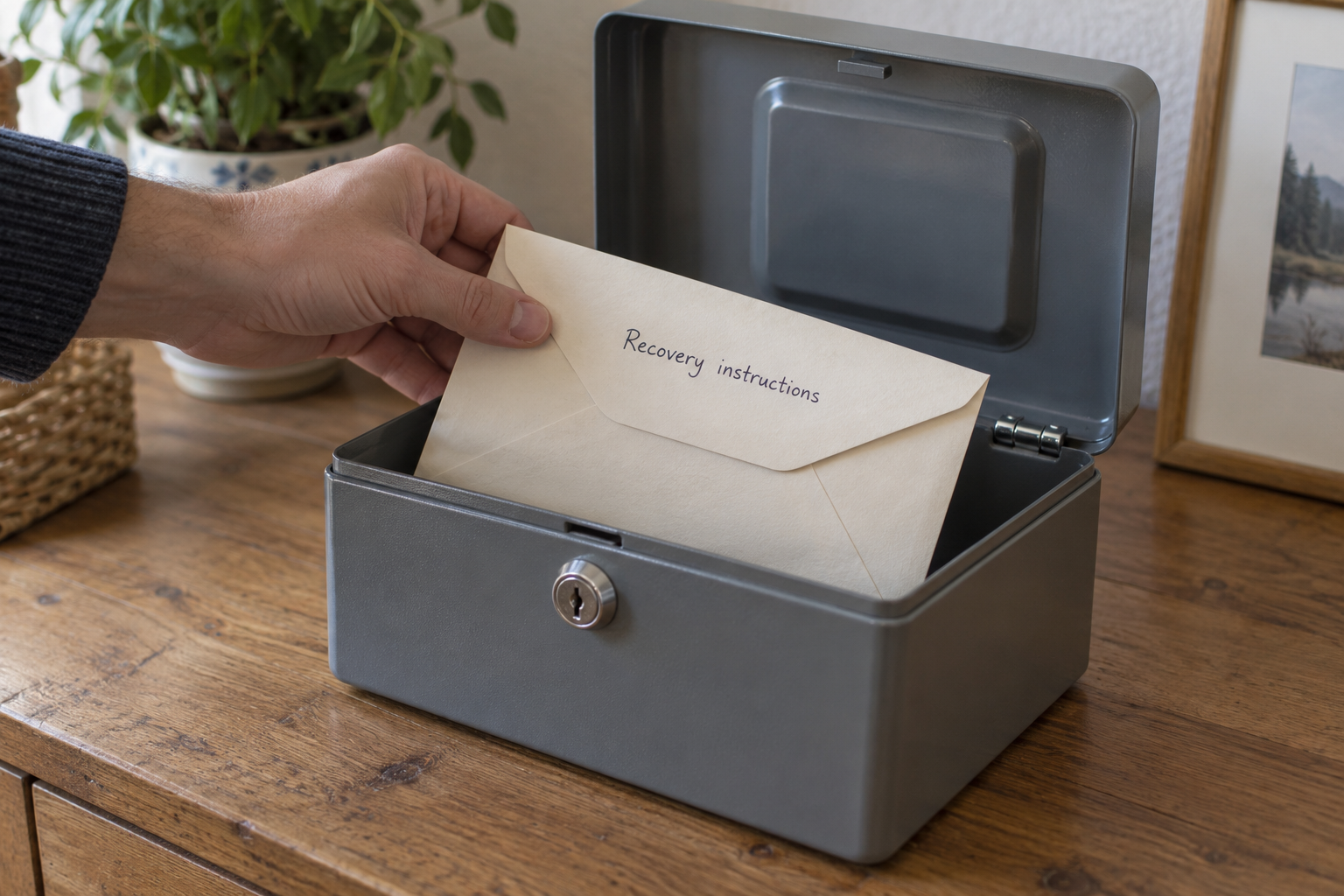
Our Passwords, Passkeys, and 2FA Explained guide explains the account-security settings involved. Use it to identify the sign-in requirements for the accounts on your backup list. Store account recovery information securely and tell a trusted person where to find the instructions if you need help.
Limit what a helper receives to the recovery task. Someone restoring a child's school project may need that folder and the application that opens it. That task does not automatically require every household record or access to an entire cloud account. Explain which files you need recovered before sharing private material or account access.
Decide who may retrieve the protected recovery information and how they will do that if the account owner is unavailable. The household note can name that person without displaying the password.
Try recovering a few files from your backup while the computer is healthy
Test file recovery while the computer is working normally. If you already suspect an infection, keep preserved copies disconnected and use the incident steps above.
Choose a nonsensitive photograph, a document, and a project from an application you regularly use. Create a temporary folder for the restored copies. Restoring means copying saved files from a backup into a location where you can use them again. For this test, restore into the temporary folder so the current originals remain unchanged.
If the backup saves earlier versions, include a harmless sample that you changed after its first backup. Select the earlier date in the recovery tool. Follow the tool's instructions for previewing the file or choosing another destination. File History's Restore to… option, for example, lets you choose another location instead of replacing the current folder. If you cannot identify a safe destination, check the supported procedure before continuing.
Open each recovered file. Check that the photograph has the expected quality, the document contains the expected text, and the project opens in its application. If you restored an earlier version, check that it contains the earlier work you selected. A filename in a folder does not establish that its contents are usable.
Correct any problem the test reveals. If a photo is missing because its folder was omitted, add that folder to the backup. If an archive needs an application installed only on the old computer, record the application and how to obtain it. If you cannot find the drive password, resolve that problem before depending on the drive for recovery.
Record the backup date you restored and the date of the test. The backup date identifies the saved copy you used. The test date records when you retrieved and opened those samples. The test does not prove that every other file is recoverable or that the same copy will be clean after a future infection.
When finished, remove the temporary copies according to their sensitivity, leaving the originals and useful backups intact. You do not need to erase or reset a healthy computer to check whether a few photos and documents can be restored. A whole-computer recovery test is a separate task with different instructions and consequences.
Set dates and responsibilities for backup updates
Choose an update interval based on how much recent work you could accept losing. If a school project changes every day, a month-old backup will omit those changes. If an archive has not changed, copying it again will not preserve any new work. Copy photographs from an important event promptly if you cannot recreate them.
Assign a household member to update the removable drive. That person should check that the backup job completed and the intended files were copied, then safely eject and unplug the drive. If the software reports an error or insufficient storage, find which files were not copied. Until the problem is corrected and another update completes, do not treat the newest files as backed up.
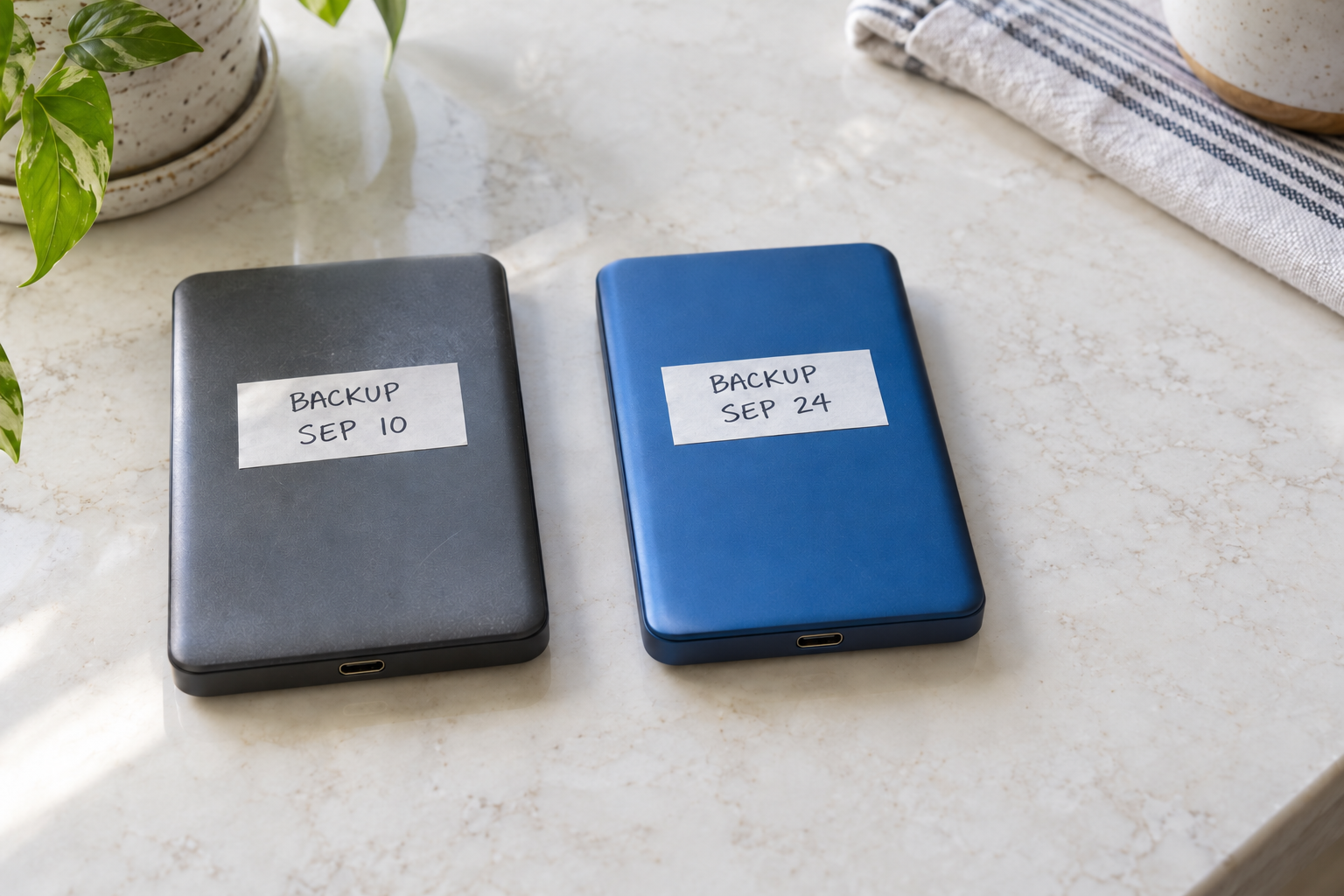
Keep a short note listing important folders and photo libraries, their backup destinations, the last completed dates, and the location of the recovery instructions. Name the person responsible for each account or drive. Keep passwords in their separate protected storage. The note should let another trusted household member find the correct drive or account without searching the failed computer.
Revise the list when files move. When replacing a phone, buying a laptop, changing a photo account, or leaving a school, check where the original files now reside. Confirm that the backup includes the new locations. Updating the old folder will not copy new work saved somewhere else.
If the person who normally updates the drive will be away, show another trusted person how to complete the update and disconnect the drive. A reminder records when you intended to make a copy; the completed status records whether the software actually finished.
Our Home Network & Device Security hub explains related ways to protect household computers and devices. Apply those precautions alongside regular backups. Preventing an infection and preserving copies of your files are separate tasks, and both need to be carried out.
Plan a safe recovery if ransomware already happened
The first response protects what remains. Recovery then requires decisions about the computer, the saved files, and any accounts or private information affected. Tell the helper which outcome matters most: a current school project, original photographs, or records needed for a household deadline. This helps identify which files to assess first without handing over every private folder.
Get help before wiping or reconnecting the device
Describe the incident using concrete details: files that changed, the first time you noticed it, the message displayed, and the drives attached at that time. A drive connected during the incident needs assessment; a date label does not establish whether its contents were affected. Leave the copies separate while your helper decides which can be examined safely.
The NCSC's immediate incident guidance distinguishes isolation from cleanup. Discuss continuing file damage and shutdown promptly. Do not leave a computer running simply because you read that shutdown can lose evidence; the helper needs to weigh the current damage against the information needed for recovery or investigation.
For a work or school device, contact its managing IT team immediately. Follow that team's incident instructions. Do not wipe the device, copy organizational files to personal storage, or attempt your own rebuild while waiting. The team responsible for the system needs to decide how evidence and organizational records are handled.
Preserve evidence and assess the backup before restoring files
Keep existing messages and record the actions you have taken. Photograph a visible demand if that helps describe what appeared. Do not open an unfamiliar link or contact the sender to obtain more evidence. Tell the helper which files are sensitive before sharing material for diagnosis.
Before anyone erases or reinstalls the computer, ask what evidence needs to be preserved. Restoring files requires assessment of both the destination computer and the chosen backup. Ask your helper to assess the selected backup for compromise and scan it where appropriate before restoring to a known-clean device. An earlier backup date alone does not prove that copy is clean.
The assessment should establish whether malware affected the saved copy as well as the computer. Keep affected originals where feasible so investigation or recovery does not depend on one file. Do not run an unfamiliar recovery tool against your only copy. Restoring files to a computer that remains infected can let malware damage them again.
Check whether a decryption tool applies and report the incident
The official No More Ransom project provides decryption resources. Decryption restores encrypted data to a readable form, but a tool must apply to the ransomware involved. No solution is available for every ransomware type. Ask trusted help whether an appropriate tool exists before running unfamiliar software or uploading private documents. Preserve your remaining copies.
The FBI directs victims to its field offices or IC3 and does not support paying a ransom. Payment does not guarantee that files will be returned. Report what happened and get recovery help. Do not rely on the attacker's promise to return your files.
Tell the helper about account problems or suspected exposure of private information as well as files that will not open. Use another trusted device for account recovery rather than entering new credentials on the suspect computer. Ask which accounts and documents need attention based on what was accessible. Recovering photographs does not show that an account is secure or undo stolen information. After the immediate incident is addressed, our Cybersecurity Basics hub explains related prevention steps.
Conclusion
List the photographs, documents, and projects your household needs to keep. Make a separate backup of those files. Check that the backup finished, then safely eject and unplug the drive. While the computer is healthy, restore a few harmless files into a temporary folder and open them. Store the passwords and instructions securely so you or a trusted helper can open the backup from another device.
If you suspect ransomware, disconnect the affected computer from the network and leave preserved backup drives unplugged. Get trusted help to decide what evidence to retain, whether shutdown is necessary, and which files can be restored safely. Assess the selected backup and the destination computer before restoring anything.
Subscribe to Quantum Cyber AI for practical guidance on everyday digital safety.
FAQ
Is OneDrive or iCloud Photos enough for a family backup?
Check which files the account stores and what it can recover after changes or deletion. Synchronization updates the cloud copy when local files change, so unwanted changes can be copied too. For irreplaceable files, keep an independent backup containing the originals you need. A disconnected drive preserves another copy that the computer cannot update while the drive is unplugged. Test recovery from that copy while the computer is healthy.
Should I leave my external backup drive connected?
Safely eject and unplug a removable backup drive after its completed update. A disconnected drive cannot receive new file changes from the computer until it is reconnected. Set the next update date and identify who will perform it. If you suspect the computer is infected, leave the drive disconnected while a trusted helper assesses the computer and saved copies. Do not reconnect it simply to keep the usual update schedule.
How often should I back up photos and documents?
Choose an interval based on how much new material you could accept losing. If you revise a document daily, a weekly copy omits changes made since that copy completed. Make independent copies of important event photographs promptly. Check the latest completed backup date and its files rather than relying on a reminder or a planned update. Change the routine when your files or devices change.
Can a decryptor recover every ransomware-encrypted file?
No. No More Ransom does not offer a solution for every ransomware type. Ask trusted help whether an available tool applies to the infection involved. Preserve affected files where feasible and avoid experimenting on the only remaining copy. A possible decryption tool does not remove the need to assess the destination computer and the selected backup before restoration.
Do I need to reset my computer to test a backup?
No. Restore a few harmless files into a temporary folder on a healthy computer, leave the originals in place, and open the restored copies. That checks whether you can retrieve and use those samples without erasing the computer. A full-device recovery is a different task. If you already suspect an infection, keep the backup disconnected and get recovery help before attempting a test.